
Canva AI for Beginners: Where to Actually Start
Quick Answer
Yes — Canva AI genuinely works for beginners with no design background. Tools like Magic Design and Magic Media build the actual layout and imagery for you; your job is choosing the direction and packaging the result to sell. The one thing almost no beginner guide explains: you can't resell raw AI-generated content on its own — it has to become part of an original product. That rule, and a real example (wedding stationery templates) showing how to niche down instead of copying the obvious idea, are both covered below.
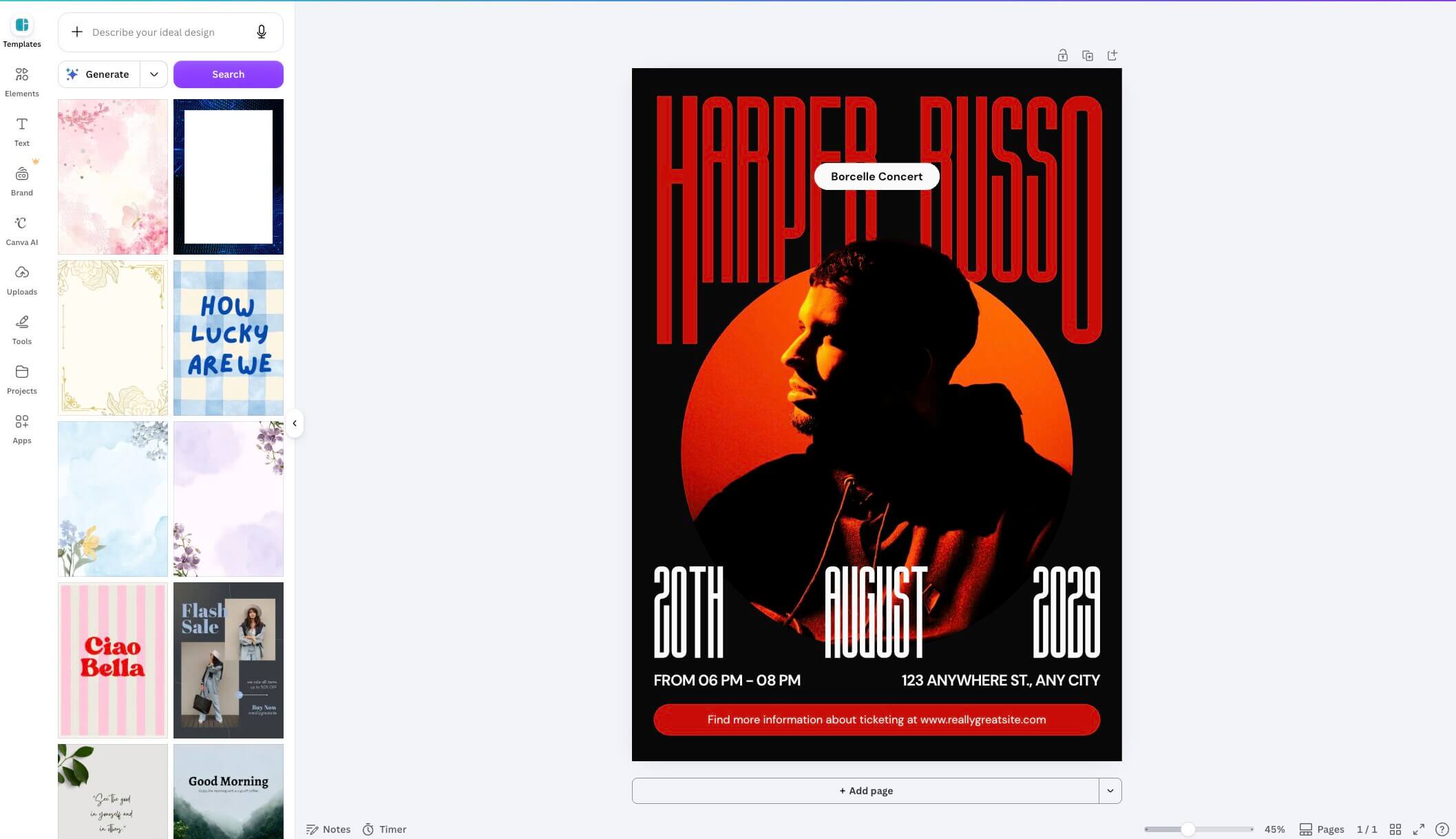
Canva AI for beginners with zero design skills isn't a hard sell — it's the whole point of the tool. Canva's AI features (Magic Design, Magic Media, Magic Studio) now handle the layout, color, and composition decisions that used to take years of design training to get right.
Your job isn't to design. It's to pick what to make, package it well, and put it in front of the right buyer. That's genuinely lazier than learning design software — but it's not zero effort, and this guide won't pretend it is.
Does Canva AI Really Need No Design Skills?
Type "5 Instagram post templates for a coffee shop" into Magic Design, and Canva builds five complete layouts in under a minute — fonts, colors, and spacing already handled. That's the entire trick behind Canva AI for beginners: the AI makes the design decisions, you make the business decisions.
The three tools that do the actual work:
- Magic Design — turns a text prompt or uploaded photo into full design layouts you can edit
- Magic Media — generates original images, graphics, and backgrounds from a text prompt
- Magic Studio — the umbrella of AI tools inside Canva, including background remover and Magic Resize
You can test all of this on Canva's free plan before spending anything. That matters — you shouldn't pay for Canva Pro before you know whether you'll actually finish and list a product.
What Can You Actually Sell — and Where's the Line?
Here's the part most beginner guides skip entirely: Canva's AI Product Terms let you use AI-generated output commercially, but you can't resell it standalone. It has to become part of an original design or product you built — not exported and resold as-is.
That's not a scary legal warning, it's a practical rule that protects your shop from getting flagged. In plain terms: if you generate a background with Magic Media and build a full planner page around it — your layout, your text, your branding — you're fine. If you just export that background image and sell it alone, you're not.
5 Design Product Ideas That Clear This Rule Easily
- Editable Instagram or TikTok content templates for a specific niche (fitness coaches, real estate agents, Etsy sellers)
- Printable planners and trackers (budget planners, meal planners, habit trackers)
- Presentation and pitch deck templates for students or small businesses
- Wedding and event stationery suites (see the real example below — this one needs a specific angle to work)
- Digital wall art and print-on-demand designs built around AI-generated elements
Real Example: Wedding Stationery Templates
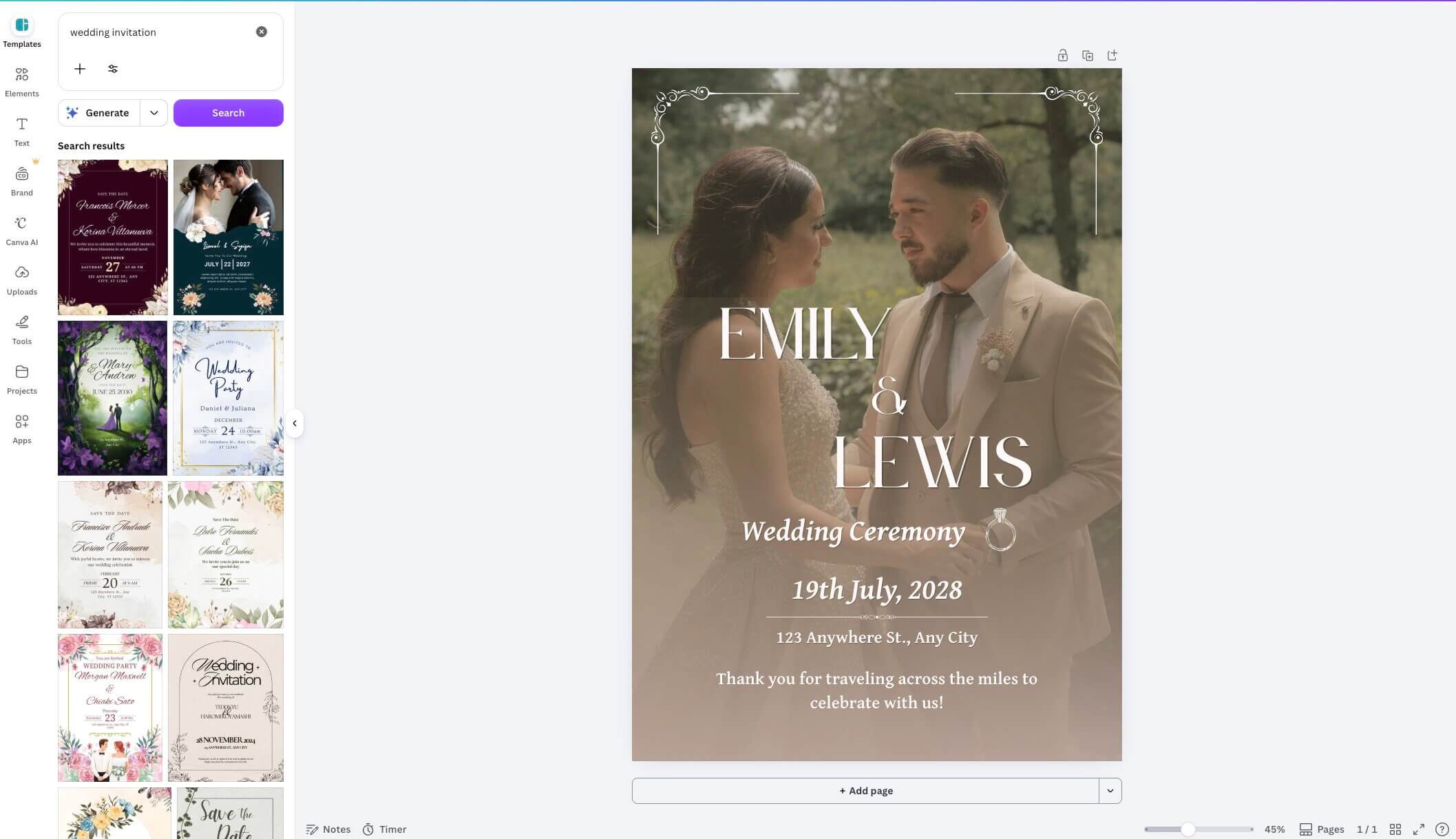
Wedding and event templates are consistently one of the top-selling digital product categories on Etsy — couples want stationery that feels personal without hiring a designer, and Canva AI makes building a full editable suite fast. It's a genuinely good example of what this whole guide is about.
Here's the honest part: this is not a low-competition niche. It's one of the most saturated categories on Etsy, precisely because it's the first idea almost every new seller reaches for. A plain "wedding invitation template" listing is competing against thousands of near-identical shops.
The Angle That Actually Works
Instead of a generic invitation, the sellers who do well in this space narrow down in one of three ways:
- One specific style — boho micro-wedding suites, a specific cultural stationery style, minimalist elopement invites — instead of "elegant wedding invitation"
- A piece other than the invitation — seating charts, menus, welcome signs, and RSVP trackers see far less competition than the invitation slot itself
- Selling to vendors, not couples — wedding planners and photographers buying template kits for their own client work is a smaller, less crowded market than couples shopping Etsy directly
On pricing: individual pieces (an invitation or a seating chart alone) typically sell for $10–$15 on Etsy. A full matching suite — invitation, RSVP, details card, menu, and seating chart bundled together — typically sells for $35–$45. Bundling into a suite is the more reliable way to raise your average order value, rather than trying to compete on a single invitation listing alone.
What Does It Actually Cost to Start?
Canva's free plan is genuinely enough to build and list your first product. You get a large template library, core AI tools, and a monthly pool of free AI credits — no credit card required.
Canva Pro costs $18/month billed monthly, or about $12/month if you pay annually ($144/year). It adds background removal, unlimited premium templates, a brand kit, and a much larger AI credit pool.
Start free. Upgrade to Pro only after your first sale, once you know which premium features you're actually running into limits on.
Where Should You Sell Your Canva AI Designs?
Where you list matters as much as what you make. Here's how the three most common platforms actually compare — we go deeper on this in comparing Gumroad, Etsy, and Fiverr fees for AI beginners.
| Platform | Fees | Traffic | Best For |
|---|---|---|---|
| Etsy | ~10–12% total ($0.20 listing + 6.5% transaction + 3%+$0.25 processing) | Built-in buyer search traffic | Beginners who want discovery without building an audience first |
| Gumroad | ~10% flat | None — you bring your own | Anyone with even a small Pinterest, IG, or email following |
| Creative Market | Commission-based (varies by category) | Moderate, design-buyer audience | More design-asset-style products (graphics, fonts, kits) |
One honest note: Etsy's digital template space is more crowded in 2026 than it was a few years ago. A generic listing won't stand out — a tight niche and specific keywords still can, as the wedding example above shows.
How to Make Your First Sale, Step by Step
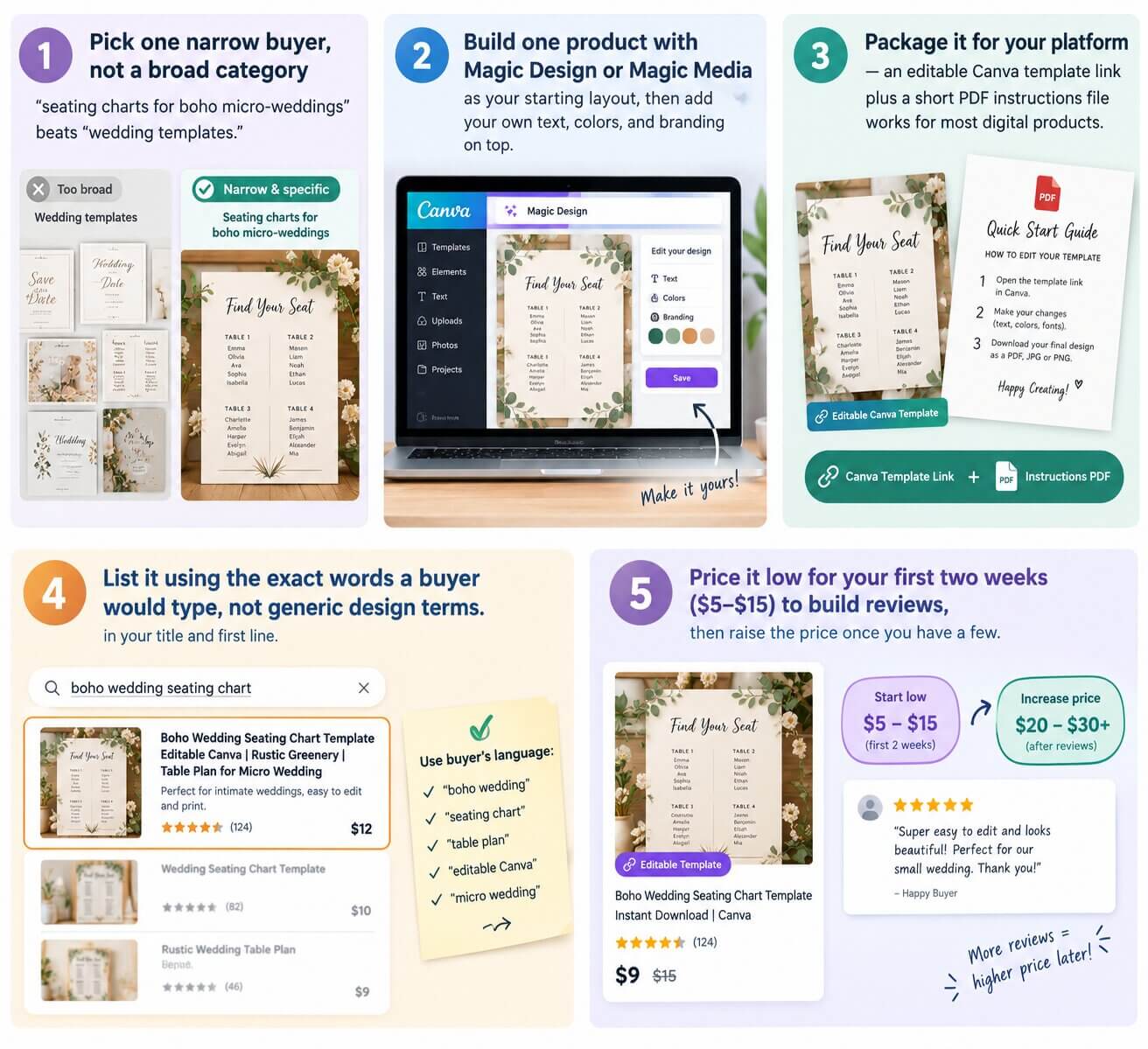
- Pick one narrow buyer, not a broad category — "seating charts for boho micro-weddings" beats "wedding templates."
- Build one product with Magic Design or Magic Media as your starting layout, then add your own text, colors, and branding on top.
- Package it for your platform — an editable Canva template link plus a short PDF instructions file works for most digital products.
- List it using the exact words a buyer would type, not generic design terms, in your title and first line.
- Price it low for your first two weeks ($5–$15) to build reviews, then raise the price once you have a few.
What Can You Realistically Earn With This?
Most beginners make $0 in the first two to three weeks. That's normal — it's setup time, not failure. The first sale usually comes once you have three to five listed products, not one.
In the first one to three months, a realistic range is $20–$150/month. With consistent listing and restocking over three to twelve months, $100–$600/month is achievable for someone treating this as a real side project. Expect to spend three to five hours a week on it, and most of that time goes to listing and keywords, not the actual designing — Canva AI absorbs most of that part.
Deciding between building products like this and doing client design work? See whether product income or service income fits you better.
Frequently Asked Questions
What to Do Right Now
Open a free Canva account, use Magic Design to build one printable or template today, and list it on Gumroad before spending anything on Canva Pro.
KEEP READING
Not sure if products or client work fit you better?
See the full breakdown of service income vs. product income, and where Canva AI fits into the wider AI earning roadmap.
Join the discussion
Sign in to leave a comment or reply
No comments yet
Be the first to share your thoughts!