
⚡ Quick Answer
Suno AI is a text-to-song generator. You type a description of the song you want, and Suno produces a full track — vocals, lyrics, and instrumentation — in under a minute. It's free to start with 50 credits a day (about 10 songs), but you'll need a paid Pro or Premier plan (from $10/month, roughly €9/£8) to sell or monetise anything you make, or to use the newest v5.5 model.
Suno AI turns a written description into a finished song. You're not editing a template or picking pre-made loops — you write what you want ("a slow acoustic ballad about missing home"), and Suno generates the vocals, lyrics, melody, and instrumentation from scratch. No instrument, singing voice, or music theory required.
This guide covers what you actually need to know before your first session: how Suno works, which mode to start in, how to generate your first song, what the basic settings do, the real differences between the model versions, and current pricing — in one place.
How Suno AI Works
Suno is a text-to-song AI model. You give it a generation — a text prompt describing the song — and it converts that description into an audio file with sung (or instrumental) music.
Every generation costs credits, Suno's internal currency. A typical song costs around 5 credits and returns two separate takes, so you can compare and keep the one you prefer.
Simple Mode vs Custom Mode: Which Should You Use First?
Suno has two ways to prompt a song, and picking the wrong one for your experience level is the single most common reason beginners get disappointing first results.
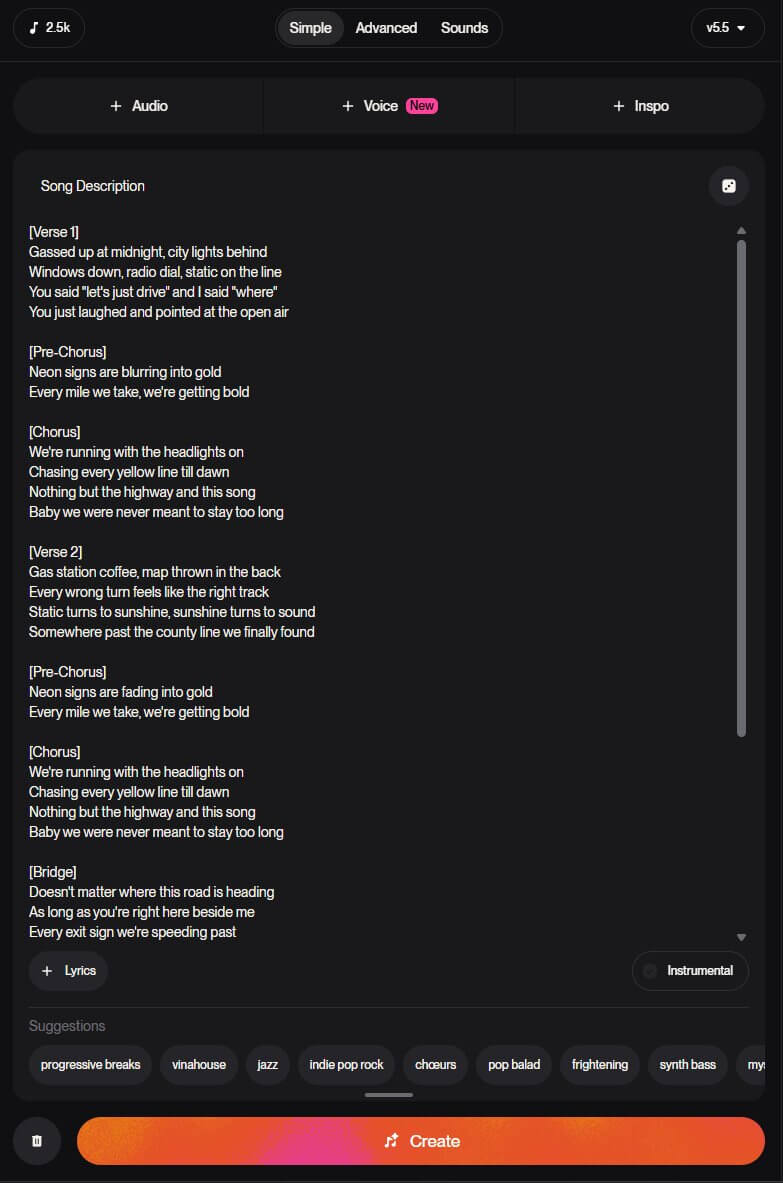
Simple Mode gives you one text box. You describe the song in a sentence or two — genre, mood, topic — and Suno decides everything else: structure, lyrics, instrumentation. This is the right starting point if you've never used Suno before.
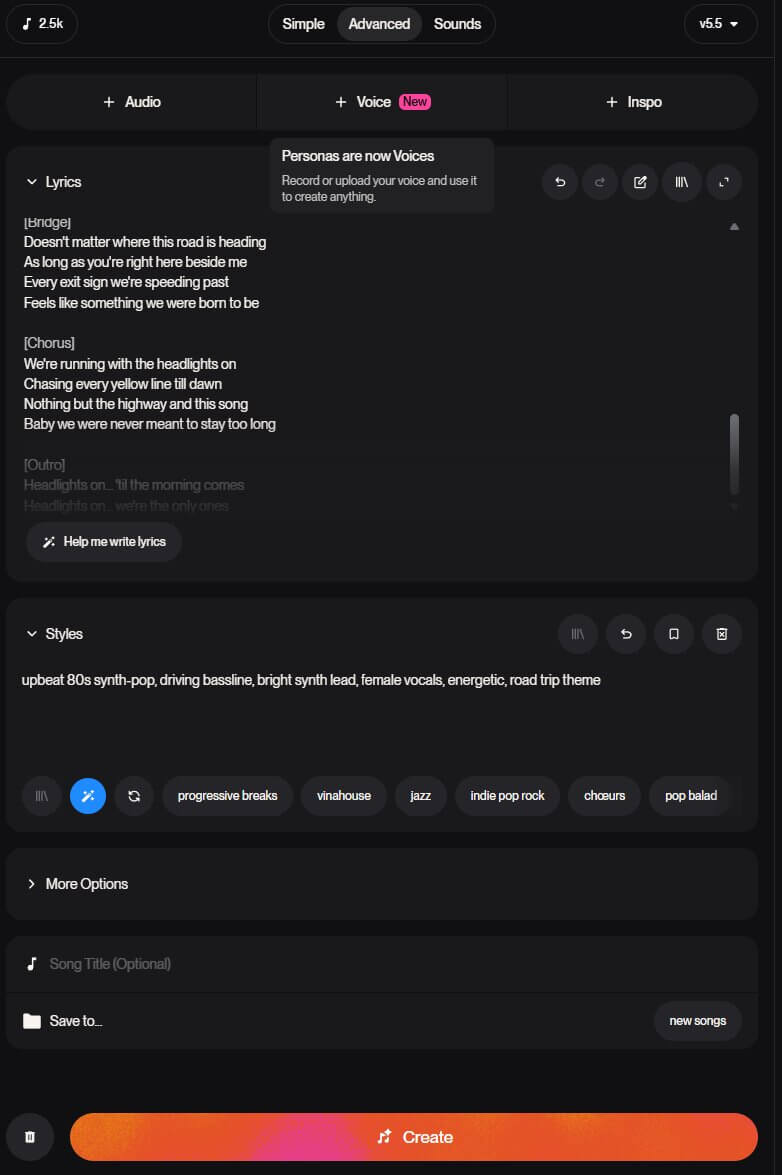
Custom Mode splits your prompt into two separate fields:
- Style — describes the sound: genre, tempo, instruments, mood
- Lyrics — your own written lyrics, with structure tags like
[Verse]and[Chorus]marking each section
How to Generate Your First Song (Step-by-Step)
- Go to suno.com and sign up. Click Sign Up in the top right. You can sign up with Google, Discord, or Microsoft — no payment details needed for the free plan.
- Click Create in the left-hand menu. This opens the song generation screen.
- Make sure Simple Mode is selected. It's usually the default toggle at the top of the Create panel.
- Type a description of the song you want in the main text box. Be specific about genre, mood, and topic — "upbeat 80s synth-pop song about a road trip" works better than "a happy song."
- Click Create. A progress indicator appears. Generation usually takes 30–90 seconds.
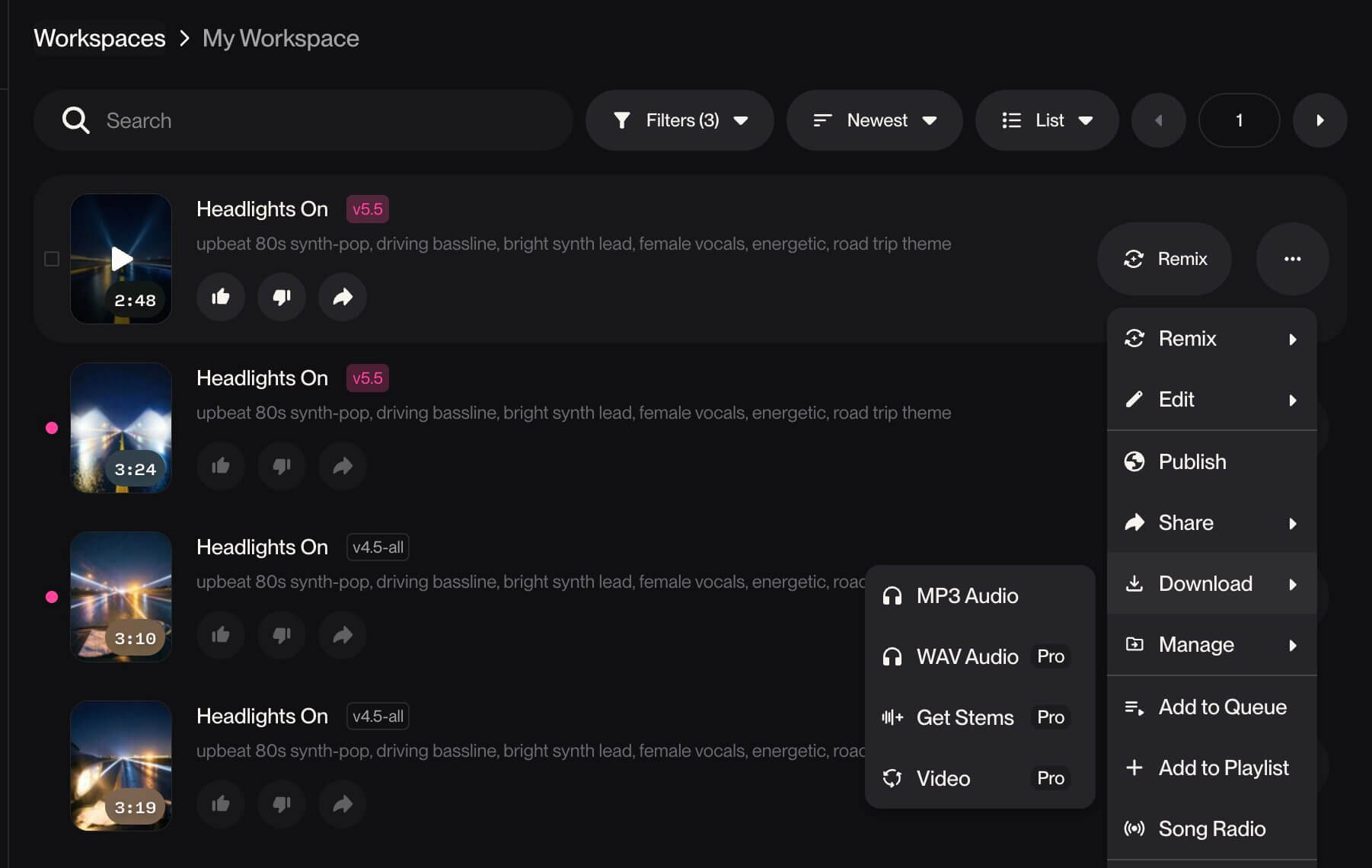
- Listen to both takes. Suno returns two versions of your song. Play each one from your library and pick the one you prefer — you don't have to settle for the first result.
What Do the Basic Settings Actually Do?
Once you're comfortable with Simple Mode, a few settings are worth understanding before you move to Custom Mode:
ON / OFF— switches off vocals for music-only tracksCustom Mode— genre, tempo, instrumentation, mood[Verse] [Chorus]— organise sections inside Lyrics fieldoptional— list things you don't want in the trackIf you want the full breakdown of writing Style and Lyrics prompts properly — including a downloadable structure template — see our full guide to structuring Suno prompts.
Suno's Model Versions Explained
Suno has released several model versions, and the names alone don't tell you much. Here's what actually changes for you as a creator:
| Version | Available On | What Changes |
|---|---|---|
v4.5-all | Free | Solid for experimenting and learning how Suno responds to prompts — a step behind paid-tier models in vocal naturalness and mix quality. |
v4.5 | Pro / Premier | Improved audio quality and fuller mixes vs v4.5-all, with less metallic "shimmer" artifacting. |
v5 | Pro / Premier | Bigger jump in fidelity — more natural vocals, better balanced mixing, songs up to 4 minutes with consistent quality. |
v5.5 | Pro / Premier | Current top-tier model (March 2026). Adds Voices (voice cloning/personalisation) and Custom Models on top of v5 quality. |
Hear the Difference Yourself
Here's the same Style prompt generated on v4.5-all and v5.5, so you can hear the version difference directly rather than take our word for it.
Suno Pricing Plans Compared (2026)

Euro/pound figures are approximate — check suno.com/pricing for exact current regional pricing.
Common Beginner Mistakes to Avoid
Using Free plan songs commercially
The Free plan's licence is non-commercial only — selling or monetising a track made on Free breaks Suno's terms of service, regardless of how the song sounds.
Overloading the Style field
Piling on five or six genre and instrument tags at once tends to produce a confused, generic result rather than a rich, blended one. Stick to a focused description.
Judging Suno off one generation
Every generation returns two takes, and results vary between attempts. Compare both takes — and consider trying the same idea with slightly different wording — before deciding a style "doesn't work" in Suno.
Frequently Asked Questions
What to Do Next
Generate a few songs in Simple Mode, then learn to structure prompts properly.
Once you've got a feel for how Suno responds, our prompt guide covers Custom Mode in depth — including a downloadable template for turning a rough idea into a properly structured song.
Published: 2026-07-23 · Last updated: 2026-07-23 · Figures verified against suno.com/pricing
Join the discussion
Sign in to leave a comment or reply
No comments yet
Be the first to share your thoughts!