
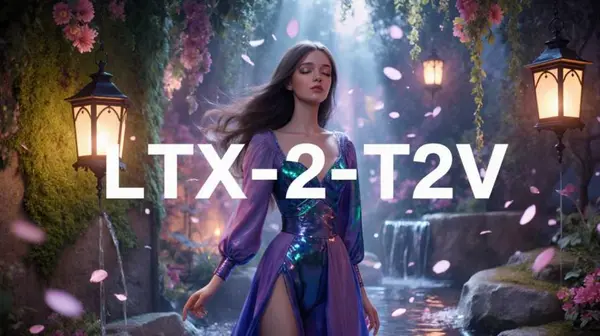
What is LTX-2 Text to Video (T2V)?
The LTX-2 T2V model lets you turn simple text prompts into high-quality AI videos. It is designed for both beginners and advanced users, capable of producing everything from animated cartoon scenes to photo-realistic footage with cinematic motion.
Key Features of LTX-2 Video
- High realism: Generates lifelike motion, facial animation, and scene dynamics from text alone.
- Versatile output: Supports cartoon animation, realistic footage, ASMR-style scenes, and cinematic renders.
- Camera control LoRA: Add the dolly LoRA for smooth, controlled camera movement in any direction.
- Spatial upscaling: Built-in 2x latent upscaler produces sharper, higher-resolution output.
- Native ComfyUI integration: Runs entirely locally — no cloud API, no subscription.
Example Outputs & Prompts
Here are four real examples generated with the LTX-2 T2V workflow. Each shows the output video and the exact prompt used.
Cartoon Puppet Singing on a Disco Stage
Prompt used
colorful, animated puppet character performing on a disco stage with a glowing disco ball overhead and moving colorful lights. The puppet has big button eyes, a wide fabric mouth, and playful, exaggerated movements. Lighting is bright, energetic, and fun.

The camera holds a medium shot as the puppet grabs a microphone and starts singing with clear lip-sync and bouncy, cartoon-style motion.

The puppet sings:
🎵 "Clap your hands, spin around,
Dancing feet won't touch the ground!
Shake it left and shake it right,
Puppet party every night!" 🎵

While singing, the puppet dances, wiggles its body, points the microphone toward the camera, and spins happily under the disco ball. Its eyes blink dramatically, its head bobs to the beat, and its mouth opens and closes in an exaggerated, comedic way.

The scene ends with the puppet striking a silly pose, holding the mic high as the disco lights flash.
Warm, Cozy ASMR Scene with Cinematic Micro-Movements
Prompt used
A calm, cozy indoor scene with soft natural lighting and warm color tones. The camera shows a young woman sitting at a small wooden desk, gently tapping, brushing, or handling soft objects like paper, fabric, or brushes. Her movements are slow, deliberate, and soothing.

The camera alternates between close-ups of hands and face, showing realistic blinking, subtle head tilts, and gentle expressions. Ambient sounds like soft tapping, brushing, and light background music accompany the scene (for ASMR effect).

The overall atmosphere is relaxing and immersive, with slight cinematic micro-movements for realism. Background objects are softly blurred, with smooth depth of field, creating a cozy, peaceful vibe. Colors are warm and soft, no harsh contrasts, with natural textures.

The scene ends with the woman giving a gentle smile and looking at the camera, while continuing the slow, relaxing motions.
Realistic Woman Speaking in a Flower Garden
Prompt used
A realistic video of a confident, attractive young woman walking slowly through a bright flower garden in daylight. The scene is colorful and natural, with soft pink, white, yellow, and lavender flowers. Lighting is natural and even.

The camera tracks her in a medium shot as she walks forward, with a gently blurred floral background for depth. Her movement is smooth and realistic, with natural posture and arm motion.

She looks toward the camera and speaks clearly in natural English, with accurate lip-sync and facial movement. She says exactly:
"This video is created using LTX-2 Text to Video."
"This video is created using LTX-2 Text to Video."

She makes subtle hand gestures and natural facial expressions while talking. Hair and clothing move naturally as she walks.

The clip ends as she slows, faces the camera, and smiles confidently.
Photo-Realistic Toy Girl 3D Render with Cinematic Motion
Prompt used
A photo-realistic 3D render of a human-like toy girl standing on a wooden table in soft daylight. She looks like a realistic collectible doll, with plastic skin texture, subtle surface imperfections, and detailed clothing fabric. Her facial features are gentle and expressive, blending realism with a toy-like design.

The camera begins in a medium shot and slowly moves closer, revealing fine details such as light reflections on her plastic skin, stitched clothing edges, and realistic shadows. Her head turns slightly, and she makes small, natural movements like blinking and a soft smile, giving the toy a lifelike presence.

The environment is simple and relatable — everyday objects like books or small props are visible in the background, slightly out of focus, reinforcing the scale of the toy. Lighting is soft and natural, with realistic reflections and depth of field.

The motion is slow and cinematic, emphasizing photo-real 3D quality, material realism, and experimental lifelike animation.

The scene ends with the toy girl looking toward the camera, holding a gentle pose as light softly wraps around her.
Step-by-Step Setup Guide
Follow these steps to install and configure LTX-2 T2V in ComfyUI from scratch.
Step 1 — Update ComfyUI
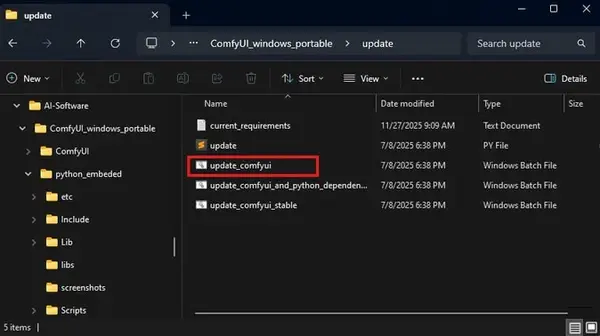
Update via the update folder
Go to your ComfyUI_windows_portable\update folder and double-click update_comfyui to update to the latest version.
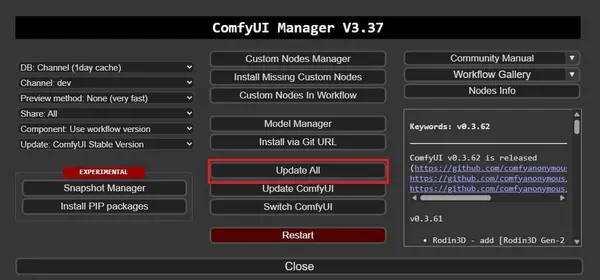
Update all nodes via Manager
Launch ComfyUI, open the Manager, and click 'Update all' to update every installed custom node.
Switch to v0.8.1 or higher
Click Switch Version in ComfyUI. Ensure version is v0.8.1 or higher.
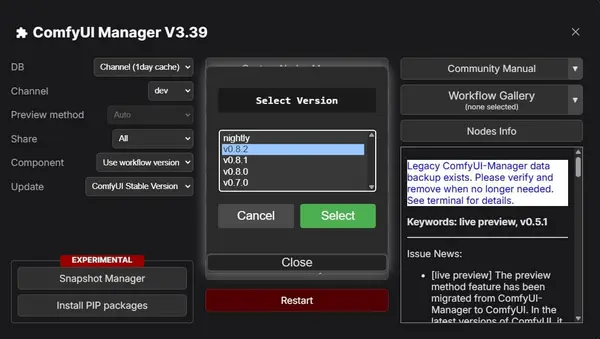
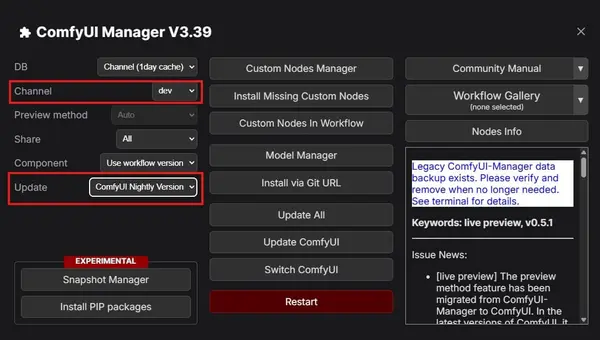
Set channel to dev / nightly
Confirm your channel is set to dev and the update version is ComfyUI nightly for the latest compatibility.
Step 2 — Download Required Models
Download all four model types below:
Checkpoints
⬇ ltx-2-19b-dev-fp8.safetensors (recommended)⬇ ltx-2-19b-dev.safetensors (full precision)Text Encoder
⬇ gemma_3_12B_it_fp8_e4m3fn.safetensorsLoRA
⬇ ltx-2-19b-distilled-lora-384.safetensors⬇ ltx-2-19b-lora-camera-control-dolly-left.safetensorsLatent Upscaler
⬇ ltx-2-spatial-upscaler-x2-1.0.safetensorsStep 3 — Place Model Files in the Correct Folders
Organize your model files exactly as shown below:
ComfyUI/
└── models/
    ├── checkpoints/
    │   ├── ltx-2-19b-dev.safetensors
    │   └── ltx-2-19b-dev-fp8.safetensors  ← use this one
    ├── text_encoders/
    │   └── gemma_3_12B_it_fp8_e4m3fn.safetensors
    ├── loras/
    │   ├── ltx-2-19b-distilled-lora-384.safetensors
    │   └── ltx-2-19b-lora-camera-control-dolly-left.safetensors
    └── latent_upscale_models/
        └── ltx-2-spatial-upscaler-x2-1.0.safetensors
Step 4 — Load the LTX-2 T2V Workflow in ComfyUI
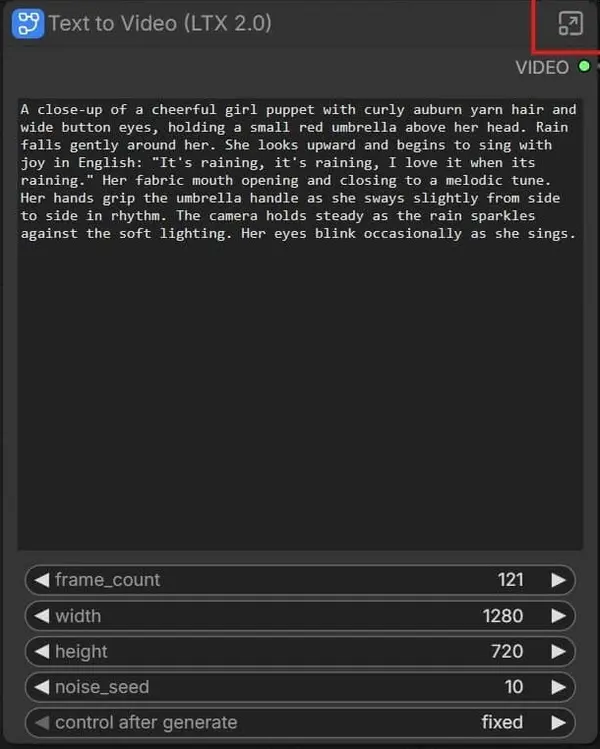
Download the workflow below and drag it into the ComfyUI canvas. Alternatively, use the Templates menu inside ComfyUI and select the LTX-2 Text to Video template.
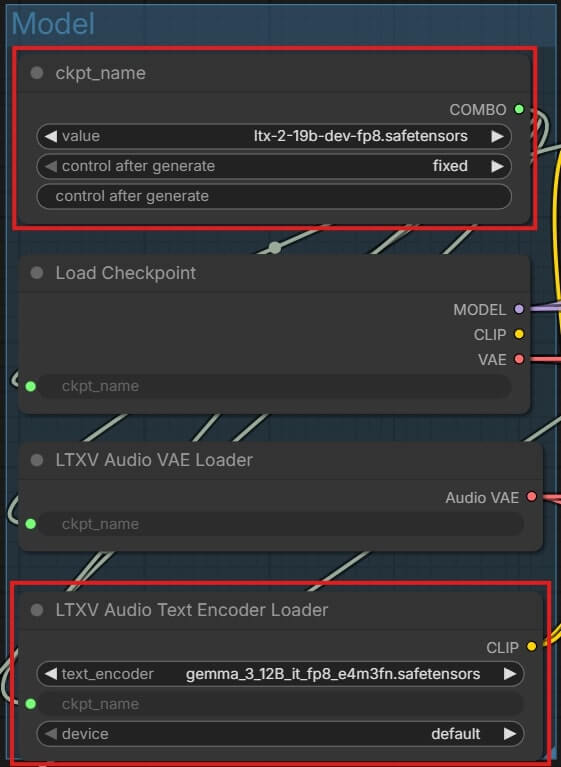
After loading, confirm these two nodes are set correctly:
CKPT_name
Should be set to ltx-2-19b-dev-fp8.safetensors
LTXV audio text encoder loader
Should be set to gemma_3_12B_it_fp8_e4m3fn.safetensors
Step 5 — Run Your First Generation
Enter your text prompt
Type a detailed description of the video you want to generate in the workflow's prompt box. Include motion, lighting, camera direction, and scene details for the best results.
Click Queue Prompt
Click 'Queue Prompt' to run the workflow. The generated video will be saved to your ComfyUI output folder automatically.
Tips and Troubleshooting
Out-of-memory (OOM) error during generation
Fix: Open run_nvidia_gpu.bat in Notepad and change the launch line to include --reserve-vram 4. Lower this to 3, 2, or 1 on lower-end GPUs.
Full command to paste into run_nvidia_gpu.bat:
.\python_embeded\python.exe -s ComfyUI\main.py --windows-standalone-build --reserve-vram 4 --preview-method none --async-offload --disable-pinned-memory
pauseStill getting memory errors after adjusting VRAM reserve
Fix: Increase your Windows page file size. See this guide: How to Change Pagefile Size. Restart your computer afterward.
Red nodes after importing the workflow
Fix: Open the ComfyUI Manager and click "Install missing custom nodes". Install all required nodes and restart ComfyUI.
Low-quality or inconsistent video output
Fix: Write more detailed prompts — include specific motion direction, lighting style, camera angle, and scene description. Longer, more descriptive prompts generally produce better results with LTX-2.
Model files not appearing in dropdowns
Fix: Double-check all files are placed in exactly the right sub-folder. Refresh your browser after adding new files to update ComfyUI's model list.
Frequently Asked Questions
Conclusion
The LTX-2 T2V workflow for ComfyUI is one of the most capable ways to generate AI video from text prompts locally. Its realistic output, flexible prompt support, and easy ComfyUI integration make it suitable for both beginners and advanced users.
Download the workflow, set up the models using the guide above, and start experimenting with different prompts. The more detail and direction you give in your prompt, the more cinematic and controlled your output will be.
Join the discussion
Sign in to leave a comment or reply
No comments yet
Be the first to share your thoughts!