
Load Checkpoint vs Load Diffusion Model
diffusion_models/ folder and is used for FLUX and other split-architecture models — you must add separate CLIP and VAE loader nodes alongside it.You opened a workflow and it uses a node you've never seen before, or your downloaded model isn't showing up in the dropdown you expected. That's the Load Checkpoint vs Load Diffusion Model confusion — two nodes that load models in completely different ways, reading from two different folders.
This guide explains exactly what each node loads, which folder each file type goes in, and which node your workflow actually needs.
What You Need
This is a conceptual guide — you don't need to download anything to follow along. If you want to test both nodes yourself, here's what's been used for the screenshots below.
- Tested on: ComfyUI v0.3.7, RTX 4080 (16 GB VRAM)
- For Load Checkpoint: any SDXL checkpoint, e.g.
juggernautXL.safetensorsfrom CivitAI - For Load Diffusion Model: the FLUX.1-dev UNet file from Hugging Face, plus its CLIP and VAE files
What Does Load Checkpoint Do?
Load Checkpoint (internal name: CheckpointLoaderSimple) loads a single file that contains everything needed to generate an image: the diffusion model itself (called the UNet — the part that actually generates the image), the CLIP text encoder (this reads your prompt and converts it into something the model understands), and the VAE (this converts the model's internal output into a real pixel image).
All three come from one .safetensors or .ckpt file, and the node gives you three ready-to-use outputs.
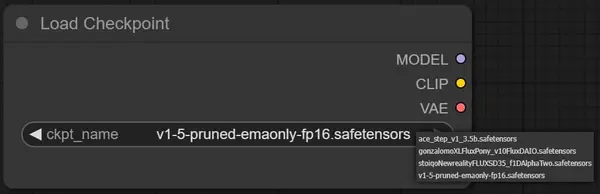
Right-click the empty canvas and select Add Node → loaders → Load Checkpoint. The node appears with one dropdown (ckpt_name) and three outputs on the right: MODEL, CLIP, and VAE.
Click the dropdown and select your checkpoint file, for example juggernautXL.safetensors. This list only shows files that are in ComfyUI/models/checkpoints/.
Connect MODEL to your KSampler, CLIP to your text encoding nodes (CLIP Text Encode), and VAE to your VAE Decode node. All three outputs come from the same file, so there's nothing else to configure.
What Does Load Diffusion Model Do?
Load Diffusion Model (internal name: UNETLoader) loads only the UNet — the diffusion model component itself, with no CLIP and no VAE included. This is used for "split architecture" models, where the developer distributes the UNet, CLIP, and VAE as three separate files instead of bundling them into one checkpoint. FLUX.1 is the most common example.
Because this node only outputs MODEL, you need to add two more nodes to your workflow: a CLIP loader and a VAE loader, each pointing at their own separate file.
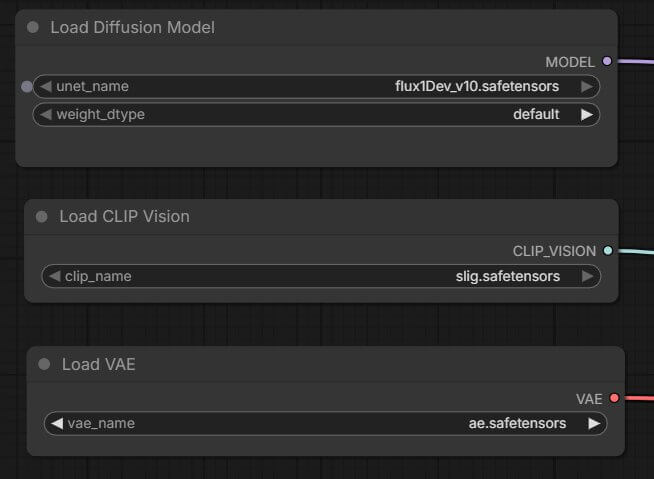
Right-click the empty canvas and select Add Node → loaders → Load Diffusion Model. The node appears with one dropdown and a single output: MODEL.
Select your UNet file from the dropdown, for example flux1-dev.safetensors. This list only shows files in ComfyUI/models/diffusion_models/ — not checkpoints/.
Add a DualCLIPLoader node (Add Node → loaders → DualCLIPLoader) and select the CLIP files FLUX requires, for example clip_l.safetensors and t5xxl_fp16.safetensors. Connect its CLIP output to your text encoding nodes.
Add a VAELoader node (Add Node → loaders → VAELoader) and select the matching VAE, for example ae.safetensors. Connect its VAE output to your VAE Decode node.
This is why a FLUX workflow looks more crowded than a standard SDXL one — three loader nodes instead of one, each reading from a different folder.
Load Checkpoint vs Load Diffusion Model — Side-by-Side
Here's the full comparison in one place. The core difference is simple: Load Checkpoint loads three things from one file, Load Diffusion Model loads one thing from one file and needs two more nodes to fill in the rest.
| Load Checkpoint | Load Diffusion Model | |
|---|---|---|
| Internal node name | CheckpointLoaderSimple | UNETLoader |
| What it loads | MODEL + CLIP + VAE — all from one file | MODEL (UNet) only |
| File format | Single .safetensors or .ckpt file | UNet file, separate CLIP file(s), separate VAE file |
| Extra nodes needed | None — all 3 outputs ready to connect | CLIPLoader/DualCLIPLoader + VAELoader |
| Folder | models/checkpoints/ | models/diffusion_models/ |
| Typical models | SD 1.5, SDXL, Juggernaut, Pony Diffusion | FLUX.1-dev, FLUX.1-schnell (split releases) |
| Beginner-friendly | ✓ Yes — one node, one dropdown | Needs 3 nodes wired correctly |
Which Folder Does Each Model Go In?
Each node reads from a different folder inside your ComfyUI installation. A file placed in the wrong folder simply won't appear in that node's dropdown — it isn't broken, ComfyUI just isn't looking there.
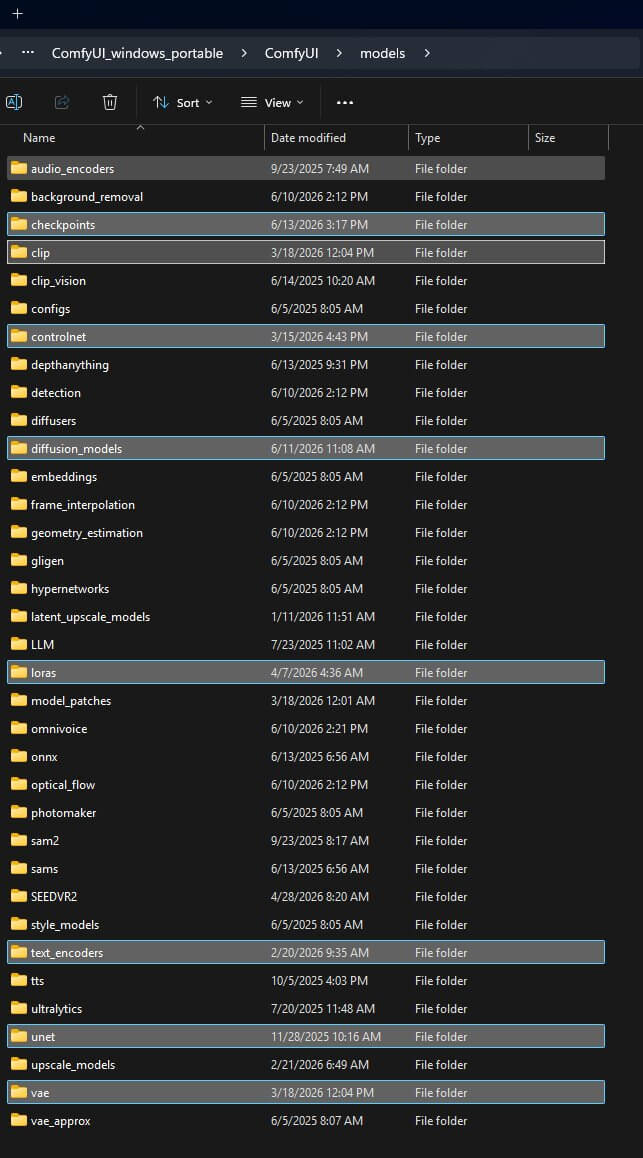
For a standard checkpoint, drop the file here:
ComfyUI/models/checkpoints/For a FLUX UNet file, drop it here instead:
ComfyUI/models/diffusion_models/When Should You Use Each Node?
Use Load Checkpoint for SD 1.5, SDXL, Juggernaut XL, Pony Diffusion, and the vast majority of models on CivitAI. These are distributed as single bundled files and this is the only node you need.
Use Load Diffusion Model for FLUX.1-dev, FLUX.1-schnell, and other newer releases that distribute their UNet, CLIP, and VAE as separate files. If you're installing FLUX in ComfyUI for the first time, expect to be wiring up all three loader nodes.
Troubleshooting
"Model not showing up in Load Checkpoint dropdown"
The file is either in the wrong folder or it's a UNet-only file meant for Load Diffusion Model.
Confirm the file is in ComfyUI/models/checkpoints/, not diffusion_models/.
Press F5 to refresh the browser tab and reopen the dropdown.
If it's a FLUX UNet file (often named with "unet" or "fp8" in the filename), move it to diffusion_models/ and use Load Diffusion Model instead.
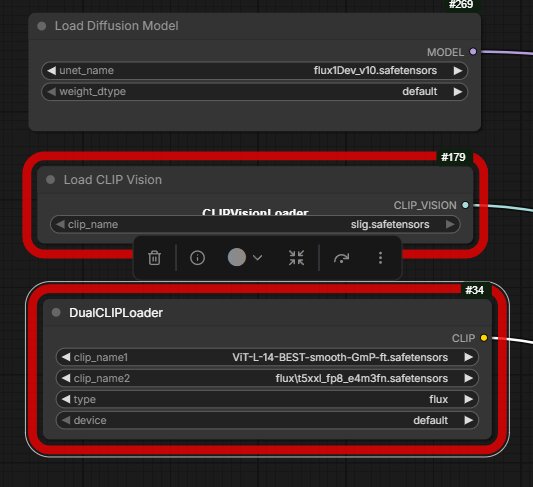
"Required input is missing: clip" or similar CLIP error
This happens when Load Diffusion Model is used without a connected CLIP loader.
Add a DualCLIPLoader node via Add Node → loaders → DualCLIPLoader.
Select the correct CLIP files for your model (FLUX needs both clip_l.safetensors and a T5 file).
Connect its CLIP output to every CLIP Text Encode node in the workflow.
Black or blank image output with no errors
Generation finishes but the image is blank — almost always a missing or wrong VAE.
Add a VAELoader node via Add Node → loaders → VAELoader.
Select the VAE that matches your model — FLUX uses ae.safetensors, not the SDXL VAE.
Connect its VAE output to your VAE Decode node, replacing any connection from a Load Checkpoint node's VAE output.
Frequently Asked Questions
What to Do Next
If your workflow uses Load Checkpoint, pick any SDXL model from CivitAI, drop it in ComfyUI/models/checkpoints/, and run it. If your workflow uses Load Diffusion Model, follow how to install FLUX in ComfyUI for the exact file list and folder placement for all three loader nodes.
Join the discussion
Sign in to leave a comment or reply
No comments yet
Be the first to share your thoughts!