

A red-bordered box on your ComfyUI canvas is called a node — a single block that does one job in a workflow, like loading a model or running a sampler. When a node turns red, ComfyUI is telling you it can't find the custom plugin that node needs. This guide shows you exactly where the fix button is, and what to do when the usual fix doesn't apply to your setup.
⚡ Quick Answer
The "Install Missing Custom Nodes" button lives on the main panel of ComfyUI Manager — open Manager, load the workflow with red nodes first, then click the button. It auto-detects and installs everything the workflow needs. Restart ComfyUI after it finishes.
Don't see a Manager button at all, or see a different error instead? Jump to Which ComfyUI Manager Do You Have? below — the fix depends on which version you're running.
Already know your Manager version? Jump straight to the pip install fix, security level fix, or server config / missing Manager button fix.
What Are Red Nodes in ComfyUI?
When you load a workflow, ComfyUI checks your ComfyUI/custom_nodes folder for each plugin the workflow needs. Any it can't find gets marked red, and the workflow won't run until every red node is resolved.
The four most common causes are:
- The custom node plugin was never installed in your custom_nodes folder
- The plugin is installed but outdated — incompatible with the current ComfyUI version
- ComfyUI itself is outdated and doesn't support a newer node type
- The plugin was installed in the wrong folder (not inside custom_nodes)
What You Need Before You Start
Every method in this guide assumes these are already in place. Check this list first — most "it's not working" cases trace back to one of these being missing.
- ComfyUI installed and able to launch — Portable, Desktop, or manual install all work.
- ComfyUI Manager installed — either the classic custom_nodes-based version or the newer pip-based version. If you don't have either yet, see the ComfyUI Manager installation guide.
- Git installed — only needed for Method 2 (manual GitHub clone) and Method 3 (Install via Git URL). Not required for the main "Install Missing Custom Nodes" button.
- A stable internet connection — node installs and dependency downloads can be several hundred MB per node.
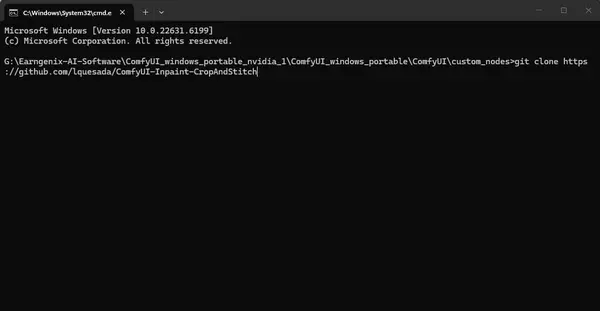
git clone command. Install Git first if you're not sure you have it — running git --version in a terminal will tell you.Which ComfyUI Manager Do You Have?
ComfyUI now ships two different Manager experiences depending on when you installed it and which build you're running. Find your situation below and jump straight to the right fix — this saves you from working through steps meant for a different version.
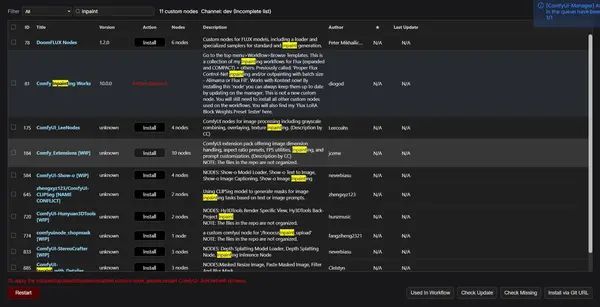
Where Is the "Install Missing Custom Nodes" Button?
This is the fastest method, and the one most people are looking for. ComfyUI Manager scans your loaded workflow and installs everything it's missing automatically — no command line needed.
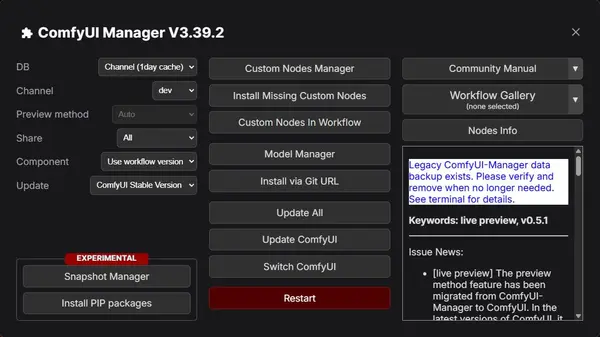
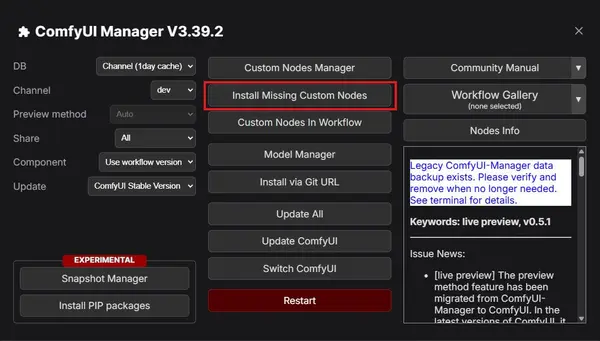
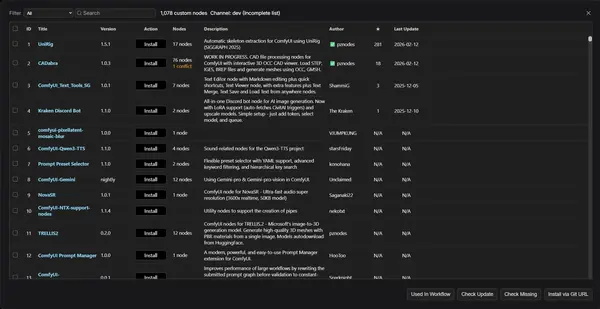
Fix: "Missing Node Packs" — pip install -U --pre comfyui-manager
pip install -U --pre comfyui-manager in your Python environment to install Node Manager, then restart ComfyUI with the --enable-manager flag."This message shows up on ComfyUI's newer, officially-integrated Manager — since it was folded into Comfy.Org's own codebase, it installs as a separate pip package instead of a plugin sitting in custom_nodes. If you see this exact popup instead of individual red nodes, it means that pip package isn't installed yet.
How to fix it (Portable builds)
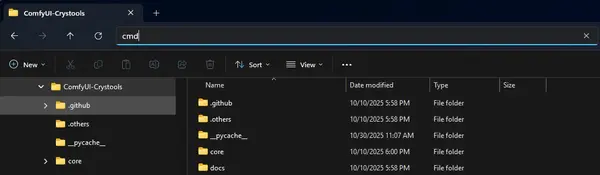
Open a terminal in your ComfyUI_windows_portable folder.
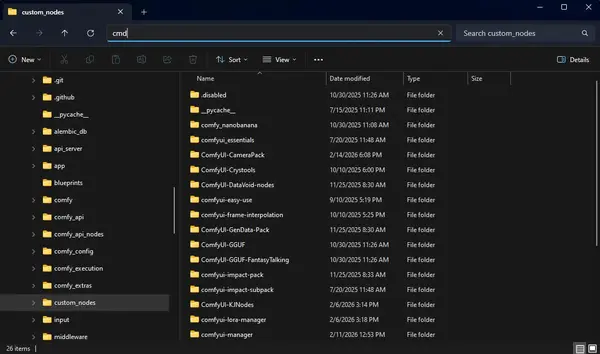
Click the address bar in Windows Explorer, type "cmd", and press Enter.
Run the pip install command.
Paste the command ComfyUI showed you, using the embedded Python interpreter:
.\python_embeded\python.exe -s -m pip install -U --pre comfyui-managerAdd --enable-manager to your launch file.
Right-click run_nvidia_gpu.bat → Edit, add --enable-manager to the end of the launch line, then save.
Restart ComfyUI using that .bat file.
Reload your workflow. The "Missing Node Packs" list becomes an install screen instead of a blocking error.
Desktop builds with auto-updates typically install this for you automatically. If that's your setup and you're still seeing the error, updating ComfyUI Desktop to the latest version usually resolves it.
Fix: "This Action Is Not Allowed With This Security Level Configuration"
This error appears when you try to use Install via Git URL in ComfyUI Manager. The Manager's default security level blocks Git URL installs. You need to temporarily change it to weak to allow the installation.
How to change the security level (step by step)
Navigate to the Manager config folder.
Go to ComfyUI_windows_portable\ComfyUI\user\__manager in Windows Explorer. Your startup log also prints the exact config path if this folder doesn't exist on your setup.
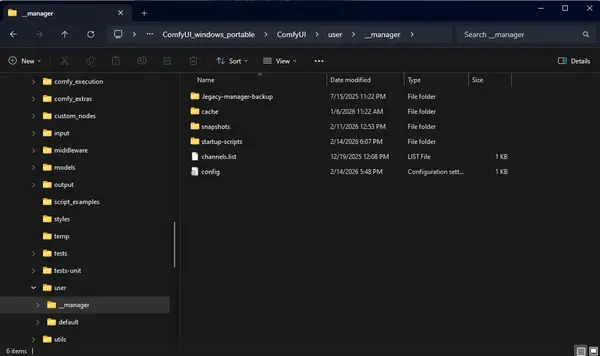
Open the config file in Notepad.
Right-click the file named config (or config.ini on older Manager versions) and open it with Notepad.
Change the security_level line.
Find security_level = and change it to:
security_level = weak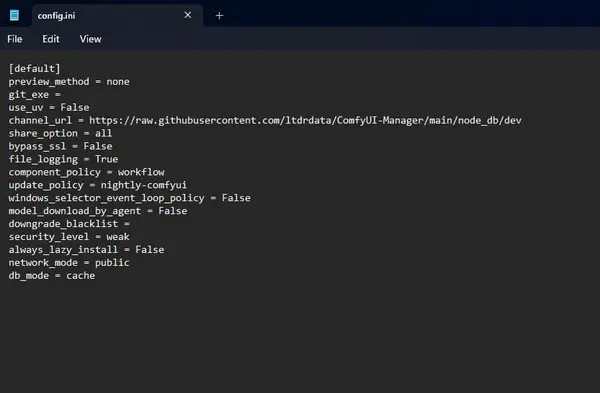
Save → restart ComfyUI → complete the install.
Save the config file, restart ComfyUI, then go back to Manager and use Install via Git URL. Wait for the install to finish.
Change security_level back immediately.
Open the config file again and set it back to security_level = normal. Don't leave it on weak.
security_level = weak for the duration of a single trusted install. Change it back to normal as soon as the installation is done. Running weak security long-term increases your risk from malicious custom nodes. Valid values are weak, normal-, normal, and strong — "medium" and "high" aren't real settings and will be ignored if you type them. See the Comfy-Org/ComfyUI-Manager repository for the current full list of security policy changes.config.ini, or reinstall ComfyUI-Manager if it genuinely isn't there. On cloud/JupyterLab environments, edit it from the built-in terminal instead of Windows Explorer.Fix: Missing Manager Button — Restore the Legacy Manager UI
One thing that trips people up: if you check your startup log, you'll often already see --enable-manager present, which looks like Manager is fully configured. It is enabled — but that flag alone gives you the new UI, not the legacy one. The steps below are different depending on whether you're on ComfyUI Desktop or a Portable/manual install.
ComfyUI Desktop users
Launch ComfyUI Desktop.
Open your ComfyUI Desktop app as usual.
Click the gear icon → Server Settings → UI Settings.
Look for the option labeled "Use legacy manager interface."
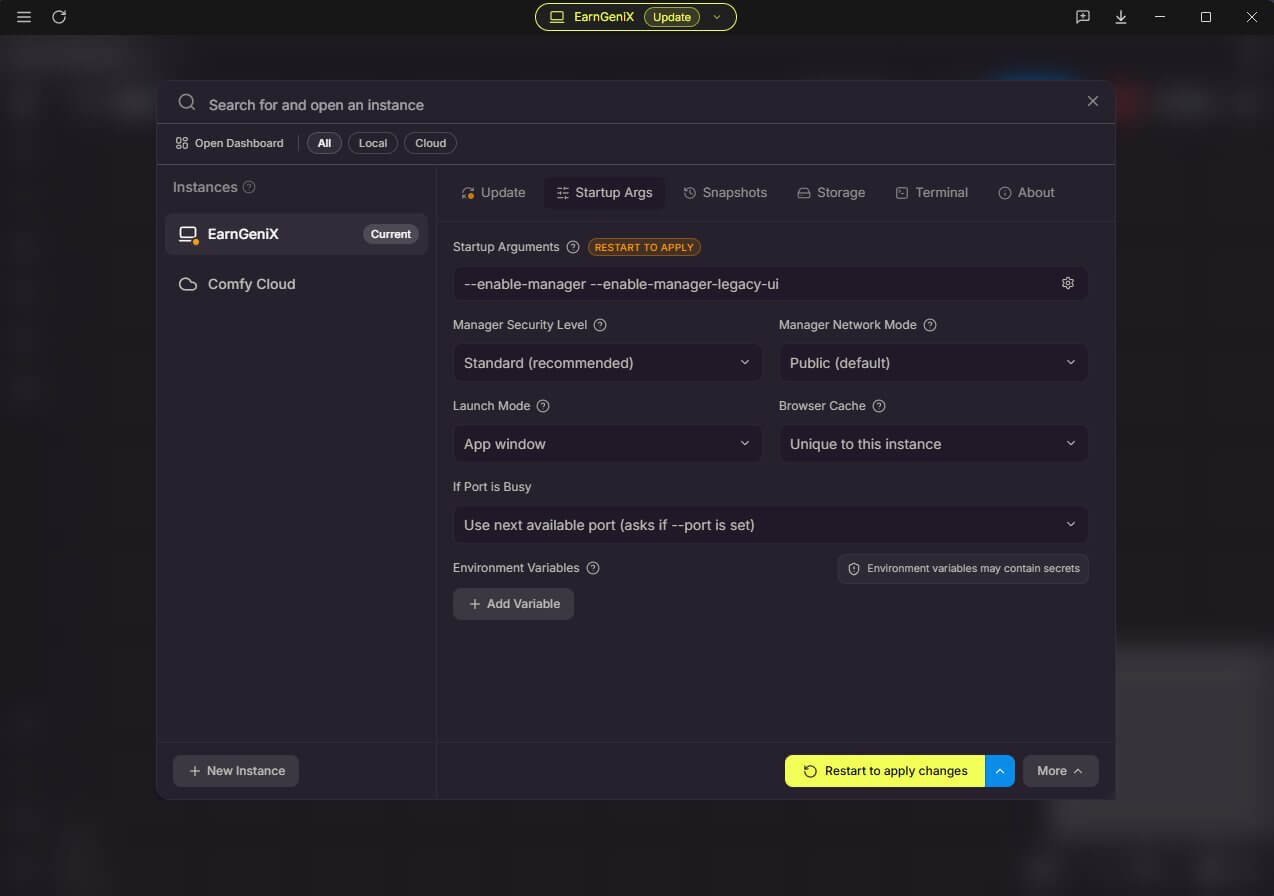
Enable the toggle and restart ComfyUI.
The classic Manager panel — the one with Install Missing Custom Nodes on it — comes back after restart.
--enable-manager to --enable-manager --enable-manager-legacy-ui, then restart. Same result as the toggle above.Portable and manual-install users
There's no settings toggle for these builds — you add the flag directly to the command that launches ComfyUI.
Find your launch command or .bat file.
Portable builds usually launch via a file like run_nvidia_gpu.bat; manual installs run python main.py directly.
Add --enable-manager-legacy-ui after --enable-manager.
This flag requires --enable-manager to already be present — it switches which UI Manager loads, not whether Manager runs at all.
python main.py --enable-manager --enable-manager-legacy-uiSave and restart ComfyUI.
The classic Manager panel loads instead of the new lighter interface.
custom_nodes — that version doesn't have a "new UI" to switch away from; you already have the classic panel by default.Full reference for every Manager command-line flag, including --disable-manager-ui, is in the official ComfyUI-Manager installation docs.
--enable-manager in your log — start with the ComfyUI Manager installation guide instead — this section only applies if Manager is installed but running the new interface.Method 2 — Install a Missing Node Manually from GitHub
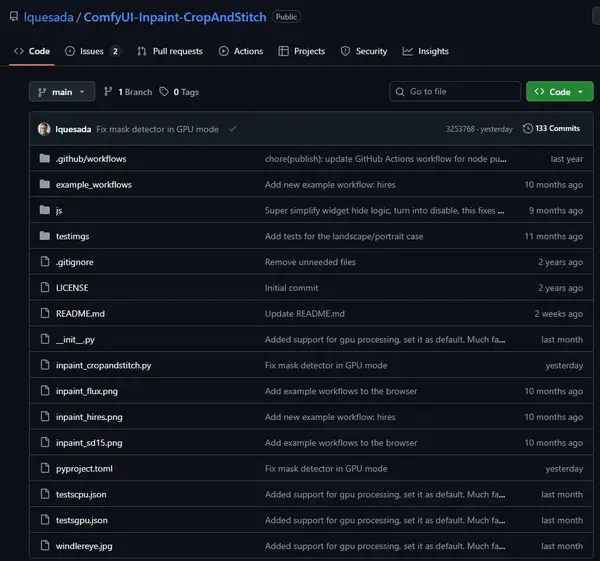
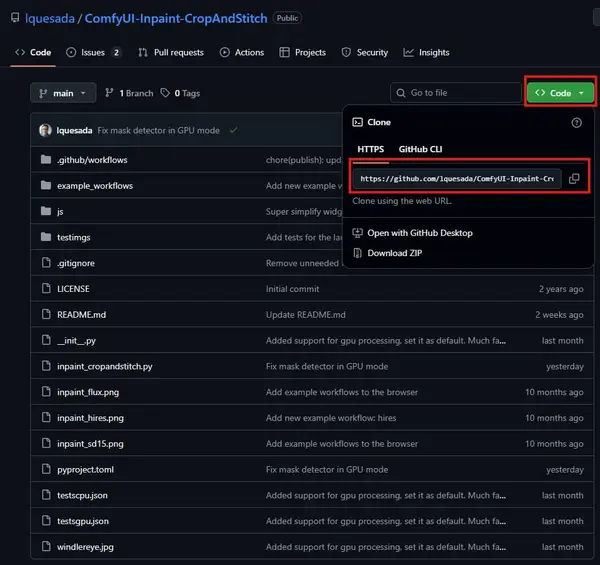
Use this when a node doesn't appear in the Manager registry, or when you prefer to clone it directly. You'll need Git installed on your system (see What You Need Before You Start above).
Not sure which GitHub link to use? Check the workflow description — most workflow creators include the required node links there. If not, search GitHub with the node name plus "ComfyUI".

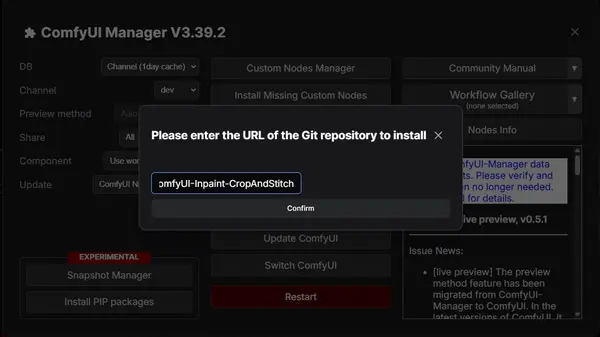
Method 3 — Install via Git URL in ComfyUI Manager
ComfyUI Manager can install a node directly from a GitHub URL without using the command line. It's easier than Method 2 for most people — paste the URL and the Manager clones it for you.
Note: this method requires the security level fix above if you see the "not allowed" error. Once that's resolved, the process is straightforward.
Custom Nodes Still Red After Installing and Restarting?
You installed the node, restarted ComfyUI, and the node is still red. This is frustrating — but it's almost always one of five causes, and they're all fixable.
You restarted the browser, not the server
This is the most common cause. Refreshing the ComfyUI browser tab does nothing. You need to stop the ComfyUI server process and start it again — the actual Python server, not just the browser page.
The node folder is in the wrong location
The node folder must be inside ComfyUI/custom_nodes — not in the root ComfyUI folder, not in ComfyUI_windows_portable, and not anywhere else. If you cloned it to the wrong place, move it to custom_nodes and restart again.
Python dependency errors
The node installed but its Python packages didn't. Check your ComfyUI terminal window for red error text after startup. If you see import errors for a node, navigate to that node's folder in custom_nodes, open a terminal there, and run the requirements.txt pip install command shown in Method 2.
ComfyUI or the node is outdated
A version mismatch between ComfyUI and the installed node causes red nodes even when everything is in the right place. Update ComfyUI and click "Update All" in ComfyUI Manager — the steps for this are in the next section.
Error: "A node type is missing or unavailable. The workflow may be corrupted or require a custom node."
This message comes from ComfyUI's core, not from Manager — it appears when the workflow JSON references a node class ComfyUI's registry doesn't currently recognize, even if a folder with that node's name exists in custom_nodes. It usually means the node failed to import at startup. Check your ComfyUI startup log for an IMPORT FAILED line near that node's folder name — that tells you which dependency or version mismatch is actually blocking it, rather than a plain "missing" install.
For a full list of startup errors and how to fix them, see the ComfyUI troubleshooting guide.
Update ComfyUI to Prevent Red Nodes
Many red node errors aren't missing nodes at all — they're version mismatches. If a custom node was written for a newer version of ComfyUI than you're running, it will show red even if it's installed correctly. Keeping everything updated prevents most of these.
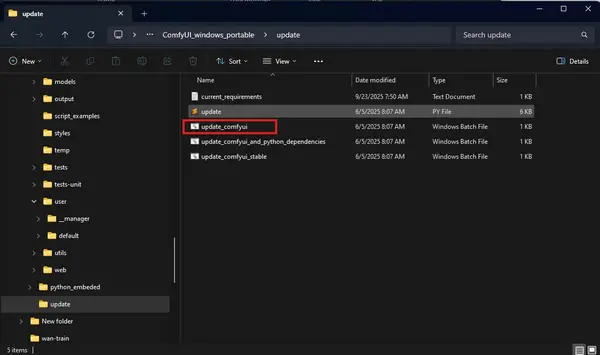
Run the update file.
Go to ComfyUI_windows_portable\update and double-click update_comfyui.
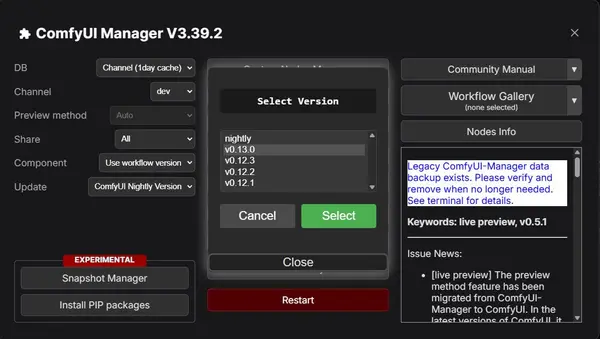
Start ComfyUI and switch to the latest version.
Open ComfyUI Manager and use "Switch ComfyUI" to select the latest available version.
Click "Update All" in Manager.
This updates every installed custom node to its latest version, resolving most compatibility-related red node errors in one go.
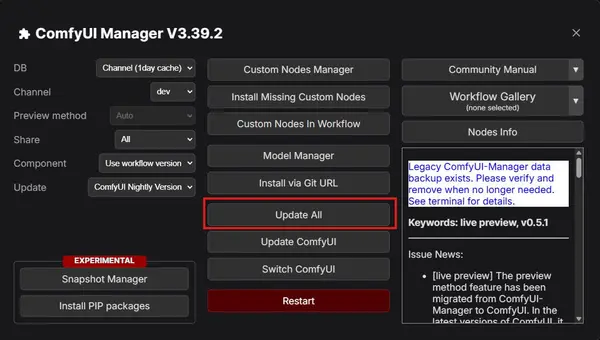
Restart ComfyUI.
After updating, restart the server. Then reload your workflow. If any nodes are still red, use "Install Missing Custom Nodes" to catch anything that was missed.
If you're setting up ComfyUI for the first time, start with the full ComfyUI installation guide before coming back to this page. And if you'd rather automate the "check for updates every week" habit, the ComfyUI update guide covers that in more detail.
Frequently Asked Questions
What to do next
Open ComfyUI Manager right now and click "Update All" — this takes 30 seconds and clears most red node problems before they start. Then load your workflow and use "Install Missing Custom Nodes" for anything that's still red.
If you're still getting stuck with ComfyUI setup, the ComfyUI learning roadmap walks through every step in order — from installation through to running advanced workflows.
Join the discussion
Sign in to leave a comment or reply
No comments yet
Be the first to share your thoughts!