
⚡ Quick Answer
HunyuanVideo 1.5 runs locally in ComfyUI — free, no API key. Download the shared text encoders and VAE, then pick hunyuanvideo1.5_720p_t2v_fp16.safetensors for text-to-video or hunyuanvideo1.5_720p_i2v_fp16.safetensors plus a CLIP Vision model for image-to-video. 14 GB VRAM is the floor with offloading; 24 GB runs it comfortably.
HunyuanVideo 1.5 is Tencent's open-weight video model, released November 21, 2025. At 8.3 billion parameters it's a fraction of the size of the original 13B HunyuanVideo, which is what makes it possible to run on a single RTX 4090 instead of a multi-GPU server.
This guide covers the complete setup for both pipelines: which files to download, exactly where they go, the node-by-node breakdown of a tested T2V and I2V workflow, and what to swap in if you run out of memory.
Minimum VRAM: 14 GB with model offloading. 24 GB recommended.
Tested on: RTX 4090 (24 GB).
What Is HunyuanVideo 1.5?
HunyuanVideo 1.5 does two jobs from one family of weights: text-to-video (T2V) — you write a prompt, it generates a clip from nothing — and image-to-video (I2V) — you give it a starting image plus a prompt, and it animates that image into a video. Despite being smaller than the original HunyuanVideo, Tencent reports better motion coherence and detail, driven by a new attention mechanism (SSTA) and a built-in super-resolution stage.
Text-to-Video (T2V)
Generates a clip from a prompt alone — no starting image. Use this when the scene doesn't exist yet.
Image-to-Video (I2V)
Takes a reference image and animates it based on your prompt. Use this to bring an existing photo or generated image to life.
What HunyuanVideo 1.5 Produces
Three text-to-video examples below were generated at 640×480, 121 frames, 20 steps, CFG 6. Click any clip to play, or click the poster to zoom. Copy the prompt to reproduce the result.
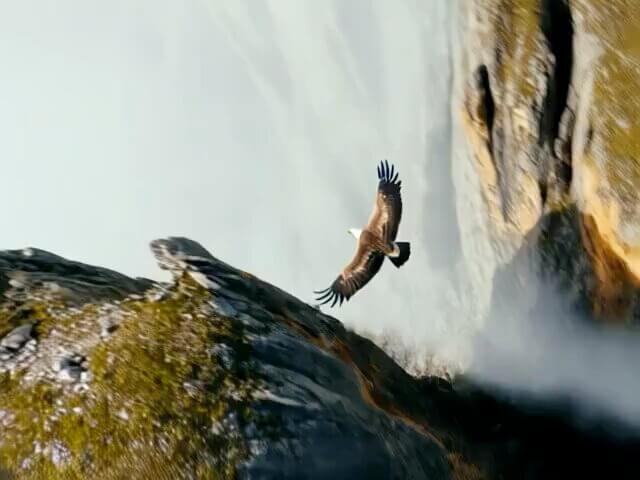

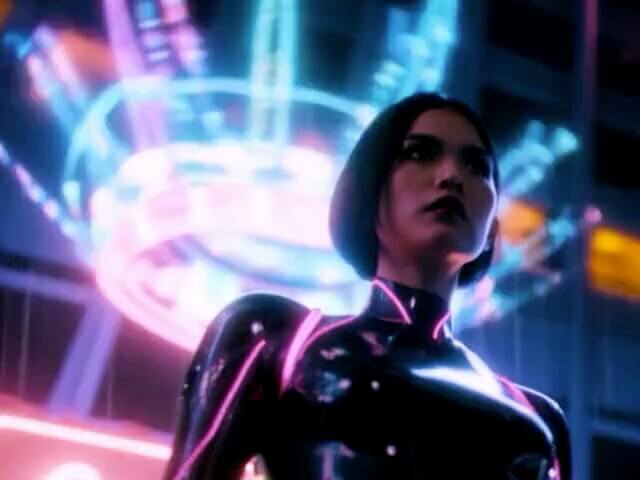
Image-to-Video Example
Both clips below were generated from the same reference image at 480×640, 121 frames, 20 steps, CFG 6 — only the prompt/settings differ between them.



What You Need Before Starting
Check your GPU VRAM before downloading anything. Open your graphics card software or check your system specs.
Pre-flight checklist
Model Files to Download
Text encoders and VAE are shared between both pipelines — download them once. Then pick the T2V or I2V diffusion model depending on what you're making. I2V needs one extra file — a CLIP Vision model — that's easy to miss since it's not a diffusion model or text encoder.
| File | Size | Needed for | Notes | Download |
|---|---|---|---|---|
qwen_2.5_vl_7b_fp8_scaled.safetensors | ~8 GB | T2V + I2V | Text encoder — reads your prompt | ↗ Download |
byt5_small_glyphxl_fp16.safetensors | ~1 GB | T2V + I2V | Glyph-aware text encoder — legible in-video text | ↗ Download |
hunyuanvideo1.5_720p_t2v_fp16.safetensors | ~17 GB | T2V only | Diffusion model for text-to-video | ↗ Download |
hunyuanvideo1.5_720p_i2v_fp16.safetensors | ~17 GB | I2V only | Diffusion model for image-to-video | ↗ Download |
sigclip_vision_patch14_384.safetensors | 857 MB | I2V only | Reads your reference image — easy to miss | ↗ Download |
hunyuanvideo15_vae_fp16.safetensors | ~1 GB | T2V + I2V | Decodes the generated latent into pixels | ↗ Download |
sigclip_vision_patch14_384.safetensors. It's a CLIP Vision model, not a diffusion model or text encoder — check the table above and don't skip it.Where to Place the Files
ComfyUI uses a specific folder structure inside its models/ directory. Each file type goes in a different subfolder. Placing a file in the wrong folder means ComfyUI cannot find it and the workflow fails to load.
text_encoders/ — shared by T2V and I2Vdiffusion_models/ — pick T2V or I2V fileclip_vision/ — required for I2V onlyvae/ — shared by T2V and I2Vmodels/checkpoints/. HunyuanVideo 1.5 uses the diffusion_models folder specifically. If it's in the wrong folder, the UNETLoader dropdown will be empty and the workflow will fail to load.Download the Workflow
Three workflow files are available — download the one matching what you want to make, or grab the combined file that includes both pipelines with a mute toggle to switch between them.
🎬 HunyuanVideo 1.5 — Workflow Downloads
Download the ready-to-use ComfyUI workflow JSON. Drag it onto the canvas and generate.
How to Load the Workflow JSON into ComfyUI
- Download the .json file to your computer.
- Open ComfyUI in your browser — usually at http://127.0.0.1:8188.
- Drag the .json file directly onto the ComfyUI canvas. Drop it anywhere on the empty grey area.
- The workflow loads automatically. You should see a set of connected nodes appear on the canvas.
- If you see only red error blocks, jump to the Troubleshooting section below.
How the Text-to-Video Workflow Is Built
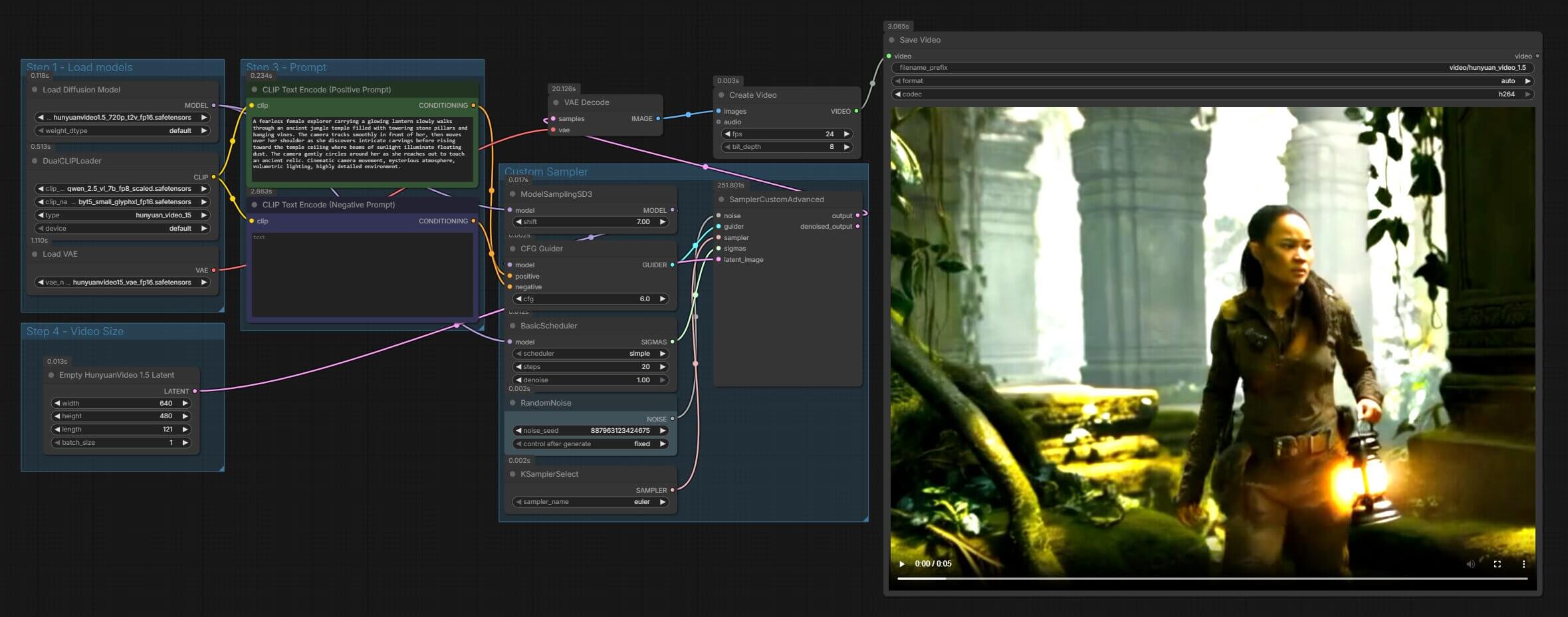
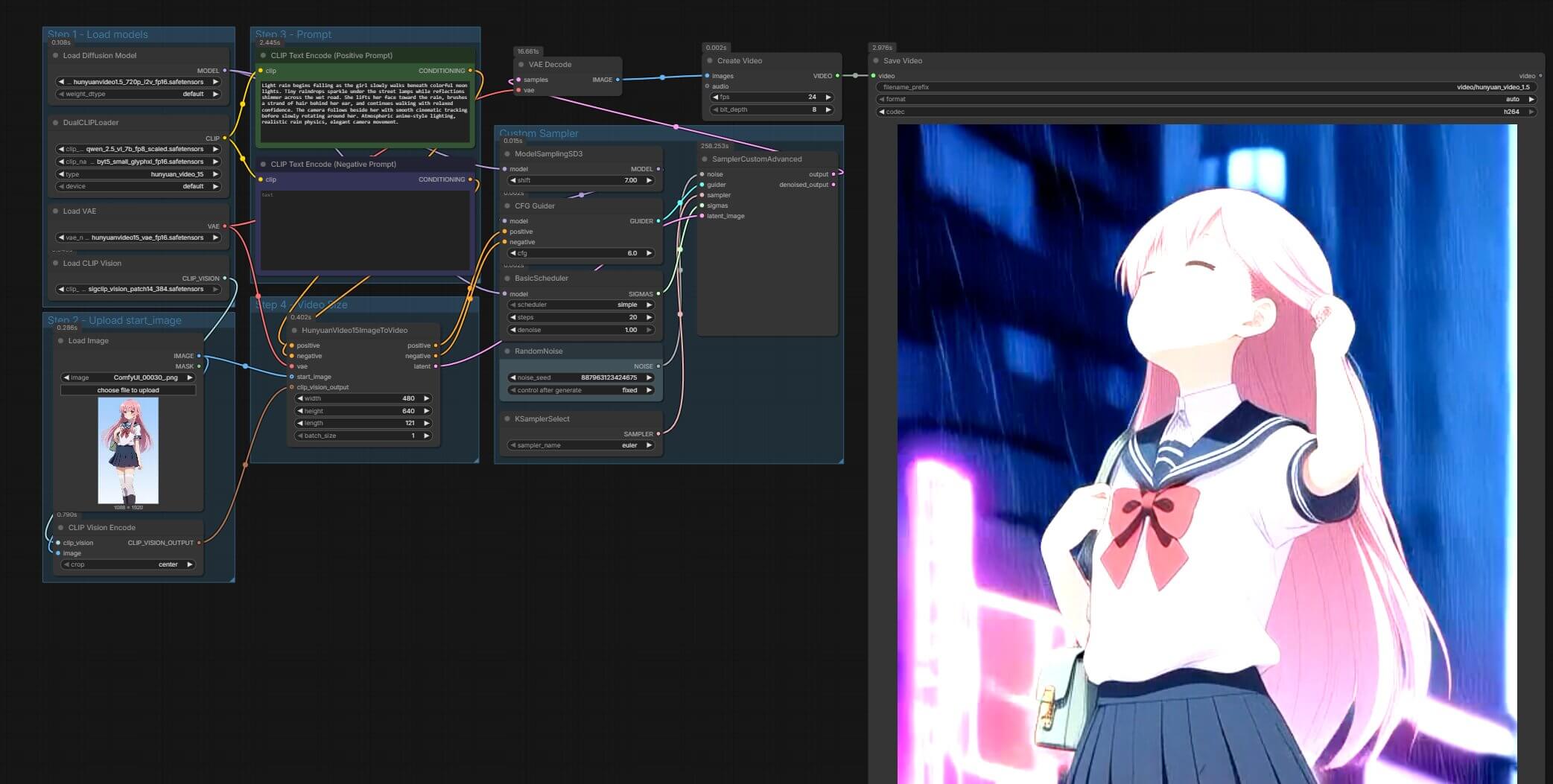
Here's the node-by-node breakdown of the tested T2V workflow, in the order signal flows through it.
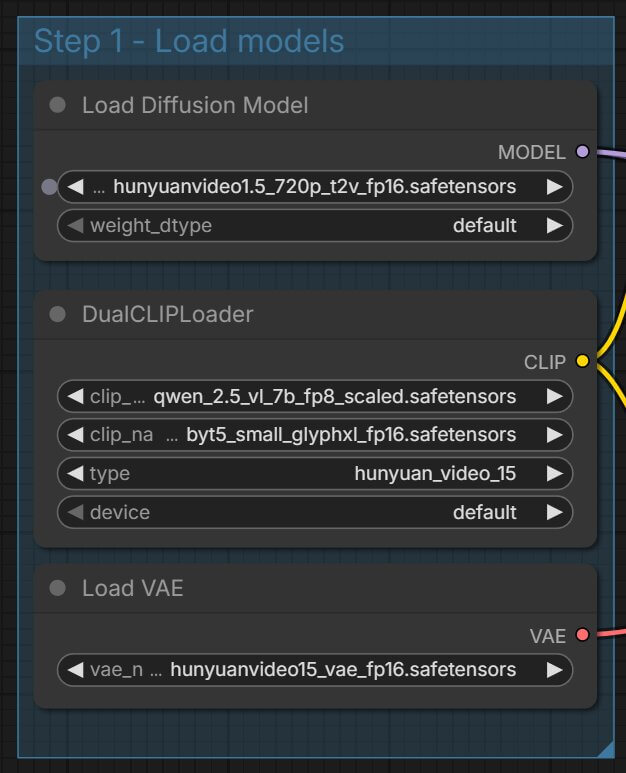
DualCLIPLoader
Loads both qwen_2.5_vl_7b_fp8_scaled.safetensors and byt5_small_glyphxl_fp16.safetensors together, type set to hunyuan_video_15. This node reads your text prompt — Qwen handles general language understanding, byT5 handles glyph-aware text for legible in-video text.
CLIP Text Encode (Positive / Negative Prompt)
The positive box holds your prompt describing the shot; the negative box can stay empty or hold things you want to avoid.
UNETLoader
Loads hunyuanvideo1.5_720p_t2v_fp16.safetensors — the diffusion transformer that generates the video.
VAELoader
Loads hunyuanvideo15_vae_fp16.safetensors, needed to turn the generated latent back into pixels later.
EmptyHunyuanVideo15Latent
Sets your output size. Tested at 640×480 resolution, 121 frames, batch size 1. At 24 fps, 121 frames is roughly 5 seconds.
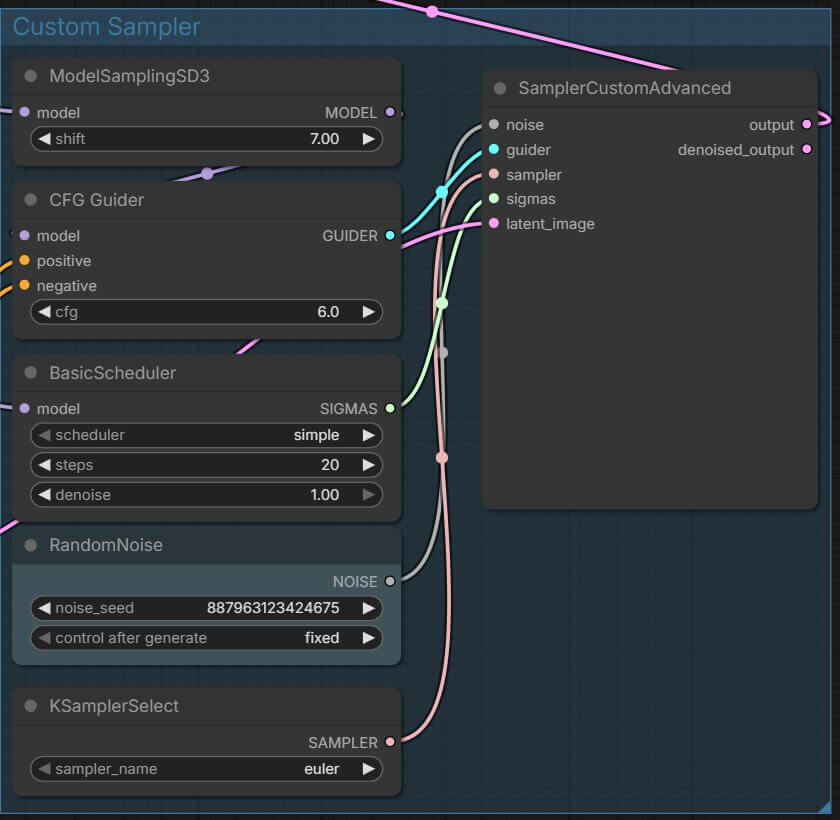
ModelSamplingSD3
Shift value set to 7 — Tencent's tested default. Controls how the model schedules noise across timesteps.
RandomNoise / KSamplerSelect / BasicScheduler / CFGGuider
Feed into the sampler: seed set to fixed for reproducible re-runs, sampler euler, scheduler simple at 20 steps with denoise 1, CFG scale 6.
SamplerCustomAdvanced
Combines everything above and runs the actual generation.
VAEDecode → CreateVideo → SaveVideo
Decodes the finished latent into frames, stitches them at 24 fps, and writes the file as h264 to your output folder.
How the Image-to-Video Workflow Is Built
The I2V graph shares most of its nodes with T2V. Here's what's different.
LoadImage
Loads your reference image — the frame the video will start from.
CLIPVisionLoader
Loads sigclip_vision_patch14_384.safetensors. Reads the visual content of your reference image so the diffusion model knows what it's animating.
CLIPVisionEncode
Encodes the loaded image, cropped to center.
DualCLIPLoader → CLIP Text Encode
Same as T2V. Your prompt here describes the motion and camera behavior you want, since the subject and composition already come from the image.
UNETLoader
Loads hunyuanvideo1.5_720p_i2v_fp16.safetensors — the I2V-specific diffusion model. This is the only diffusion model file that changes between the two workflows.
HunyuanVideo15ImageToVideo
Merges the encoded image with your text conditioning. Tested at 480×640 resolution, 121 frames, batch size 1.
ModelSamplingSD3 → sampler chain → VAEDecode → CreateVideo → SaveVideo
Identical to T2V from here: shift 7 → euler / simple / 20 steps / CFG 6 → decode → 24 fps → h264.
Running Out of Memory? Use the Distilled Low-VRAM Models
If generation crashes with an out-of-memory error, or ComfyUI silently kills the process during the sampler step, swap the diffusion model for the CFG-distilled 480p version. These are smaller, faster, and use less VRAM — you trade some resolution and fine detail for a workflow that actually finishes on lower-end cards. Everything else in the workflow — text encoders, VAE, node connections — stays the same. Only the file loaded into UNETLoader changes.
| Low-VRAM file | Swaps into | Download |
|---|---|---|
hunyuanvideo1.5_480p_t2v_cfg_distilled_fp16.safetensors | T2V UNETLoader | ↗ Download |
hunyuanvideo1.5_480p_i2v_cfg_distilled_fp16.safetensors | I2V UNETLoader | ↗ Download |
Browse every available precision and resolution variant in the full model repository ↗.
tile_size and overlap values on the VAE Decode (tiled) node if you're still running out of memory during the decode step specifically, rather than during sampling.weight_dtype on the diffusion model loader to an fp8 option. This cuts memory further with a small, usually acceptable, quality trade-off."Error loading model: sigclip_vision_patch14_384.safetensors not found"
You're running the image-to-video workflow without the CLIP Vision model installed.
- Download sigclip_vision_patch14_384.safetensors from the Model Files table above.
- Place it in ComfyUI/models/clip_vision/.
- Click the refresh icon on the CLIPVisionLoader node, or restart ComfyUI.
"CUDA out of memory" during sampling
Your GPU doesn't have enough free VRAM for the resolution and frame count you set.
- Switch to the 480p CFG-distilled diffusion model (see the Low-VRAM section above).
- Lower the frame count in EmptyHunyuanVideo15Latent (T2V) or HunyuanVideo15ImageToVideo (I2V) — try 61 frames before dropping resolution further.
- Close other GPU-heavy applications and try again.
Video generates but looks blurry or low-detail
This usually means the model ran, but at too low a step count or the wrong precision for your prompt's complexity.
- Raise BasicScheduler steps from 20 to 25–30.
- Confirm you're loading the fp16 model, not an fp8 variant, if VRAM allows it.
- Make sure your prompt is specific — vague prompts produce vague motion and detail.
Missing nodes after loading the workflow
If the workflow loads but some nodes appear as red error blocks with "missing node" labels, ComfyUI Manager can install them automatically. See the install missing nodes guide for step-by-step instructions.
Frequently Asked Questions
What to Do Next
Download the workflow. Run the T2V version first. Go from there.
Run text-to-video first with the default settings — once you get a clean 5-second clip, switch to image-to-video with your own reference photo. If you hit installation issues before you get this far, check the ComfyUI Manager and missing-node guides below.
Published: 2026-07-15 · Last updated: 2026-07-15 · Tested on RTX 4090 (24 GB VRAM) · Models: hunyuanvideo1.5_720p_t2v_fp16.safetensors / hunyuanvideo1.5_720p_i2v_fp16.safetensors
Join the discussion
Sign in to leave a comment or reply
No comments yet
Be the first to share your thoughts!