
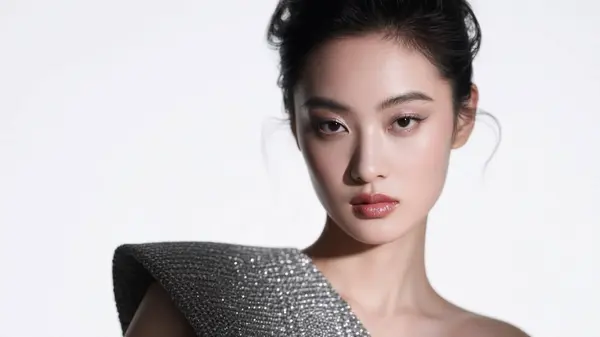
Qwen Image is a powerful text-to-image model that turns words into stunning images. With this guide, it's easy for anyone to install Qwen Image locally and use it with ComfyUI. Follow these simple steps to get started and see your ideas come to life!
What is Qwen Image?
Qwen Image is an advanced text-to-image AI model created by the Qwen team. It can generate detailed and creative images from simple text prompts. Qwen Image is popular for its ability to create high-quality pictures, making it useful for artists, designers, and anyone who wants to visualize ideas from text.
The model runs as a local ComfyUI workflow using three separate model files: a diffusion model, a text encoder (Qwen 2.5 VL 7B), and a VAE. All three are available for free download from Hugging Face.
Download Qwen Image Workflow
To use Qwen Image in ComfyUI, download the ready-made workflow file below. This workflow is pre-configured with all the correct node connections — just load it and select your model files.
Required Models
Before running the workflow, download these three Qwen Image model files and place them in the correct folders of your ComfyUI installation.
Model Files
- Diffusion Model: qwen_image_fp8_e4m3fn.safetensors
- Text Encoder: qwen_2.5_vl_7b_fp8_scaled.safetensors
- VAE: qwen_image_vae.safetensors
Folder Structure — Where to Place Model Files
Make sure your folders look like this:
ComfyUI/
└─ models/
   ├─ diffusion_models/
   │   └─ qwen_image_fp8_e4m3fn.safetensors
   ├─ vae/
   │   └─ qwen_image_vae.safetensors
   └─ text_encoders/
└─ qwen_2.5_vl_7b_fp8_scaled.safetensorsHow to Install Qwen Image Locally (Step-by-Step)
Follow these eight steps to get Qwen Image running inside ComfyUI on your local machine.
Update ComfyUI
Always use the latest version of ComfyUI for best compatibility with new models. Pull the latest commit or re-download from the official GitHub repository.
Download the Workflow
Get the workflow JSON file from the download button in the section above.
Download the Three Model Files
Download the diffusion model, text encoder, and VAE files from the links above. Place each file in its correct folder as shown in the folder structure.
Load the Workflow in ComfyUI
Open ComfyUI in your browser. Drag and drop the downloaded workflow JSON file into the ComfyUI canvas to load it.
Select Model Files in the Workflow Nodes
In the Load Diffusion Model node, select qwen_image_fp8_e4m3fn.safetensors. In the Load CLIP node, select qwen_2.5_vl_7b_fp8_scaled.safetensors. In the Load VAE node, select qwen_image_vae.safetensors.
Enter Your Prompt
Type your image description in the workflow's prompt box. See the example prompts in the next section for inspiration.
Adjust Settings (Optional)
Change image width, height, or advanced settings like CFG, steps, and shift values for different results. Default settings work well for a first test.
Click "Run" and Wait
Click the Queue Prompt / Run button. Wait for Qwen Image to generate your AI image. Generation time depends on your GPU.
Example Run
Here are three real examples generated with Qwen Image in ComfyUI. Each card shows the exact prompt used and the output image — click any image to view it full size.


Tips & Troubleshooting
If something is not working as expected, one of these is almost always the cause:
Image Not Generating — model files not found or in wrong folder
Fix: Double-check that all three model files are in the exact correct folders (diffusion_models, text_encoders, vae) and that each is selected in the correct node inside the workflow.
Slow Generation Performance
Fix: Lower the image resolution or reduce the number of steps in the KSampler. The fp8 model files are already optimized for lower VRAM — make sure you downloaded the fp8 variants.
Results Not as Expected
Fix: Try more descriptive prompts. Adjust CFG (guidance scale) — higher values follow the prompt more closely. Also try adjusting the shift value for different compositional results.
Model Files Not Appearing in Node Dropdowns
Fix: After placing new model files in the folders, press F5 or Ctrl+Shift+R to fully refresh ComfyUI in your browser. Without this step, the new files will not appear in dropdowns.
Final Thoughts
Qwen Image makes it simple to turn text descriptions into high-quality images with just a few steps. Install it locally, follow this guide, and explore new creative possibilities with this advanced text-to-image model. The fp8 model files keep VRAM usage manageable even on mid-range GPUs, making Qwen Image accessible to a wide range of hardware setups.
Frequently Asked Questions
Join the discussion
Sign in to leave a comment or reply
No comments yet
Be the first to share your thoughts!