
Introduction
Qwen Image 2512 is the latest text-to-image model that brings incredible human realism, detailed textures, and accurate text rendering to ComfyUI. This guide explains how to set it up and start generating high-quality, photo-realistic images in just a few steps.
Key Features of Qwen Image 2512
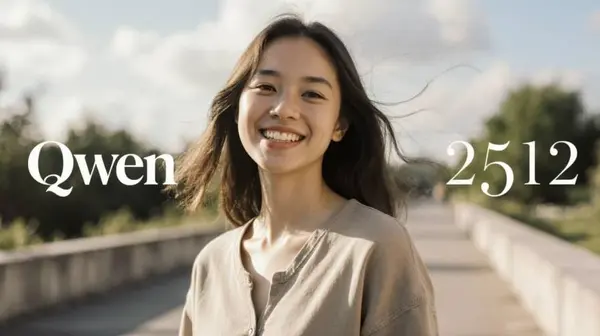
1. Enhanced Human Realism
Qwen Image 2512 produces lifelike human faces and skin textures, capturing subtle details and natural tones that rival real photography.

Prompt used
a realistic outdoor photo of a young stunning woman, gentle wind moving her hair and clothes, realistic fabric physics, natural skin highlights, soft sunlight, cinematic realism, realistic sky and environment, natural color tones
2. Improved Lighting and Textures
Enjoy more natural lighting, authentic reflections, and beautifully rendered environmental details — including wet surfaces, fabric weight, and realistic shadow falloff.
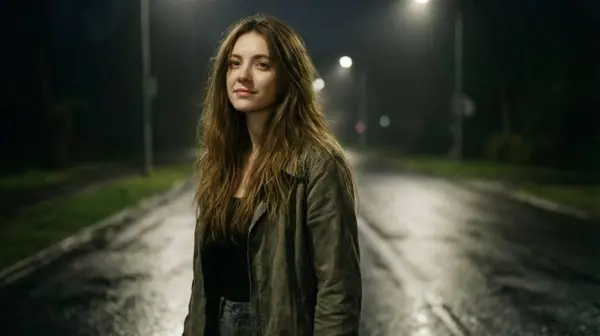
Prompt used
a realistic night photo of a young woman standing under street lights, soft glow lighting her face, smooth light falloff into shadows, realistic skin texture, detailed fabric texture on jacket and jeans, wet surfaces reflecting light, subtle shine on wet asphalt, natural color tones, cinematic night photography, realistic contrast and depth
3. Accurate Text Rendering
Generate images containing clear, easily readable text — a major improvement over most AI image models. Perfect for infographics, signs, posters, and memes.
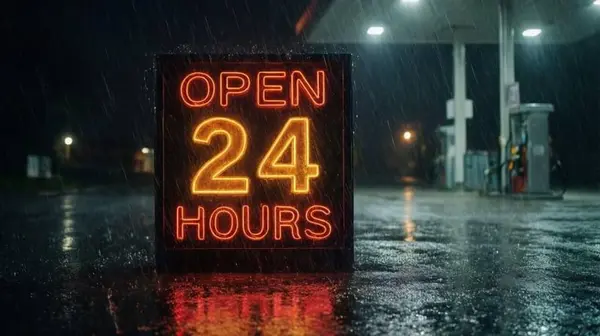
Prompt used
A cinematic night scene outside a gas station in heavy rain, glowing neon sign clearly reading "OPEN 24 HOURS", perfectly spelled and evenly spaced letters, sharp typography with no distortion, realistic neon glow reflecting on wet asphalt, ultra-detailed textures, rain streaks visible, professional photography, high contrast lighting, crystal-clear readable text
4. More Example Creations
Qwen Image 2512 handles diverse creative prompts with consistent quality across different lighting conditions, environments, and subjects.

Prompt used
a realistic cinematic photo of a young woman standing outside a gas station at night during heavy rain, thick visible rain streaks falling diagonally, dense rainfall illuminated by gas station lights, rain splashing on the ground, large puddles forming on wet asphalt, strong reflections of neon and white gas station lights on soaked pavement, water droplets on her hair and clothing, slightly soaked fabric with realistic weight and folds, natural skin texture, realistic facial features, moody nighttime atmosphere, cinematic lighting, subtle motion blur from falling rain, street photography realism

Prompt used
a realistic full-body photo of a young stunning woman posing naturally, confident but relaxed posture, realistic body proportions, fashionable outfit with natural fabric folds, soft daylight, accurate shadows, street fashion photography, realistic environment depth, natural skin details
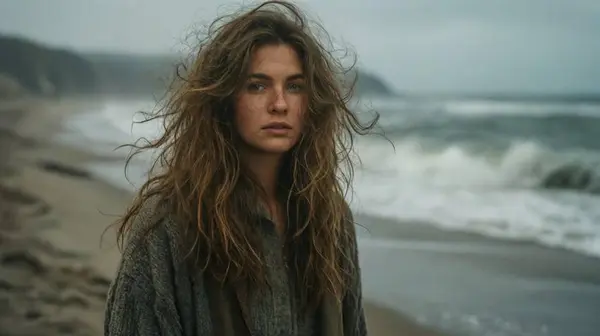
Prompt used
A young woman walking along a windy beach during an overcast day, ocean waves crashing behind her, hair blowing naturally in the wind, soft diffused lighting, realistic textures on skin and clothing, muted natural colors, calm emotional expression, high-end photography realism, ultra-detailed, natural environment
What Is Qwen Image 2512?
Qwen Image 2512 is a state-of-the-art text-to-image AI model developed for generating highly realistic imagery. It stands out with:
- Highly realistic human rendering — faces, skin, and natural body proportions
- Detailed natural textures — skin, hair, fabric, water, wet surfaces
- Better lighting and material behavior — accurate shadows, reflections, and depth
- Clear, accurate in-image text — the most consistent text rendering available in local AI models
This makes Qwen Image 2512 ideal for lifelike portraits, product visuals, editorial content, infographics, and any application where photographic realism matters.
How to Set Up Qwen Image 2512 on ComfyUI
Setting up Qwen Image 2512 for text-to-image generation in ComfyUI is straightforward. Follow these steps:
Step-by-Step Setup Guide
Update ComfyUI to the Latest Version
Go to ComfyUI_windows_portable\update and double-click update_comfyui to update.
Update All Installed Nodes
Start ComfyUI → open the Manager → click 'Update all' to update every custom node.
Download the Qwen Image 2512 Workflow
Use the button below to download the ready-to-use workflow JSON file.
Download Required Model Files
Download all required model files from the links below and place them in the correct ComfyUI folders.
Diffusion Models — choose one
⬇ qwen_image_2512_bf16.safetensors (full precision)⬇ qwen_image_2512_fp8_e4m3fn.safetensors (recommended, faster)Text Encoders — choose one
⬇ qwen_2.5_vl_7b.safetensors (full precision)⬇ qwen_2.5_vl_7b_fp8_scaled.safetensors (recommended, faster)LoRA (for faster generation — Lightning)
⬇ Qwen-Image-2512-Lightning (Hugging Face)Low-End GPU — GGUF Quantized
⬇ Qwen-Image-2512-GGUF (Hugging Face)Organize Your Model Files
Place all files in the exact folder structure below:
ComfyUI/
└── models/
    ├── diffusion_models/
    │   ├── qwen_image_2512_bf16.safetensors
    │   └── qwen_image_2512_fp8_e4m3fn.safetensors  ← use this
    ├── text_encoders/
    │   ├── qwen_2.5_vl_7b.safetensors
    │   └── qwen_2.5_vl_7b_fp8_scaled.safetensors   ← use this
    ├── vae/
    │   └── qwen_image_vae.safetensors
    └── loras/
└── Qwen-Image-2512-Lightning-4steps-V1.0-fp32.safetensorsExample Run
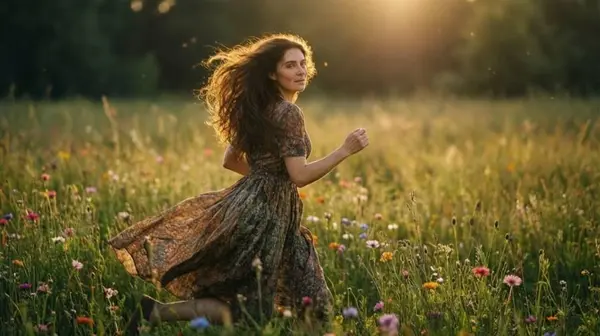
Here is a real output generated with the Qwen Image 2512 workflow and the prompt below. Click the image to view full size.
Prompt used
A young woman running through a wide open flower field at golden hour, colorful wildflowers swaying in the wind, natural motion blur on her flowing dress, soft sunlight illuminating her hair, realistic skin texture, candid moment, shallow depth of field, cinematic natural realism, ultra-detailed, photographed on a DSLR, peaceful and emotional atmosphere
Tips and Troubleshooting
Images look distorted or low quality
Fix: Double-check model placement in the correct sub-folder. Keep prompts descriptive but not overly long — 1–4 sentences with specific scene details works best.
Slow generation speed
Fix: Use the FP8 models (qwen_image_2512_fp8_e4m3fn and qwen_2.5_vl_7b_fp8_scaled) for significantly faster generation on compatible hardware.
Out-of-memory errors on low-end GPU
Fix: Switch to the GGUF quantized model for Qwen Image 2512. It uses significantly less VRAM while maintaining reasonable image quality.
Red nodes after importing the workflow
Fix: Open the ComfyUI Manager, click "Install missing custom nodes", install all required nodes, and restart ComfyUI.
Text in generated images is illegible or misspelled
Fix: Spell out the exact text you want in quotes in your prompt. For example: neon sign clearly reading "OPEN 24 HOURS", perfectly spelled and evenly spaced. Keep the text short (3–5 words) for best results.
- For best realism, write prompts that describe lighting conditions, environment, and material details.
- Increase output resolution to 1024×1024 pixels or higher for sharper, more detailed results.
- The Lightning LoRA (4-step) produces images much faster — ideal for rapid iteration.
Frequently Asked Questions
Conclusion
Qwen Image 2512 raises the bar for text-to-image AI art, delivering unmatched realism, detailed textures, and reliable in-image text rendering. With ComfyUI, setting up and generating photo-quality AI images is quick and easy using the free workflow above.
Experiment with different prompts, resolutions, and the Lightning LoRA for faster iteration — and explore how close AI-generated images can get to real photography.
Join the discussion
Sign in to leave a comment or reply
No comments yet
Be the first to share your thoughts!