

Qwen Image Edit 2509 is a powerful AI-powered image editing model for ComfyUI. It lets you edit photos using text prompts — changing backgrounds, swapping outfits, removing or adding objects, merging multiple characters into one scene, and altering facial expressions. This guide covers everything from model setup to real example runs.
What Qwen Image Edit Can Do
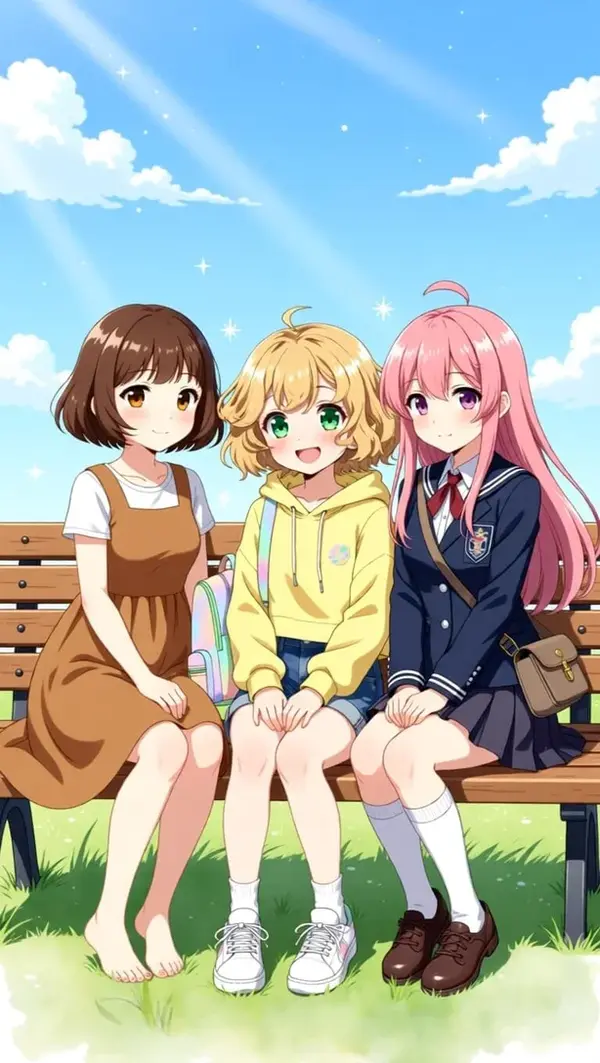
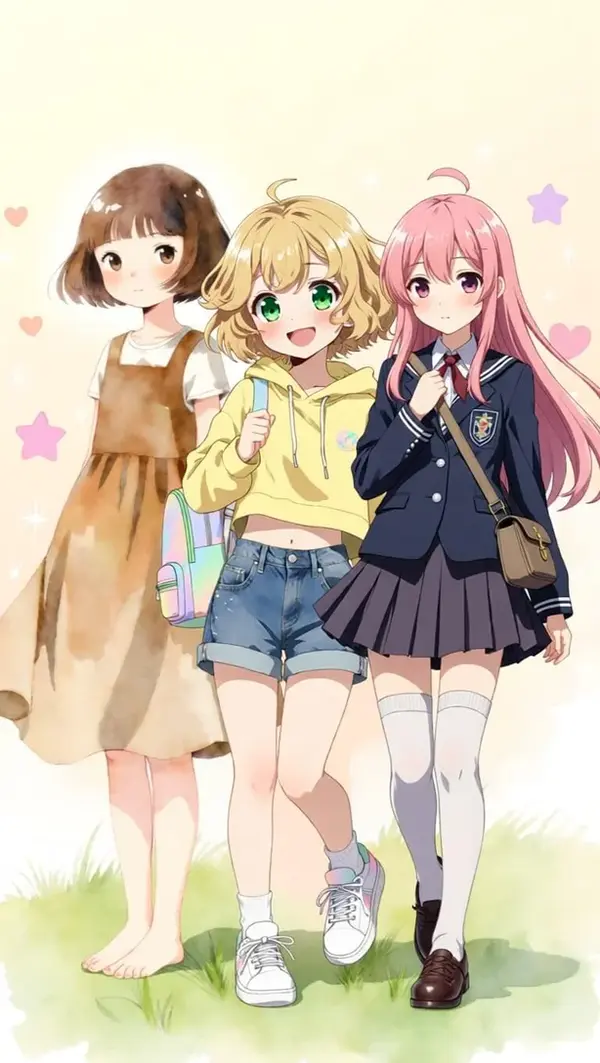
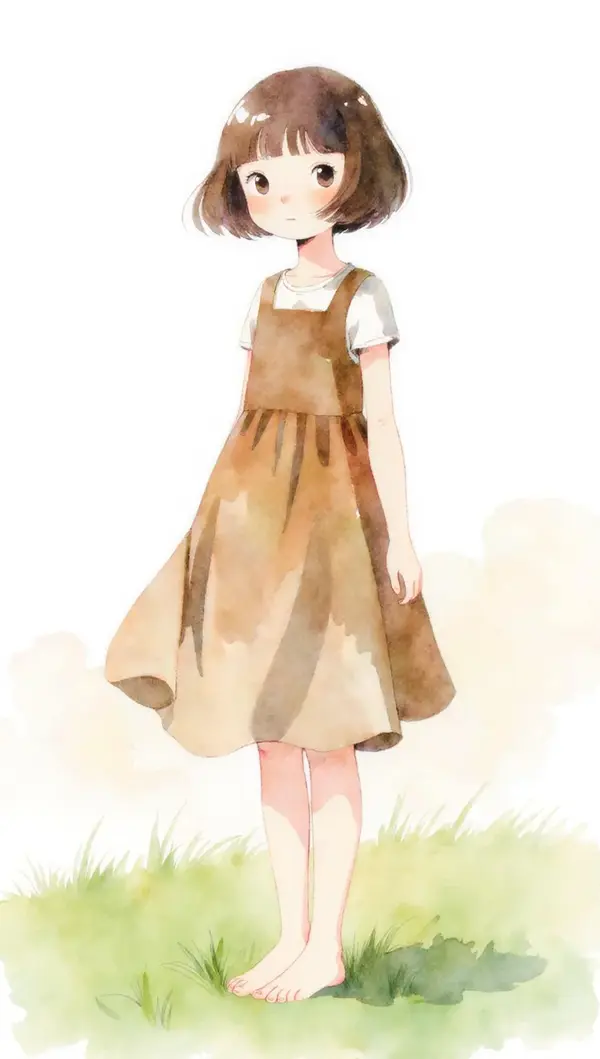
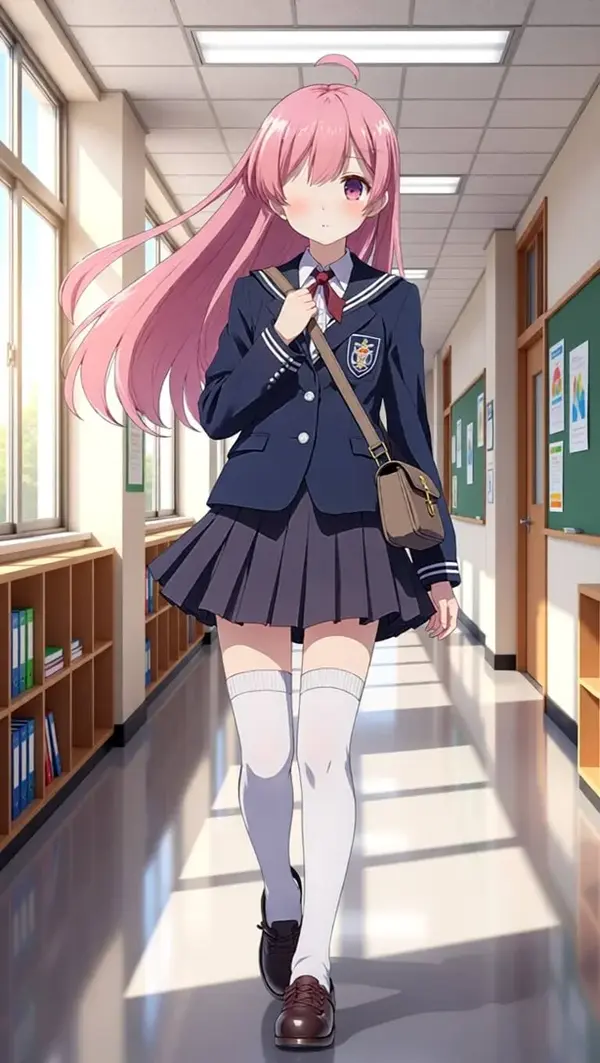
Qwen Image Edit 2509 enables advanced image editing with just a text prompt. Below are six editing types with real before/after examples — all generated from the three input images shown first.
Input Images Used for All Examples



Image Grouping / Multi-Image Merge
Combine multiple characters into a single coherent scene with natural lighting and proportions.
Clothing Replacement
Swap outfits while preserving pose, hairstyle, face, and art style.

Object Removal
Remove objects from scenes and fill the area naturally without disturbing the rest of the image.
Object Addition
Add new objects or characters to an existing image while matching lighting and art style.

Face Editing — Expression Change
Change facial expressions while keeping all other character features identical.

Background Change
Swap the background of any image while keeping the subject perfectly consistent.
What Is Qwen Image Edit 2509?
Qwen Image Edit 2509 is a powerful AI-powered image editing model designed for ComfyUI users. It allows you to edit photos, create consistent characters in different settings, apply new outfits, or transform backgrounds — all while maintaining exceptional output quality. The workflow supports creative possibilities, making it ideal for artists, content creators, and anyone interested in visual storytelling.
Download Workflow
Start by downloading the ready-made Qwen Image Edit 2509 workflow for ComfyUI. This file is pre-configured with all the correct node connections.
To use: drag and drop the JSON file into your ComfyUI workspace.
Download Required Models for Qwen Image Edit
All five required model files must be downloaded and placed in the correct folders for Qwen Image Edit to work. Download them from these official links:
- Diffusion Model: qwen_image_edit_2509_fp8_e4m3fn.safetensors
- GGUF: Qwen-Image-Edit-2509-XX_X.gguf
- LoRA: Qwen-Image-Lightning-4steps-V1.0.safetensors
- Text Encoder: qwen_2.5_vl_7b_fp8_scaled.safetensors
- VAE: qwen_image_vae.safetensors
Folder Structure — Where to Place Model Files
Organize your model files in ComfyUI like this:
ComfyUI/
└── models/
    ├── diffusion_models/
    │   └── qwen_image_edit_2509_fp8_e4m3fn.safetensors
    ├── unet/
    │   └── Qwen-Image-Edit-2509-XX_X.gguf
    ├── loras/
    │   └── Qwen-Image-Lightning-4steps-V1.0.safetensors
    ├── vae/
    │   └── qwen_image_vae.safetensors
    └── text_encoders/
└── qwen_2.5_vl_7b_fp8_scaled.safetensorsmodels/unet/ — not diffusion_models/. Placing it in the wrong folder is a common setup error.Step-by-Step Setup: Qwen Image Edit 2509 in ComfyUI
Follow these nine steps to get Qwen Image Edit 2509 running inside ComfyUI on your local machine.
Update ComfyUI and Custom Nodes
Install the Workflow
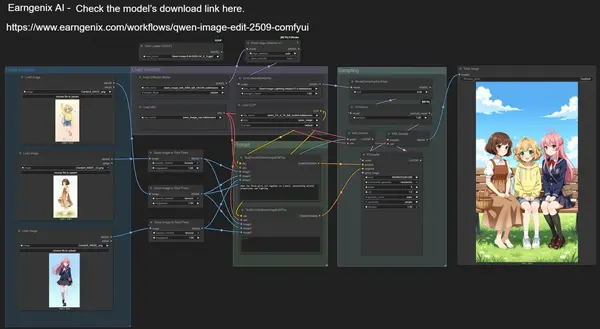
Install Missing Custom Nodes
Download & Place All Required Models
Assign Models in the Workflow
- Load Diffusion Model:
qwen_image_edit_2509_fp8_e4m3fn.safetensors - GGUF Loader:
Qwen-Image-Edit-2509-XX_X.gguf - Load LoRA:
Qwen-Image-Lightning-4steps-V1.0.safetensors - Load VAE:
qwen_image_vae.safetensors - Load CLIP:
qwen_2.5_vl_7b_fp8_scaled.safetensors
Load Your Image
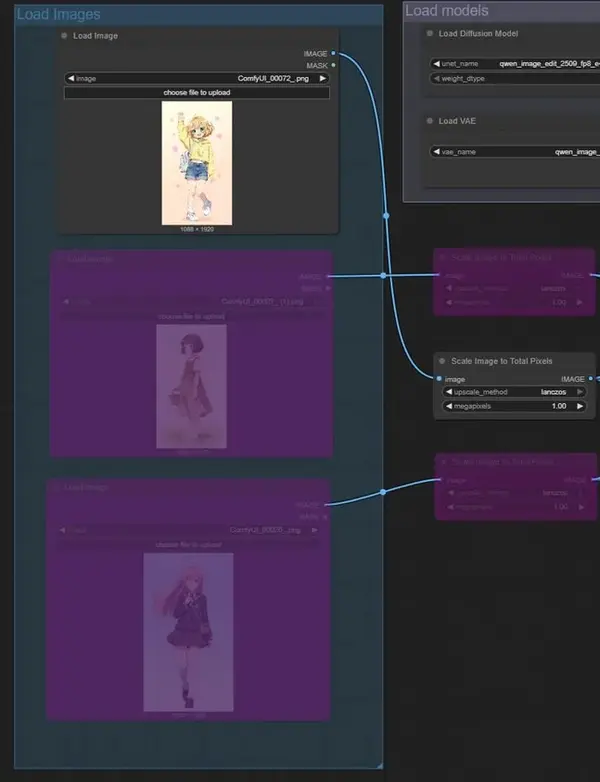
Edit Prompt and Settings
(Optional) Enable Sage Attention
Run the Workflow
Example Run: Editing an Image with Qwen Image Edit 2509
Here's a complete example run showing input images, prompt, and output. All three input images shown above were used together.
Input Images
Prompt Used
Output Result
Tips & Troubleshooting
Missing nodes — red nodes in the workflow
Fix: Open ComfyUI Manager and click 'Install missing custom nodes'. Restart ComfyUI after installation. All nodes should turn green.
Model loading issues — file not found
Fix: Double-check every model file is correctly named and placed in the exact right folder. The GGUF file goes in models/unet/ specifically — not diffusion_models/.
Sage Attention errors
Fix: If Sage Attention errors appear, either install it using the guide linked in Step 8, or disable the Sage Attention node. The workflow will still run normally without it.
Unexpected output quality
Fix: If using alternate GGUF model sizes, adjust steps and CFG accordingly. Larger GGUF variants generally need fewer steps. Start with default settings and adjust from there.
Conclusion
Qwen Image Edit 2509 offers a powerful and user-friendly way to perform advanced image editing in ComfyUI. Whether you want to alter backgrounds, maintain consistent characters across scenes, or explore creative prompt-driven transformations, Qwen Image Edit 2509 delivers high-quality results quickly. The support for up to three simultaneous input images makes it particularly powerful for character consistency and multi-image merging use cases.
Frequently Asked Questions
Join the discussion
Sign in to leave a comment or reply
No comments yet
Be the first to share your thoughts!