
⚡ Quick Answer
MiniMax Music 3 is a free, open-weight text-to-music model that runs natively in ComfyUI and generates a complete song — vocals, instruments, and structure — up to five minutes longfrom a written Caption and tagged Lyrics. You need three model files and ComfyUI's official template workflow. No coding required.
MiniMax Music 3 just released, and unlike most AI music tools, you can run it entirely on your own computer for free once the model files are downloaded. This guide walks through the full MiniMax Music 3 ComfyUI workflow — which files to download, how to load the official template, and how to actually write a Caption and Lyrics pair that produces a song that sounds like what you asked for.
What to Expect: Example Songs
Before you download anything, here's what MiniMax Music 3 actually produces. All three tracks below were generated with this same workflow — only the Caption and Lyrics changed.
🎵 Modern Soul Blues
🎵 Indie Folk Pop
🎵 Progressive House
What Is MiniMax Music 3? (And Why It's Different)
MiniMax Music 3 is an AI model that turns a written description and a set of lyrics into a finished song, complete with vocals, instruments, and a full arrangement. Unlike short AI music clips or loops, it's built to hold a song's theme, rhythm, and vocal identity together across a complete track up to five minutes long — with a proper intro, verses, choruses, a bridge, and an outro, the same way a real song is structured.
It outputs 32 kHz stereo audio, and because the model weights are open(freely downloadable), you run the whole thing on your own GPU — there's no subscription or per-song fee once it's set up.
What You Need Before You Start
MiniMax Music 3 needs three separate model files: a diffusion model (this is the main AI model file — it does the actual song generation), a text encoder (this reads your Caption and Lyrics and turns your words into something the diffusion model can use), and a VAE (this converts the model's output into the finished audio file you can actually listen to).
Which Diffusion Model Should You Download?
Comfy-Org repackaged the diffusion model in two sizes. Both work the same way — download one, not both.
| File | Size | What It Is |
|---|---|---|
minimax_music3_dit_fp16.safetensors | 4.9 GB | Full precision — best quality, the default choice if you have the disk space |
minimax_music3_dit_int8_convrot.safetensors | ~2.5 GB | Compressed to 8-bit — smaller file, for lower-VRAM GPUs |
Text Encoder and VAE
These two files only come in one version each:
| File | Size | What It Is |
|---|---|---|
minimax_music3_text_encoder_pruned_int8_convrot.safetensors | ~1 GB | Reads your Caption and Lyrics text and converts it into a format the diffusion model understands |
minimax_music3_dav.safetensors | ~217 MB | The audio VAE — turns the model’s internal output into the final playable audio |
Where Everything Goes
Each file goes in a different folder inside your ComfyUI installation. If a folder doesn't exist yet, create it using the exact name below:
models/.ComfyUI must be updated to a recent version for the MiniMax Music 3 nodes to appear. If you've never updated ComfyUI before, open ComfyUI Manager (the puzzle-piece icon in the top toolbar) and click Update ComfyUI.
How to Load the MiniMax Music 3 Workflow in ComfyUI
Rather than building the node graph yourself, download the ready-made workflow file below and load it straight into ComfyUI.
(minimax_music_3.json)- Download the workflow file using the button above, and make sure ComfyUI is updated to the latest version first. Open ComfyUI Manager (the puzzle-piece icon in the top toolbar) and click Update ComfyUI — the MiniMax Music 3 nodes only work on a recent version, and the workflow will fail to load correctly on an outdated one.
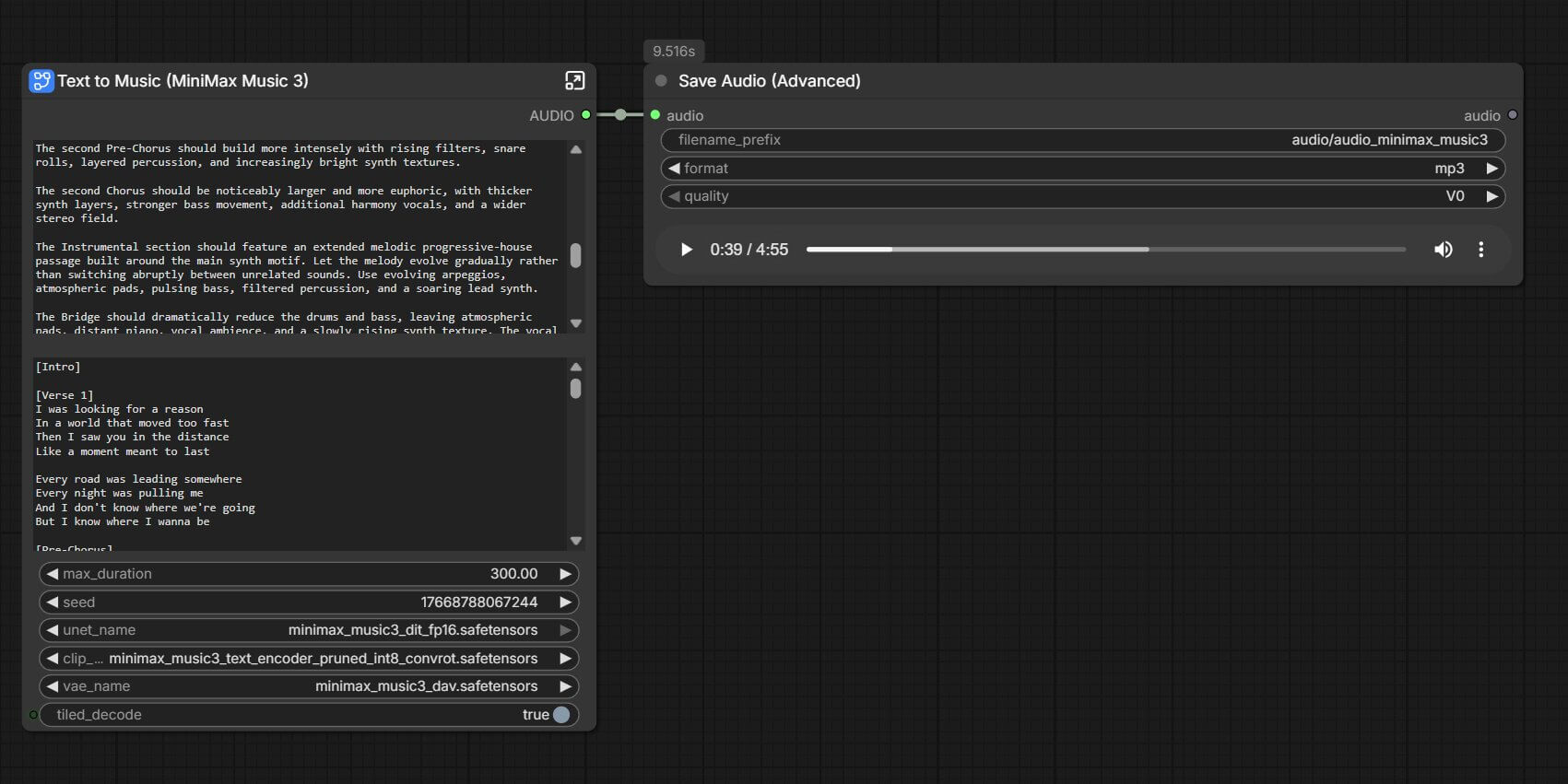
- Load the workflow into ComfyUI. Drag the downloaded audio_minimax_music_3.json file straight onto the ComfyUI canvas in your browser, or click Workflow in the top menu, then Open, and select the file from where you saved it. The full node graph appears on your canvas — a text node for Caption and Lyrics, connected through to a Save Audio node.
- A pop-up may appear listing the required model files. If any file shows as missing, go back to the What You Need section above and confirm it's in the correct folder, then restart ComfyUI.
- In the model dropdown fields inside the MiniMax Music 3 node, confirm your diffusion model, text encoder, and VAE files are each selected — not blank. If a file doesn't appear in a dropdown, it's in the wrong folder.
How Do You Write a Caption and Lyrics for MiniMax Music 3?
MiniMax Music 3 takes two separate text inputs, and understanding what each one controls is the single biggest factor in whether your song sounds like what you asked for.
Caption — a written description of the music: the genre, mood, vocal style, and how the instruments are arranged. Lyrics — the actual words to be sung, broken into sections using tags like [Verse] and [Chorus].
Here's the part that trips people up: the section tags in your Lyrics are the onlything that controls the song's structure. The words themselves only set the mood — writing "the drums kick in now" inside your lyrics won't make the drums kick in. That instruction belongs in the Caption's Arrangement description instead, tied to the matching tag.
The Structure Tags
Use these tags, each on its own line: [Intro] [Verse] [Pre-Chorus] [Chorus] [Post-Chorus] [Bridge] [Instrumental] [Solo] [Outro]. Number repeats like [Verse 1] and [Verse 2] — your chorus text can usually repeat word-for-word under every [Chorus] tag.
The Three-Part Caption Format
For real control over the result, write your Caption in three parts: Global Metadata (genre, BPM, key, and how the emotion changes from the first second to the last), Vocal Details (who's singing and how they sound), and Arrangement (which instruments play, and — most importantly — how that changes at each section of the song). The more specific you are, the closer the result matches what you had in mind.
Worked Example
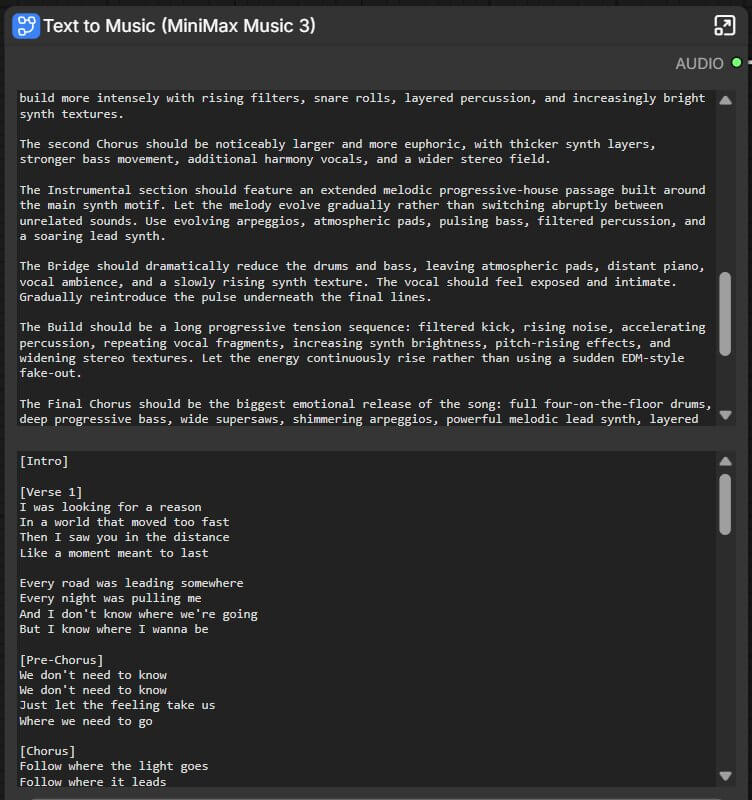
Here's a real Caption and Lyrics pair used to generate one of the example songs above — a modern soul-blues track with a female vocal:
Caption
Global Metadata: Modern soul blues / blues-rock, 88 BPM, E minor. The emotional arc moves from wounded and reflective in the opening to confident, liberated, and quietly powerful by the final chorus. Warm analog character, organic dynamics, slightly gritty vintage-inspired mix.
Vocal Details: Powerful mature female blues vocal, smoky and slightly raspy, with strong emotional character. Verses are conversational and restrained; choruses open into a fuller chest voice with gritty sustained notes and vibrato. Subtle backing harmonies on the chorus hook.
Arrangement: The Intro begins sparsely with warm Hammond organ and a distant electric guitar phrase. Verse 1 is carried by clean electric guitar, organ, and warm bass with brushed drums. The Chorus opens into a full soul-blues groove with crunchy guitar rhythm, deep bass, and backing vocals. The Bridge strips back to vocal, organ, bass, and sparse guitar before an expressive electric-blues guitar Solo. The Final Chorus returns with the biggest live-band performance and spontaneous vocal ad-libs.
Lyrics
[Intro]
Mmm, yeah
Oh, baby
You know I tried
But I ain't coming back

[Verse 1]
I gave you every Sunday morning
Every midnight on the phone
I kept waiting for your loving
While you made me feel alone

[Pre-Chorus]
I cried enough tears for two
Spent too many nights missing you

[Chorus]
I ain't coming back, no, no
You can call my name all night
I ain't coming back, no, no
You had your chance, you had your time

[Bridge]
Maybe someday you'll remember
How I held you through the rain

[Solo]

[Final Chorus]
I ain't coming back, no, no
I finally learned to choose my life

[Outro]
Mmm...
I ain't coming back
Copy-Paste Prompt: Write Your Own Song
Writing a Caption from scratch takes practice. Instead, paste the prompt below into Claude, ChatGPT, or any other chat AI, fill in your song idea at the top, and it will write a properly formatted Caption and Lyrics pair for you — ready to paste directly into the MiniMax Music 3 node.
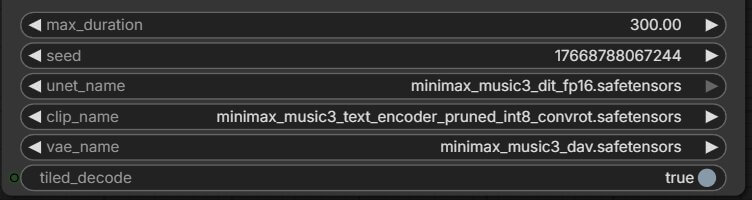
What Do max_duration, Seed, and Tiled Decode Do?
Three more settings in the MiniMax Music 3 node affect your song beyond the Caption and Lyrics themselves:
| Parameter | What It Does |
|---|---|
max_duration | Target song length in seconds. Defaults to 60 in the official template; the model supports up to about 300 (5 minutes). Longer songs take more time to generate and need more lyric sections to fill them. |
seed | A number that controls the specific performance you get. Keep it fixed to reproduce the exact same song again; change it to get a different take on the same Caption and Lyrics. |
tiled_decode | Decodes the audio in overlapping chunks instead of all at once, which uses less VRAM. Useful for long songs on lower-VRAM GPUs. Turn it off for the best quality if your GPU has plenty of VRAM. |
max_durationfirst — it's the most common reason a song ends early.Common Errors When Setting Up MiniMax Music 3
"This node type does not exist"
What causes it: Your ComfyUI installation is out of date, so it doesn't recognize the MiniMax Music 3 nodes yet.
How to fix it: Open ComfyUI Manager and click Update ComfyUI. Restart ComfyUI completely after updating — node definitions only load on startup.
A model file doesn't appear in the dropdown
What causes it: The file is either in the wrong folder, or the filename was changed during download (some browsers append numbers like "(1)" to duplicate filenames).
- Recheck the folder structure in the What You Need section above — diffusion model, text encoder, and VAE each belong in a different folder.
- Confirm the filename matches exactly, with no extra characters added.
- Restart ComfyUI after moving or renaming any file — it only scans the model folders on startup.
The song doesn't follow your lyrics or structure
What causes it: Usually a mismatch between your Lyrics tags and your Caption's Arrangement section — for example, tagging a [Bridge] in the Lyrics but never mentioning the bridge in the Arrangement.
How to fix it: Go back through your Caption and make sure every section tag used in the Lyrics also gets at least one sentence in the Arrangement describing how that section should sound. This is the exact gap the copy-paste prompt above is built to avoid.
Frequently Asked Questions
What to Do Next
Generate your first song with the worked example above.
Paste the blues Caption and Lyrics from this guide into the node exactly as written, queue the prompt, and confirm your setup works before writing your own song.
Published: 2026-08-14 · Last updated: 2026-08-14 · Workflow structure verified against the official MiniMax Music 3 ComfyUI template.
Join the discussion
Sign in to leave a comment or reply
No comments yet
Be the first to share your thoughts!