
⚡ Quick Answer
YuE2 is a free, open-source AI model that writes a complete song — vocals, instruments, and structure — from nothing but a style description and lyrics you type in. It runs natively inside ComfyUIon current versions, so most people won't need to install any extra custom nodes. This guide covers the full install, your first generated song, and honest listening tests across six different music genres.
If you've seen the headlines about YuE2 beating Suno on a benchmark chart and you're wondering whether it's actually worth installing, the honest answer is: it depends what you need it for, and the only real way to know is to hear it for yourself. This guide walks through installing YuE2 in ComfyUIfrom a clean setup, generating your first song, and then testing it properly across six genres — so you know what you're getting before you spend any time on it.
Hardware and versions used for this guide: ComfyUI 0.35.2, tested on Windows with an RTX 4090 (24GB VRAM).
What Does YuE2 Actually Sound Like? Listen Before You Install
Before you download anything, here's what came out of the exact same workflow you can download further down this page. Every clip below was generated from nothing but a short style description and a few lines of lyrics — no reference audio, no manual editing, no cherry-picked takes.
We tested six genres on purpose, because a model that sounds great on one style can fall apart on another. Press play on whichever genres you actually care about.
🎵 Acoustic Ballad
Style typed in: "slow acoustic ballad, emotional male vocal, piano and strings"
A calmer style suits the model well — pacing and emotional dynamics both came through clearly.
🎵 Flamenco
Style typed in: "flamenco guitar, passionate female vocal, handclap percussion"
Guitar work is a highlight; vocal pronunciation gets less precise on longer held notes.
🎵 Lo-fi Chill
Style typed in: "lo-fi hip-hop, mellow female vocal, soft drums, vinyl crackle"
The relaxed tempo hides most of the small imperfections you notice in faster genres.
🎵 K-Pop
Style typed in: "upbeat k-pop, female vocal, bright synths, driving beat"
Vocals sit clean and confident in the mix — this was the strongest genre in our testing.
🎵 Heavy Metal
Style typed in: "heavy metal, male vocal, distorted guitar, double kick drums"
Instrumentation is convincing, though the vocal delivery softens slightly during the fastest sections.
🎵 Jazz Funk
Style typed in: "jazz funk, walking bassline, brass section, laid-back groove"
One of the more impressive results — the arrangement genuinely sounds composed, not looped.
What Is YuE2? (And Why It Works Differently)
YuE2 is an open-weight music generation model built by a research team called Multimodal Art Projection (m-a-p). "Open-weight" means the actual trained model file is public and free to download, unlike Suno, which only lets you use the model through their paid website.
Most AI song generators go straight from your text prompt to a finished audio file, which means you can't see or change anything in between. YuE2 works differently: it first writes an actual musical plan — the melody and chords — in a text format called ABC notation(a simple way of writing sheet music using letters and numbers instead of musical staff symbols). Only after that plan exists does it render the final audio. Because the middle step is plain text, you can open it, read it, and change a note or a chord before the model spends time rendering the finished song. We'll show you exactly how to do that later in this guide.
On a benchmark called WildSongBench, YuE2's own published results show it scoring slightly ahead of Suno v5 on average. That number comes from the model's own creators, generated by making 8 versions of each song and keeping the best one — so treat it as a promising sign rather than settled proof. We'll run a full side-by-side listening comparison against Suno in a separate article.
What You Need Before You Start
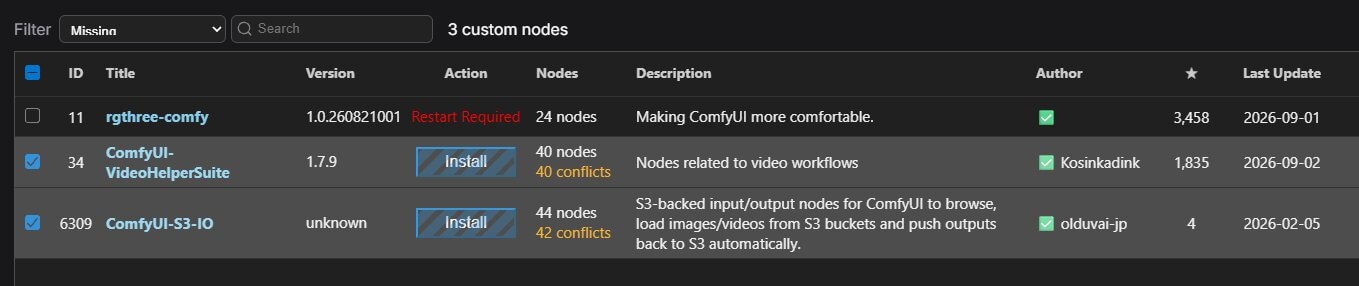
YuE2 support is built directly into ComfyUI as of version 0.35.x, so you don't need to hunt down a separate custom node pack the way you might for other new models. You do need ComfyUI updated to that version or later — if you've never updated before, our guide on updating ComfyUI walks through it in two clicks using ComfyUI Manager.
How Much VRAM Do You Actually Need?
M-A-P's own published testing used an RTX 4090 (24GB VRAM) and recorded a peak memory use of roughly 14GB while generating a song. If your card has less VRAM than that, you have two options below the full-precision file — one still runs directly inside ComfyUI, the other needs a separate lightweight tool. Both are covered in their own section further down this guide.
Which Files Do You Need to Download?
You need one checkpoint for sure — pick either the full-precision or the int8 version below, not both — and the audio encoder only if you want to try Cover mode later in this guide.
| File | Size | What It Is | |
|---|---|---|---|
yue2_3b_bf16.safetensors | ~7.3 GB | The main YuE2 checkpoint (a checkpoint is the single file that holds a trained AI model), at full precision. It combines the text-understanding part and the music-generation part into one file — this is the version used for every clip in this article. | ↓ Download |
yue2_3b_int8_convrot.safetensors | smaller than bf16 | The same checkpoint compressed to 8-bit (int8). This is the ComfyUI-native option for people who don’t have the VRAM headroom for the full bf16 file — it drops straight into the same CheckpointLoaderSimple node, no extra setup needed. | ↓ Download |
| File | Size | What It Is | |
|---|---|---|---|
sheetsage2_bf16.safetensors | ~1.3 GB | Only needed for Cover mode. It listens to a reference song you provide and turns it into an editable score. Skip this file if you only want to write brand-new songs from scratch. | ↓ Download |
Where Do These Files Go?
Once downloaded, each file has one correct folder inside your ComfyUI installation. Getting this wrong is the single most common reason YuE2 doesn't show up as an option later.
Download the Full Workflow
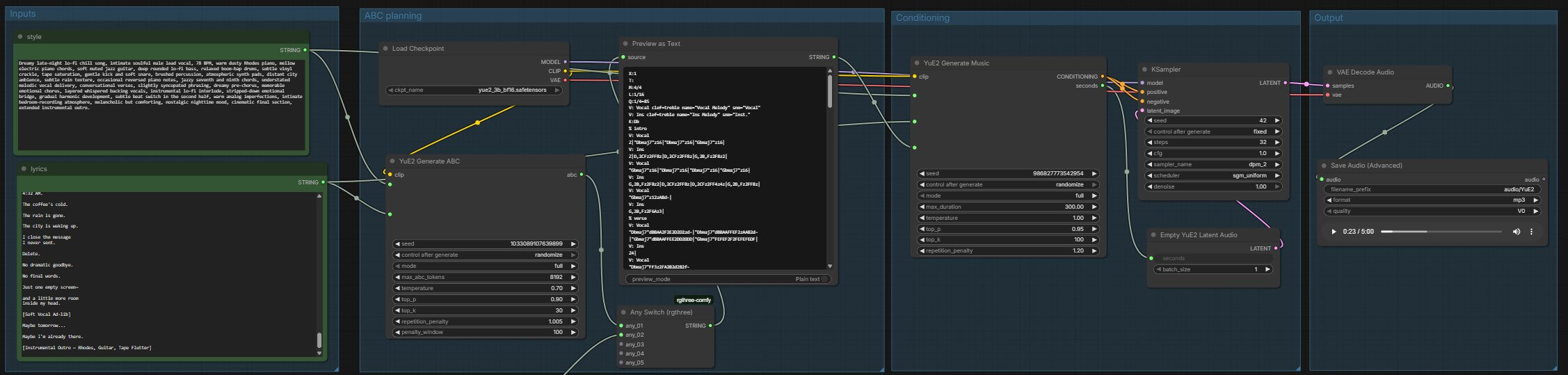
This is the exact workflow used for every clip in this article — Create mode, the ABC score editor, and Cover mode all wired up and ready to load. Grab it now so it's ready to drop in during the install steps below.
(yue2_song_comfyui_workflow.json)Drag the downloaded file directly onto your ComfyUI canvas to load it, or use Workflow → Open from the top menu.
Installing YuE2 in ComfyUI
Here's the full install from a clean ComfyUI setup. None of these steps require the command line.
- Update ComfyUI. Open ComfyUI Manager and click Update ComfyUI. If you see any red nodes when you load the workflow, that just means your version is out of date — update to the latest version and they'll resolve.
- Download the models. Grab the checkpoint (and the audio encoder if you want Cover mode) using the links above, and place them in the folders shown in the structure above.
- Restart ComfyUI completely — a browser refresh isn't enough.
- Confirm your checkpoint is selected in the CheckpointLoaderSimple node's dropdown.
Generating Your First Song
The template you just loaded has four nodes doing the real work, and understanding what each one does will make the rest of this guide much easier to follow:
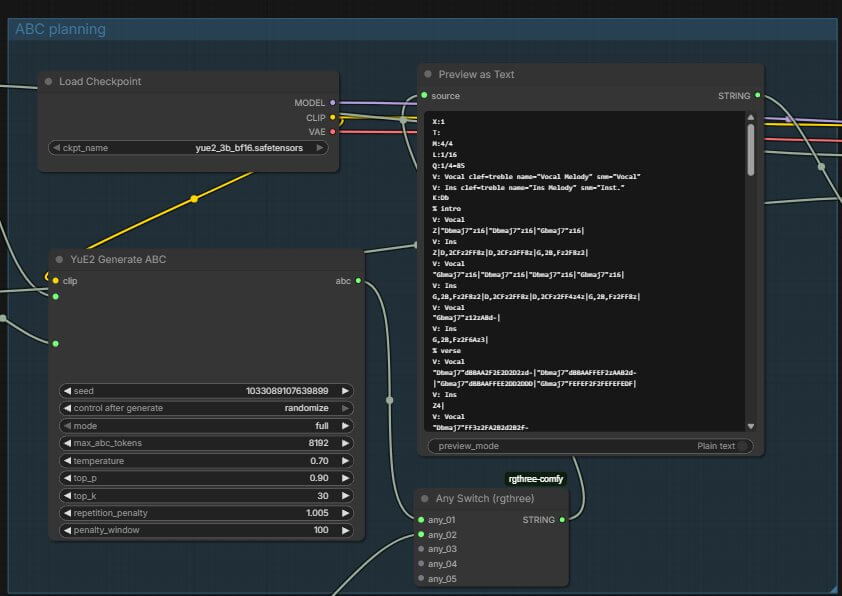
- YuE2 Generate ABC — takes your style description and lyrics and writes the musical plan (the ABC score) first. This is usually the slowest node in the whole workflow, so don't assume something is stuck if it takes a while.
- YuE2 Generate Music — takes that score and turns it into the raw audio data (called a latent — a compressed, in-progress form of the audio that isn't playable yet).
- KSampler — the engine that actually runs the generation process step by step (a sampler is the part of an AI image or audio model that gradually turns noise into a finished result).
- VAEDecodeAudio — converts that latent into an actual playable audio file you can listen to and save.
Now for the actual steps:
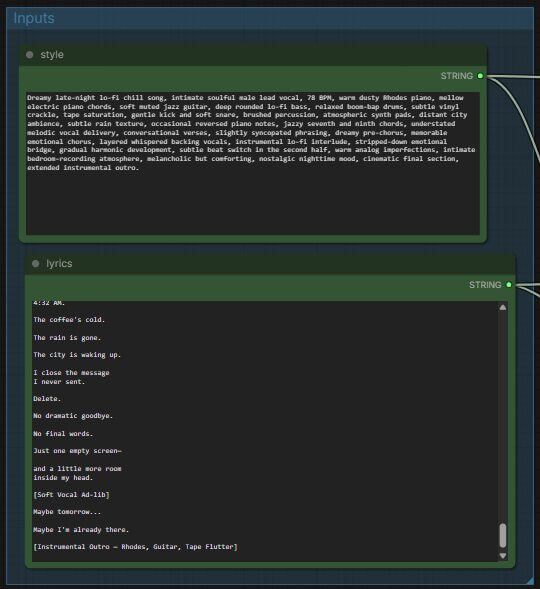
- Write your style. Find the text box connected to YuE2 Generate ABC and type a short description of the sound you want — genre, mood, and instruments work best. For example: "upbeat k-pop, female vocal, bright synths, driving beat".
- Write your lyrics. In the lyrics text box, type your words using section tags in square brackets to mark structure — [Verse], [Chorus], [Bridge], and so on. These tags tell the model where each part of the song begins, the same way a musician would mark up a lyric sheet.
- Queue the prompt. Click the orange Queue Prompt button in the top-right of the screen. A progress bar appears below it — the Generate ABC node runs first and usually takes the longest, followed by a faster music-rendering step.
- Listen to the result. Once generation finishes, a playable waveform appears in the Preview or Save Audio node at the end of the chain. Click play to hear your song.
What We Found Testing YuE2 Across 6 Genres
The six clips near the top of this article all came from the same workflow, the same checkpoint, and no manual editing — only the style description and lyrics changed between them. A few patterns showed up consistently:
- Instrumentation is the strongest part. Guitar, brass, synths, and percussion all sounded convincing across every genre we tried, including flamenco and jazz funk, which are harder styles for most AI music tools to pull off.
- Vocals are good but not perfect. Enunciation gets noticeably less precise during fast, dense sections — this matches what other independent testers have reported, and it's the clearest gap between YuE2 and a paid tool like Suno right now.
- Slower genres hide the rough edges. The acoustic ballad and lo-fi clips sounded the most polished overall, simply because there's less happening per second for small imperfections to show up in.
If your use case leans toward background music, instrumentals, or slower vocal styles, YuE2 is already solid. If you need crisp, fast-paced vocals as the main focus, expect to regenerate a few times before you get a take you're happy with.
Editing the Melody Before You Commit to a Full Render
This is the feature that makes YuE2 genuinely different from most AI song generators: you can see and change the melody before spending time rendering the final audio.
- Generate the score on its own first. Temporarily disconnect (or bypass — right-click a node and choose Bypass to skip it without deleting it) the YuE2 Generate Music node, so you only run Generate ABC and can read the result before spending time on a full render.
- Copy the score into an editable text box. Add ComfyUI's built-in multiline text node (search for it in the node menu — no extra install needed) and copy the ABC score text into it using the copy icon on the Generate ABC output.
- Change what you don't like. The score is plain text, so a change is just editing a letter — for example, changing Fm (F minor) to Cm (C minor) shifts the whole song's key. You don't need to read music to try this; small changes are safe to experiment with.
- Reconnect and generate. Connect your edited text node's output into Generate Music in place of the original score, then queue the prompt as normal.
Making a Cover From an Existing Song
If you downloaded the audio encoder file earlier, you can feed YuE2 a reference song and have it write a new version in a different style — this is what the audio encoder file is for.
- Load a reference audio file. Use the VHS_LoadAudio node to select an existing song from your computer.
- Transcribe it into a score. Connect that audio into the SheetSage2AudioToABC node, which listens to the reference and writes out its own ABC score — this replaces the Generate ABC step from Create mode.
- Choose your input with the switch node. The Any Switch node lets you pick whether Generate Music receives the transcribed reference score or a fresh Generate ABC score, without rewiring anything each time you want to change modes.
- Set a new style and generate. Type the new style you want the cover rendered in, keep your lyrics if you're changing genre only, and queue the prompt as normal.
This mode changes the style and instrumentation while keeping the original melody recognizable — it's a genuinely different result from typing a style prompt and lyrics from scratch.
YuE2 VRAM and Speed (Real Numbers)
On the model creator's own testing hardware — an RTX 4090 with 24GB VRAM — generating a 214.85-second (about 3.5-minute) song took approximately 71 seconds, with peak memory use of about 14GB during generation.
Can You Use YuE2 Commercially? (License Explained)
YuE2's weights are released under a CC BY-NC 4.0license. The important part is "NC" — non-commercial. In plain terms, this means you can use YuE2 to make music for yourself, for learning, or for personal projects, but not for anything you plan to make money from.
Troubleshooting Common YuE2 ComfyUI Errors
"This node type does not exist"
What causes it: Your ComfyUI installation is older than version 0.35.x, so it doesn't recognize the YuE2 nodes yet.
How to fix it: Open ComfyUI Manager and click Update ComfyUI. Restart ComfyUI completely afterward — node definitions only load when the program starts up.
CUDA out of memory during generation
What causes it: Your GPU doesn't have enough free VRAM for the checkpoint plus the length of song you requested.
- Close other GPU-heavy applications (games, other AI tools, browser tabs with heavy graphics) before generating.
- Try a shorter song length first to confirm the workflow runs at all, then increase it gradually.
- Check for a smaller quantized checkpoint in ComfyUI's model browser if your GPU has significantly less than 24GB VRAM.
Song cuts off or sounds garbled with non-English lyrics
What causes it: Community node pack maintainers have reported that certain non-English characters (Korean, Japanese, and Chinese lyrics in particular) can cause file-writing errors on Windows systems. This has been documented in third-party node packs rather than confirmed in the native ComfyUI integration, so results may vary.
How to fix it: If you hit this, try the same lyrics in English first to confirm the rest of your setup works, then reintroduce non-English lyrics a section at a time to isolate the problem.
Frequently Asked Questions
What to Do Next
Take one song you already made and change a single chord in its ABC score.
It's the fastest way to feel the difference between YuE2 and a typical text-to-song tool. For a structured path through the rest of ComfyUI's audio and video tools, see the full roadmap.
Published: 2026-09-15 · Last updated: 2026-09-15 · Workflow structure verified against the native ComfyUI YuE2 integration.
Join the discussion
Sign in to leave a comment or reply
No comments yet
Be the first to share your thoughts!