
⚡ Quick Answer
For local AI video generation in 2026, you need a minimum of 8GB VRAM (LTX-2.3, GGUF-quantized) to get anything running at all, 16GB to run all three major models — LTX-2.3, WAN 2.2, and HunyuanVideo 1.5 — comfortably, and 24GB to skip quantization tricks entirely. VRAM, not GPU speed, is what decides which models you can even load.
Getting an out-of-memory crash on your third attempt at a WAN 2.2 render is usually a VRAM problem, not a settings problem — and knowing how much VRAM you actually need before you buy a GPU or download a 20GB model file saves both money and disk space. This guide covers exact VRAM tiers for LTX-2.3, WAN 2.2, and HunyuanVideo 1.5, which GPU to buy at each budget in 2026's tight GPU market, and what to do if you don't have a compatible Nvidia card at all.
If you haven't compared the three current models yet, start with Best Local AI Video Model 2026 — this guide picks up where that one leaves off, going deeper into the hardware side.
Check Your VRAM Before You Start
Tested on: ComfyUI v0.7.0, RTX 4090 (24GB), RTX 4080 (16GB) | Minimum VRAM: 8GB (LTX-2.3 GGUF only)
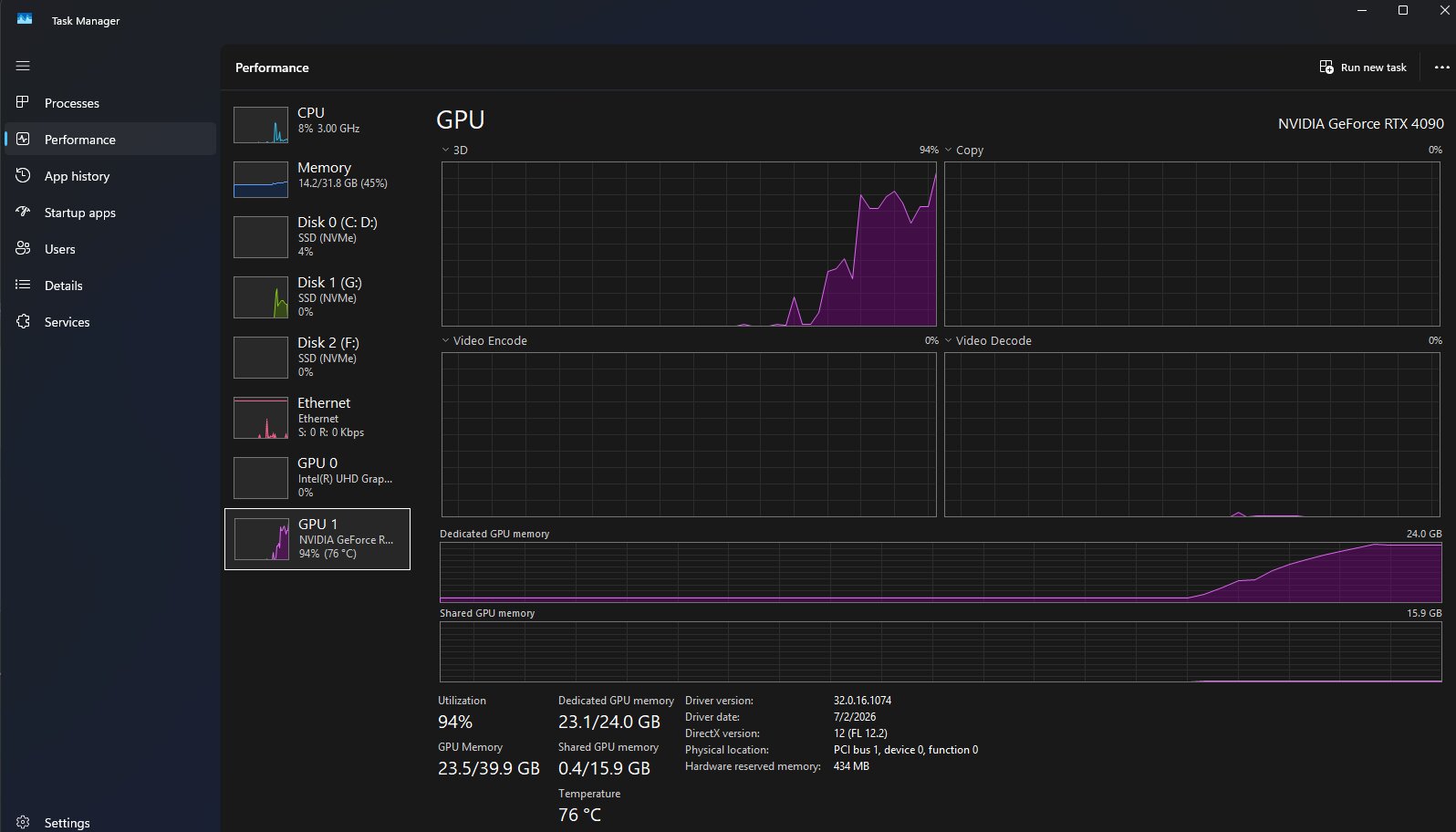
Before downloading anything, check two numbers, not one. VRAM (memory built into your graphics card) is a hard ceiling — if a model needs more VRAM than your card has, ComfyUI cannot load it, no matter how fast your GPU is otherwise. System RAM is separate, used for offloading — 16GB minimum, 32GB recommended if any model needs CPU offloading.
- On Windows, open Task Manager > Performance > GPU. Your VRAM is listed under Dedicated GPU memory.
- On Linux or via terminal, run
nvidia-smi. The VRAM total appears in the top-right of the output table.
How Much VRAM Do You Actually Need?
The answer changes depending on which of the three current local video models you're running, and whether you're doing text-to-video (T2V) or image-to-video (I2V).
| VRAM | LTX-2.3 | WAN 2.2 | HunyuanVideo 1.5 |
|---|---|---|---|
| 8GB | ✅ GGUF quantized only | ❌ Not usable | ❌ Not usable |
| 12GB | ✅ FP8 distilled | ⚠️ Usable with block swap, slow | ❌ Not usable |
| 16GB | ✅ Comfortable | ✅ 14B FP8 with block swap | ⚠️ Usable with offloading |
| 24GB | ✅ Full precision | ✅ Comfortable, no offload | ✅ Comfortable |
HunyuanVideo 1.5 has the highest floor of the three — its 8.3B parameters need roughly 14GB just to load with offloading enabled, and 24GB to run without tricks. LTX-2.3 has the lowest floor thanks to its GGUF-quantized build, which is why it's the only one of the three that runs on an 8GB card at all.
Which GPU Should You Buy in 2026?
GPU pricing in 2026 is unusually distorted — AI data centers are absorbing most of the world's GDDR7 memory supply, which has pushed gaming-card prices well above their original MSRPs. Budget with that in mind rather than the MSRP printed on the box.
8–12GB tier — entry point
The RTX 5060 Ti 16GB (~$429 MSRP, often $480–530 at retail) is the safer buy over its 8GB sibling — always take the 16GB variant if choosing between the two. This tier limits you to LTX-2.3 only.
16GB tier — the sweet spot for AI video
The RTX 5070 Ti (16GB GDDR7, ~$749 MSRP, commonly $820–950 at retail in mid-2026) unlocks all three models with quantization. On the AMD side, the RX 9070 XT (16GB GDDR6) sits at roughly $630–700 and is a legitimate alternative now that ComfyUI Desktop has official Windows ROCm support.
24GB tier — no compromises
An RTX 4090 (used/refurbished, ~$2,499–2,799) or RTX 5090 (32GB, MSRP $1,999 but frequently $2,900–4,300+ at retail due to the ongoing VRAM shortage) runs all three models at full precision with no offloading. A used RTX 4090 gives you the same 24GB ceiling most video workflows actually need, for less than a new 5090.
Running AI Video Generation on 8GB VRAM
Quantization, in plain terms, is a compressed version of a model file — it trades a small amount of quality for a much smaller file size and lower VRAM use. Two formats matter here:
GGUF splits the model into chunks and loads only what's needed at once — LTX-2.3's GGUF build is what makes 8GB VRAM usable at all. FP8 stores the model's numbers in a lower-precision format; it needs slightly more VRAM than GGUF but usually runs faster.
A distilled model is a smaller, faster version of the same model, trained to approximate the full model's output in fewer steps. LTX-2.3's distilled pipeline is what gets a 5-second clip down to 20–40 seconds on higher-VRAM cards, and it's also what makes 8GB generation tolerable rather than unusably slow.
- Download the GGUF build of LTX-2.3, not the FP8 or full-precision version.
- In ComfyUI, load it through a GGUF loader node (installed automatically by ComfyUI Manager if missing) rather than the standard checkpoint loader.
- Start at 512 resolution and 49 frames before increasing either setting. Confirm a successful generation at this floor first.
- Increase resolution one step at a time — 512 → 720 → 1080 — checking VRAM headroom after each jump.
Fixing "CUDA Out of Memory" During Generation
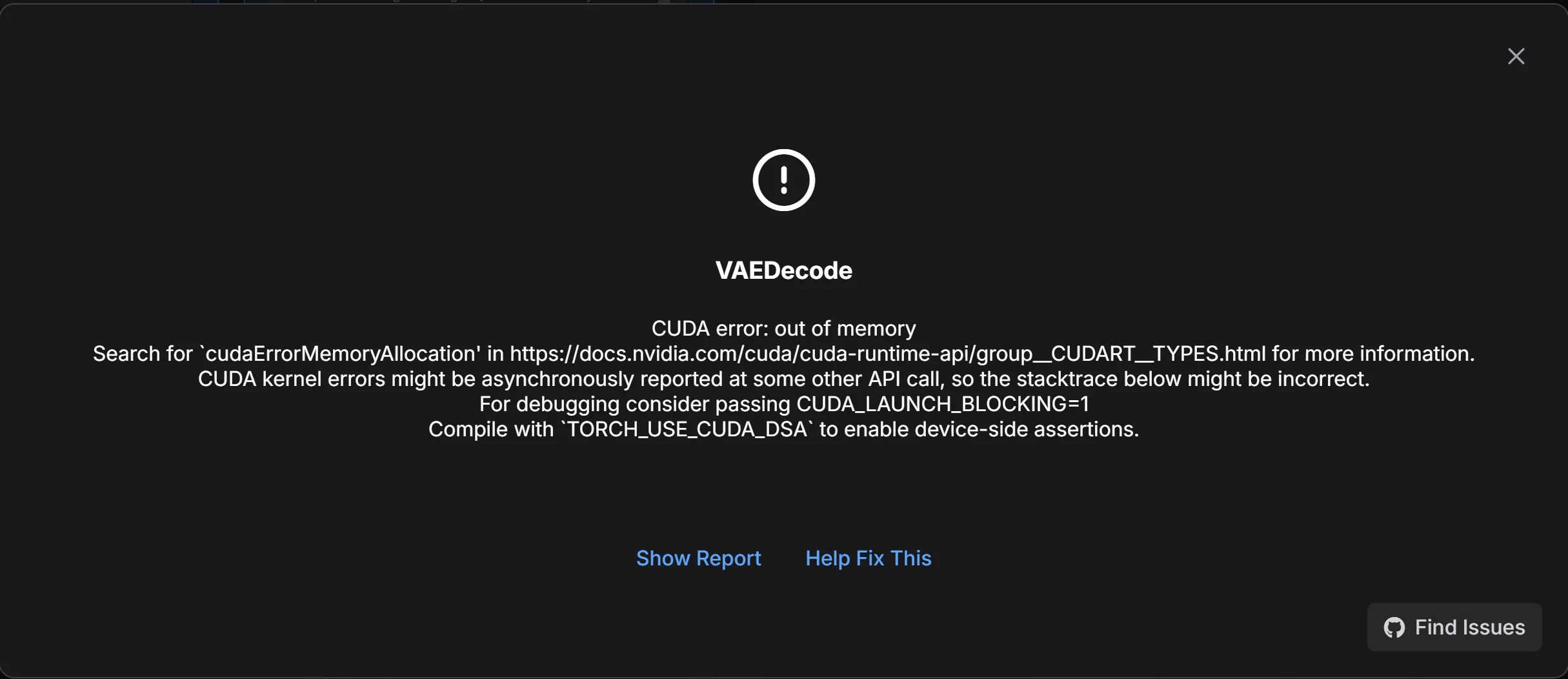
"CUDA out of memory" or "Allocation on device" in the KSampler node
Your VRAM doesn't match the model variant, resolution, or frame count you set.
- Confirm you downloaded the quantized (GGUF or FP8) version, not full BF16/FP16, if you're under 16GB.
- Lower resolution or frame count before switching to a different model entirely — this is usually the actual fix.
- In ComfyUI Settings > Server config, set VRAM management mode to lowvram. This splits the model into parts to use less memory per step.
- Close other GPU-heavy applications (browsers with hardware acceleration, other generation tools) and retry.
Generation runs but is extremely slow, not crashing
This usually means ComfyUI silently fell back to CPU offloading because your VRAM is nearly full, not that anything is broken.
- Check Task Manager's GPU usage during generation — if it's near 0%, offloading is active.
- Free VRAM by closing background apps, then retry.
- If it's still offloading, your model choice is above your card's comfortable tier — drop to a lower-VRAM quantization.
No Nvidia GPU? AMD and Apple Silicon Options
You're not locked out of local AI video without an Nvidia card, though support is newer and less mature.
AMD (Windows)
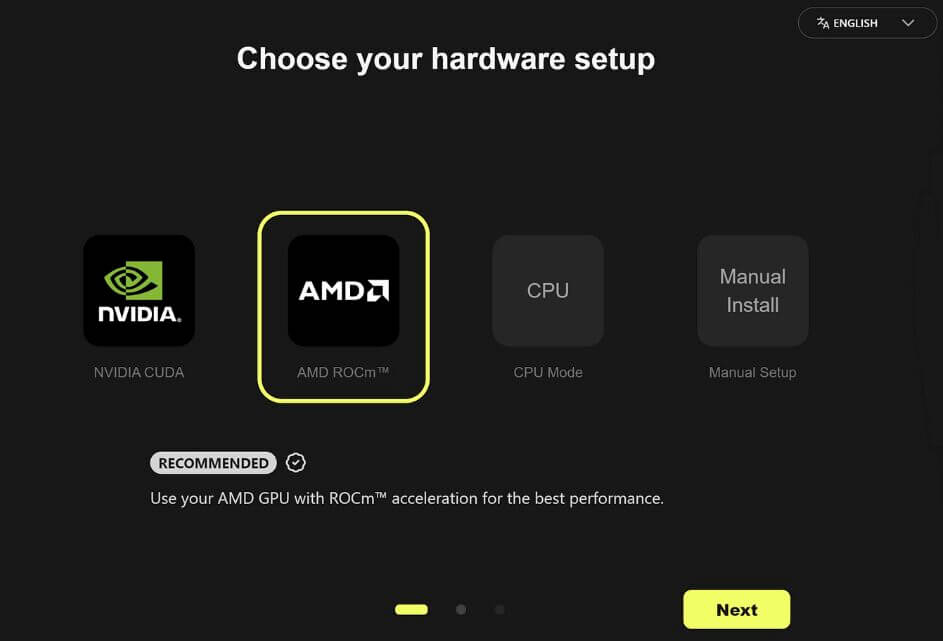
As of January 2026, ComfyUI Desktop added official AMD ROCm support starting with v0.7.0 — Windows users no longer need WSL or a Linux dual-boot to get real GPU acceleration. During installation, ROCm should be automatically selected if you have a supported Radeon GPU or Ryzen AI processor.
Apple Silicon (Mac)
ComfyUI runs natively on M1/M2/M3 Macs via Metal acceleration. Video generation is significantly slower than an equivalent Nvidia setup, and unified memory takes the place of dedicated VRAM, so an M-series Mac with 32GB+ unified memory is the realistic floor for video work. See the dedicated ComfyUI Mac installation guide for setup steps.
No Good GPU? Renting a Cloud GPU
If your hardware doesn't clear the 16GB tier and buying isn't an option right now, renting is a legitimate middle ground for occasional generation.
| Provider (RTX 4090, 24GB) | Price | Notes |
|---|---|---|
| RunPod — Community Cloud | ~$0.34–0.39/hr | Cheapest tier, third-party hosts, more variable uptime |
| RunPod — Secure Cloud | ~$0.69/hr | Vetted datacenters, roughly double the price |
| Vast.ai | Often slightly cheaper | Marketplace-based, more setup effort, best if renting often |
Both platforms offer one-click ComfyUI templates, so you're not configuring CUDA drivers manually.
More Troubleshooting
Black frames or no video output
Almost always a missing or misplaced text encoder file rather than a VRAM issue. Each model needs its text encoder(s) in models/text_encoders/ exactly as named in its dedicated setup guide — check the filename, not just the folder.
For anything not covered here, see the full ComfyUI troubleshooting guide.
Frequently Asked Questions
What to Do Next
Check your VRAM, then download the right build
Check your VRAM using the Task Manager or nvidia-smi method above, match it against the tier table, then download the correctly quantized build for your GPU — not the full-precision version. Once you have one successful generation, move on to the roadmap to pick which model to specialize in next.
Published: 2026-07-19 · Last updated: 2026-07-19 · Models covered: LTX-2.3 (Lightricks), WAN 2.2 (Alibaba), HunyuanVideo 1.5 (Tencent)
Join the discussion
Sign in to leave a comment or reply
No comments yet
Be the first to share your thoughts!