
⚡ Quick Answer
The ComfyUI latest updates 2026 bring 12 changes worth knowing: a rebuilt Comfy Desktop with snapshots, a built-in node for stacking many LoRA files (small add-on files that change the style of your images), faster int8 models, and official AMD support on Windows. New models like Qwen-Image 2.1 Turbo and FLUX.3 Klein also arrived. To get them, update ComfyUI, then update your custom nodes (extra tools made by the community).
ComfyUI changes almost every week. You update it, open it, and a button has moved, a node (a block that does one job) has turned red, or a tutorial no longer matches your screen. This page lists what changed in 2026, in plain English, so you know what is new and what to ignore.
You do not need to read everything. Each feature shows who it is for. Skip the ones that do not apply to you. This page was last checked against the official changelog on October 26, 2026, when the latest version was v0.42.4.
What Is the Latest ComfyUI Version, and How Often Does It Update?
At the time of writing, the latest version is v0.42.4, released on October 22, 2026. ComfyUI ships a new minor version about once a week. Between v0.27.0 (June 30) and v0.42 (October) there were 15 minor versions in about 16 weeks. Smaller fix releases come in between.
Here is a short timeline of the versions mentioned in this guide:
| Version | Date | Main change |
|---|---|---|
v0.27.0 | June 30, 2026 | int8 model support |
v0.30.0 | August 3, 2026 | MiniMax-H3 video model |
v0.37.0 | September 21, 2026 | Qwen-Image 2.1 |
v0.40.0 | October 13, 2026 | LoRA stack loader, Qwen-Image 2.1 Turbo |
v0.42.4 | October 22, 2026 | Latest at time of writing |
How Do You Check Which ComfyUI Version You Have?
You need to know your version before you can tell if a feature is available to you.
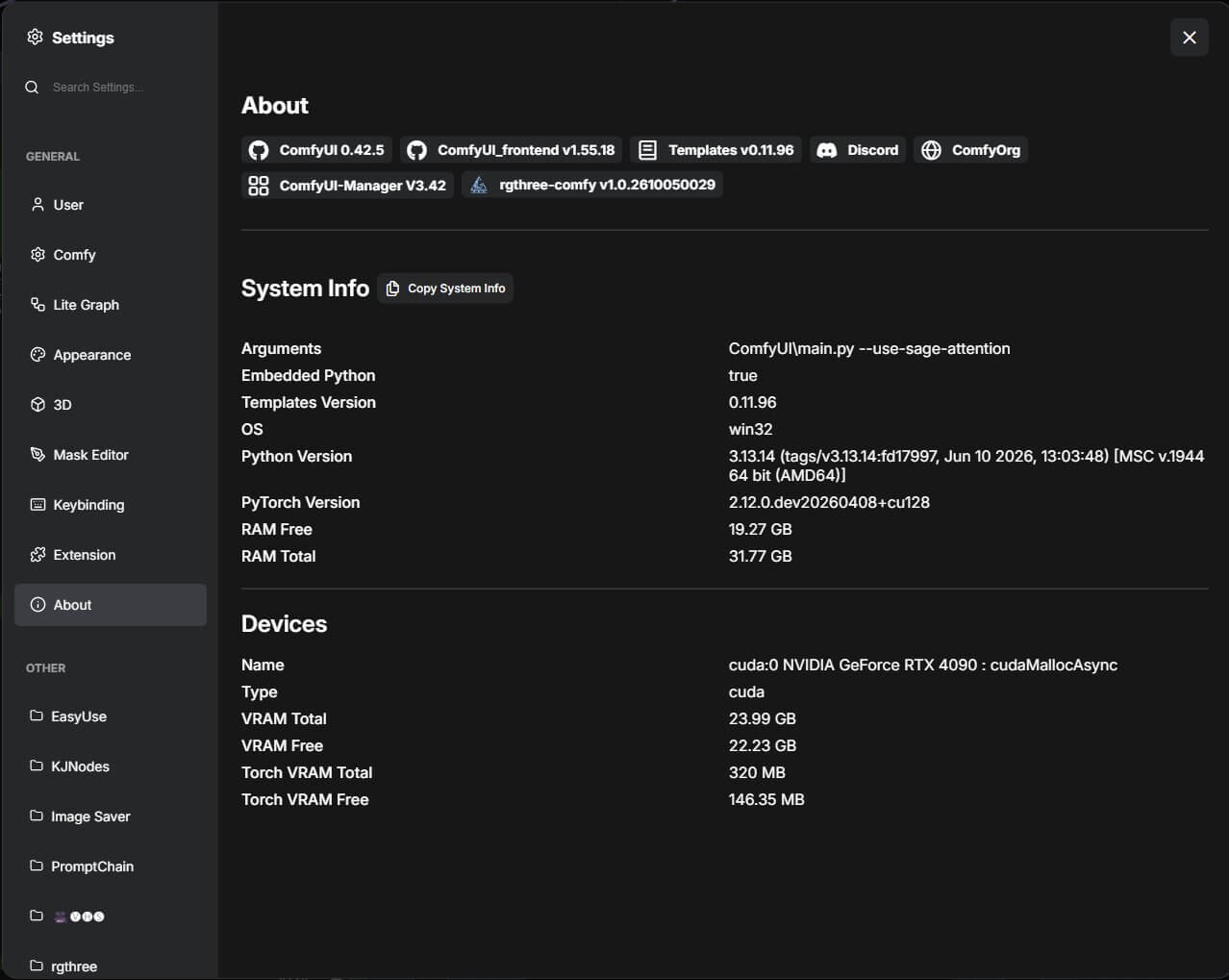
- Open ComfyUI in your browser or in Comfy Desktop.
- Click the Settings icon (the gear).
- Open the About tab. You should see the ComfyUI version number there.
If you use the portable version, you can also read the version in the black terminal window that opens when ComfyUI starts. Look for a line that starts with "ComfyUI version".
Where Are the Official ComfyUI Release Notes?
The official list is the ComfyUI changelog. It lists every version, with a link to the code change behind each item. It is accurate, but it is written for developers. This page explains the parts that matter to most users.
What Changed This Month (October 2026)?
v0.39.1Nano Banana 2.1 added as a partner node (a paid cloud model).v0.40.0The LoRA stack loader and Qwen-Image 2.1 Turbo arrived.v0.41.0FLUX.3 Klein support.v0.41.1Krea 3 added as a partner node.v0.42.0MOSS-Image support.Oct 24Luma Ray 2 endpoints were shut down.
Which 12 New ComfyUI Features Are Worth Knowing in 2026?
The 12 features below are ordered by how much they change your daily use, then by model type. Each one has an "Added" line, so you can check it against your version, and a "Source" line that shows where the information comes from.
1. Comfy Desktop Was Rebuilt: Multiple Instances and Automatic Snapshots
Comfy Desktop is the installable app version of ComfyUI. In June 2026 it was rebuilt from the ground up. Comfy's own announcement says it kept the same name, and the documentation now calls it Comfy Desktop. Your existing workflows (saved sets of connected nodes), custom nodes, models and settings carry over.
Here is what is new:
- Multiple instances. An instance is one separate copy of ComfyUI. You can keep several, each with its own ComfyUI version and its own custom nodes. This helps when a workflow only works on an older version.
- Automatic snapshots. A snapshot is a saved copy of your setup at one moment. It includes the ComfyUI version and your custom nodes. Comfy Desktop takes one before each update and before each custom node change. If something breaks, you can roll back.
- Faster updates. New ComfyUI versions can be installed as soon as they are released.
To open the controls for one instance:
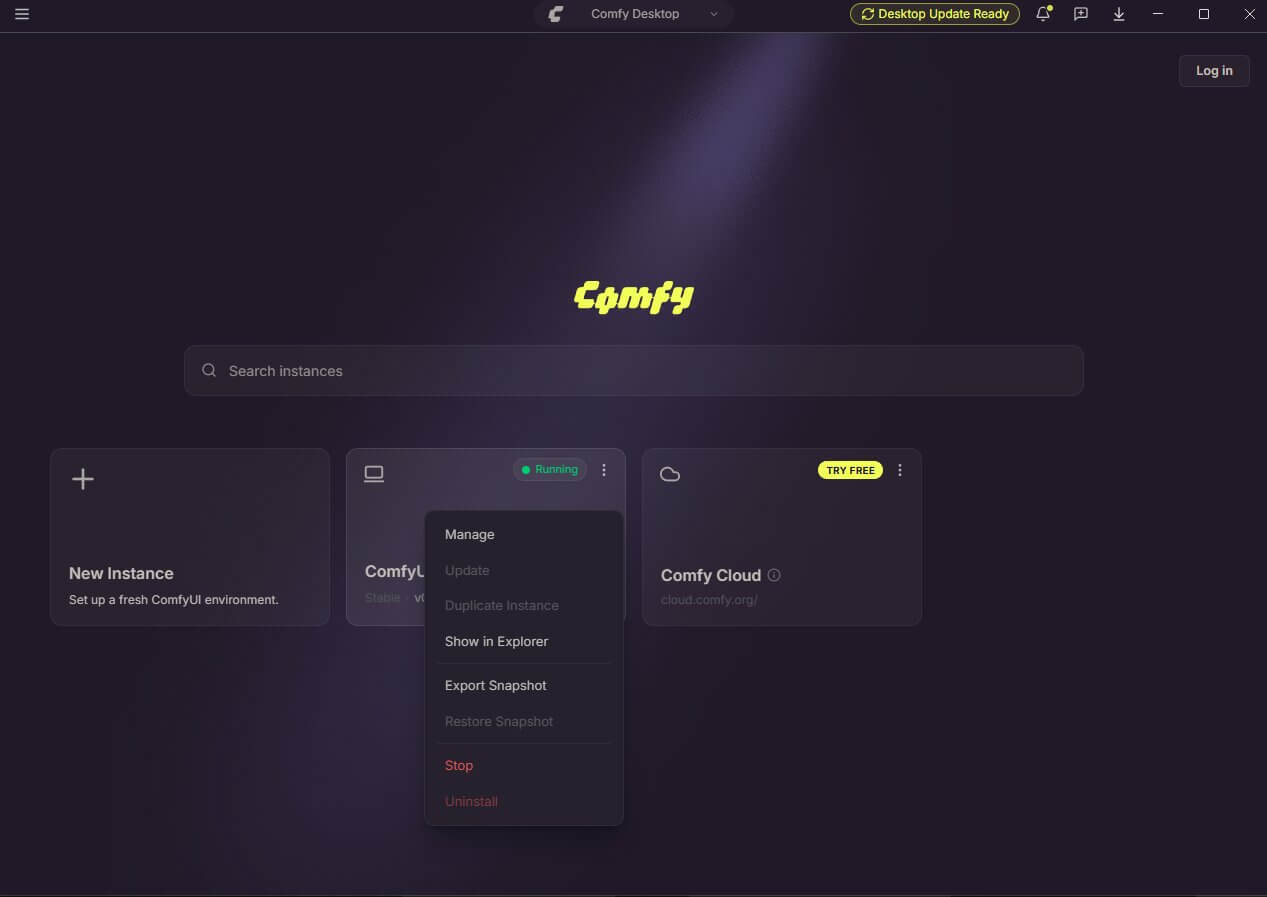
- Open Comfy Desktop. You see the Chooser view, with one card for each instance.
- Right-click an instance card, or click the three-dot menu (⋮) on it.
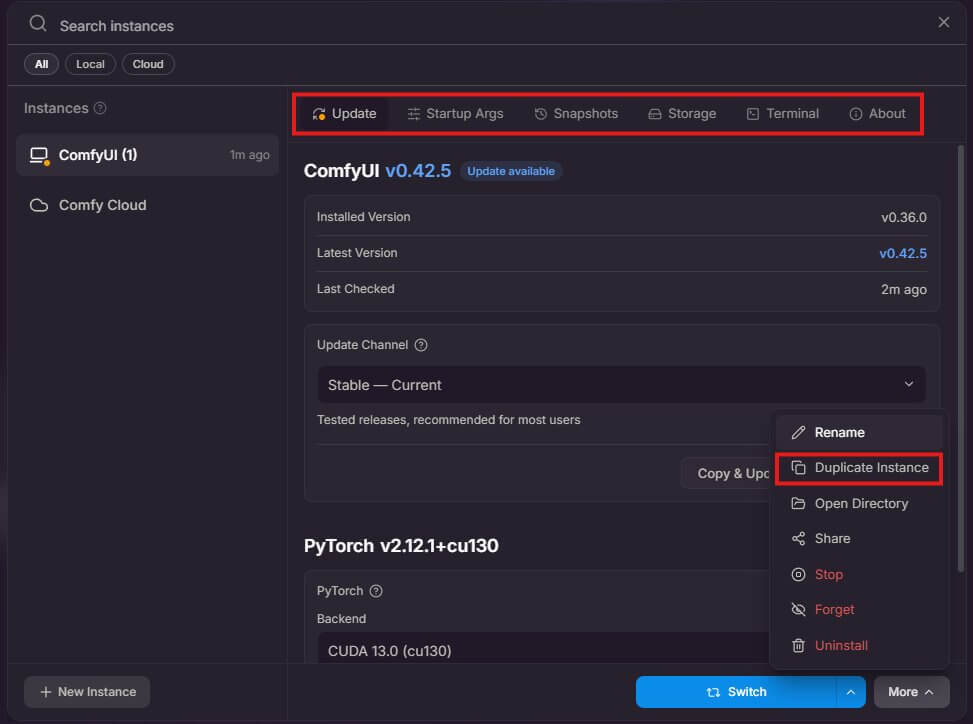
- Click Manage. A panel opens with options for that instance.
- In the menu, you see actions such as Duplicate Instance, Export Snapshot and Restore Snapshot.
Source: Comfy's June 8, 2026 announcement and the instance management documentation.
2. A Built-In LoRA Stack Loader
A LoRA is a small file that adds a style, a character or a detail to a model. Before this update, each LoRA needed its own Load LoRA node, and the nodes were chained one after another. A big workflow turned into a long row of nodes.
Now one node can hold several LoRAs. Each row has its own file, its own strength, and its own on/off switch. The loader applies them in order. It comes in two versions: one for the main model and one for the text encoder (the part that reads your prompt). The code change that added it lists 1 to 20 rows per node.
To try it:
- Update ComfyUI to v0.40.0 or newer.
- Put your LoRA files in the
ComfyUI/models/lorasfolder. - Double-click an empty spot on the canvas. A search box opens.
- Type LoRA and look for the loader that shows several rows. Names can change between releases, so go by what the node looks like.
- Connect your model to the node, then connect the node's output to your sampler.
- In each row, pick a LoRA file and set its strength.
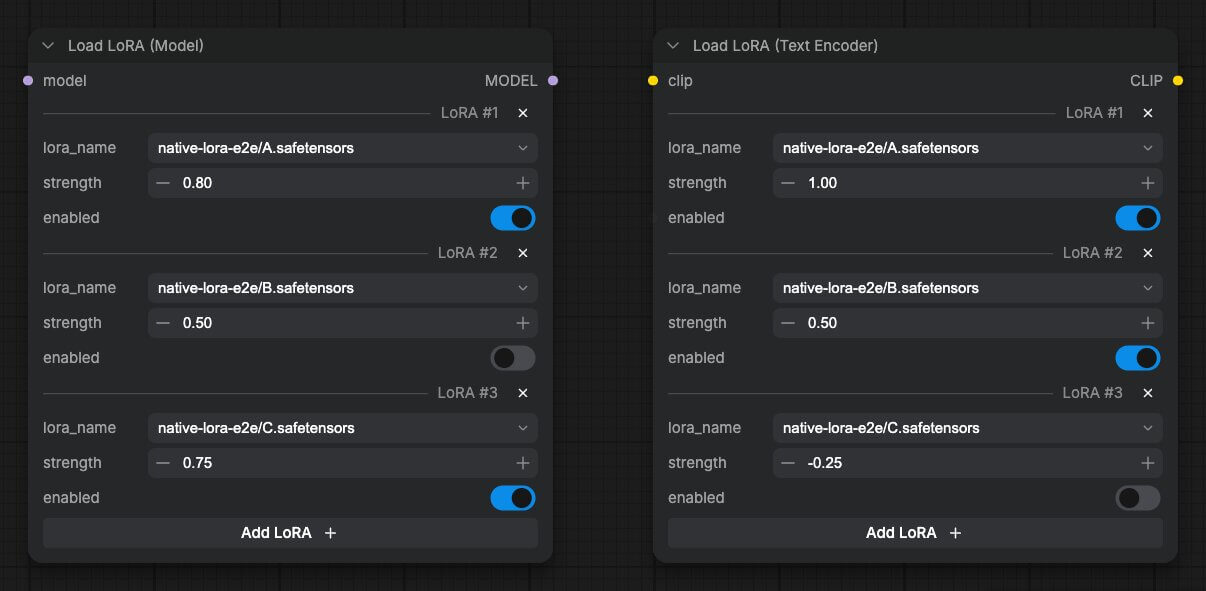
Strength tells ComfyUI how much of the LoRA to apply. 1.0 is full effect, and lower numbers are weaker. When you mix several LoRAs, start below 1.0, for example 0.6 to 0.8, and raise it if the effect is too weak.
For a full guide to LoRAs, read our ComfyUI LoRA guide.
Source: Official ComfyUI changelog (v0.40.0).
3. Partner Nodes: New Models, Credits, and a New Launch Flag
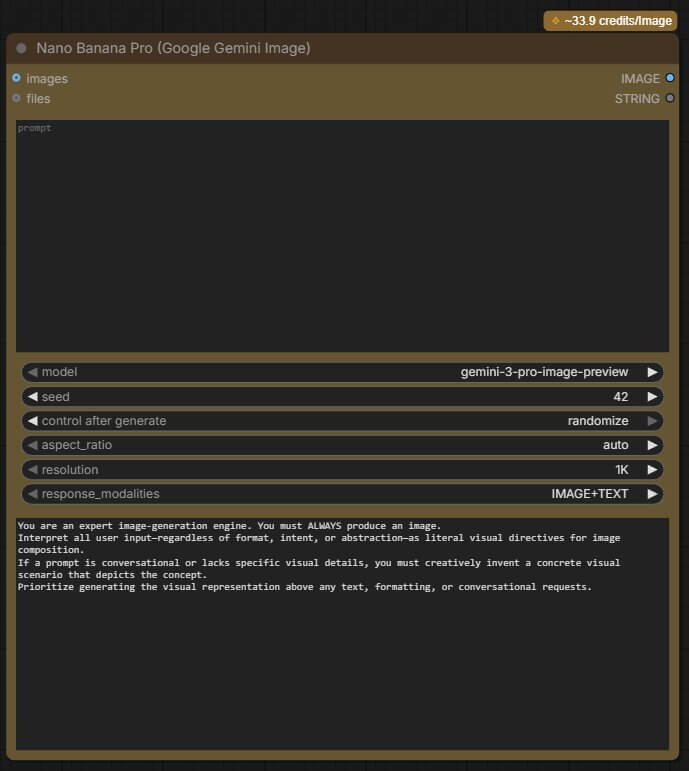
Partner Nodes are nodes that send your request to a company's servers and bring the result back into your workflow. Most run models that you cannot download. In October, three image models arrived:
- FLUX 3 Image (v0.38.2): text-to-image (making an image from a written prompt), image editing, and bounding box control.
- Nano Banana 2.1 (v0.39.1): text-to-image and editing in one node, up to 14 reference images, 1K to 4K output.
- Krea 3 Image (v0.41.1): text-to-image and editing in one node, up to 8 reference images, 1K or 2K output.
To use a Partner Node:
- Update ComfyUI and sign in to your Comfy account under Settings.
- Buy credits under Settings → Credits.
- Double-click the canvas and search for the model name, for example "Nano Banana".
- Read the price shown on the node before you click run.
In v0.39.0, the launch flag --disable-api-nodes was replaced by --disable-partner-nodes. The old flag is deprecated. If you want ComfyUI to hide all paid nodes, add the new flag to your launch command. For the portable version, open run_nvidia_gpu.bat in Notepad and add it at the end of the line that starts with .\python_embeded.
Source: Official ComfyUI changelog and the Partner Nodes FAQ.
4. Dynamic VRAM Is Now the Default
VRAM (the memory on your graphics card) is the first thing to run out when you use big models. With dynamic VRAM, ComfyUI moves parts of a model between your graphics card memory and your normal computer memory as needed. The goal is to use memory more efficiently, so more workflows fit on the same card.
You do not need to turn anything on, because it became the default in v0.16.0. A launch option, --enable-dynamic-vram, exists if you need to force it on.
If you still run out of memory, read our ComfyUI low VRAM guide.
Source: Official ComfyUI changelog (v0.16.0, v0.18.0).
5. int8 ConvRot Models for RTX 20-Series and Newer
A quantized model is a model that has been shrunk by storing its numbers with less detail. It is like saving a photo at a lower quality: the file is smaller and loads faster, with a small loss in quality. You may already know fp8(an 8-bit decimal format). int8 is another 8-bit format that uses whole numbers. "ConvRot" is the method used to keep quality high when shrinking.
You can spot these files by their name. They contain int8_convrot. For example, the Qwen-Image 2.1 Turbo int8 file is 7.26 GB, and the full-precision bf16 file is 14.2 GB. Those are file sizes, not the memory needed to run them. ComfyUI's int8 support works on Turing-generation GPUs and newer, which includes the RTX 20 series. int4 support followed in v0.28.0 (July 15).
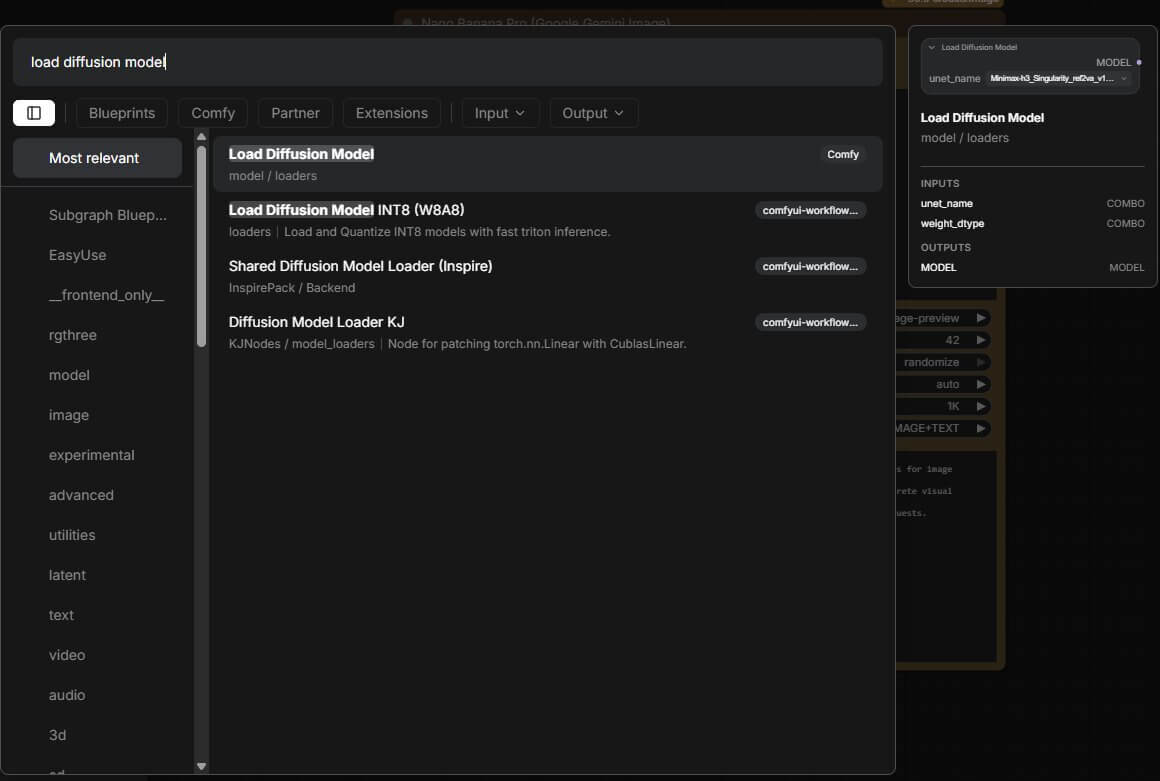
To use one, download the file, put it in ComfyUI/models/diffusion_models, and choose it in the Load Diffusion Model node.
Source: Official ComfyUI changelog (v0.27.0, v0.28.0) and GitHub issue #14824.
6. Official AMD ROCm Support on Windows
ROCm is AMD's software that lets ComfyUI use an AMD graphics card for AI work. It is AMD's version of NVIDIA's CUDA. For a long time, ROCm worked well on Linux but was hard to set up on Windows.
Since January 2026, ComfyUI officially supports ROCm on Windows. It works with the Desktop app, the portable build and the git install. The first release used ROCm 7.1.1 and covers supported AMD Radeon graphics cards and Ryzen AI processors. AMD says it can be up to 5.4 times faster than the older ROCm 6.4 in its own tests. That is AMD's number, and your result may differ.
To get started:
- Download Comfy Desktop from the official site.
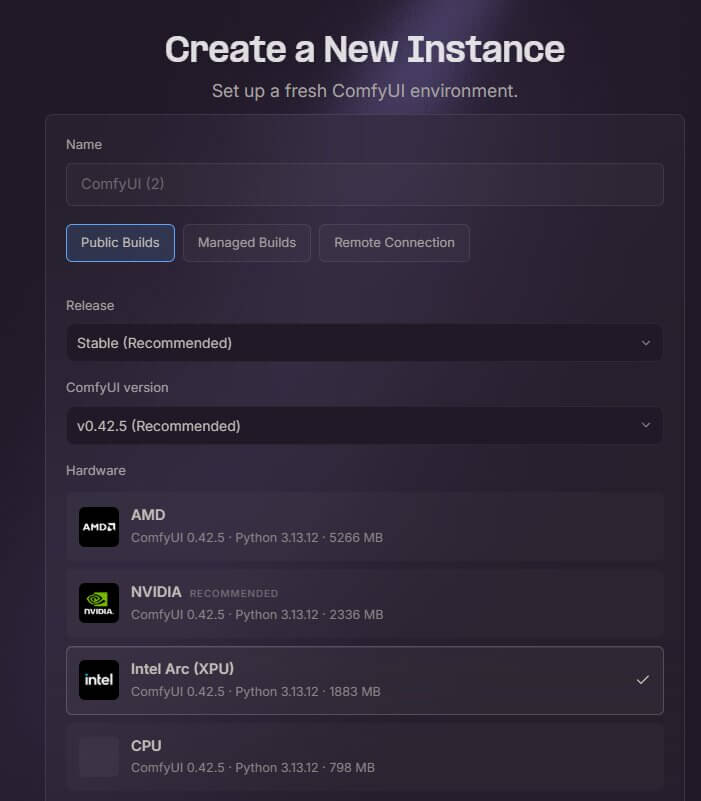
- During installation, check that AMD ROCm is selected. It should be chosen for you.
- Update your AMD graphics driver. Comfy's launch post recommended AMD's ROCm 7.1.1 preview driver, so check the post for the current driver advice.
- Start ComfyUI and look at the startup log. You should see lines such as AMD arch and ROCm version.
Read the full announcement on the Comfy blog.
Source: Comfy and AMD announcements.
7. Krea 2 (RAW and Turbo)
Krea 2 is an open-weight image model, which means you can download it and run it on your own computer. It comes in two versions. RAW is made for training your own LoRAs. Turbo is made for fast image generation in 8 steps (the number of passes ComfyUI makes to build an image).
For the full setup, read our Krea 2 ComfyUI workflow guide.
Source: Official ComfyUI changelog (v0.26.0).
8. Qwen-Image 2.1 and the 8-Step Turbo
Qwen-Image 2.1 makes images up to 2K and edits images with several reference pictures. It also supports transparent backgrounds (an alpha channel). The Turbo version makes images in 8 steps with CFG 1, down from 40 steps for the base model. CFG scale is a setting that controls how strictly the model follows your prompt. The Turbo model needs fewer steps, so each image takes less time.
You have two ways to use Turbo:
- Use the full Turbo checkpoint (the main AI model file). Put it in
ComfyUI/models/diffusion_models. - Use the base model plus the Turbo LoRA. Put the LoRA in
ComfyUI/models/loras.
The exact filenames:
| File | Size | What It Is |
|---|---|---|
qwen_image_2.1_turbo_int8_convrot.safetensors | 7.26 GB | Turbo checkpoint, int8 ConvRot (the smallest file) |
qwen_image_2.1_turbo_bf16.safetensors | 14.2 GB | Turbo checkpoint, full precision |
qwen_image_2.1_turbo_lora_avg_rank_178_bf16.safetensors | — | Turbo LoRA, used on top of the base Qwen-Image 2.1 model |
To run it the easy way:
- Update ComfyUI to v0.40.0 or newer.
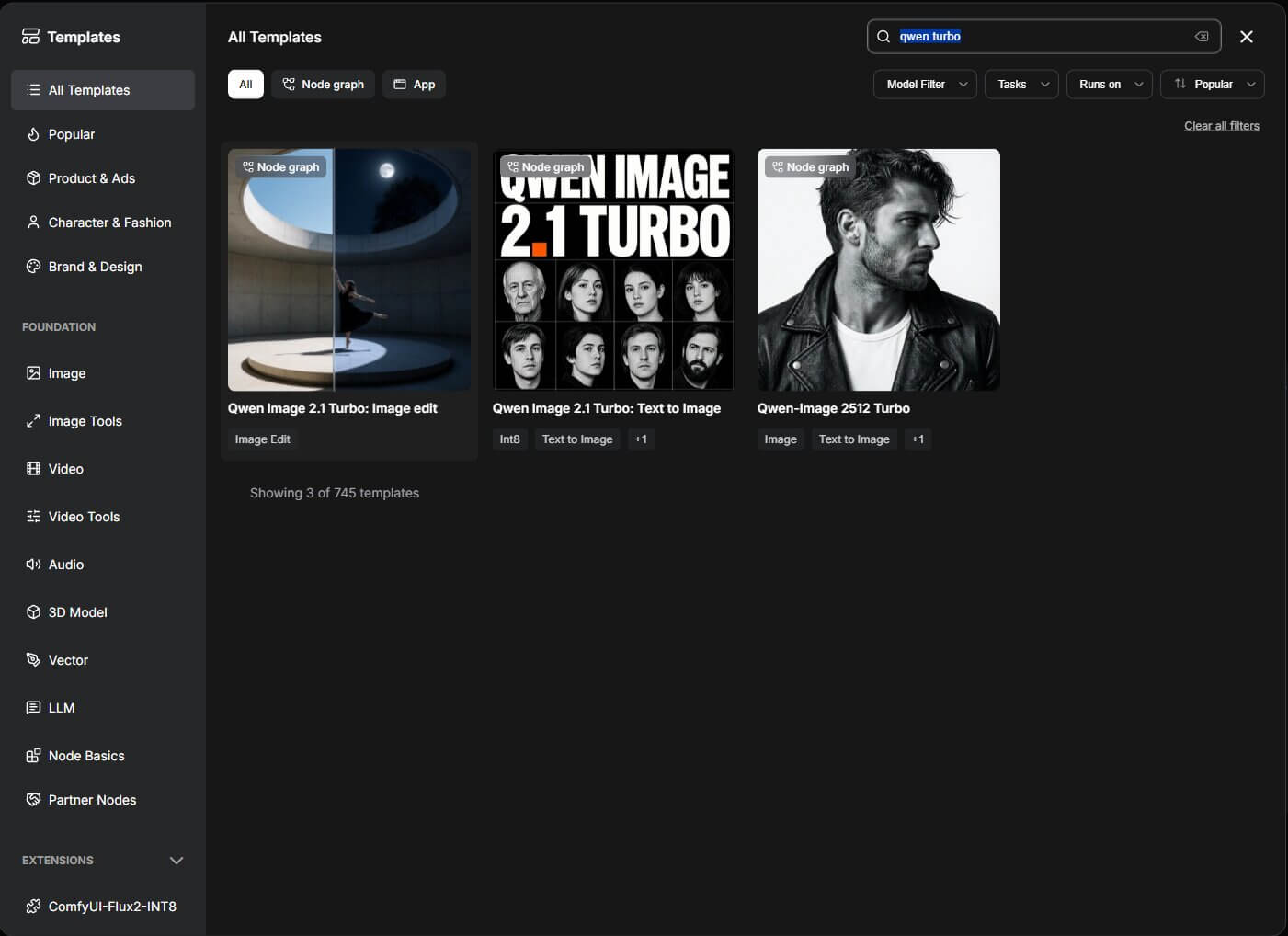
- Click Workflow → Browse Templates.
- Search for Qwen Image 2.1 Turbo. Choose Text to Image or Image Edit.
- ComfyUI tells you which model files are missing. Download them from the Comfy-Org Qwen-Image-2.1 page.
- Click Run. The template already uses 8 steps.
Learn more in our guide What Is Qwen-Image 2.1.
Source: Official ComfyUI changelog, ComfyUI docs and the Hugging Face file list.
9. FLUX.3 Klein
ComfyUI now supports FLUX.3 Klein in two forms: the base checkpoint, and a distilled version. A distilled model is a faster copy trained to need fewer steps. The distilled version uses 15 steps and no CFG. Both use the Qwen3-VL-4B text encoder and the Flux2 VAE (the part that turns the final data into a picture).
Four templates were added: Text to Image and Image Edit, each for the base and the distilled version. Our FLUX.3 Klein ComfyUI workflow guide has a beginner setup.
Source: Official ComfyUI changelog (v0.41.0).
10. MiniMax-H3 (Video and Sound Together)
MiniMax-H3 is an audio-video model. It makes the video and its sound in one run, from a text-to-video prompt (a written description that becomes a video clip). Later releases added a faster 8-step version called FastH3 (v0.36.0) and lower memory use (v0.39.0).
Follow our MiniMax H3 ComfyUI workflow guide for setup and prompts.
Source: Official ComfyUI changelog.
11. LTX-2.5
ComfyUI added native LTX-2.5 support. It comes with four new nodes: spatio-temporal guidance, modality guidance, a dual CFG guider, and a duration predictor. You can skip those names if you use a ready-made template. Use our LTX-2.5 ComfyUI guide for settings and prompts.
Source: Official ComfyUI changelog (v0.32.0).
12. Native SeedVR2 Upscaling
To upscale means to make an image or video larger and sharper. SeedVR2 now works inside ComfyUI without extra custom nodes. It handles both images and video. Follow our guide to upscaling images and video in ComfyUI for the steps.
Source: Official ComfyUI changelog (v0.28.0).
What Was Removed or Changed That Could Break Your Workflow?
Updates add things, and they also remove things. If an old workflow stops working, check this list first.
- Luma Ray 2: The nodes were deprecated in v0.39.0, and the Ray 2 endpoints shut down on October 24, 2026.
- Sora nodes: Removed in v0.38.0 because the service was retired.
--disable-api-nodes: Deprecated in v0.39.0. Use--disable-partner-nodes.- PyTorch 2.7: The minimum supported PyTorch version since v0.32.0. PyTorch is the software ComfyUI runs on.
- Retired partner models: v0.34.6 removed DALL·E 2 and 3 and some other old options.
- Asset library: The asset system now stays off unless you start ComfyUI with
--enable-assets. In the Windows portable build, it is on by default.
What Else Is New in ComfyUI? (Quick Hits)
These are not part of the 12, but they are worth a look:
- MOSS-Image (v0.42.0): text-to-image and layout-guided generation, with bounding boxes and strong text in two languages.
- Wan-Animate2 (v0.31.0): the next version of the character animation model. Our Wan 2.2 Animate guide covers the earlier version.
- MiniMax Music 3 (v0.33.1): songs up to 5 minutes. See our MiniMax Music 3 guide.
- YuE2 (v0.36.0): music from a style prompt and lyrics. See the YuE2 install guide.
- TRELLIS2 and Pixal3D (v0.34.0): 3D models from images. See our TRELLIS 2 guide.
- Camera Angle node (v0.40.0): choose a camera angle and get a plain-English shot description for your prompt.
- Comfy Cloud nodes (v0.34.5): run set workflows on Comfy's own GPUs from your local ComfyUI. They are billed per GPU-second in credits, and they are not the same as Partner Nodes.
- ARM64 NVIDIA portable build (v0.40.0): for Windows ARM devices with an NVIDIA GPU.
- Comfy Agent: read our Comfy Agent explained guide.
How Do You Update ComfyUI to Get These Features?
Updating replaces the ComfyUI program files. Your saved workflows, models and images stay where they are. For the full guide, read How to Update ComfyUI. Here is the short version.
If You Use Comfy Desktop
- Open Comfy Desktop. If an update is ready, you may see an update prompt. Click it.
- If there is no prompt, right-click your instance card and click Manage.
- Look for the update option in the panel and click it. You should see the new version number once it finishes.
- Restart the instance.
Comfy Desktop takes a snapshot before the update, so you can roll back if something breaks.
If You Use the Portable Version
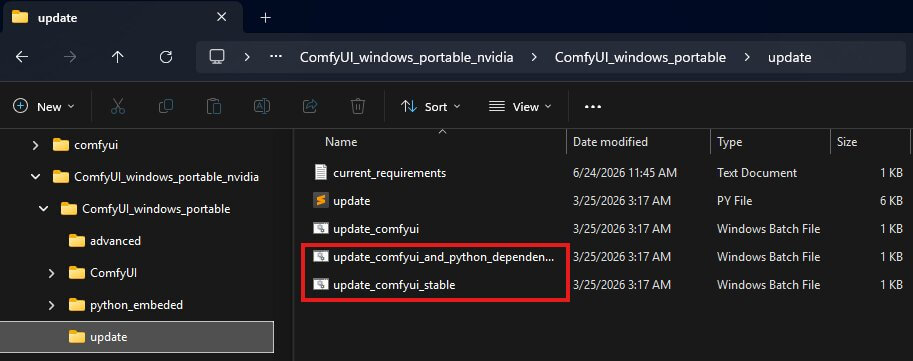
The portable version is the zip-file install. You update it with files in the update folder.
- Open the
ComfyUI_windows_portable\updatefolder. - Double-click update_comfyui_and_python_dependencies. This updates ComfyUI and the Python packages it needs.
- If you installed extra Python packages and do not want them touched, double-click update_comfyui_stable instead. It updates ComfyUI and leaves the Python packages as they are.
- Wait for the black window to close, then restart ComfyUI.
Update Your Custom Nodes Too
Updating ComfyUI does not update your custom nodes. They are separate.
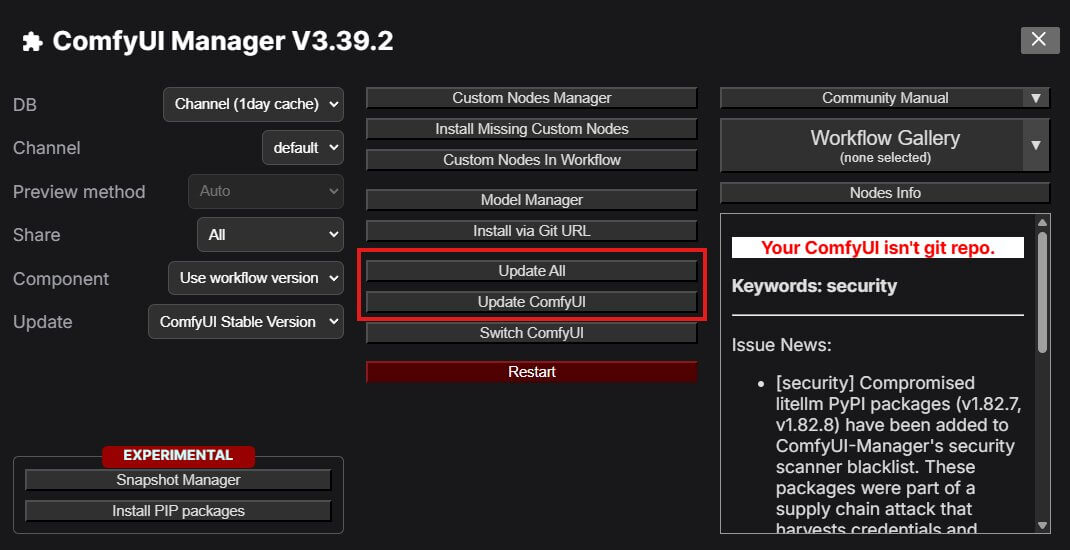
- Open ComfyUI Manager (the tool that installs and updates custom nodes).
- Click Update All.
- Restart ComfyUI.
If you do not have Manager yet, follow our ComfyUI Manager install guide.
How Do You Fix Problems After Updating ComfyUI?
Nodes turn red after updating (Missing Node Types)
Cause: A custom node is older than the new ComfyUI version, or a node was removed.
- Open ComfyUI Manager and click Update All.
- Restart ComfyUI fully.
- If a node is still red, open Manager and use the install-missing-nodes option.
See How to Install Missing Nodes in ComfyUI for more.
ComfyUI Manager button is missing after an update
Cause: Manager is a custom node, so it can be missing or fail to load after an update.
- Read the terminal window for a Manager error.
- If you use the portable build, reinstall Manager with the Manager install guide.
- Restart ComfyUI and check again.
There is no Update tab or no hamburger menu in Comfy Desktop
Cause: The Desktop app was rebuilt in June 2026, so the layout is different from older tutorials.
- Go to the Chooser view.
- Right-click your instance card (or click ⋮) and choose Manage.
- Look for update options there instead of in the old menu.
The Snapshot tab is missing for one of my instances
Cause: The instance is a Tracked install. Snapshots work only on Standalone instances. This is a limit of the app, not a mistake on your side.
ComfyUI does not detect my AMD GPU on Windows
- Update your AMD graphics driver. Use the version Comfy recommends in its ROCm post.
- Use Comfy Desktop, the official portable build, or the git install. Those are the supported paths.
- Restart your whole computer, then open ComfyUI again.
- Check the startup log for AMD arch and ROCm version lines.
What Do People Ask About ComfyUI Updates?
What to Do Next
Read Comfy Agent Explained next.
It shows how Comfy Agent fits into your ComfyUI workflow, what it costs, and where it breaks. Update ComfyUI first so you have the latest features in front of you.
What to Read Next
If the new LoRA stack loader caught your eye, the ComfyUI LoRA guide explains how LoRAs work and how to mix them. If you want to try the newest model in this list, start with What Is Qwen-Image 2.1. And if big models still run out of memory on your card, the ComfyUI low VRAM guide covers the fixes in order.
— Written as a personal recommendation from the Earngenix team.
Published: 2026-07-04 · Last updated: 2026-10-26 · Covers ComfyUI up to v0.42.4. Feature details come from the official ComfyUI changelog and documentation.
Join the discussion
Sign in to leave a comment or reply
No comments yet
Be the first to share your thoughts!