
⚡ Quick Answer
To run Ideogram 4.0 in ComfyUI, download 5 model files from HuggingFace — two diffusion models, two text encoders, and one VAE — and place each file in its specific subfolder inside ComfyUI/models/. Then load the workflow JSON and click Queue Prompt. Unlike FLUX or Stable Diffusion, Ideogram 4.0 uses structured JSON prompts — not plain text — which is what sets it apart and where most of the quality comes from. Minimum 16 GB VRAM required for the FP8 models.
What to Expect from Ideogram 4.0
Before you spend time on setup, here are four real examples generated with the workflow you're about to install. Each one uses a structured JSON prompt — the format this model was trained on. Click View Prompt on any card to see the exact prompt, and hit Copy Prompt to grab it and try it yourself once the workflow is running.




Ideogram 4.0 is the best open-weight image model available right now for text rendering, poster design, and precise layouts. Getting it running in ComfyUI takes about 20 minutes if you follow the steps below exactly. The biggest pitfall: the file structure is different from FLUX and Stable Diffusion, and the prompt format is completely different from every other model you've used. Both are covered here.
What Is Ideogram 4.0 and Why Does It Work Differently?
Ideogram 4.0 is a 9.3B parameter open-weight text-to-image model released by Ideogram AI on June 3, 2026. "Open-weight" means the model files are publicly downloadable — you run them on your own machine, not through a paid service. It was built entirely from scratch, not fine-tuned from any existing model like FLUX or Stable Diffusion.
Two things make it structurally different from every other model you may have used. First, the text encoder. Most image models use CLIP or T5 — text-only encoders with limited language understanding. Ideogram 4.0 uses Qwen3-VL-8B-Instruct (a full vision-language model) plus Gemma4, and extracts hidden states from 13 of Qwen's intermediate layers. This gives the model far deeper understanding of what you're describing — which is why it renders in-image text, precise layouts, and complex compositions better than models three times its size.
Second, the prompt format. Ideogram 4.0 was trained exclusively on structured JSON captions, not plain text. Plain-text prompts still work, but produce noticeably weaker results because the model was never trained on them. The JSON format is covered in detail in the Ideogram 4.0 Prompt Guide.
How Does Ideogram 4.0 Compare to FLUX and Stable Diffusion?
At 9.3B parameters it outperforms FLUX.2 [dev] (32B) and Qwen-Image (20B) on text rendering benchmarks. In a blind evaluation by professional graphic designers, it ranked #2 overall — behind only GPT Image 2 — and #1 among all open-weight models.
| FLUX.1-dev | Stable Diffusion XL | Ideogram 4.0 | |
|---|---|---|---|
| Prompt format | Plain text | Plain text | Structured JSON |
| Text encoder | CLIP + T5 | CLIP | Qwen3-VL-8B + Gemma4 |
| Text rendering | Moderate | Poor | Best-in-class |
| Parameters | 12B | ~2.6B | 9.3B |
| Free weights license | Non-commercial | Open | Non-commercial |
What Is the Ideogram 4.0 License? Can You Use It Commercially?
There are two license tiers. Get this straight before you download anything.
01 — Non-commercial (free)
Download the quantized weights from HuggingFace free under the Ideogram Open Model Agreement. Personal projects, research, learning, and experimentation. Fine-tuning is allowed.
You cannot use these weights inside a commercial product, for client work, or any paid deliverable.
02 — Commercial (contact sales)
Full-precision weights + right to deploy in production — inside a product, through an API, or for client-facing work.
Visit ideogram.ai/licensing to contact sales.
One important distinction: the inference code on GitHub is Apache 2.0 — free for any use including commercial. The restriction is on the model weights, not the code that runs them. Images you generate are yours — Ideogram does not claim ownership of outputs. You can use generated images commercially as long as you're not using the weights themselves in a commercial deployment.
What You Need Before You Start
Hardware & software checklist
- ✓GPU VRAM (FP8 models): 16 GB minimum — tested on RTX 4090 (24 GB)
- ✓GPU VRAM (NVFP4 models): 8–12 GB — lower VRAM option, slight quality trade-off
- ✓System RAM: 32 GB recommended
- ✓Disk space: ~25–30 GB for all 5 model files
- ✓ComfyUI version: Latest stable or nightly that supports Ideogram 4.0 nodes
The 5 Model Files You Need
The table below covers the FP8 versions — recommended for 16 GB+ VRAM cards. If you have less than 16 GB, see the NVFP4 note in the section below.
| File | Subfolder | Size | Note | Download |
|---|---|---|---|---|
ideogram4_fp8_scaled.safetensors | models/diffusion_models/ | ~9.3 GB | Main diffusion model (FP8) | Download |
ideogram4_unconditional_fp8_scaled.safetensors | models/diffusion_models/ | ~9.3 GB | Unconditional model (FP8) — required pair | Download |
qwen3vl_8b_fp8_scaled.safetensors | models/text_encoders/ | ~8 GB | Text encoder 1 (Qwen3-VL) | Download |
gemma4_e4b_it_fp8_scaled.safetensors | models/text_encoders/ | ~4 GB | Text encoder 2 (Gemma4) | Download |
flux2-vae.safetensors | models/vae/ | ~335 MB | VAE — converts latent to pixel image | Download |
⚠ Yellow rows = both text encoders are required. Missing either one causes generation to fail.
models/vae/ folder — you may already have flux2-vae.safetensors and don't need to download it again.FP8 vs NVFP4 — Which Should You Download?
The Comfy-Org HuggingFace repo contains two quantization options for the diffusion models. Here's what each one actually is and when to use it:
FP8 ✓ Recommended
Best image quality. Each model file is ~9.3 GB. Use FP8 if you have 16 GB+ VRAM.
RTX 3090, RTX 4080, RTX 4090, RTX 5080, RTX 5090
NVFP4 — Lower VRAM option
Designed for cards with less VRAM. Some quality reduction — use FP8 for the main model and NVFP4 only for the unconditional model for best results on lower-VRAM setups.
RTX 3070 / 3080, RTX 4060 Ti, RTX 4070
Where to Put the Files in ComfyUI
This is where most beginners run into problems. Ideogram 4.0 does not use the models/checkpoints/ folder that FLUX and SD models go into. It uses three separate subfolders. The ComfyUI root folder is the main folder where ComfyUI is installed — it contains main.py, a models/ folder, a custom_nodes/ folder, and others.
models/checkpoints/. ComfyUI will not find them there and the model dropdown in the workflow will show empty. This is the single most common setup mistake with Ideogram 4.0.diffusion_models/ or text_encoders/ folders don't exist yet, create them manually inside ComfyUI/models/. They're standard subfolders ComfyUI recognizes.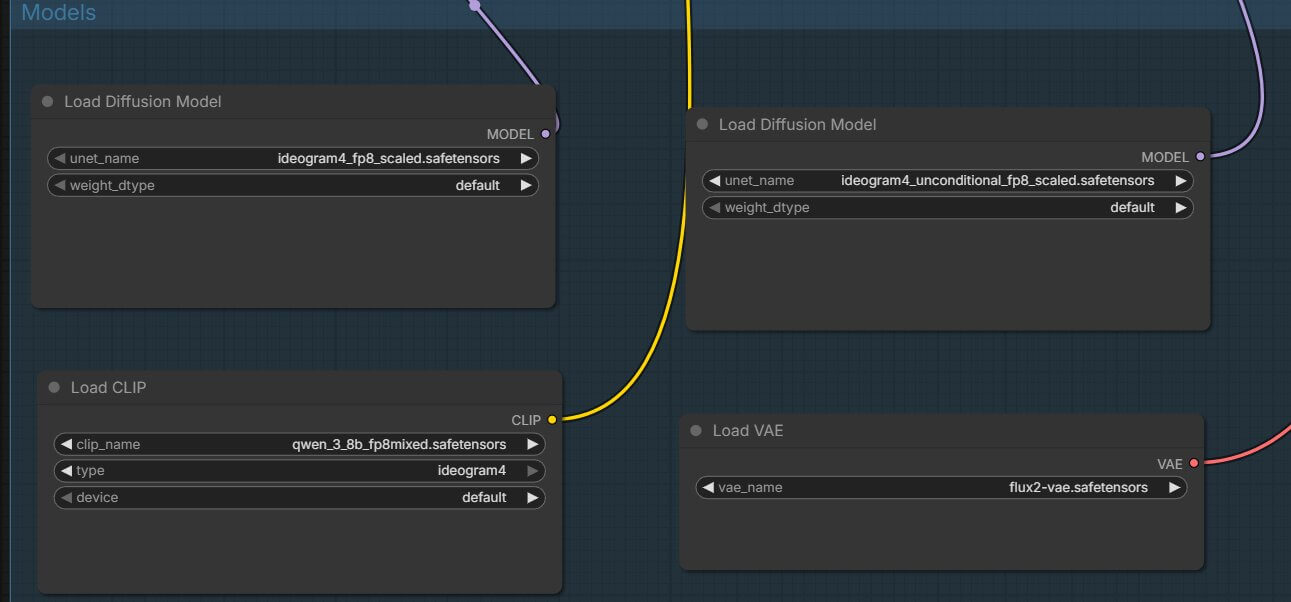
How to Load and Run the Ideogram 4.0 Workflow in ComfyUI
⬇ Download the Workflow
Download the workflow JSON file, drag it onto the ComfyUI canvas, and it loads automatically. No custom nodes required — Ideogram 4.0 is supported natively in an up-to-date ComfyUI.
Download Ideogram 4.0 ComfyUI Workflow (.json)Step 1 — Update ComfyUI First
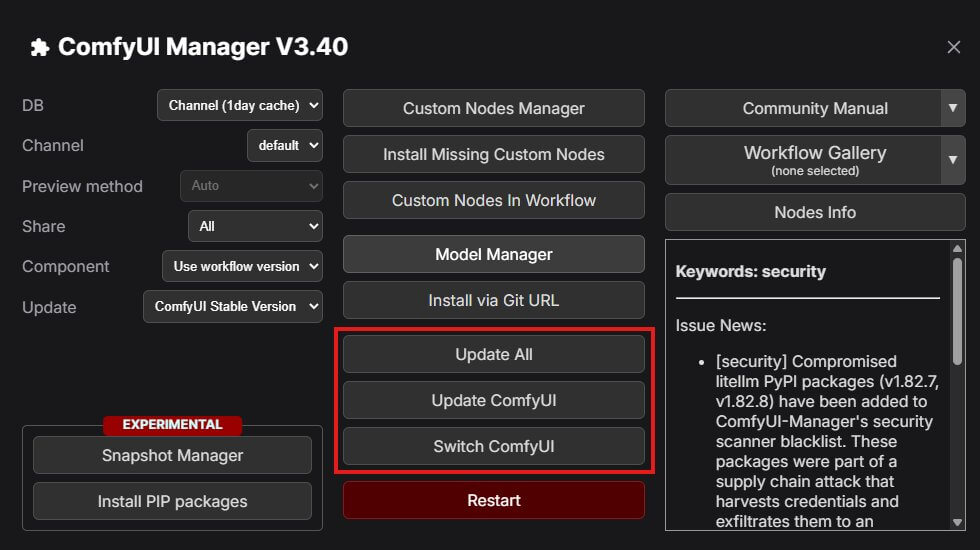
Ideogram 4.0 requires a recent version of ComfyUI. If you're running an older version, some of the workflow nodes won't exist and the canvas loads with red errors.
- Open ComfyUI Manager — the Manager button in the top menu bar.
- Click Update ComfyUI.
- Wait for the update to complete, then restart ComfyUI completely — close the terminal window and relaunch it.
Step 2 — Load the Workflow JSON
- Save the downloaded
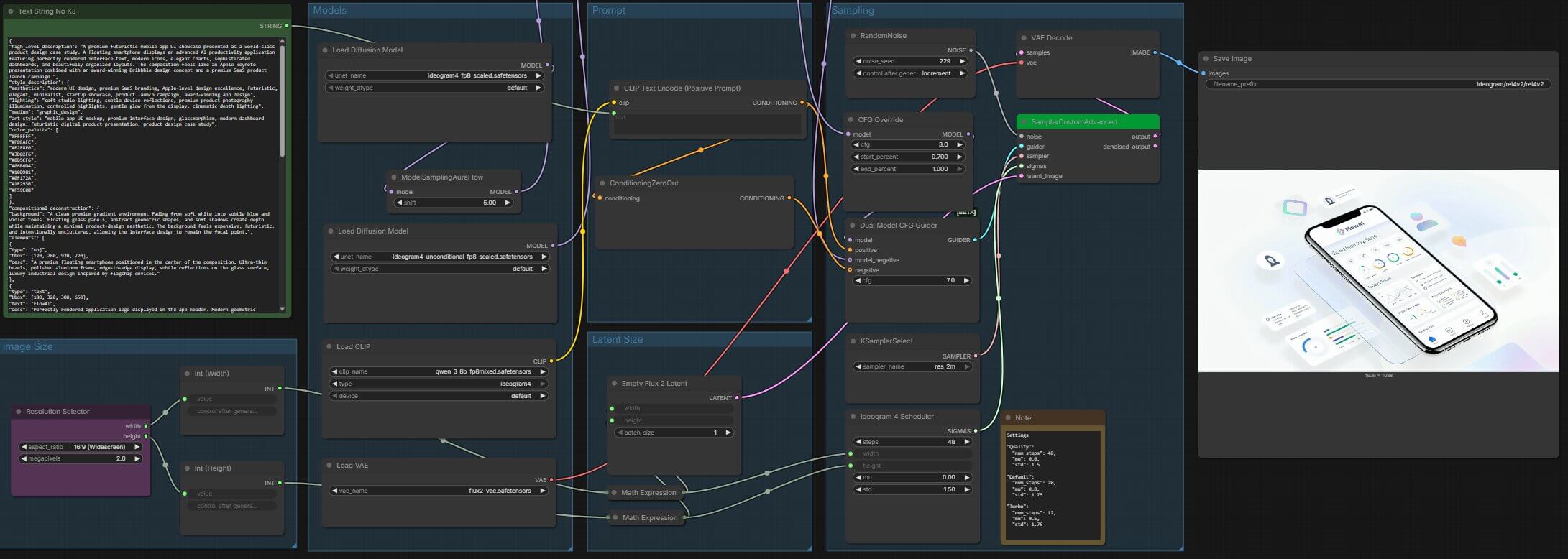
.jsonfile anywhere — your Downloads folder is fine. - In ComfyUI, drag the JSON file directly onto the canvas. Or click the Load button in the top menu and navigate to the file.
- The canvas populates with the workflow nodes connected by wires. You'll see a Load Diffusion Model node, a DualCLIPLoader node, a VAELoader node, and a sampler chain leading to an output node.
Step 3 — Check the Model Nodes Are Pointing to the Right Files
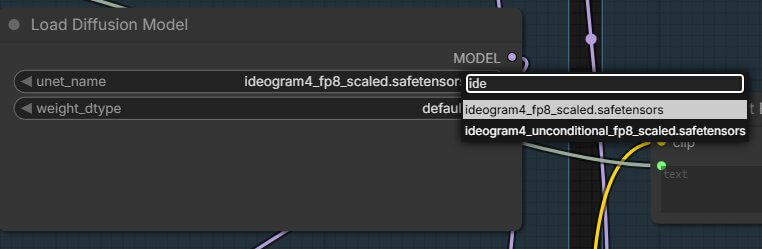
Before running anything, confirm each model node is pointing to the correct file. ComfyUI reads from the folder you set up in the previous step — if a file is missing or misplaced, the node dropdown shows nothing.
- Click the Load Diffusion Model node. The filename dropdown should show
ideogram4_fp8_scaled.safetensors. If it shows "None", the file isn't inmodels/diffusion_models/— go back and move it. - Click the DualCLIPLoader node. Both text encoder fields should show the Qwen3 and Gemma4 filenames. These two encoders convert your prompt into something the model understands — without them, generation fails or produces noise.
- Click the VAELoader node. It should show
flux2-vae.safetensors. The VAE (Variational Autoencoder — the component that converts the model's internal latent image into an actual pixel image you can see and save) is required for output.
Step 4 — Write Your First Prompt
Find the prompt text box on the canvas — it's connected to the node chain that feeds into the sampler. For your first run, write a short plain-text description:
Plain text works fine here — the model will produce a good result. After you've confirmed the workflow runs cleanly, read the Ideogram 4.0 Prompt Guide to learn the JSON format. That's where you'll see a real jump in quality.
Step 5 — Run and What to Expect
Click the orange Queue Prompt button in the top-right corner of the ComfyUI interface. A progress bar appears below it and the active node highlights as each step runs.
⚙ Generation Settings — RTX 4090
The workflow exposes three parameters you can adjust in the sampler node: num_steps, mu, and std. Three presets cover the most common tradeoffs:
| Preset | num_steps | mu | std | Generation Time (RTX 4090) | Best For |
|---|---|---|---|---|---|
QualityBest output | 48 | 0.0 | 1.5 | 150–190 sec | Use when image quality is the priority and you are not in a hurry. Recommended for final renders. |
DefaultBalanced | 20 | 0.0 | 1.75 | < 100 sec | Good balance of speed and quality. Ideal for iterating on prompts and compositions. |
TurboFastest | 12 | 0.5 | 1.75 | < 60 sec | Fastest generation. Some quality reduction. Best for quick prompt testing. |
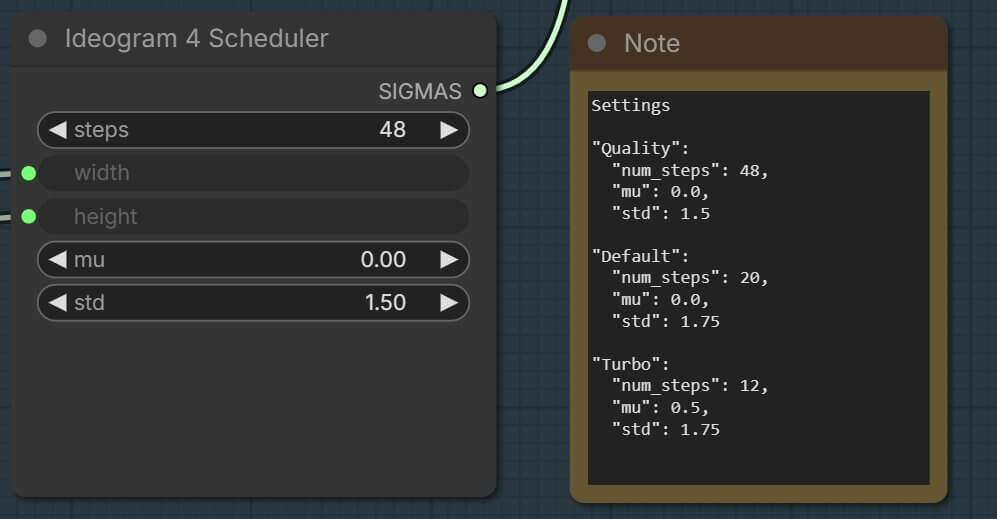
The first run is always slower regardless of preset — model files load into VRAM for the first time. From the second generation onward, speed improves because the models stay cached in VRAM. The finished image appears in the output preview node on the right side of the canvas.

Why Does the Prompt Look Like JSON? (The Prompting Difference Explained)
Every other image model you've used accepts plain text: "a woman standing in a forest at sunset." Ideogram 4.0 was trained on something structurally different — structured JSON captions. JSON (JavaScript Object Notation) is a structured text format that uses { } brackets to organize information into named fields. You don't need to know any code to use it — you're filling in a template, not writing a program.
The JSON format gives Ideogram 4.0 three capabilities that plain text can't match: exact hex color palette control (up to 16 colors per image), bounding-box layout for placing subjects at exact coordinates, and typed text elements that let the model know precisely what characters to render and where. Because the model was trained exclusively on captions structured this way, plain-text prompts sample outside the training distribution and leave quality on the table — especially for composition, color, and typography.
✗ Plain text (works, but weaker)
"a lone sailboat on calm water at sunset, warm light, low horizon"Model guesses at colors, composition, and style.
✓ JSON prompt (full control)
{
  "high_level_description": "...",
  "style_description": {
    "color_palette": ["#FF6B35","#004E89"]
  },
  "compositional_deconstruction": {
    "background": "...",
    "elements": [...]
  }
}
Exact colors, element placement, and per-element styling.
You can also skip writing JSON entirely using Magic Prompt — a free tool built into the reference pipeline that auto-converts a plain-text prompt into a full JSON caption. It runs server-side using a free Ideogram API key with no local model required. The Ideogram 4.0 Prompt Guide covers every JSON field with real before/after examples, and includes a downloadable skill file that converts your normal prompts to proper Ideogram 4.0 JSON automatically.
Troubleshooting Ideogram 4.0 in ComfyUI
"NODE NOT FOUND" or Red Nodes After Loading the Workflow
What it looks like: One or more nodes on the canvas turn red with a "NODE NOT FOUND" label after you load the workflow JSON.
What causes it: ComfyUI is out of date and doesn't yet support the Ideogram 4.0 node types.
How to fix it:
- Open ComfyUI Manager from the top menu.
- Click Update ComfyUI.
- Restart ComfyUI completely.
- Reload the workflow JSON.
If nodes are still red after updating, follow the step-by-step guide to fixing missing nodes in ComfyUI.
Model Files Not Appearing in the Node Dropdowns
What it looks like: The Load Diffusion Model, DualCLIPLoader, or VAELoader node dropdowns show "None" or an empty list.
What causes it: Files are in the wrong subfolder (most common: placed in models/checkpoints/ instead of models/diffusion_models/), or the filenames were modified during download.
How to fix it: Check each file is in the exact subfolder shown in the folder structure diagram. Confirm the filenames match exactly. Restart ComfyUI — it only scans model folders on launch.
"Image Blocked by Safety Filter" — Gray Screen Output
What it looks like: Generation completes but instead of an image you see a plain gray screen with the text "Image blocked by safety filter."
What causes it: The safety filter flagged your prompt. The official Ideogram 4.0 documentation confirms false positive rates are higher for plain-text prompts than for structured JSON prompts.
How to fix it: Rewrite the prompt to be more specific and descriptive. Switch from plain text to a JSON-structured prompt — this alone resolves most false positives. The Ideogram 4.0 Prompt Guide shows you how.
CUDA Out of Memory — Generation Fails Mid-Run
What it looks like: ComfyUI shows a red error in the terminal or on the canvas: "CUDA out of memory" or "RuntimeError: CUDA error."
What causes it: The FP8 model files require at least 16 GB VRAM. If your GPU has less, the model can't fully load.
How to fix it:
- Close any other applications using your GPU (games, other AI tools).
- Add
--lowvramor--medvramto your ComfyUI launch command. - If you have less than 16 GB VRAM, switch to the NVFP4 setup — use FP8 for the main model and NVFP4 for the unconditional model to reduce VRAM usage while preserving most of the quality.
Frequently Asked Questions
What to Do Next
You have Ideogram 4.0 running. Now learn the prompt format.
Plain-text prompts get you results. The JSON format gets you the quality — color palette control with exact hex codes, bounding-box layout, and per-element styling that makes poster and typography work precise rather than approximate.
Published: 2026-06-03 · Last updated: 2026-06-11 · Tested on RTX 4090 (24 GB VRAM) · ComfyUI version: [ADD VERSION]
Join the discussion
Sign in to leave a comment or reply
No comments yet
Be the first to share your thoughts!