

Introduction
Looking to add natural-sounding text-to-speech (TTS) to your projects? Kokoro Speaker is a powerful local TTS tool that works perfectly with ComfyUI. This guide explains what Kokoro Speaker is and gives you clear steps to install and use it, including how to generate unique blended voices.
What Is Kokoro Speaker?
Kokoro Speaker is a small, fast, and open-source text-to-speech model. It can turn any written text into natural-sounding speech directly on your computer. Because it runs locally, you have full control and complete privacy — no data is sent to any external server.
You can also use Kokoro Speaker to create different types of voices or generate long audio clips with ease. It supports multiple voice styles and integrates directly into your existing ComfyUI workflows.
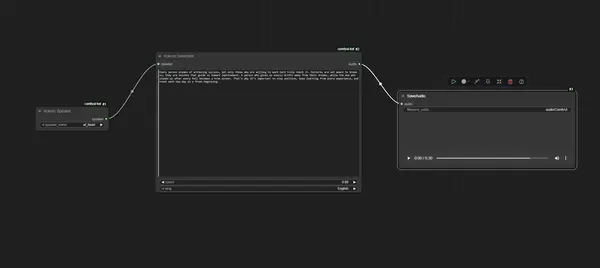
How to Install Kokoro Speaker on ComfyUI
Follow these steps to install Kokoro Speaker with ComfyUI. The whole process takes about 5 minutes.
Step 1 — Install ComfyUI
First, make sure ComfyUI is installed on your system. Use the latest version for the best compatibility. Read the full ComfyUI installation guide →
Step 2 — Open Custom Nodes Manager
Open ComfyUI. Go to the Manager and click on "Custom Nodes Manager".
Step 3 — Search and Install Kokoro
In the search bar, type:
KokoroFind and install "comfyui-kokoro" (developed by Stav Sapir).
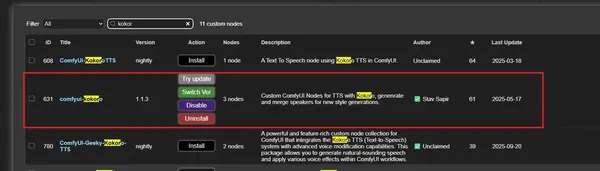
Step 4 — Restart ComfyUI
After installation completes, restart ComfyUI to finish the setup and register the new nodes.
Step 5 — Load the Kokoro Speaker Workflow
Download the basic workflow below and drag-and-drop it into ComfyUI, or use the Load button inside the interface.
Download Kokoro WorkflowStep 6 — Input Your Text
Enter the text you want to convert to speech in the Kokoro Speaker node's text input field.
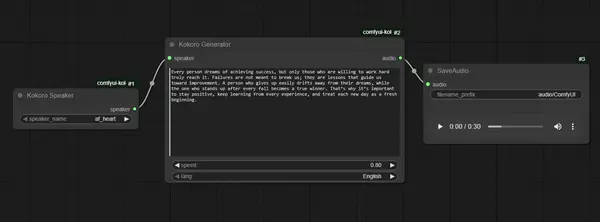
Step 7 — Run the Workflow
Click "Queue Prompt" to run. On first use, Kokoro will automatically download the required model weights — this may take a few minutes depending on your connection speed.
Creating Unique Voices with Kokoro Speaker
Kokoro Speaker allows you to combine different voices for creative results. To blend two voices together:
- Open ComfyUI and search for the "Kokoro Speaker Combiner" node.
- Add two instances of the Kokoro Speaker node and connect each to the Combiner.
- Run the workflow to produce a unique blended voice output.
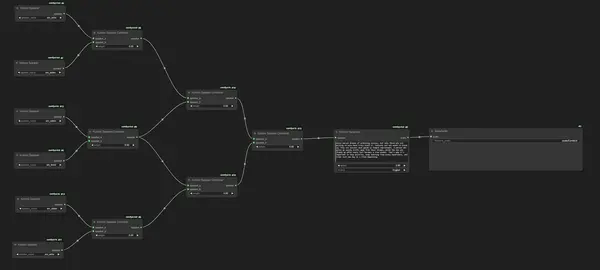
Four sample workflows and audio examples are available below to demonstrate unique voice combinations. Download any workflow and drag it into ComfyUI to try it immediately.
Voice Samples
Example 1 — Female Voice A
Download WorkflowExample 2 — Male Voice A
Download WorkflowExample 3 — Female Voice B
Download WorkflowExample 4 — Male Voice B
Download WorkflowImportant Notes
If you run into installation issues, check the ComfyUI Troubleshooting Guide or verify that the custom node was installed correctly via the Custom Nodes Manager.
Frequently Asked Questions
Conclusion
Kokoro Speaker brings advanced and customizable local TTS capabilities to ComfyUI users. By following these steps, anyone can install Kokoro Speaker, generate natural speech from text, and even create entirely new blended voices.
Make the most of local TTS and unlock new creative possibilities in voice generation — completely free, completely private, all on your own machine.
Join the discussion
Sign in to leave a comment or reply
No comments yet
Be the first to share your thoughts!