
⚡ Quick Answer
Krea 2 Turbo runs entirely on your own computer inside ComfyUI — no subscription, no cloud queue. You need three files (a diffusion model, a text encoder, and a VAE), and a GPU with at least 12 GB of VRAM for the standard FP8 version, or less with a GGUF version. Krea now ships 9 official style LoRAs, not 4 — this guide covers all of them, with exact filenames and folders.
Krea 2 Turbo is a free, open-weight AI image generator you can run yourself in ComfyUI. If you've tried to set it up and gotten confused about which file goes where, or you downloaded the workflow a while ago and some of the LoRAs in your dropdown don't match what's in this guide — that's expected. Krea's official LoRA pack grew from 4 styles to 9 after launch, and the file options changed too. This guide walks through the current, correct Krea 2 Turbo ComfyUI workflow from scratch.
How Much VRAM Does Krea 2 Turbo Need in ComfyUI?
VRAM is the memory built into your graphics card (GPU) — separate from your computer's regular system RAM, and it's what actually holds the AI model while it's generating an image. Without enough VRAM, ComfyUI crashes partway through with an out-of-memory error, rather than just running slowly.
| Version | Minimum VRAM | Good For |
|---|---|---|
| FP8 (recommended) | 12 GB | RTX 3060 12GB, RTX 4070, RTX 4080 |
| BF16 (full precision) | 24 GB | RTX 3090, RTX 4090, professional cards |
| GGUF (compressed) | 6–8 GB (quant dependent) | Older or smaller cards, 8 GB laptops |
| Int8-convrot (style reference) | 12 GB | Same as FP8, used for the style-reference workflow only |
If your card has 12–16 GB of VRAM, use the FP8 version — it's what this guide is built around. If you have less than 12 GB, skip to the GGUF section below instead of forcing FP8 to run. If you have 24 GB or more, FP8 or BF16 both work — BF16 is only worth the extra file size for research or close quality comparisons; for everyday generation, FP8 looks essentially the same.
You'll also want at least 20–30 GB of free disk space for the model files, and 16 GB of regular system RAM (separate from VRAM) as a safe minimum.
Which Files Do You Need to Download for Krea 2 Turbo?
Krea 2 Turbo isn't one single file — it's built from three separate pieces that all load into ComfyUI together: a diffusion model (this does the actual image generation), a text encoder (this reads your text prompt and turns it into something the diffusion model can understand), and a VAE (this converts the model's internal output into an actual viewable image). All three are required.
Diffusion Model — pick one
| File | Size | What It Is |
|---|---|---|
krea2_turbo_fp8_scaled.safetensors | ~13 GB | Recommended for most users — 12 GB+ VRAM |
krea2_turbo_bf16.safetensors | ~26 GB | Full precision — 24 GB+ cards, research use |
krea2_turbo_int8_convrot.safetensors | ~13 GB | Used only for the Image Style Reference workflow |
Text Encoder and VAE — both required
| File | Size | What It Is |
|---|---|---|
qwen3vl_4b_fp8_scaled.safetensors | ~5 GB | Text encoder — reads your prompt (required, shared by both workflows) |
qwen_image_vae.safetensors | ~250 MB | VAE — turns the model’s output into a viewable image (required) |
A .safetensors file is just a safe, standard way AI models are packaged and shared — you can download and use it without worrying it contains anything harmful, unlike some older model file formats. Every file above is a type of checkpoint (this just means a saved, ready-to-use snapshot of an AI model) — Krea 2 splits its checkpoint into three separate files instead of bundling them into one, which is common for newer, larger models.
What Is the krea2_turbo_int8_convrot.safetensors File For?
You might also see a file called krea2_turbo_int8_convrot.safetensors on the Hugging Face page and wonder if you need it. You don't need it for basic text-to-image generation — it's a separate diffusion model used only for the Image Style Referenceworkflow, which lets you upload 1–2 reference images and have Krea 2 Turbo match their visual style. Covered later in this guide, in "How Do You Use Krea 2 Turbo's Image Style Reference Workflow?"
Are There GGUF Versions of Krea 2 Turbo for Low VRAM?
Yes. If your GPU has less than 12 GB of VRAM, a GGUF version lets you run Krea 2 Turbo anyway. GGUF is a compressed model format — it shrinks the file size and VRAM needed by reducing the model's precision slightly, in exchange for a small, usually hard-to-notice drop in output quality. This is the same idea as the FP8 file above, just taken further.
- Download a Krea 2 Turbo GGUF file — for example, one named
krea2_turbo_bf16-q4_0.gguforkrea2_turbo-q8_0.gguf. The number after the "q" (q4, q8) is the compression level — lower means smaller and less VRAM, but slightly lower quality. - Also download a GGUF version of the text encoder — search for
qwen3vl_4b_fp8_scaled.safetensors ggufalongside the diffusion model. - Install the ComfyUI-GGUF custom node through ComfyUI Manager — see Install Missing Nodes in ComfyUI if you're not sure how. This adds a "Load Diffusion Model (GGUF)" node.
- Place the
.gguffiles in the samediffusion_modelsandtext_encodersfolders as the regular files. - Swap the diffusion model and text encoder loader nodes for their GGUF equivalents, and select your downloaded files in the dropdowns.
Which Folder Does Each Krea 2 Turbo File Go In?
ComfyUI organizes model files into specific folders inside its modelsdirectory, and it only looks for files in the exact folder matching their type. Put a file in the wrong folder and ComfyUI won't show it as an option — no error message, it's just missing from the dropdown.
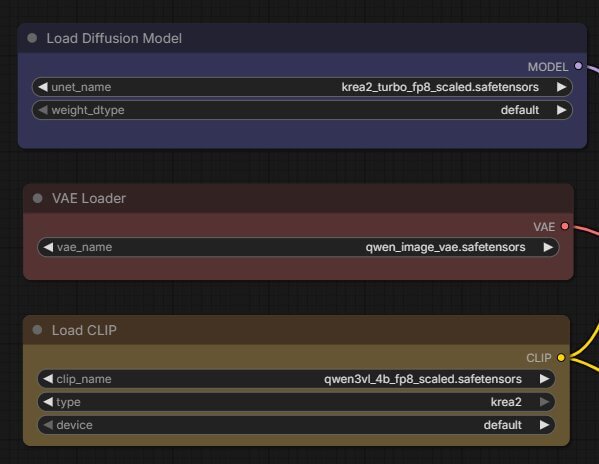
models/checkpoints/. That folder is for older, single-file models like Stable Diffusion 1.5 or SDXL. Krea 2 uses the separate diffusion_models/ folder because its diffusion model, text encoder, and VAE are three separate files.How Do You Load the Krea 2 Turbo Workflow in ComfyUI?
A workflow is a saved layout of connected nodes — individual blocks that each do one job, like loading a model or generating an image — wired together so you don't have to build the setup yourself. Krea's team publishes two official workflows: a standard Text to Image workflow, and an Image Style Reference workflow. Most people should start with Text to Image.
Method 1 — use ComfyUI's built-in template (easiest)
- Open ComfyUI in your browser.
- Click Templates in the top menu bar.
- Type "Krea" into the search box, or scroll to find Text to Image (Krea-2 Turbo).
- Click it. The workflow loads automatically onto the canvas — you should see several groups of connected boxes appear.
Method 2 — download the JSON file directly
Two versions of the Text to Image workflow are available, matched to the diffusion model you downloaded earlier — grab the one that matches your file.
- Save the .json file to your computer.
- Open ComfyUI in your browser, and drag the .json file directly onto the empty grey canvas area.
- The workflow loads automatically. If you see only red boxes with error text, jump to the Troubleshooting section below.
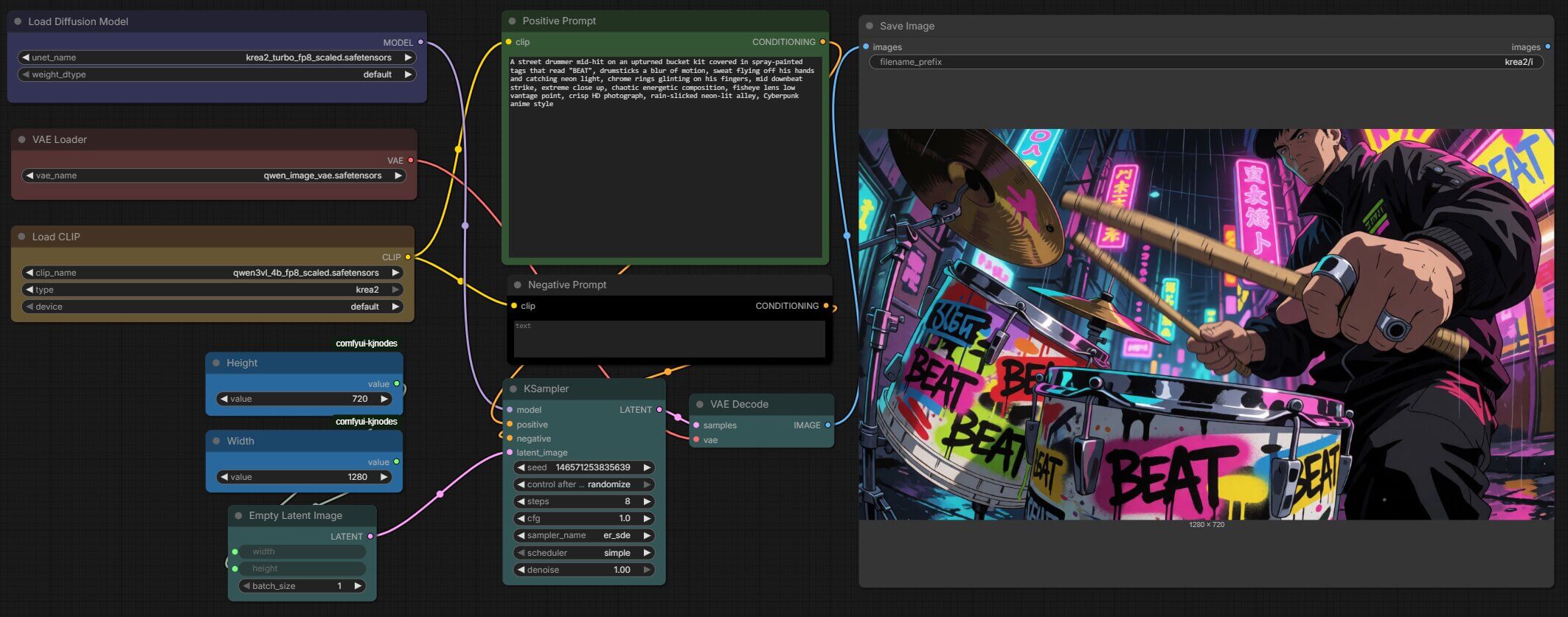
Once it's loaded, check the model-loading section (inside the subgraph) and confirm the dropdowns show your downloaded filenames — krea2_turbo_fp8_scaled.safetensors, qwen3vl_4b_fp8_scaled.safetensors, and qwen_image_vae.safetensors. An empty dropdown means the matching file is missing or in the wrong folder.
How Do You Use Krea 2 Turbo's Image Style Reference Workflow?
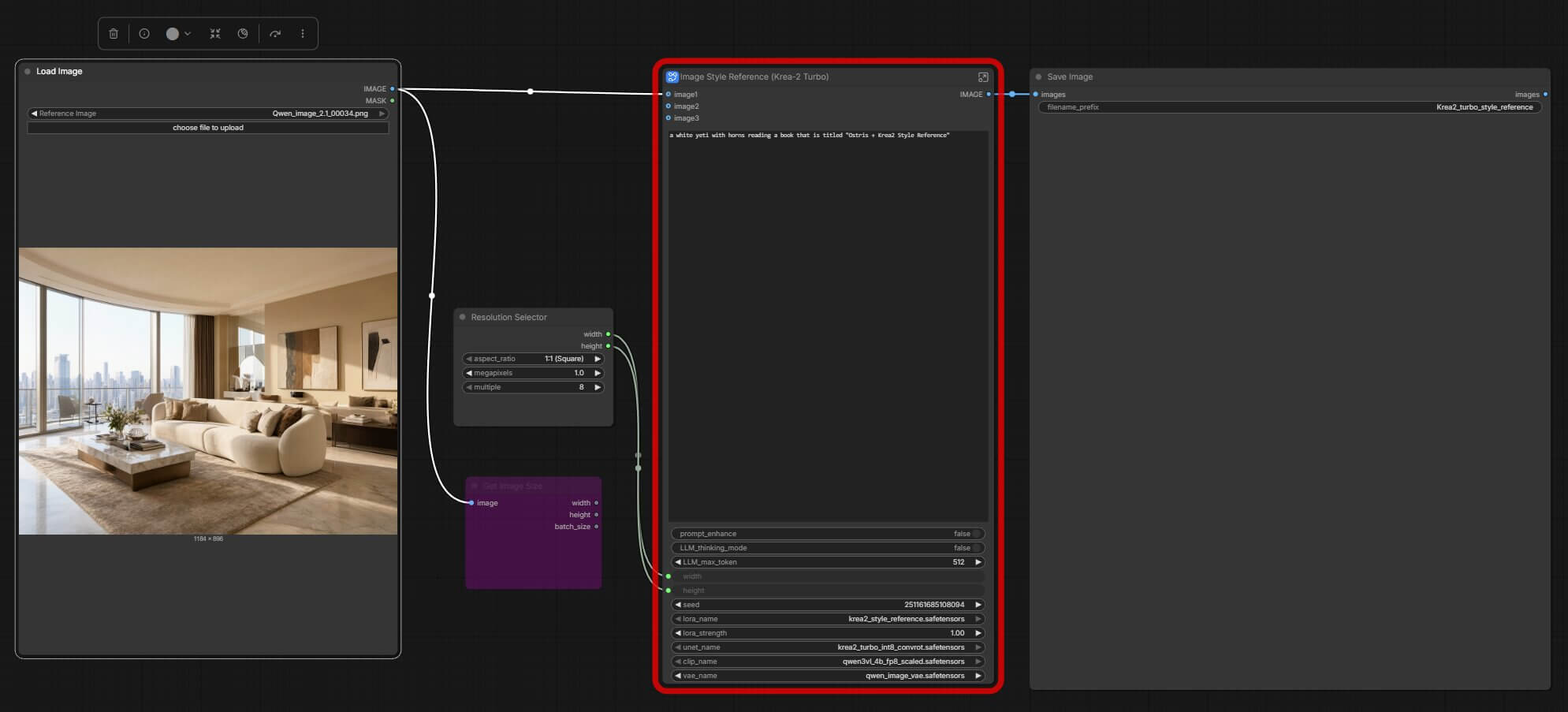
This second workflow lets you upload 1–2 images and have Krea 2 Turbo generate a new image matching their visual style, mood, and color — while your text prompt still controls the subject and composition.
What you need in addition to the standard files:
krea2_turbo_int8_convrot.safetensors— a different diffusion model used only for this workflow, placed indiffusion_models/krea2_style_reference.safetensors— a special LoRA made for this workflow, placed inloras/- The same text encoder and VAE files you already downloaded — shared between both workflows
- Load the Image Style Reference template the same way as above — search "Krea-2 Style Reference" in Templates, or use the downloaded .json file.
- Find the LoadImage node on the canvas. Click it, and upload the image whose style you want to copy.
- Type your subject and scene into the text prompt box, the same way as a normal generation. The reference image handles the style; your prompt handles what’s in the picture.
- Adjust resolution using the ResolutionSelector node if needed.
- Click Queue Prompt (or press Ctrl+Enter).
What Are the Best Krea 2 Turbo Settings (Steps, CFG, Sampler)?
The KSampler node is what actually runs image generation — it takes your prompt, your chosen model, and a set of settings, and produces the finished image over a series of steps. Krea 2 Turbo was built and tested around one specific set of numbers, and changing them usually makes results worse, not better.
8— more wastes time without improving quality1.0— above ~1.5–2.0 causes oversaturationer_sde— required for Turbosimple— used together with er_sdeYou do not need a negative prompt with Krea 2 Turbo — leave that field blank. Turbo is a distilled model built to work correctly from a positive prompt alone.
prompt_enhance, on by default. When it's on, Krea automatically expands a short prompt into a longer, more detailed one before generating. Turn it off only if you're writing a fully detailed prompt yourself and want full control over every word.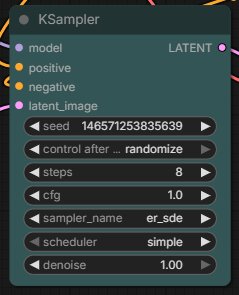
What Are the 9 Official Krea 2 Style LoRAs (And How Do You Use Them)?
A LoRA is a small add-on file that changes the visual style of the main model's output, without needing an entirely new model. Krea released 9 official style LoRAsfor Krea 2 — not 4, which is what earlier guides listed. If you downloaded this workflow a while ago and only see 4 styles in your LoRA dropdown, that's expected — the pack has grown since launch.
| LoRA File | Trigger Word | Style | Strength |
|---|---|---|---|
krea2_darkbrush.safetensors | monochrome ink wash style | Traditional East Asian ink-brush painting look | 1.0 |
krea2_dotmatrix.safetensors | monochrome stippling style | Dot-pattern, engraving-style shading | 1.0 |
krea2_kidsdrawing.safetensors | naive expressive sketch style | Loose, childlike crayon / sketch style | 1.0 |
krea2_neondrip.safetensors | textured abstract style | Abstract, dripping neon texture | 1.0 |
krea2_rainywindow.safetensors | rainy window style | Soft, blurred, rain-streaked look | 1.0 |
krea2_retroanime.safetensors | purple retro anime style | 80s/90s-inspired anime color grading | 1.0 |
krea2_softwatercolor.safetensors | art deco watercolor style | Soft-edged, decorative watercolor | 1.0 |
krea2_sunsetblur.safetensors | ethereal motion blur style | Dreamy, glowing motion-blurred light | 1.0 |
krea2_vintagetarot.safetensors | vintage tarot style | Illustrated, aged tarot-card aesthetic | 1.0 |
Download each from the Comfy-Org/Krea-2 loras folder on Hugging Face and place every .safetensors file in ComfyUI/models/loras/ — the same folder for all 9.
krea2_coolblue, krea2_plasmoid, or krea2_warmpastel, those were part of an earlier stage of the release and are no longer listed on Krea's official page. If you already have those files, they'll likely still work — but for new setups, use the 9 LoRAs above.How to Use a LoRA
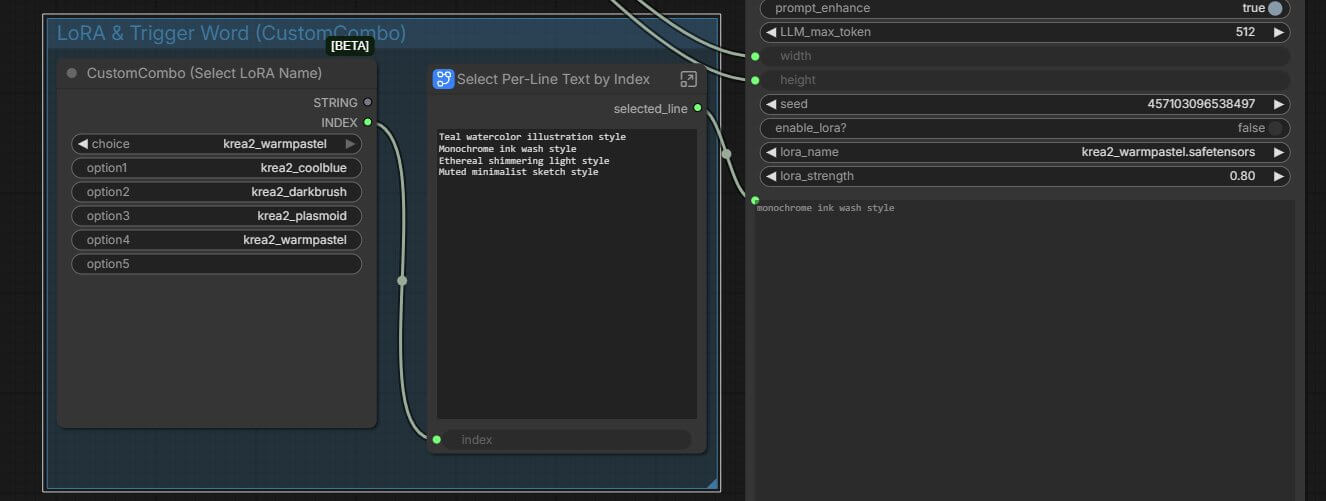
- In the workflow, find the LoRA selector — in the official template this is a CustomCombo node with a matching
enable_lora?toggle inside the Text to Image subgraph. - Turn
enable_lora?on. - Select your chosen LoRA from the dropdown — for example,
krea2_darkbrush. - The workflow automatically fills in that LoRA’s trigger word for you. On an older workflow version without this automation, manually type the exact trigger word at the very start of your prompt, followed by a period.
- Click Queue Prompt. The style should be clearly visible in the output.
What Each LoRA Produces
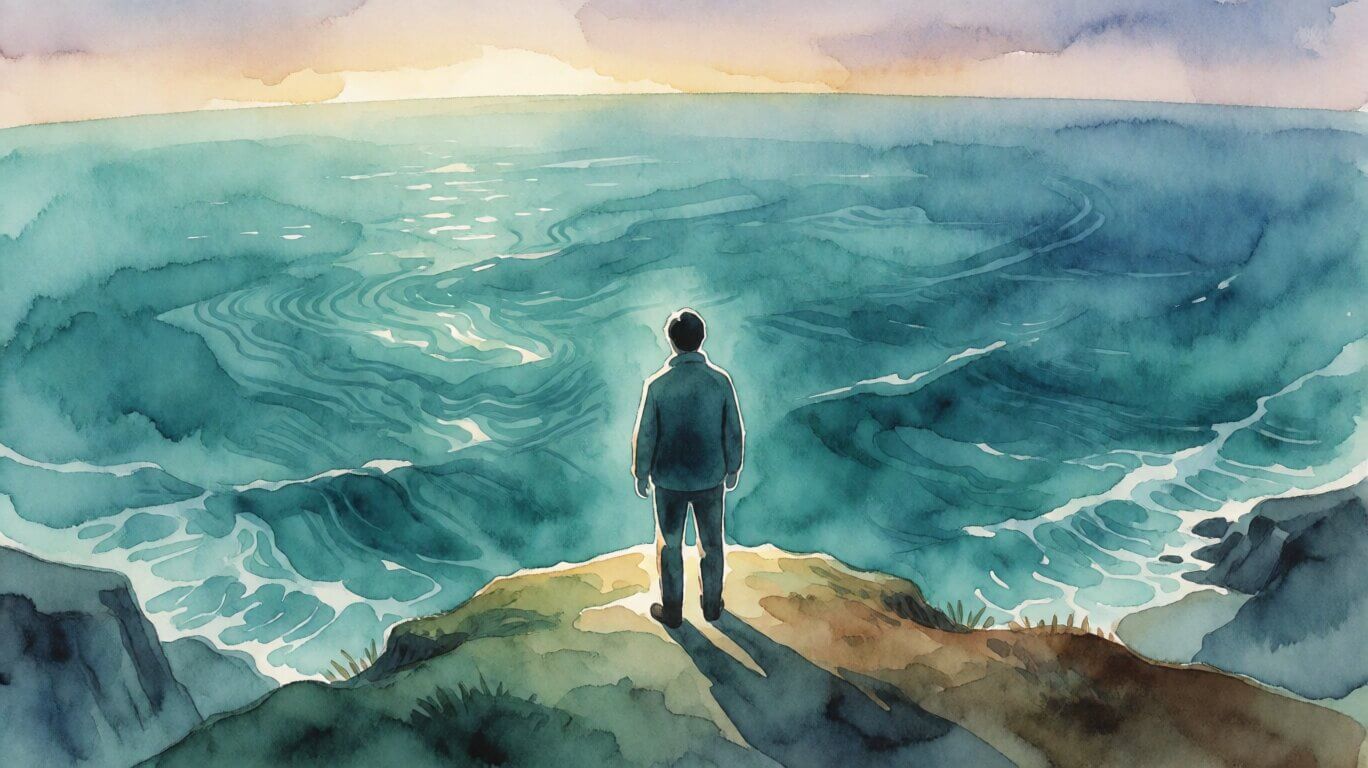
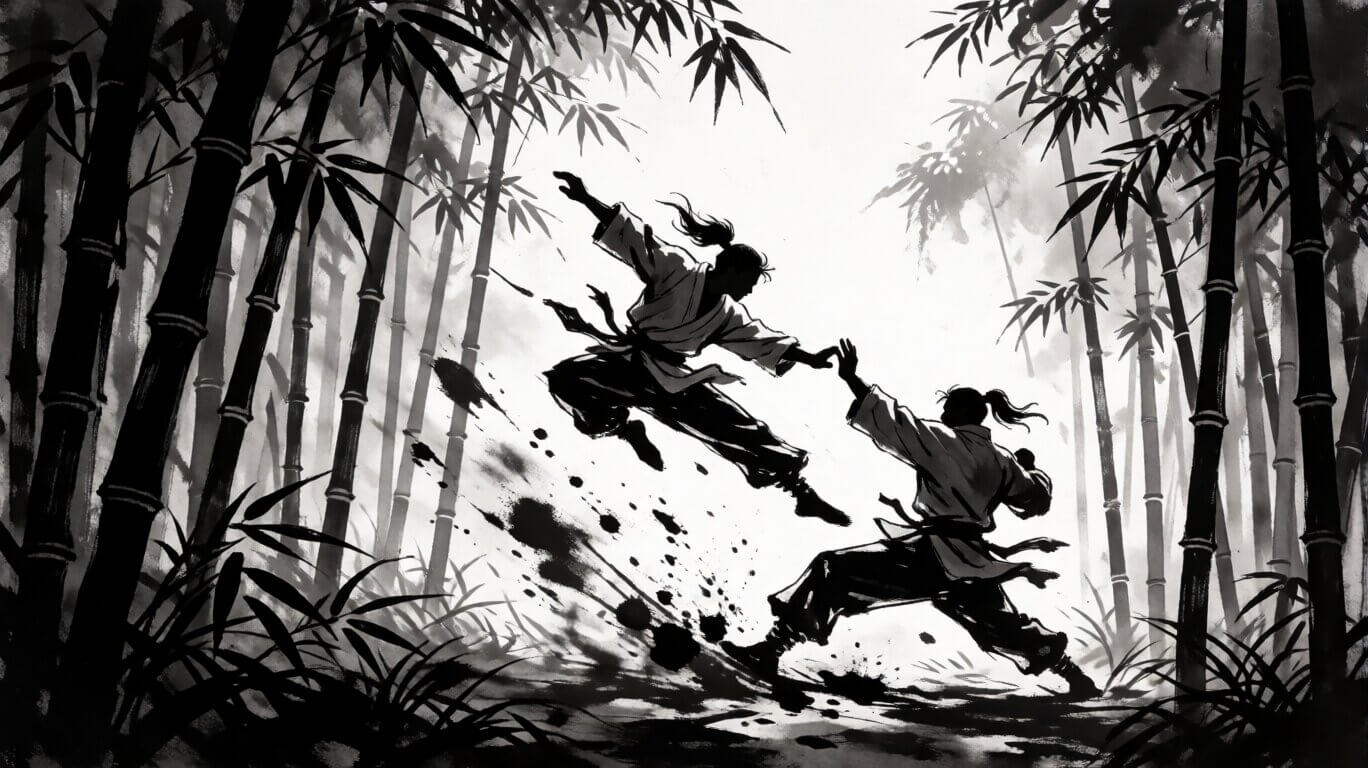
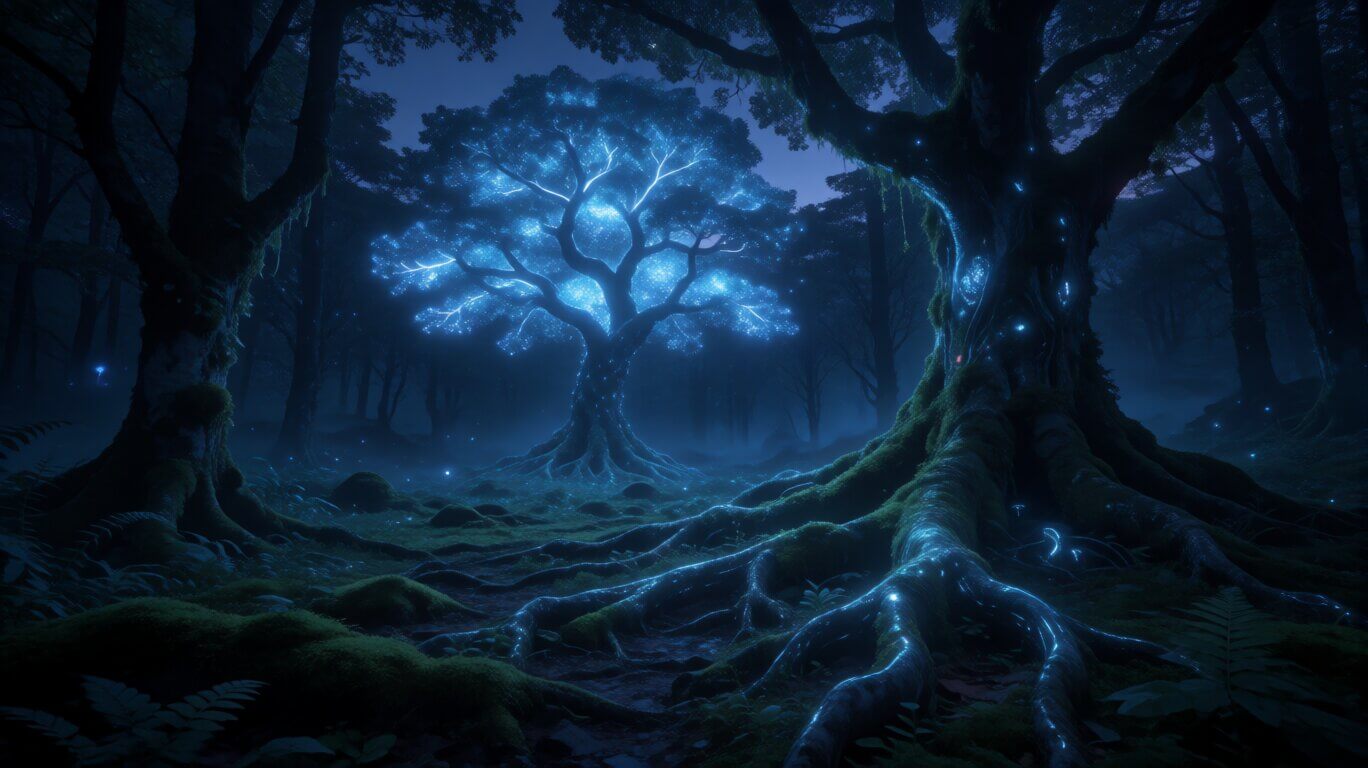

coolblue, plasmoid, and warmpastel — are the retired LoRAs mentioned above, kept here only so you can see what they produce if you already have the files. For a new setup, pick from the 9 current LoRAs in the table above instead.How Do You Write Prompts for Krea 2 Turbo?
Krea 2 was trained on prompts written as short, comma-separated phrases — not full grammatical sentences, and not old-style keyword lists either. Aim for the middle ground: 3–6 short phrases, each describing one concrete thing — an action, a camera angle, a light source, or a named style.
✗ Skip this
a beautiful warrior in a dark forest, stunning, masterpiece, best quality, highly detailed, 8k✓ Use this instead
female warrior holding a spear, mid-stride through dense forest, low vantage point, golden hour backlight, monochrome ink wash styleBuild a prompt from these pieces, in roughly this order:
- Subject and action — who or what, and what they're doing
- Pose or body detail (optional) — a specific physical detail
- Camera and framing — angle and shot type, like "close-up" or "wide angle"
- Lighting — a named light source, not a vague word — "golden hour backlight" instead of "nice lighting"
- Texture (optional) — a named surface or material, like "wet asphalt" or "film grain"
- A named style — placed near the end, like "monochrome ink wash style" or "risograph poster style"
You don't need all six every time — two or three specific phrases beat five vague ones.
Using a LoRA trigger word in your prompt:
Place it at the very start, followed by a period, then your scene:
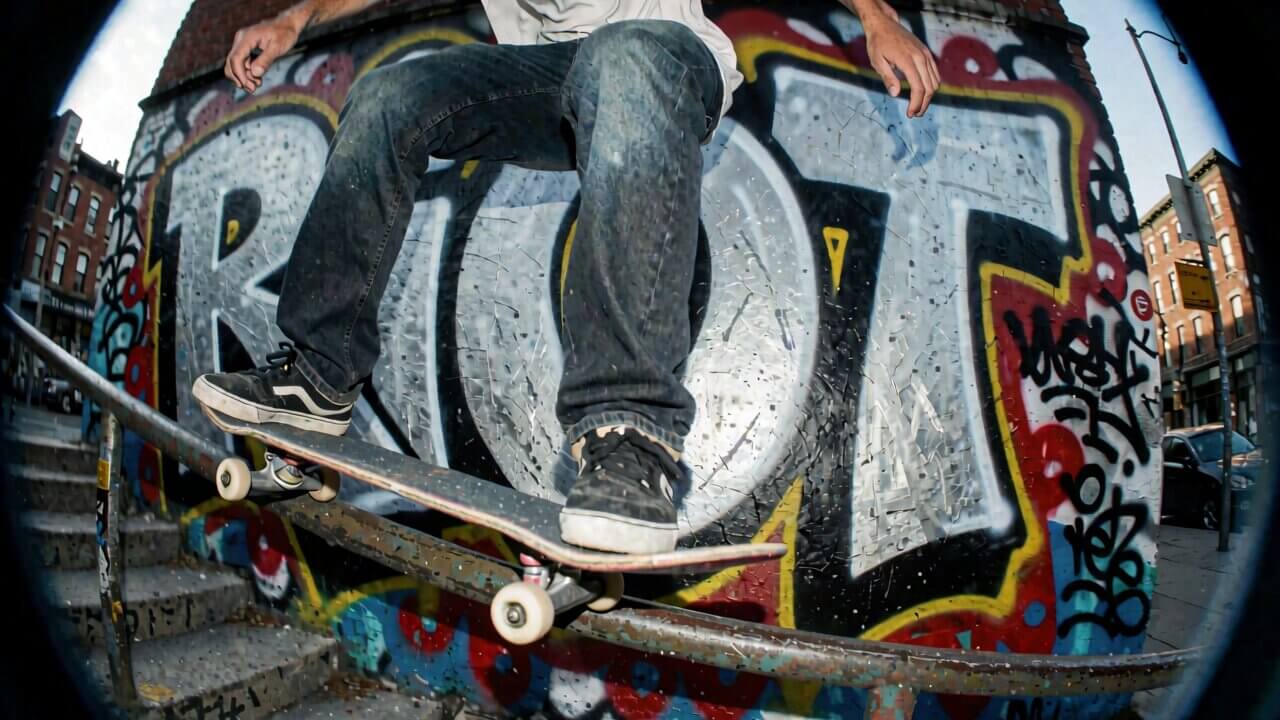
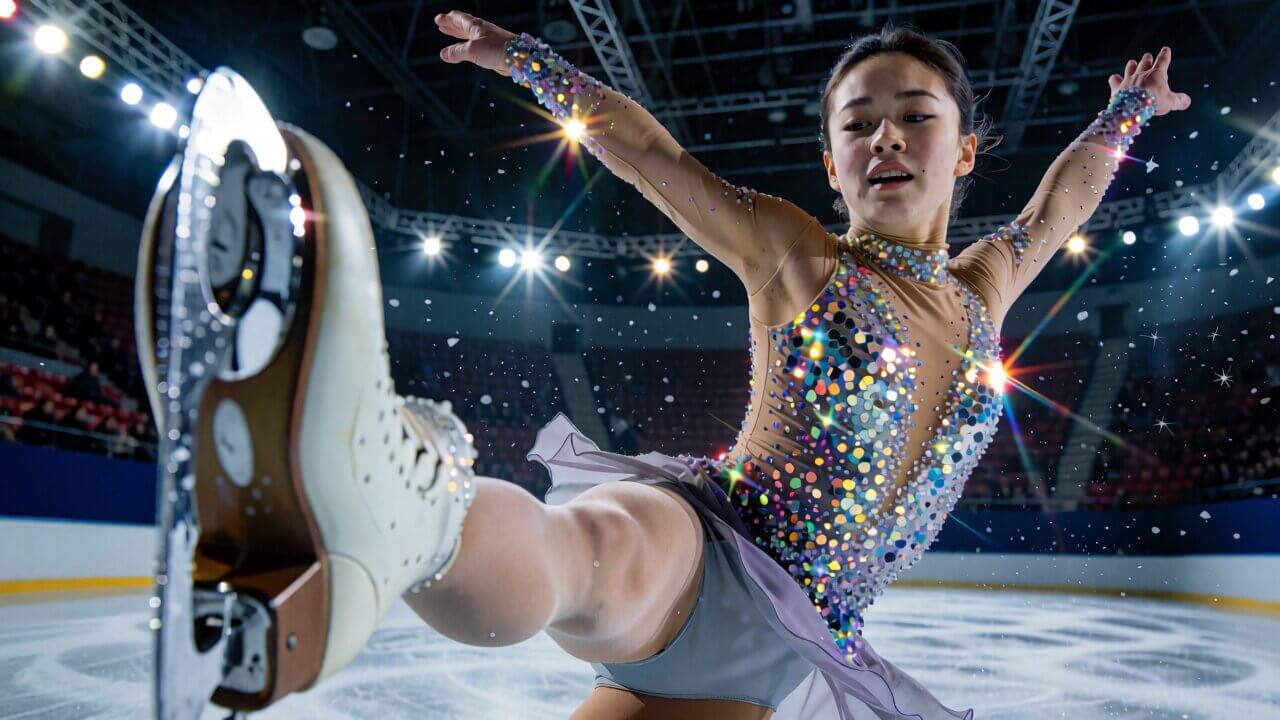
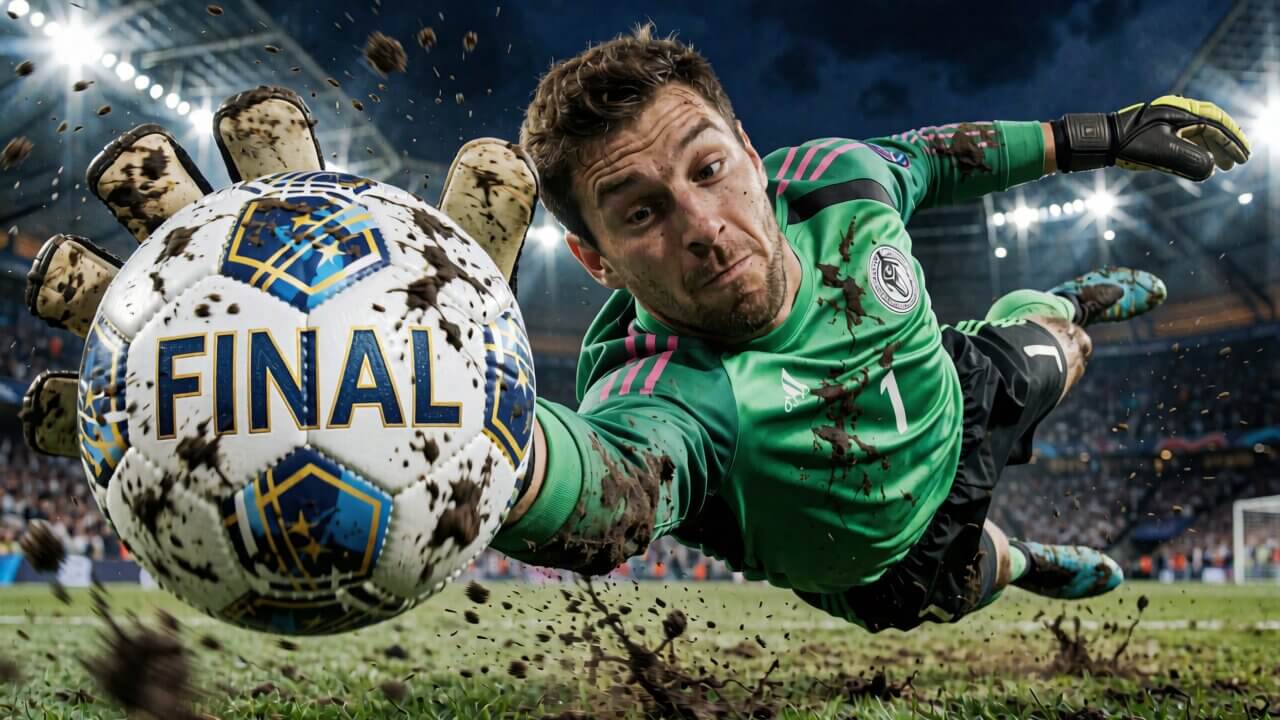
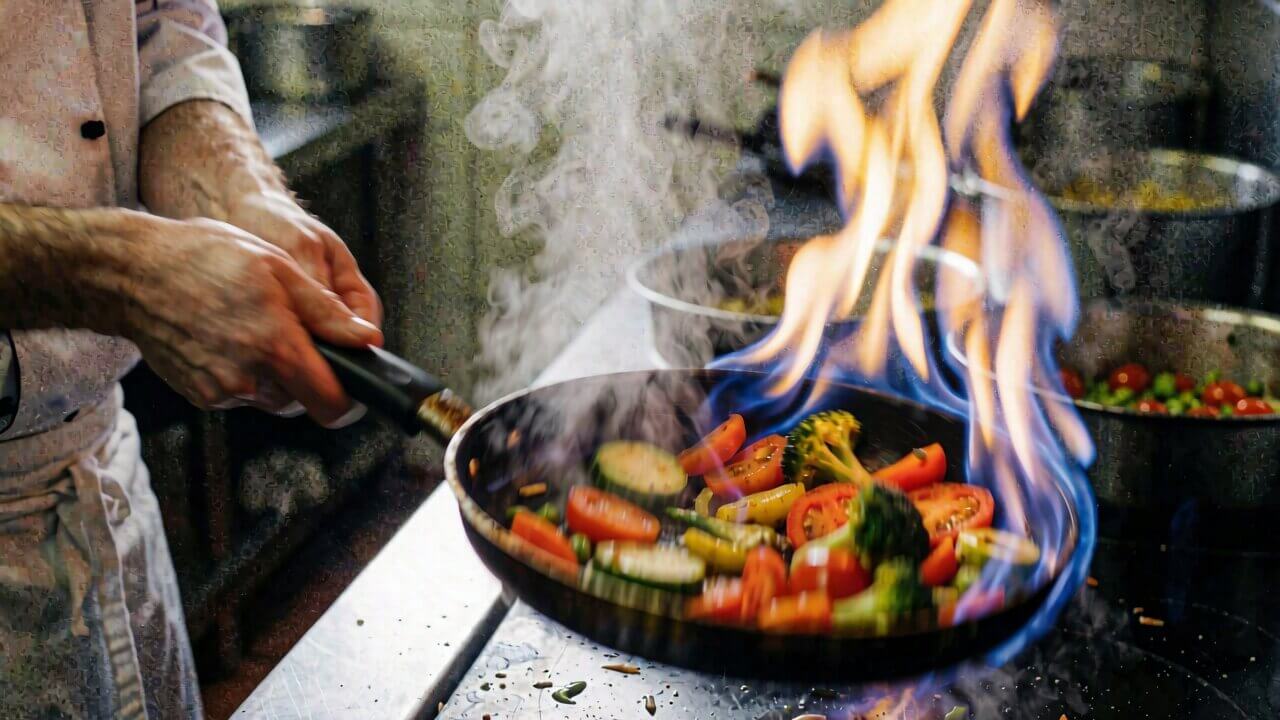
monochrome ink wash style. female warrior holding a spear, mid-stride through dense forest, golden hour backlight through canopy, low vantage point6 Tested Krea 2 Turbo Prompts — Ready to Copy
These were tested on the FP8 model at 1280×720 on an RTX 3060 (12 GB). Copy any one directly into your prompt box to confirm your setup is working correctly before writing your own.
How Do You Fix Common Krea 2 Turbo Errors in ComfyUI?
Running into something not covered below? Our general ComfyUI troubleshooting guide covers the errors that show up across every workflow, not just this one.
"This node threw an error during execution. Check its inputs or try a different configuration."
Cause: One of the model files is missing, in the wrong folder, or is the wrong file type for that node.
- Confirm all three required files are downloaded completely — a partial download triggers this error.
- Re-check the folder locations against the "Which Folder Does Each File Go In" section above.
- Restart ComfyUI completely after moving any files — it only rescans folders on startup.
"AssertionError: you do not have qwen3 state dict!"
Cause: The text encoder file is missing, corrupted, or the wrong Qwen model version.
- Delete the existing text encoder file and re-download it fresh — a failed or interrupted download is the most common cause.
- Confirm the file is in
models/text_encoders/, notmodels/clip/.
"Unexpected architecture type in GGUF file: 'krea2'"
Cause: Your ComfyUI-GGUF custom node is out of date and doesn't yet recognize Krea 2's architecture.
- Open ComfyUI Manager, find ComfyUI-GGUF, and update it to the latest version.
- Restart ComfyUI completely after updating.
"BufferError: failed to load diffusion model..."
Cause: The diffusion model file didn't download completely, or your GPU ran out of VRAM while loading it.
- Check the file size against Hugging Face — re-download if yours is smaller.
- If the size matches, you likely don't have enough VRAM for that version — switch to FP8 or a GGUF quant using the VRAM table earlier in this guide.
Model dropdown is empty or the file doesn't appear
Cause: The file is in the wrong folder, or its filename doesn't exactly match what ComfyUI expects.
- Check the file is inside the exact folder from the structure shown earlier — for example,
diffusion_models/, notcheckpoints/. - Restart ComfyUI — it only scans folders on startup.
CUDA out of memory during generation
Cause: You're running a version too large for your GPU, or your resolution is set too high.
- Switch to FP8 if you're using BF16, or a GGUF version if you're still short on VRAM.
- Lower the resolution to 1280×720.
- Close other GPU-using programs (games, other AI tools, video editors) before generating.
Images look washed out, flat, or oversaturated
Cause: The CFG value has been changed from the default.
Reset CFG to exactly 1.0 in the KSampler node. Anything above roughly 1.5–2.0 will visibly distort Turbo's output.
Frequently Asked Questions
What to Do Next
Keep the same face across every Krea 2 image you generate.
Once you've got a clean test image working, character consistency is the natural next skill — it lets you generate the same character across multiple scenes and outfits.
Curious how Krea 2 Turbo actually compares to the rest of the current field? We compared it against the other local models here.
What to Read Next
If you got this workflow running, the character consistency guide is worth reading next, since it builds directly on this setup. If you want to explore stacking more than one LoRA at once, our LoRA guide covers strengths and combinations. Running into VRAM issues elsewhere? The troubleshooting guide covers the errors common to every workflow.
— Written as a personal recommendation from the Earngenix team.
Published: 2026-06-24 · Last updated: 2026-09-29 · Workflow structure verified against the official Krea-2 ComfyUI templates.
Join the discussion
Sign in to leave a comment or reply
No comments yet
Be the first to share your thoughts!