
⚡ Quick Answer
SCAIL-2's Replacement Mode swaps a person in your video with a reference character image, keeping the original motion, framing, and scene intact. It tracks both the original person and your reference character with SAM3.1, then generates the replacement using the LightX2V distill LoRA and the SCAIL-2 DPO LoRA for cleaner hands and lip sync. The diffusion model is ~32.8GB (fp16) — tested on an RTX 4090 (24GB) with automatic offloading.
SCAIL-2 has two modes. Motion Transfer takes a still photo and makes it perform a video's motion — see the SCAIL-2 Motion Transfer guide if that's what you're after. Replacement Mode does something different: it finds a real person already in your video and swaps them out for your reference character, frame by frame, while everything else in the scene stays the same.
This guide covers Replacement Mode only — the models, folder setup, workflow download, and settings specific to it.
What Is SCAIL-2 Replacement Mode?
Motion Transfer tracks one subject — your reference image — and animates it. Replacement Mode tracks two: the person already in your driving video, and your reference character. SAM3.1 builds a separate mask for each, and SCAIL-2 uses both to know exactly who to remove and who to put in their place.
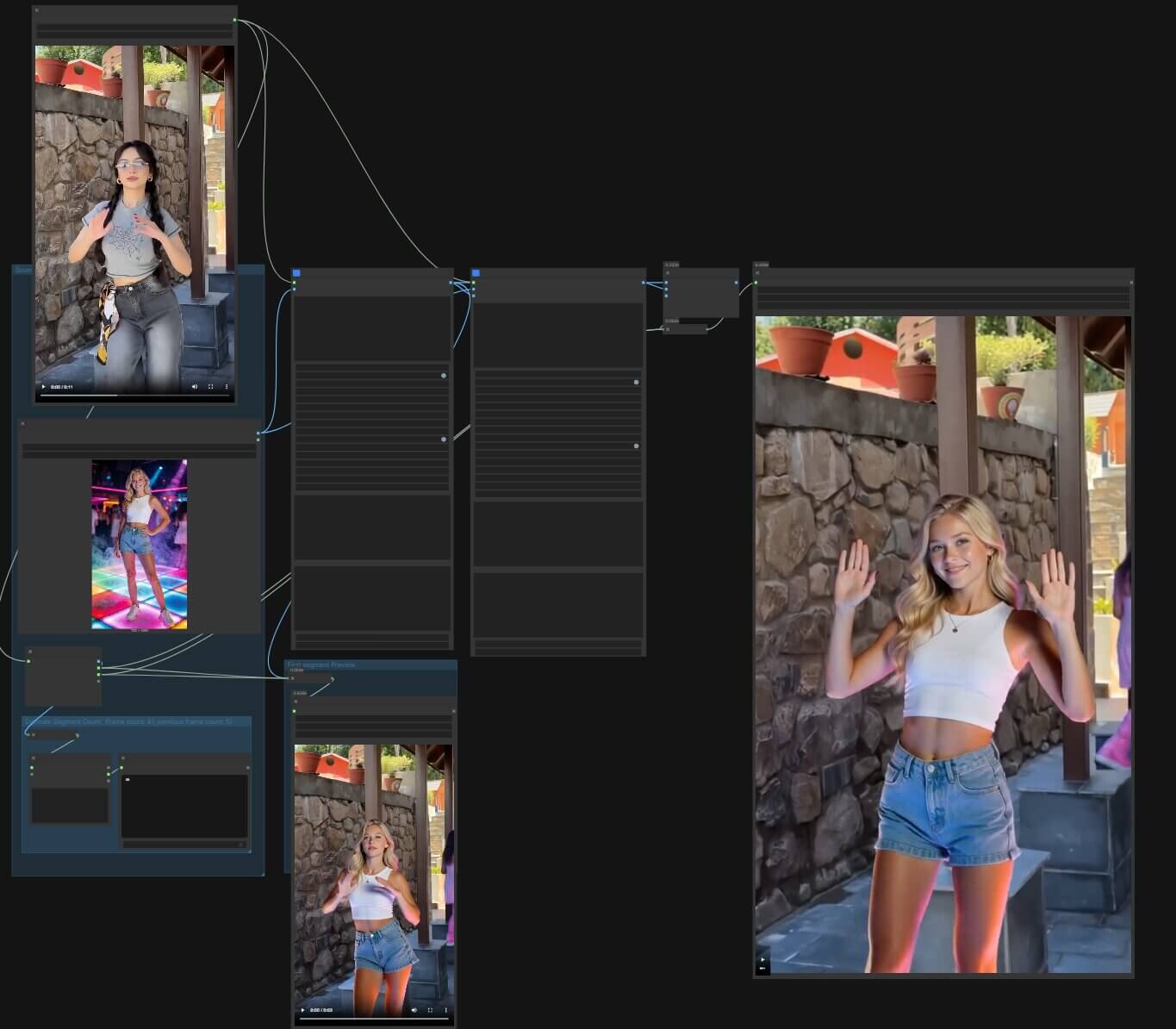
This workflow is built from a subgraph — a self-contained group of nodes ComfyUI displays as a single block with exposed inputs, instead of dozens of separate nodes you wire by hand. You only touch the settings ComfyUI exposes on the outside of the block.
What the Output Looks Like
Both examples below use the settings baked into this workflow: 512×896, 121 frames, replace_mode: True, with the SAM3 tracking prompt set to human on both the driving video and the reference image.


What You Need Before Starting
Tested on
RTX 4090 (24GB VRAM)
Diffusion model size
~32.8GB (fp16)
wan2.1_14B_SCAIL_2_fp16.safetensors is roughly 32.8GB on disk — larger than a 24GB GPU's VRAM. ComfyUI automatically offloads part of the model to system RAM to run it, but expect noticeably slower generation than a model that fits fully in VRAM. This is a heavier load than the fp8_scaled file used in the Motion Transfer guide — don't assume the same VRAM figure applies here.The full model list with download links is in the Download the Models section below.
Download the Models
Seven files across five folders. Click a filename to jump to its download link, or use the table below to grab everything at once.
| Folder | File | Notes | |
|---|---|---|---|
checkpoints | sam3.1_multiplex_fp16.safetensors | SAM3.1 — tracks the original person and the reference character | ↗ Download |
clip_vision | clip_vision_h.safetensors | Reads your reference image | ↗ Download |
diffusion_models | wan2.1_14B_SCAIL_2_fp16.safetensors | The SCAIL-2 checkpoint, full precision (~32.8GB) | ↗ Download |
loras | lightx2v_I2V_14B_480p_cfg_step_distill_rank64_bf16.safetensors | Distill LoRA — fast sampling (strength 0.8 in this workflow) | ↗ Download |
loras | wan2.1_SCAIL_2_DPO_lora_bf16.safetensors | Fixes hand distortion, improves lip/eye sync (strength 1) | ↗ Download |
text_encoders | umt5_xxl_fp8_e4m3fn_scaled.safetensors | Reads your text prompt | ↗ Download |
vae | Wan2_1_VAE_bf16.safetensors | Decodes the output into pixels | ↗ Download |
All files hosted on HuggingFace — see the SCAIL-2 model card ↗ and the official SCAIL-2 GitHub repository ↗ for architecture details.
Where to Place the Files
ComfyUI uses a specific folder structure inside its models/ directory. Placing a file in the wrong folder means ComfyUI cannot find it and the workflow fails to load.
Already have wan2.1_14B_SCAIL_2_fp8_scaled.safetensors from the Motion Transfer guide? That's a different precision than the fp16 file above — don't substitute one for the other without testing, since Replacement Mode's dual-mask conditioning may behave differently at fp8.
Never installed ComfyUI Manager or fixed a red-node error before? See how to install missing custom nodes in ComfyUI first.
Download the Workflow
This is the ready-to-use ComfyUI workflow JSON, preloaded with the Base and Extend subgraphs for SCAIL-2 Character Replacement. Drag it onto the canvas and generate.
SCAIL-2 Character Replacement — Workflow JSON
Includes the Base subgraph and one Extend subgraph for long videos.
How to Load the Workflow JSON into ComfyUI
- Download the
.jsonfile to your computer. - Open ComfyUI in your browser.
- Drag the file directly onto the ComfyUI canvas.
- The workflow loads. Red-bordered nodes mean a custom node is missing.
- If you see red nodes, click Manager → Install Missing Custom Nodes, then restart ComfyUI completely.
How to Run the SCAIL-2 Character Replacement Workflow
LoadVideo
LoadImage
Set the Base subgraph parameters
prompt— describes the final output, e.g. "a girl is doing kungfu with the stick." Separate from the SAM3 tracking prompts below.replace_mode— True for Replacement (this workflow's default).segment_index— 1 for the first (or only) segment.width/height— must be multiples of 32. 512 × 896 in this workflow.frame_count— 121 in this example.previous_frame_count— overlap frames carried into the next segment. 5 by default.sam3_video_object/sam3_image_object— SAM3.1 tracking prompts, not the main prompt. Default human for both.turbo_mode— leave True for the fast LightX2V-distilled preset.- Model dropdowns — confirm each points to the file names in the table above.
Run the Base subgraph
SaveVideo
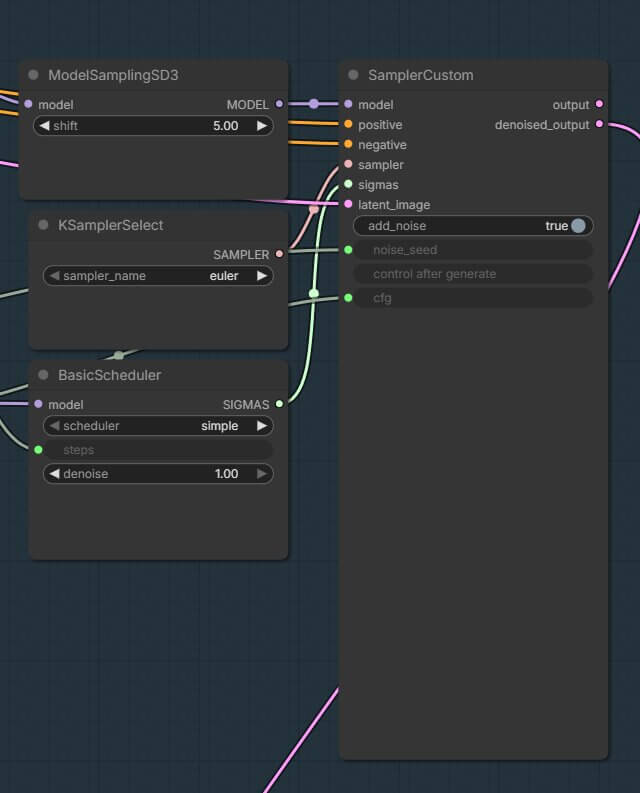
Want the deeper mechanics of how a LoRA modifies a base model? See the ComfyUI LoRA guide.
How Long Videos Work (Base + Extend Segments)
A single segment tops out around 76 usable frames (frame_count minus the previous_frame_count overlap). For anything longer, this workflow chains additional Extend subgraphs, each picking up where the last one left off.
The template includes a built-in calculator for this — a segment-count group that runs ceil(total_frames / 76) on your driving video and previews the result as text.

To Extend a Video:
- Duplicate the Extend subgraph for each additional segment.
- Feed the previous segment's output into the new one's
previous_framesinput. - Increment
segment_indexby 1 each time (2, 3, 4...). - Run each segment manually — there's no auto-loop. Queue Base, wait for it to finish, then queue the next Extend, and so on.
- Once every segment has run, the workflow's batching and video-combine nodes stitch them into one final video automatically.
Why the DPO LoRA Matters
Replacement Mode leans harder on this LoRA than Motion Transfer does, because swapping a whole person into someone else's motion is a harder generation task than animating a single photo — hands and faces are where it most commonly breaks. The DPO LoRA specifically targets hand distortion and improves how well the character's lips and eyes stay in sync with the original performance.
If you skip it, expect more visible artifacts around the hands and face in your output.
Troubleshooting
Subgraph nodes appear as one block with no visible internals
This is expected — Base and Extend are subgraphs, not individual nodes. Double-click the block to expand it and see the nodes inside if you need to debug further.
Workflow won't load, or subgraph inputs look wrong
You're likely on a ComfyUI version older than PR#14373. Update ComfyUI to the latest version before troubleshooting further.
Wrong person got replaced in a crowded scene
SAM3.1 locked onto the wrong subject when multiple people are in frame.
- Tighten your tracking prompt to describe the specific person (e.g. "man in red jacket" instead of "human").
- Preview the SAM3_VideoTrack output before running the full sampler — confirm the correct person is highlighted.
- For scenes with several people, isolate the target by object ID rather than a generic prompt.
Extended video has a visible seam or jump between segments
Check that previous_frames on the Extend subgraph is actually wired to the prior segment's output, and that previous_frame_count (5 by default) matches on both. A mismatch here is the most common cause of a visible jump at the segment boundary.
CUDA out of memory
Most common at higher frame counts or resolutions with the full fp16 checkpoint.
- Lower the frame length in the Base subgraph.
- Shorten your driving video to 3–5 seconds first, then scale up once it runs.
- If installed, confirm SageAttention is enabled to reduce memory overhead — see the SageAttention install guide.
Reference character doesn't blend into the scene (lighting mismatch)
The generated character looks pasted in rather than lit by the original scene.
- Check that your reference image's lighting is reasonably close to the driving video's.
- Consider the official Relighting LoRA from the SCAIL-2 repository — it's built specifically to blend a replacement character into the target video's lighting and shadows.
- Lower reference emphasis slightly if the character looks over-stylized against the background.
Frequently Asked Questions
What to Do Next
Download the workflow and run it with the defaults first.
Once you get a clean replacement on a short clip, swap in your own reference image and driving video, then use the troubleshooting section to tighten your tracking prompt for busier scenes.
Published: 2026-07-29 · Last updated: 2026-07-29 · Tested on RTX 4090 (24GB VRAM) · Model: wan2.1_14B_SCAIL_2_fp16.safetensors
Join the discussion
Sign in to leave a comment or reply
No comments yet
Be the first to share your thoughts!