
Why Does SageAttention Fail to Install in ComfyUI?
SageAttention is an attention kernel — a piece of code that speeds up one of the slowest calculations ComfyUI runs during image and video generation. It does not change what your images look like; it only makes that one calculation faster, which is why the install itself is where almost all the problems happen.
Before jumping into the steps, it helps to know exactly what breaks the install. In order of how often each one shows up:
- A version mismatch — Python, CUDA, PyTorch, and Triton all need matching versions. The SageAttention wheel file (a pre-built Python package ending in
.whl) is compiled for one specific combination of these — not "any recent version." - Triton's include/libs files not copied into
python_embeded(the copy of Python bundled inside your ComfyUI portable folder — this is the one you must always install into) — ComfyUI's embedded Python is missing these development files by default, and Triton cannot compile without them. - The wrong wheel downloaded — the ABI tag and CUDA version in the filename must match what you have installed, or pip refuses the install outright.
- Never enabling it — installing the wheel only makes SageAttention available. ComfyUI still needs a startup flag to actually use it, which is easy to miss if you stop after Step 4.
This guide walks through all four in the order that actually works, with the exact commands and version checks at each step.
What You Need Before Installing SageAttention
Supported GPUs
NVIDIA RTX 20xx, 30xx, 40xx, or 50xx series. RTX 40xx/50xx get the fastest kernels with Triton ≥ 3.3, PyTorch ≥ 2.7, CUDA ≥ 12.8. RTX 20xx needs an older PyTorch (2.6 or earlier) instead — see the FAQ below.
Operating System
Windows 10 or Windows 11 with the ComfyUI Windows portable version already installed.
Required Packages
Visual C++ Redistributable, triton-windows, torch + torchvision + torchaudio, and the SageAttention .whl file.
Version Matching
All four components must have compatible versions — Python, CUDA, Triton, and PyTorch must all match the SageAttention wheel you download.
It also helps to update ComfyUI to the latest version before starting. Older ComfyUI portable builds sometimes ship an outdated bundled PyTorch that conflicts with the CUDA 12.8 build SageAttention needs.
How to Install SageAttention in ComfyUI: Step-by-Step
Step 1 — Install Visual C++ Redistributable
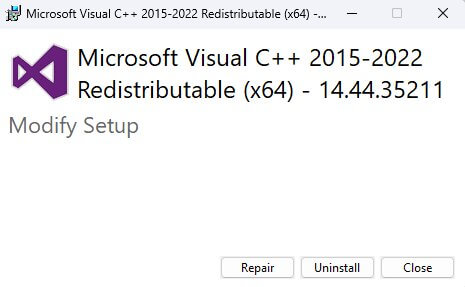
Visual C++ Redistributable provides the runtime libraries that Triton and SageAttention depend on. It must be installed before any other step.
- Download the Visual C++ installer directly from Microsoft: https://aka.ms/vs/17/release/vc_redist.x64.exe.
- Double-click the downloaded file and click Install or Repair when prompted.
- If this is the first time installing Visual C++ on this machine, restart Windows before continuing. If the installer shows "Repair", you already have it installed and no restart is needed.
Step 2 — Install Triton (triton-windows)
Triton is a GPU kernel compiler that SageAttention requires to run. The standard Triton package does not support Windows, so you need to install triton-windows — a Windows-compatible build.
Open the ComfyUI Folder Terminal
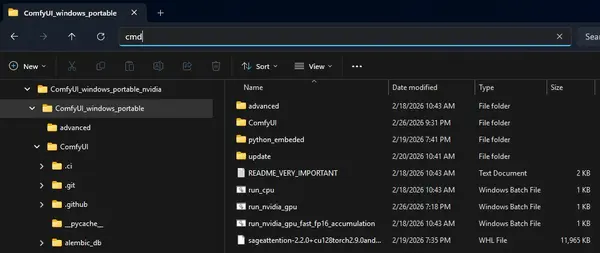
- Navigate to your
ComfyUI_windows_portablefolder — this is the folder that contains therun_nvidia_gpufile, your portable installation root. - Click the address bar in Windows Explorer, type
cmd, and press Enter. A command prompt (terminal) opens with that folder as the working directory.
Remove Any Old Triton Installation
Run this command first to remove any previously installed version of Triton:
.\python_embeded\python.exe -m pip uninstall tritonProceed (Y/n)? — type Y and press Enter to confirm. If Triton wasn't installed, pip just says so and moves on; that's fine.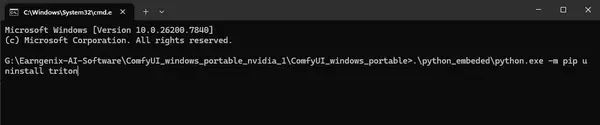
Install the Triton Windows Package
Install the Windows-compatible Triton build:
.\python_embeded\python.exe -m pip install -U "triton-windows<3.7"
Copy Include and Libs Files
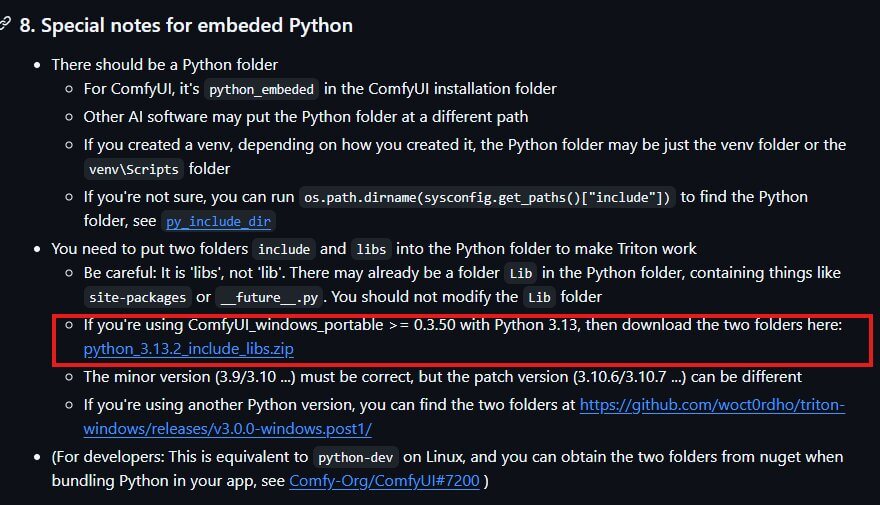
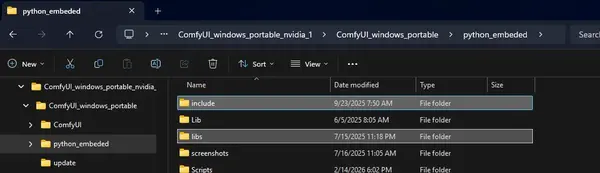
This step is required for Triton to function correctly on Windows. You need to download additional include and libs files that match your embedded Python version and copy them into the python_embeded folder.
- Check your embedded Python version by running
.\python_embeded\python.exe --version. - Go to the Triton Windows releases page on GitHub: https://github.com/triton-lang/triton-windows#8-special-notes-for-embeded-python and find the release version that matches your installed triton-windows version.
- Download the Python include/libs zip that matches your Python version exactly — for example
python_3.13.2_include_libs.zipfor Python 3.13.2. - Unzip the download, then copy both the include folder and the libs folder into your
python_embededdirectory insideComfyUI_windows_portable.
python_embeded.Step 3 — Install or Update PyTorch
SageAttention requires a specific PyTorch build (the machine learning framework ComfyUI and SageAttention run on) that matches both your CUDA version (the software NVIDIA GPUs use to run heavy calculations like AI image generation) and the wheel file you will install. Use the commands below to remove the existing torch and install a fresh build with CUDA 12.8 support.
Remove Old Torch Packages
In the same ComfyUI terminal, run:
.\python_embeded\python.exe -m pip uninstall torch torchvision torchaudioProceed (Y/n)? up to three times (once per package) — type Y and press Enter each time.
Install the CUDA 12.8 PyTorch Build
Install the nightly PyTorch build (a version of PyTorch updated daily, ahead of the official stable release) with CUDA 12.8 support:
.\python_embeded\python.exe -m pip install --pre torch torchvision torchaudio --index-url https://download.pytorch.org/whl/nightly/cu128
Step 4 — Download and Install the Matching SageAttention Wheel
The wheel file has to match your CUDA version, PyTorch version, and Python version exactly, or pip will reject it. Checking those three versions and reading a wheel filename correctly is enough content for its own guide — we cover it in full detail, with the current filename table and the exact fixes for the three most common wheel-install errors, here:
SageAttention Wheel Won't Install in ComfyUI? Match It to Your CUDA and PyTorch First →
Covers: checking your Python/CUDA/PyTorch versions, reading a wheel filename part by part, the current wheel filename table, and fixes for "No matching distribution found," "not a supported wheel on this platform," and "No module named 'sageattention.'"
Once you know which wheel matches your setup, download it from the SageAttention GitHub releases page, move it into your ComfyUI_windows_portable folder, and install it:
.\python_embeded\python.exe -m pip install sageattention-2.2.0+cu130torch2.10.0andhigher.post6-cp310-abi3-win_amd64.whl.\python_embeded\python.exe -m pip install sageattention- and press Tab to auto-complete the rest.
Step 5 — Enable and Verify SageAttention Is Working
This is the step people miss most. Installing the wheel makes SageAttention available — ComfyUI still won't use it until you add a startup flag.
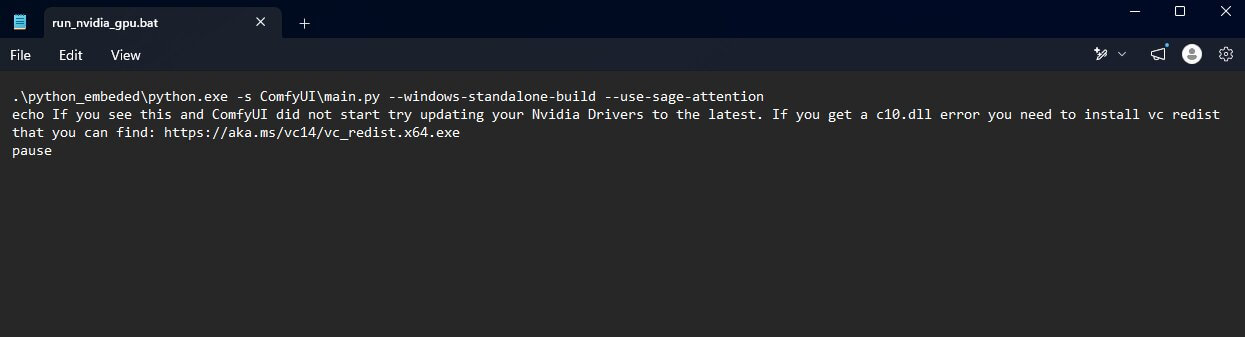
- Find
run_nvidia_gpu.batin yourComfyUI_windows_portablefolder. Right-click it and choose Edit (or open it with Notepad) — or make a copy first and name itrun_nvidia_gpu_sage.batif you want to keep a version without SageAttention too. - Find the line that starts ComfyUI (it ends in
main.pyplus some flags) and add--use-sage-attentionto the end of it. - Save the file, then double-click it to start ComfyUI.
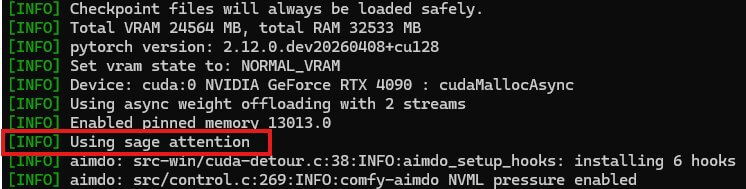
- Watch the console window that opens. Near the top of the startup log you should see a line confirming SageAttention loaded — if you don't see any mention of it, the flag either wasn't saved correctly or SageAttention isn't installed in this Python environment.
- Load any workflow that uses SageAttention and click Queue Prompt. If it runs without errors, everything is working.
--use-ck-attention instead — it needs no wheel install at all and early benchmarks put it roughly on par with SageAttention. Worth trying if you're on a recent ComfyUI version and want to skip Steps 2–4 entirely next time.If you see import errors or Triton errors in the console instead, check that the include and libs folders from Step 2 are correctly placed inside python_embeded, and that all version numbers match — see Troubleshooting below.
If ComfyUI flags any missing nodes when you load a test workflow, follow the installing missing custom nodes guide to resolve them before continuing.
Working Setup Example
For reference, here is a confirmed working configuration:
Does SageAttention Slow Down or Change Image Quality?
No — in normal use SageAttention only speeds up the attention calculation, it does not change the output. Once it's installed and enabled correctly using the steps above, you should see a real drop in generation time with no visible difference in the result. The one documented exception is RTX 50xx GPUs, covered in the troubleshooting section below.
In our test below, generation time dropped from 115 seconds to 40 seconds — a 65% reduction. Actual savings vary by model, resolution, and hardware; expect roughly 30–50% in most cases, sometimes more.


Troubleshooting Common SageAttention Install Errors
Seeing a wheel-install error — No matching distribution found, not a supported wheel on this platform, or No module named 'sageattention' right after a successful pip install? Those are covered with exact fixes in the wheel-matching guide. The errors below are the other common ones.
"c10.dll" error, or ComfyUI won't start after installing SageAttention
What causes it: The Visual C++ Redistributable from Step 1 isn't installed, or a partial install got left behind.
How to fix it: Re-run the Visual C++ installer from Step 1 and choose Repair if it offers that option. Also make sure your NVIDIA drivers are up to date — an outdated driver can produce the same symptom.
Triton fails to import or load
What causes it: The include and libs folders weren't copied into python_embeded.
How to fix it: Go back to Step 2 and copy both folders from the Triton releases zip that matches your Python version.
SageAttention is installed but generation isn't any faster
What causes it: The --use-sage-attention flag from Step 5 was never added, or wasn't saved to the file you're actually launching.
How to fix it: Re-check Step 5 — confirm the flag is in the exact .bat file you double-click to start ComfyUI, and confirm the console shows SageAttention loading at startup.
Black or corrupted frames on RTX 50xx GPUs
What causes it: A known issue on Blackwell (RTX 50xx) cards — SageAttention's fp8 kernel can overflow fp16 on models that run fp8 weights with fp16 math, producing NaN values that show up as black frames. It's been reported most often with video models like WAN.
How to fix it: Try a standard resolution first (1024×1024 or 1280×720) before assuming the install itself is broken. If it persists on a specific model, that model may not be compatible with SageAttention's fp8 path yet.
Nothing above fixes it
What to do: Reinstall the ComfyUI Windows portable version from scratch and follow all five steps again from the beginning. Make sure your GPU is supported (RTX 20xx or newer) and check the FAQ below for the RTX 20xx caveat.
If the problem you're seeing isn't listed above, it may not be specific to SageAttention. Check the general ComfyUI troubleshooting guide for node errors, dependency conflicts, and other setup issues unrelated to attention kernels.
Frequently Asked Questions
What to Do Next
Wheel giving you a specific pip error?
The dedicated wheel-matching guide has the version-check commands, the full filename table, and the exact fix for each pip error — worth a look before you reinstall from scratch.
What to Read Next
If your wheel is the part still giving you trouble, the wheel-matching guide goes deeper than Step 4 above. Missing nodes after loading a test workflow? The missing nodes guide covers that. And once SageAttention is running, it's most worth using on heavier workflows like FLUX — the larger the model, the more time SageAttention saves.
— Written as a personal recommendation from the Earngenix team.
Published: 2025-04-01 · Last updated: 2026-09-29 · Workflow structure verified against the official ComfyUI SageAttention setup.
Join the discussion
Sign in to leave a comment or reply
No comments yet
Be the first to share your thoughts!