
⚡ Quick Answer
FLUX.2 reads prompts differently from older Stable Diffusion models — word order matters, negative prompts actively hurt your results, and vague descriptions produce flat images. In ComfyUI, your prompt goes into the CLIP Text Encode node connected to the positive input of your KSampler. This guide shows you exactly how to write prompts that get precise, consistent results from FLUX.2.
If your FLUX.2 images look generic or don't match what you typed, the prompt is almost always the problem — not the model. FLUX.2 follows detailed instructions better than any previous Stable Diffusion model, but it reads prompts in a specific way. Paste an SD1.5-style prompt full of quality tags and you'll get a mediocre result. Write a clear description using the structure in this guide and FLUX.2 responds with precision.
This tutorial covers FLUX.2 prompting in ComfyUI from first principles — which node takes your prompt, how FLUX.2 weighs your words, and the exact techniques that produce professional results.
What You Need Before You Start
Hardware & software checklist
- ✓Tested on: ComfyUI v0.3.10, RTX 3060 (12 GB VRAM) and RTX 4080 (16 GB VRAM)
- ✓Minimum VRAM: 8 GB (6 GB with fp8 quantised variant)
Models Needed
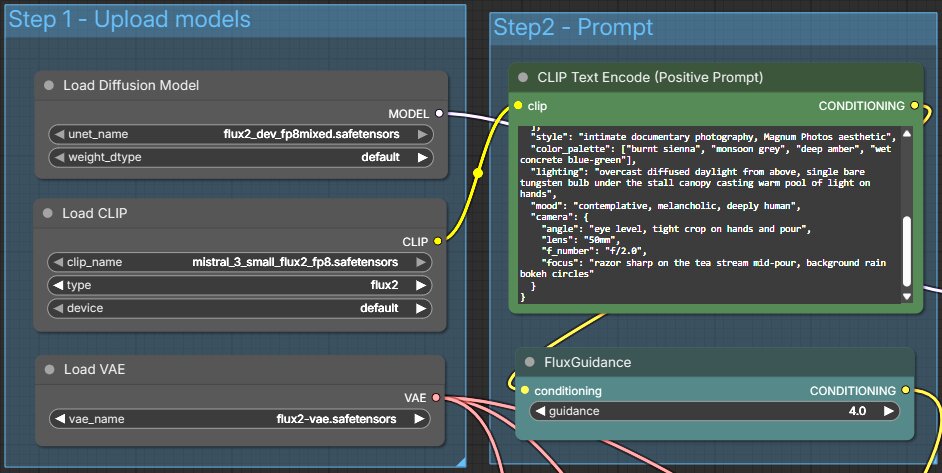
FLUX.2 uses a different set of model files from FLUX.1. You need four files — one diffusion model, two text encoder variants (pick fp8 for lower VRAM or bf16 for full precision), and one VAE. All are hosted on Hugging Face via the Comfy-Org repository.
| File | Folder | Notes | Download |
|---|---|---|---|
flux2_dev_fp8mixed.safetensors | models/diffusion_models/ | Main model | ↗ Download |
mistral_3_small_flux2_fp8.safetensors | models/text_encoders/ | Text encoder — fp8 (recommended) | ↗ Download |
mistral_3_small_flux2_bf16.safetensors | models/text_encoders/ | Text encoder — bf16 (full precision) | ↗ Download |
flux2-vae.safetensors | models/vae/ | Image decoder | ↗ Download |
mistral_3_small_flux2_fp8.safetensors if you have 8–12 GB VRAM — it loads faster and uses less memory with minimal quality loss. Use mistral_3_small_flux2_bf16.safetensors if you have 16 GB+ VRAM and want maximum prompt accuracy. You only need one of the two.Where to Place Each File in ComfyUI
Once you've downloaded the files, place them in the correct subfolders inside your ComfyUI installation. Note that FLUX.2 uses diffusion_models/ and text_encoders/ — not the unet/ and clip/ folders used by FLUX.1:
flux2_dev_fp8mixed.safetensors → models/diffusion_models/mistral_3_small_flux2_*.safetensors → models/text_encoders/flux2-vae.safetensors → models/vae/Not installed yet? Follow the how to install ComfyUI guide first, then come back here. You'll also need ComfyUI Manager for installing any missing nodes.
diffusion_models/) and a DualCLIPLoader (pointing at text_encoders/). Using the wrong node or wrong folder produces a red error and no output.How Does FLUX.2 Read Your Prompt?
FLUX.2 was trained on a different architecture than SD1.5 or SDXL. It uses Mistral 3 Small as its text encoder — a compact but capable language model — which is why FLUX.2 can follow long, detailed, natural-language descriptions so precisely.
The side effect: FLUX.2 reads your prompt more like a human reads a sentence. What comes first matters most.
Word Order Is How FLUX.2 Decides What Matters
FLUX.2 weighs the first words of your prompt most heavily. Whatever you put at the start is treated as the primary focus of the image. Your subject must come first — not style tags, not quality words, not camera settings.
✗ SD1.5 habit (avoid)
ultra detailed, masterpiece, 8k uhd, photorealistic, dramatic light, bokeh, an old fisherman mending nets on a wooden dock✓ FLUX.2 structure
An elderly fisherman with weathered hands and a grey beard mending a hemp net on a salt-bleached wooden dock, overcast coastal morning, documentary photography, 50mm lens, desaturated blues and off-whites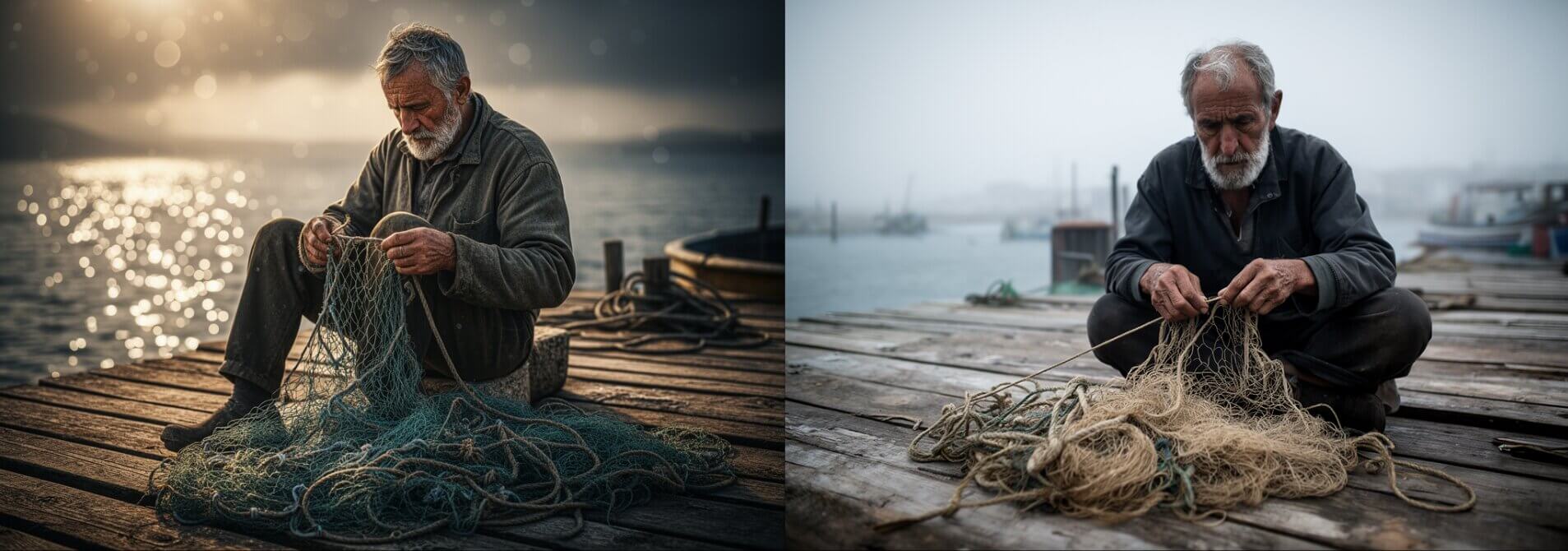
FLUX.2 Uses the Mistral 3 Small Text Encoder
Unlike FLUX.1 which used T5-XXL + CLIP-L, FLUX.2 uses the Mistral 3 Small language model as its text encoder. The output feeds into a CLIP Text Encode node — which is where you type your prompt. You write one prompt. You don't split it between encoders.
Quality Tags from SD1.5 Do Nothing Here
Words like masterpiece, best quality, and 8k are SD1.5 training conventions. FLUX.2 was not trained on them. They consume token weight on meaningless words and push your actual subject description further down the priority list.
| SD1.5 tag (avoid) | FLUX.2 replacement |
|---|---|
highly detailed | sharp studio lighting, fine texture detail |
best quality | commercial photography, clean composition |
cinematic | anamorphic lens, 2.39:1 aspect ratio, film grain |
masterpiece | editorial fashion photography (describe the style explicitly) |
The 4-Part Prompt Formula for FLUX.2
Every strong FLUX.2 prompt contains four components. You don't need to label them or follow a rigid order, but your prompt should cover all four before you generate.
Part 1 — Subject
Who or What Is in the Image
Be specific about what makes your subject distinct — age, appearance, clothing, expression, distinguishing features.
✗ Weak
an old man✓ Strong
a man in his late 60s with deep-set eyes, thick silver eyebrows, wearing a faded denim jacket with a paint-stained collarPart 2 — Action or Pose
What Are They Doing
Static subjects with no action produce stiff, stock-photo results. Add what the subject is doing, how they're positioned, or what state the object is in.
neutral standing posture, direct eye contact with the camera, arms relaxed at sidesPart 3 — Style
What Should It Look Like
Style tells FLUX.2 which visual language to use. Put your style reference in the first half of your prompt — buried style tags get deprioritised.
Photography
Illustration
shot on Hasselblad 500C, 80mm Zeiss Planar, f/4 produces different results from portrait photo.Part 4 — Context
Setting, Lighting, and Mood
Context is everything that frames the subject: location, time of day, light source, and emotional tone. Name the light source and quality — not just the mood.
Good lighting
Vague lighting (avoid)
Full example — all four parts combined:

Where to Type Your Prompt in ComfyUI
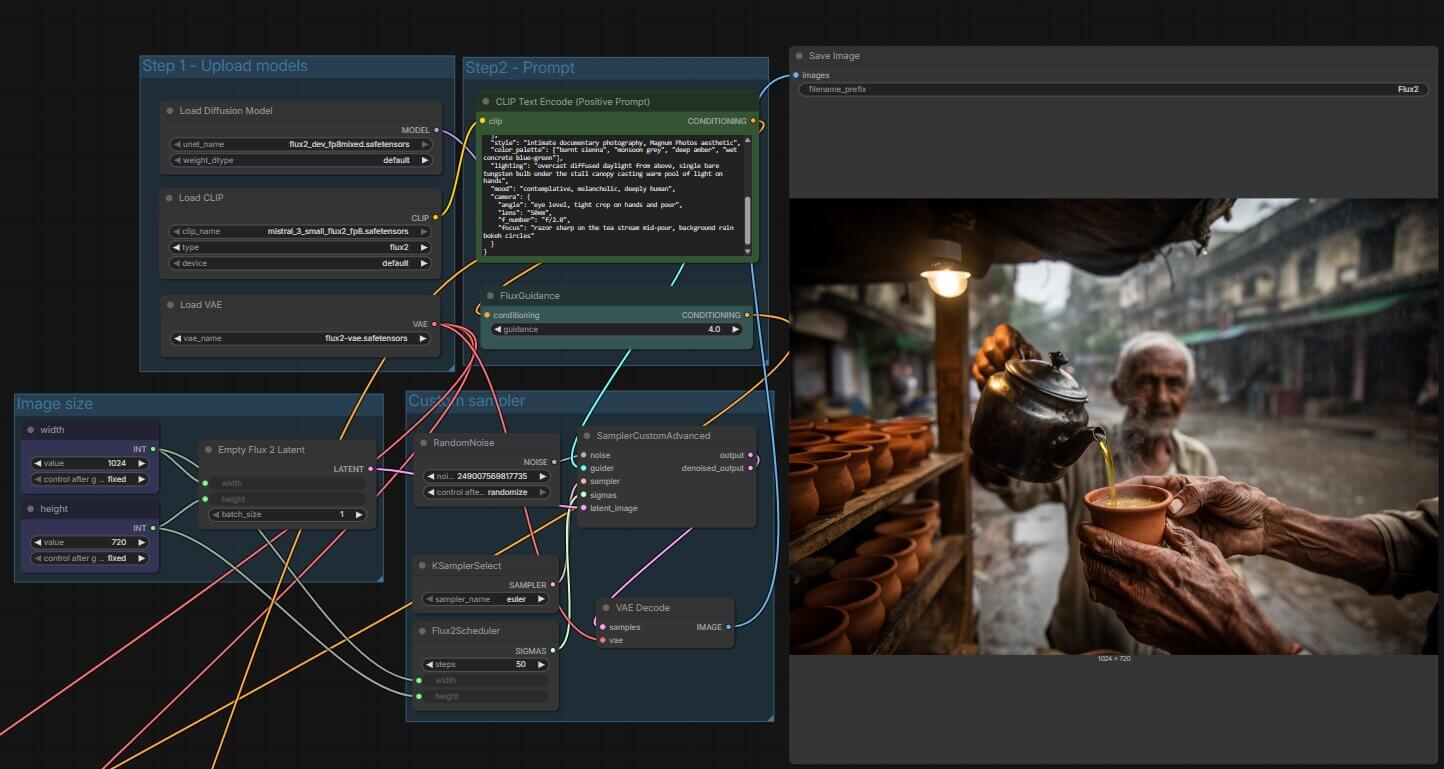
This is the exact node setup for a FLUX.2 workflow. If you've loaded a working FLUX.2 workflow, your canvas already has these nodes. If not, load the FLUX.2 ComfyUI workflow first — download the JSON and drag it onto the ComfyUI canvas.
- Find the node labelled CLIP Text Encode (Prompt) on your canvas — a rectangular block with a large multiline text field inside.
- Click inside the text field. Type or paste your prompt directly here. There's no character limit to worry about for normal use.
- Check that the output wire from this node (labelled CONDITIONING on the right side) connects to the positive input on your KSampler node.
- Find the second CLIP Text Encode node connected to the negative input on the KSampler. For FLUX.2, leave this field completely empty — see the next section for why.
- Click the orange Queue Prompt button in the top-right corner. A progress bar appears beneath it. Generation takes 15–60 seconds depending on your GPU.
You should see: a preview image appear in the output node on the right side of the canvas once generation completes.
Why You Should Never Use Negative Prompts in FLUX.2
FLUX.2 does not support negative prompts the way SD1.5 or SDXL does. The model reads language literally — typing no blurry background can produce a blurry background. Typing no extra fingers can generate extra fingers.
This happens because FLUX.2's Mistral text encoder treats your negative prompt as a description, not an exclusion. It reads the word "fingers" and weights that concept in the output.
| What you want to avoid | What to write instead |
|---|---|
| Extra fingers or distorted hands | hands out of frame / arms crossed, hands tucked |
| Blurry foreground | sharp focus on subject, foreground in focus |
| Unwanted text in image | (remove text from your positive prompt entirely) |
| Generic background | describe the exact background you want |
CFG Scale — Set This Before Generating
FLUX.2 runs best at CFG 1.0–3.5. The high CFG values (7–15) that work for SD1.5 will distort FLUX.2 images — faces melt, colors saturate unnaturally, and details become overcooked. Find the KSampler node on your canvas and set cfg to 1.0 as a starting point.
Example Prompts — Ready to Use in ComfyUI
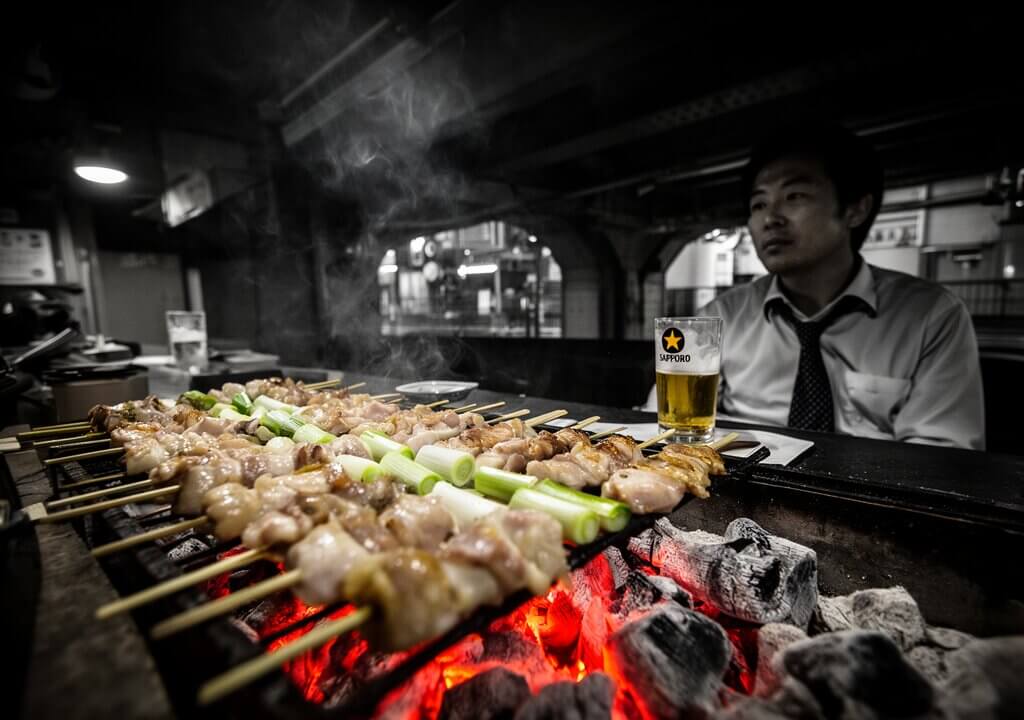
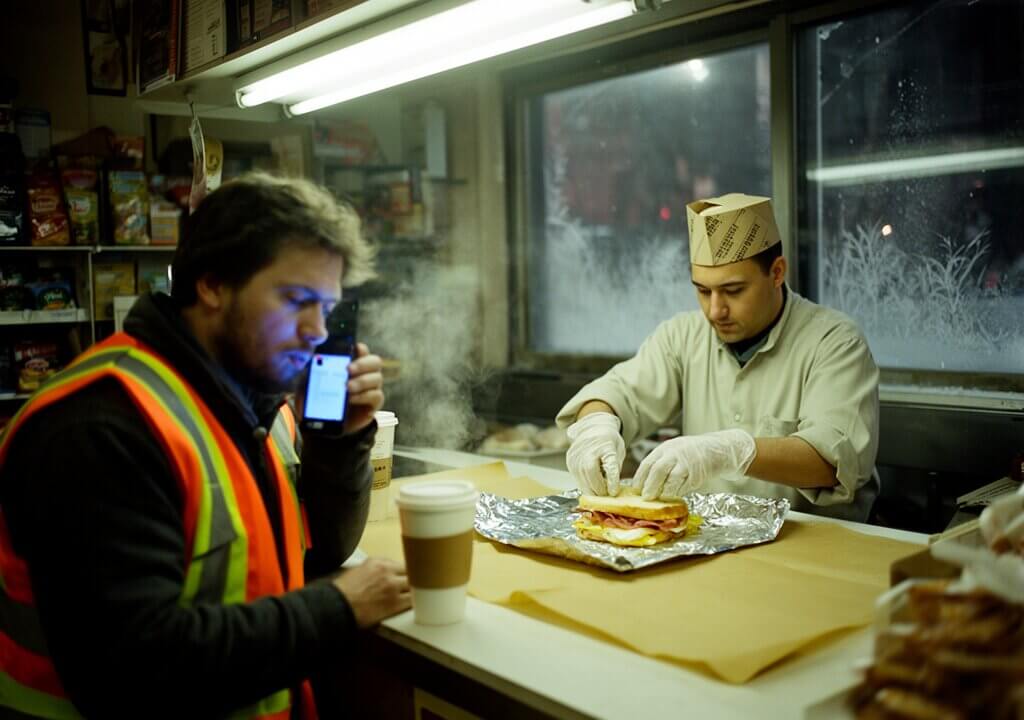
These four prompts use JSON structured format and cover a range of scenes — documentary street photography, noir atmosphere, editorial travel, and gritty urban realism. Copy any prompt directly into your CLIP Text Encode node and generate.
🔧 Try These Prompts in the FLUX.2 Workflow
Download the ready-to-use ComfyUI workflow JSON, or read the full FLUX.2 workflow guide.


Advanced Prompting Techniques for FLUX.2
Once your basic workflow is producing clean results, these three techniques give you precise control over specific output characteristics.
How to Control Exact Colors Using HEX Codes
FLUX.2 understands HEX color codes — the six-character codes used in web design to specify exact colors (e.g. #C0392B for a specific shade of brick red). Pair the HEX code directly with the object it applies to.
✓ Works well — HEX tied to object
✗ Less reliable — HEX floating loose
a glass bottle in deep cobalt blue #003399 sitting on a slate tile in charcoal grey #36454F will hold both colors with reasonable consistency.How to Add Text Inside Your Images
FLUX.2 renders text significantly better than SD1.5 or SDXL. To generate readable text in an image, wrap the exact wording in quotation marks inside your prompt.
Specify placement and style alongside the text:
How to Use JSON Structured Prompting
For complex scenes with multiple subjects or many independent variables, JSON format gives you modular control. Each element is a separate field — you can change the camera angle without rewriting the entire prompt. Paste this directly into the CLIP Text Encode node:

subjects array (the list between square brackets [ ]). For single-subject images, natural language is faster.Prompt Length — How Long Should Your FLUX.2 Prompt Be?
FLUX.2 supports prompts up to 32,000 tokens — far more than you'll ever need. Length is not the goal. Precision is. The practical rule: every word you add should visibly change something in the output. If you remove a word and the image doesn't change, that word was padding.
| Length | Approximate word count | When to use |
|---|---|---|
| Short | 10–30 words | Quick concepts, testing a subject idea |
| Medium | 30–80 words | Most images — best balance of detail and speed |
| Long | 80–300+ words | Complex multi-subject scenes, JSON structured prompts |
Build Prompts in Stages
This approach also makes it easier to identify which part of your prompt caused an unexpected result.
Troubleshooting — Why Your FLUX.2 Prompt Isn't Working
The Image Looks Generic No Matter What I Type
Cause: The prompt is too short or too vague. FLUX.2 fills in missing information — and the default fill is often stock-photo generic.
Fix:
- Add subject specifics — not
a manbuta man in his mid-40s, closely cropped beard, steel-rimmed glasses, wearing a worn grey henley, relaxed posture. - Add a lighting description —
single bare bulb overhead casting a hard downward shadowchanges the feel more than most other additions. - Add a style reference —
Magnum-style documentary photographyormedium format film, muted tonesgives FLUX.2 a visual language to work in.
The Image Has Distorted Hands or Extra Fingers
Cause: Hands at complex angles are architecturally difficult for any diffusion model. Using negative prompts to fix this makes it worse — FLUX.2 reads no extra fingers as a description containing the concept "extra fingers."
Fix:
- Move hands out of the composition:
hands out of frame,waist-up shot. - Describe a specific hand position if hands must appear:
left hand open flat on the table, four fingers together, thumb extended. - Generate multiple times and select the cleanest result — iteration is the most reliable fix.
My Colors Look Wrong or Change Between Generations
Cause: Color language like "bright blue" or "warm tones" is interpreted loosely and changes across seeds (a seed is a number that controls which random variation ComfyUI generates — find it in the KSampler node).
Fix:
- Use HEX codes tied directly to the object:
a linen shirt in dusty sage green #8FAF8F. - Name the light source explicitly —
sodium vapour street lampproduces orange-shifted images;cloudy north-facing window lightproduces cool, flat-lit images. - Lock your seed in the KSampler node when testing color changes so you isolate the prompt variable.
FLUX.2 Is Ignoring Part of My Prompt
Cause: Critical details are buried at the end of a long prompt. FLUX.2 applies more weight to the beginning of the prompt.
Fix:
- Move your most important element to the first sentence.
- Check whether your style tag appears after 60+ words of scene description — if so, move it to sentence two.
- Shorten the prompt. A focused 40-word prompt usually beats a cluttered 120-word prompt.
Frequently Asked Questions
What to Do Next
Your prompts are working. Take the next step.
For images, go deeper on model selection and workflow settings. For video generation, the same prompting principles apply to LTX-2 — but motion direction adds a fifth dimension. Or follow the full structured path at the roadmap.
Published: 2025-06-15 · Last updated: 2025-06-15 · Tested on RTX 3060 (12 GB VRAM) and RTX 4080 (16 GB VRAM) · ComfyUI v0.3.10
Join the discussion
Sign in to leave a comment or reply
No comments yet
Be the first to share your thoughts!