Earngenix Logo
Skip to main content

ComfyUI Tutorial · Beginner Friendly · 2026

ComfyUI ControlNet Workflow: OpenPose, Depth & Aux Nodes

Take full control of AI image generation with ComfyUI ControlNet. Use OpenPose, Canny, Depth, and HED preprocessors for precise, repeatable results — plus free workflow downloads.

By Earngenix Team12 min read
ComfyUI ControlNet workflow overview — showing OpenPose, Canny, Depth, and HED preprocessors for precise AI image control

ComfyUI ControlNet: Precise Control Over AI Image Generation

Quick answer: ComfyUI ControlNet lets you guide AI image generation using reference images processed through structural preprocessors — like OpenPose for body poses, Canny for edges, and Depth for 3D layout. Instead of hoping a prompt produces the right composition, you feed it a structural map and the model follows it precisely.

If you have ever struggled to get AI-generated images to match a specific pose, composition, or layout using prompts alone, ControlNet is the solution. This guide walks you through every part of the ComfyUI ControlNet workflow — from setting up your first run to keeping characters consistent across multiple images — with free downloadable workflows included.

What Is ComfyUI ControlNet?

ComfyUI ControlNet lets you add precise structural control to AI image generation. You feed it reference images processed through ControlNet preprocessors — like OpenPose, Canny, or Depth maps — and the model follows those structural guides while generating new images based on your prompt.

Without ControlNet, prompts alone cannot reliably control composition, body pose, or scene layout. ControlNet solves this by extracting structural information from a reference image and using it as a second input alongside your text prompt.

Here are examples of the main ControlNet preprocessor types:
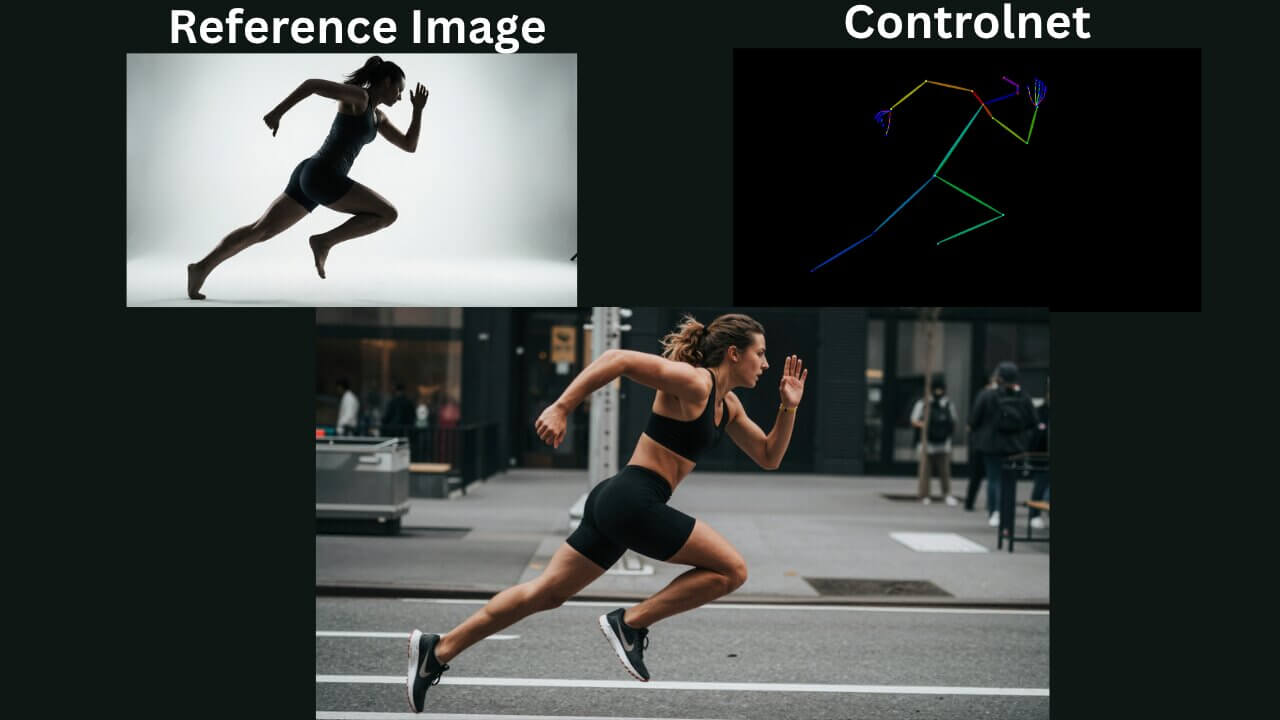
OpenPose — Full Body Pose Control

Converts people in a reference image into a skeletal pose map. Ideal for controlling body position, hand placement, and overall stance.

OpenPose ControlNet preprocessor output — skeletal body pose map extracted from a reference image in ComfyUI

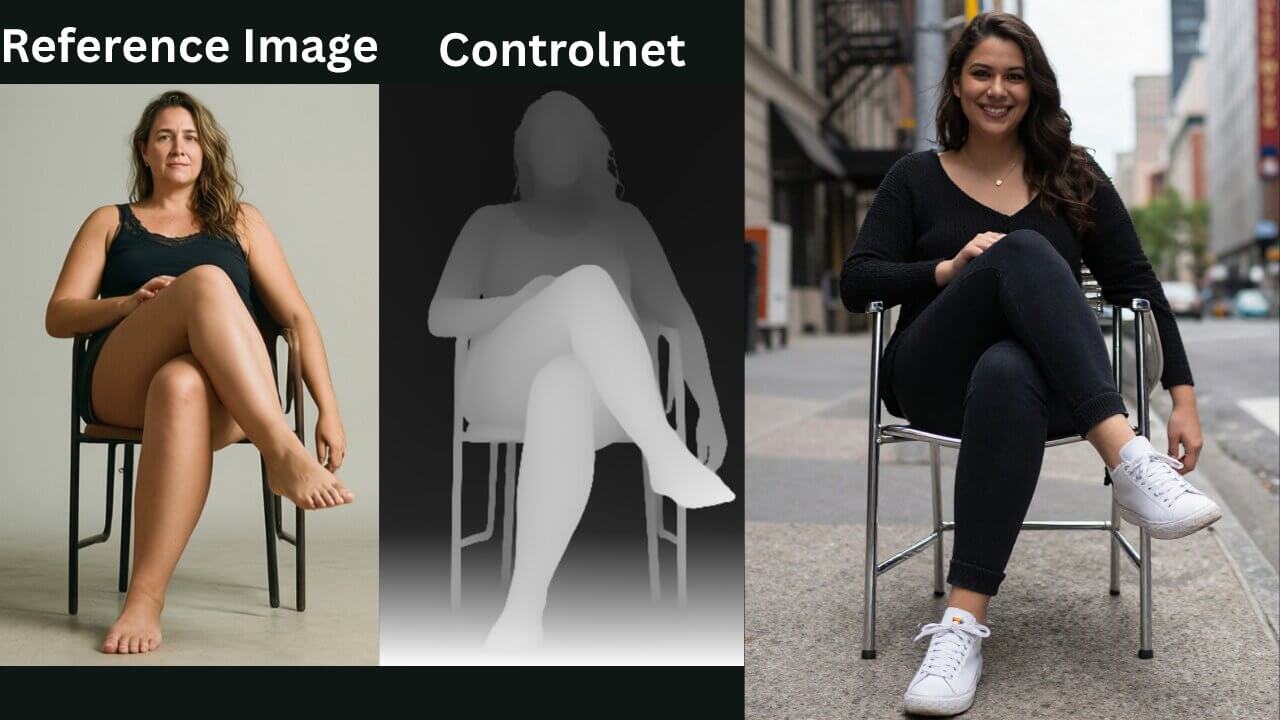
Depth — 3D Layout and Distance

Generates a depth map that encodes the relative distance of objects in the scene, helping maintain 3D spatial consistency in generated images.

Depth ControlNet preprocessor output — 3D depth map showing foreground and background distance in ComfyUI

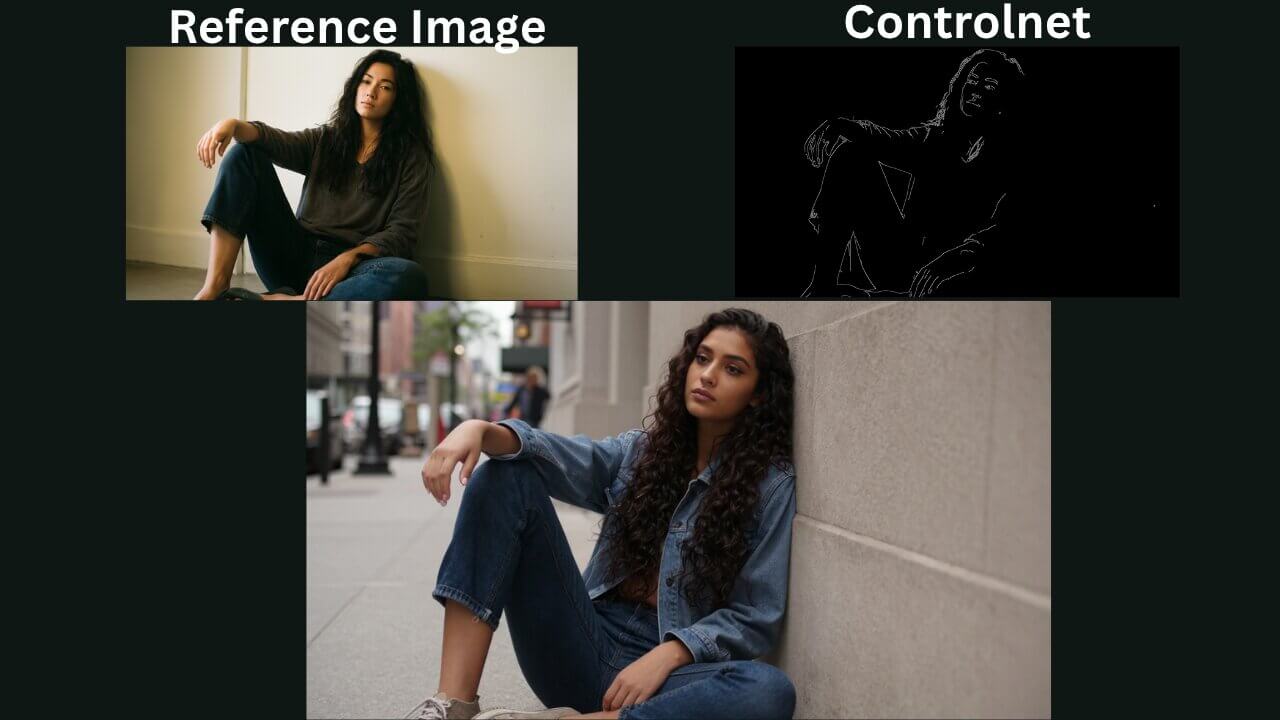
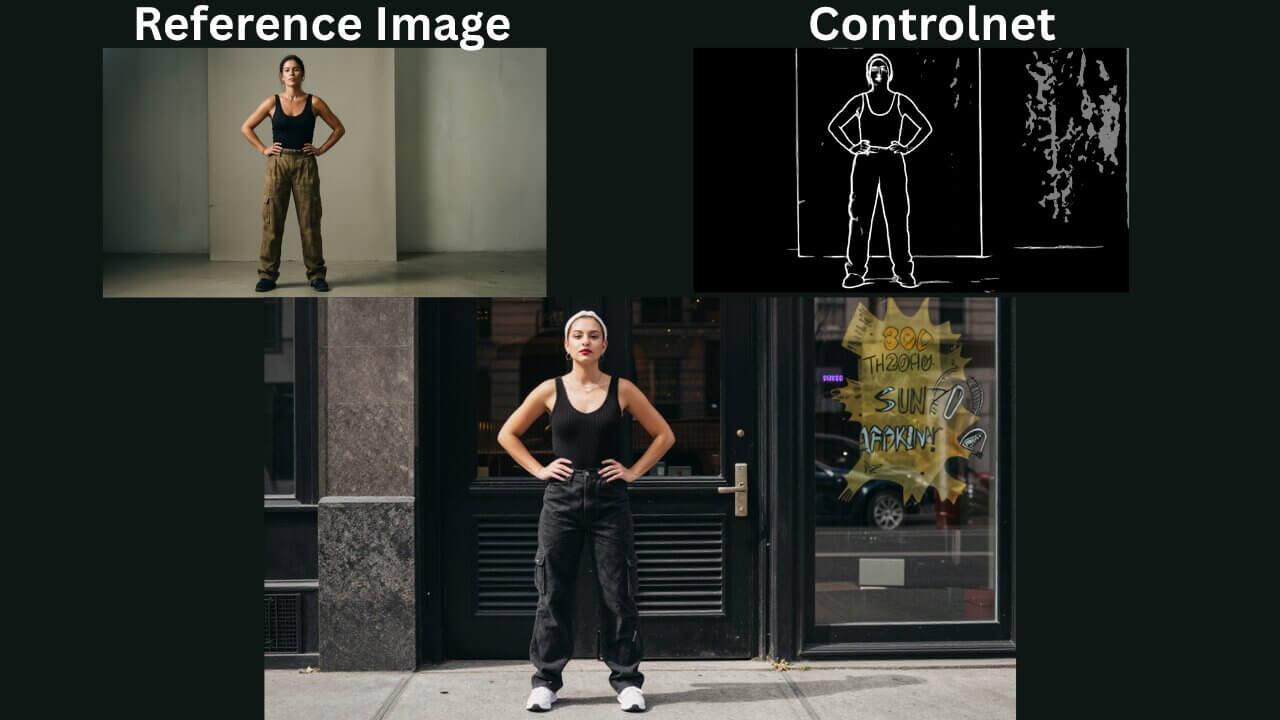
Canny — Strong Edge Control

Extracts a precise edge map from the reference image. Excellent for controlling the shape and outline of objects and backgrounds.

Canny ControlNet preprocessor output — high-contrast edge detection map for structural image control in ComfyUI

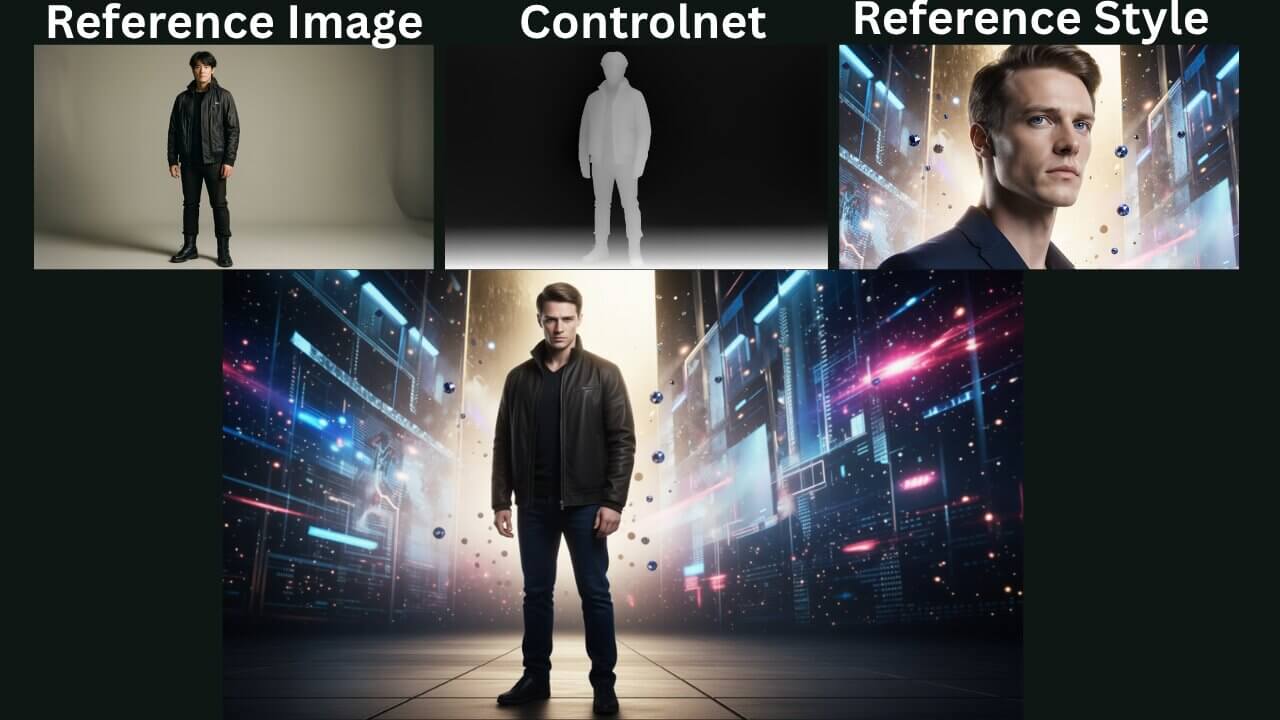
Reference Style — Visual Consistency

Uses a reference image directly to maintain visual style and character identity without extracting a structural map.

ControlNet reference style output — AI-generated image maintaining visual style from a reference character in ComfyUI

How to Use ControlNet in ComfyUI

Basic Step-by-Step Workflow

Download the workflow below and open it in ComfyUI to follow along. If you see red nodes after importing, follow the missing nodes guide linked in Step 1.

Open the workflow in ComfyUI.

Import the downloaded workflow. If you see red nodes, use the missing nodes installation guide to fix them before continuing.

Upload your reference image.

Connect your reference image to the Load Image node. This is the image ControlNet will extract structural information from.
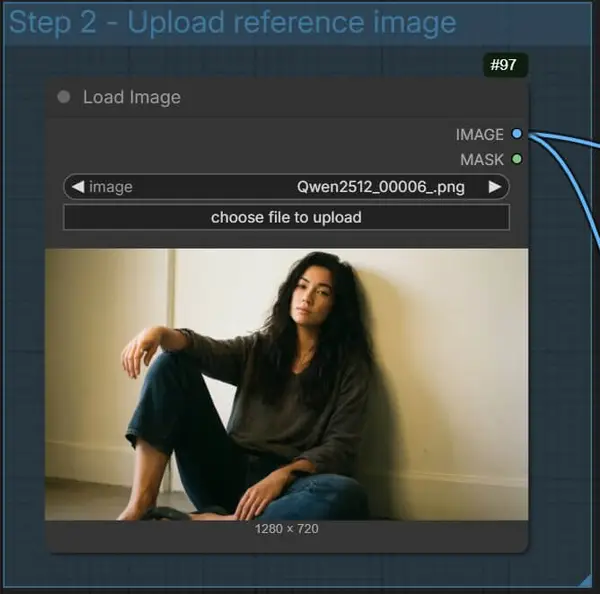
ComfyUI ControlNet workflow — uploading a reference image to the Load Image node for pose or edge extraction
Upload your reference image to the Load Image node — this is the source ControlNet will analyze.

Select your preprocessor from the AIO Aux Preprocessors node.

The AIO Aux Preprocessors node gives you access to all preprocessors in one place — OpenPose, Canny, Depth, HED, Normal, and more. Choose the one that matches what you want to control.
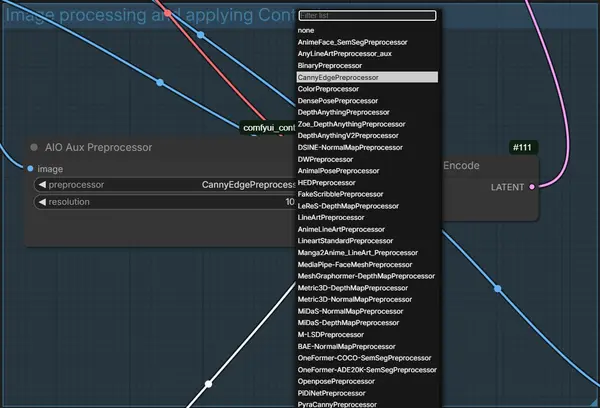
ComfyUI AIO Aux Preprocessors node — selecting between OpenPose, Canny, Depth, and HED preprocessors for ControlNet
Select your preprocessor inside the AIO Aux Preprocessors node — choose based on what structural element you want to control.

Write your prompt.

Add your text prompt to the conditioning nodes. For best results with ControlNet, keep prompts focused and clear. ControlNet handles composition; your prompt handles style and content.

Click Run and review the output.

The output will follow the structural guide extracted from your reference image while applying your prompt for visual style. Click images to zoom in and inspect the result.

ComfyUI ControlNet workflow output — AI-generated image following the structural pose extracted from a reference image
The output follows the structural reference (pose, edges, or depth) from your input image while applying the style from your prompt.
💡 Tip: Always match the preprocessor to the type of reference image. If your reference has a person, use OpenPose. If you want to preserve overall shapes and outlines, use Canny. Mixing preprocessors with the wrong image type produces poor results.

This workflow uses the Qwen Image Edit 2509 model. All required model links are included inside the workflow file.

Quick Troubleshooting During Setup

  • Make sure the preprocessor matches the type of reference (OpenPose → pose map, Canny → edge map, Depth → depth map).
  • Use the AIO Aux Preprocessors node to select and switch between control types in a single node.
  • If the control map preview looks wrong, try a different preprocessor before running the full generation.

What Are Auxiliary (Aux) Preprocessors and Pose Controls?

Auxiliary preprocessors are small helper nodes that convert your reference image into a structured format ControlNet can use. Instead of feeding the raw reference image directly into ControlNet, the preprocessor first extracts the structural information — pose maps, edge maps, depth maps — and passes that clean data to the ControlNet model.

Short definition: A preprocessor is what turns your reference photo into a control map. The control map is what ControlNet actually reads to guide the generation — not the original photo itself.

Common Aux Preprocessors

OpenPose — Body and Hand Pose Skeleton

Converts people in an image into a skeletal joint map. Great for controlling body position, arm placement, and hand details.

OpenPose aux preprocessor output — full body skeleton map for pose control in ComfyUI ControlNet

Canny — Sharp Edge Map

Creates a high-contrast edge map from the reference image. Ideal for controlling the structural outlines of objects, backgrounds, and architectural shapes.

Canny aux preprocessor output — high-contrast edge detection map for structural control in ComfyUI ControlNet

Depth — 3D Distance Map

Generates a grayscale depth map encoding how far each element is from the camera. Maintains natural 3D perspective and distance relationships in generated images.

Depth aux preprocessor output — grayscale 3D depth map for spatial consistency in ComfyUI ControlNet

HED — Holistically-Nested Edge Detection

Produces soft, smooth, and refined edges — more natural-looking than Canny. Good for stylized outputs where hard edges feel too rigid.

HED holistically-nested edge detection preprocessor output — soft edge map for stylized ComfyUI ControlNet generation

Practical Tips and Common Beginner Mistakes

  • Use the correct preprocessor for the task. OpenPose is for people and body poses — it will not work well for controlling background shapes or architecture.
  • Resize your reference image to match the model's expected input resolution before running the preprocessor. Use ComfyUI's resize nodes to avoid shape mismatch errors.
  • Preview the control map output from the preprocessor before running the full generation. If the map looks wrong, the output will too.
  • Lower the ControlNet strength slightly (0.8–0.9) if the output feels too rigid or loses creative detail. Higher strength means stricter adherence to the reference structure.

ControlNet with Reference Style and Consistent Characters

One of the most powerful uses of ComfyUI ControlNet is maintaining a consistent character across multiple images — same face, same style, different poses. This is done by combining a character reference image for visual identity with a separate pose reference for body control.

How to Keep a Character Consistent

To maintain a character's style and identity across images, use two separate reference inputs: one for the character's appearance and one for the pose you want them to adopt.

Example — Character + Pose Control:
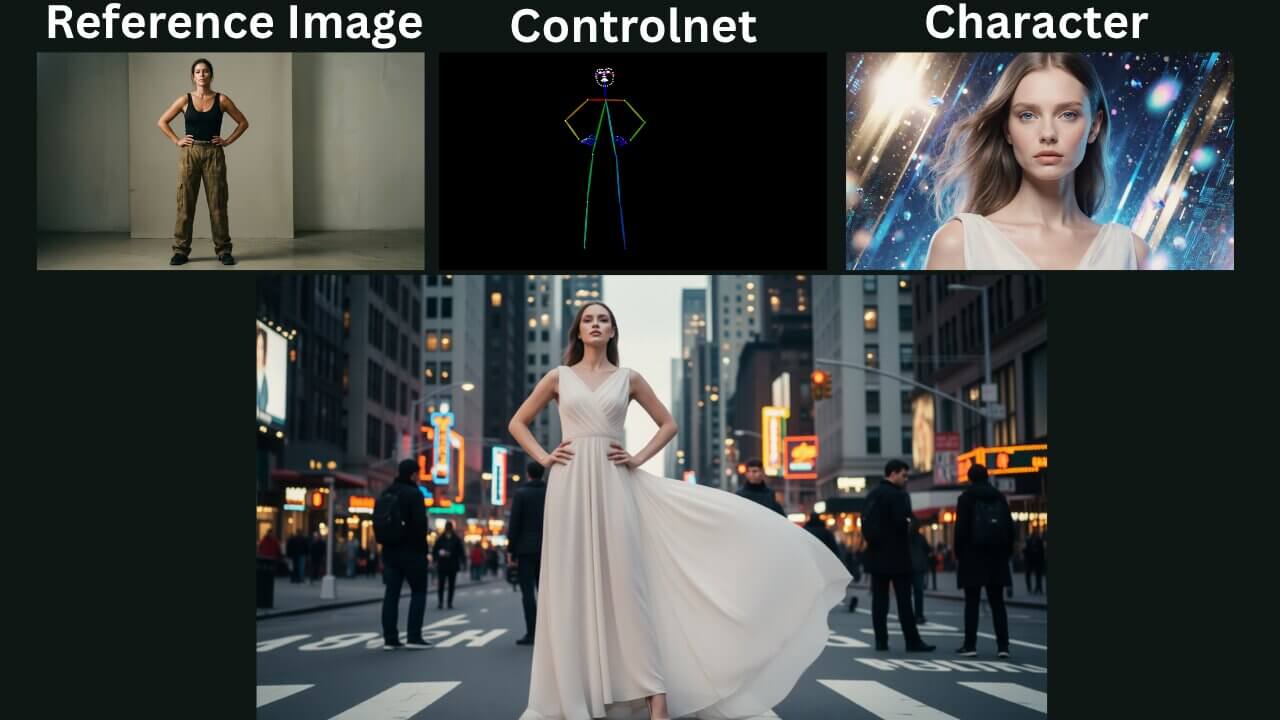
Character consistency example in ComfyUI ControlNet — same character maintained across different poses using reference style
Using a character reference alongside pose control in ComfyUI ControlNet produces consistent identity across multiple generated images.
ControlNet reference style output — character visual style maintained with different pose control in ComfyUI
The character's visual style is preserved even when a new pose is applied through the ControlNet preprocessor.

Step-by-Step: Character + Pose Workflow

Upload your character reference image.

This is the image that defines your character's visual style and identity — face, clothing, and overall look.
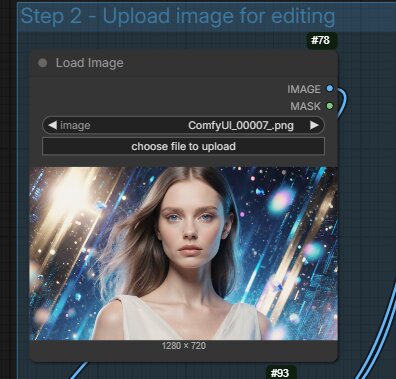
Character style reference image uploaded to ComfyUI ControlNet workflow for visual identity consistency
The character reference image defines the visual identity the model will try to preserve in the output.

Upload your pose control reference image.

This is the image the AIO Aux Preprocessors node will analyze to extract the body pose. It does not need to look like your character — only the structural pose is extracted from it.
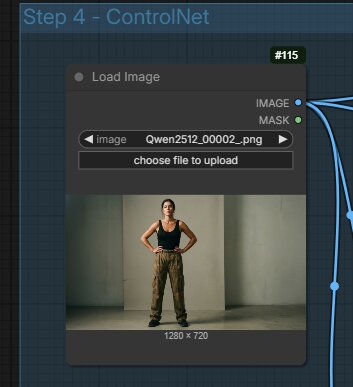
Pose control reference image in ComfyUI ControlNet workflow — used to extract body skeleton for character positioning
The pose reference is only used for structural extraction — the visual style comes from your character reference, not this image.

Set the AIO Aux Preprocessors correctly.

Select the preprocessor that matches your pose reference (typically OpenPose for body poses or Depth for 3D spatial layout). Run the preprocessor to generate the control map.

AIO Aux Preprocessors node in ComfyUI ControlNet — selecting OpenPose for character consistency workflow
Select the right preprocessor in the AIO Aux Preprocessors node — OpenPose works best for full-body pose control.

Write your prompt and click Run.

Add your prompt describing the scene or style adjustments you want. The output will follow the pose from your control reference while maintaining the character's visual identity from the style reference.

Final ComfyUI ControlNet output — character maintained with consistent style and new pose applied from reference
The final output: the character's visual identity is preserved while the new pose from the reference image is applied accurately.

Tips for Better Character Consistency

  • Use the same model checkpoint for both the character reference run and the final generation for the most consistent results.
  • If you need stricter face and identity consistency, add a face embedding or use a face detailer node as a post-processing step.
  • The example workflows use the Qwen Image Edit 2509 image editing node, which handles reference images particularly well for stylistic consistency.
  • Keep the ControlNet strength between 0.7 and 0.9 — too high and the output becomes over-constrained; too low and the pose reference is ignored.

Troubleshooting & Optimization

Common Errors and Fixes

Here are the most common ControlNet issues and how to fix them:

Red nodes after importing the workflow

Missing custom nodes. Follow the missing nodes installation guide or use ComfyUI Manager to install all required nodes automatically.

Wrong input shape errors

Add a Resize node before the preprocessor to ensure your reference image matches the expected input resolution for your model (SDXL: 1024×1024, SD 1.5: 512×512).

ControlNet model not found

Check that the ControlNet model file is placed in ComfyUI/models/controlnet/ and that the filename in the node settings matches exactly. Refresh or restart ComfyUI after adding files.

Output ignores the reference structure

Increase the ControlNet strength value (try 0.9–1.0). Also verify the preprocessor output actually looks like a valid control map — if the map is blank or incorrect, the generation will ignore it.

Output is too rigid and loses creative detail

Lower the ControlNet strength to 0.7–0.85. A lower strength gives the model more creative freedom while still following the general structure of your reference.

⚠️ Note: If you are using a FLUX-based model with ControlNet, make sure you are using a ControlNet model specifically trained for FLUX. SD 1.5 or SDXL ControlNet models are not compatible with FLUX checkpoints and will produce errors or blank outputs.

Frequently Asked Questions

ControlNet in ComfyUI is a system that lets you add precise structural control to AI image generation. You feed it a reference image processed through auxiliary preprocessors like OpenPose, Canny, or Depth, and the model follows those structural guides while generating new images based on your prompt.

Auxiliary preprocessors are helper nodes that convert your reference image into a structured map that ControlNet can understand. Common types include OpenPose (body pose skeleton), Canny (edge map), Depth (3D depth map), and HED (soft holistic edge detection). Each one extracts different structural information from your image.

To keep a character consistent across images in ComfyUI, use two reference inputs: one for character style and identity, and another for pose control. Run the pose image through an OpenPose or Depth preprocessor to extract the body structure, and reference the character image directly for visual style. Using the same model checkpoint across runs also improves consistency.

OpenPose is the best preprocessor for body and hand pose control in ComfyUI. It detects and converts people in your reference image into a skeletal pose map that ControlNet can follow precisely. For full-body poses including hands and face, use the OpenPose Full variant inside the AIO Aux Preprocessors node.

If your ControlNet output does not match the reference, the most common causes are: using the wrong preprocessor for the task (e.g. using Canny for a pose instead of OpenPose), mismatched input image resolution (use a Resize node to match the expected size), or the ControlNet model not being installed correctly. Check the node for red errors and re-run the AIO Aux Preprocessors to verify the control map looks correct.

Discussion

Join the discussion

Sign in to leave a comment or reply

💬

No comments yet

Be the first to share your thoughts!