
⚡ Quick Answer
Use Hugging Face to download official base models, and use Civitai to download community styles and LoRAs (small add-on files that add a style or character). Download only .safetensors files (a file type designed to hold only model data), and put each file in the matching folder inside ComfyUI/models. The rest of this page explains each rule and what to do when a download fails.
You installed ComfyUI, opened it, and every model dropdown is empty. ComfyUI does not come with any AI models, and almost every guide points you to two websites: Civitai and Hugging Face. This page compares Civitai vs Hugging Face for ComfyUI in plain English. It also shows how to download from each one, step by step, and ends with a 3-rule cheat sheet.
After reading, you will be able to:
- Pick the right site for the file you want
- Download a file from each site
- Avoid risky files
- Put every file in the correct folder
- Fix the three most common download problems
Why Does ComfyUI Make You Download Models From Another Website?
ComfyUI is the program that runs on your computer. It does not contain any AI models. Think of it as a music player that comes with no songs: it works, but you bring the files.
A model file is the trained “brain” that knows how to draw images. You will meet three kinds first:
- A checkpoint (the main AI model file — it controls what your images look like and what the AI can draw).
- A base model, which is the main model that other files build on. A checkpoint is often a base model.
- LoRAs, the small add-on files that change the style or add a character on top of a base model.
Model files are large. Most main models are several gigabytes, and some are over 20 GB. LoRAs are usually much smaller.
ComfyUI knows you need to download files, so it helps you. When you open a template (a ready-made workflow, which is a saved set of connected steps that makes an image) and you are missing models, ComfyUI shows a window that lists them with download links. ComfyUI currently supports download links from only two sites: Hugging Face and Civitai (see the official ComfyUI docs). That is why these two are the pair to learn.
If you want a deeper look at model types after this page, read checkpoint models explained.
What Do You Need Before You Download Anything?
Check these five things first. They prevent most failed downloads.
- ComfyUI installed and opening. You need to know where the ComfyUI folder is, because every file you download goes inside it.
- Free disk space. Model files are big. For example,
flux1-krea-dev_fp8_scaled.safetensorsis about 11.9 GB, andflux1-dev.safetensorsis about 23.8 GB. Leave at least double the file size free, so the download does not fail halfway. - A free Hugging Face account. You only need it for gated models, which are explained below. Most files download without one, but creating the account now saves time later.
- A free Civitai account. You need one to download from Civitai. Civitai also asks you to confirm your email address.
- An idea of your graphics card memory. VRAM is the memory on your graphics card, and ComfyUI uses it to run models. File size on your disk is not the same as VRAM needed, so a file that fits on your drive may still be too big for your card. The ComfyUI low VRAM guide explains how to pick files that fit.
What Is Hugging Face, and What Do ComfyUI Users Get There?
Hugging Face is a website where AI companies and developers upload models. Think of it as a public library for AI files. For ComfyUI users, it is where official releases appear, such as models from Stability AI and Black Forest Labs (the makers of FLUX).
The ComfyUI team also uploads there, under the name Comfy-Org. These repositories hold repackaged files that are already arranged to match ComfyUI’s folder names.
Two things make Hugging Face harder for beginners. The pages are written for developers, and most models have no gallery of example images. You cannot preview what a model makes before you download it. That gap is where Civitai helps.
Some files you will see on Hugging Face need a short explanation:
.safetensorsis the safe file type, covered in Rule 2.- A diffusion model (the part of the AI that actually draws the image) is sometimes shared on its own, with the other parts in separate files.
- A text encoder is the part that reads your prompt. It is often shared as a separate file too.
- fp8 in a filename, like
fp8_scaled, means a compressed version that uses less disk space and memory. The trade-off is usually a small drop in quality.
How Do You Download a File From Hugging Face?
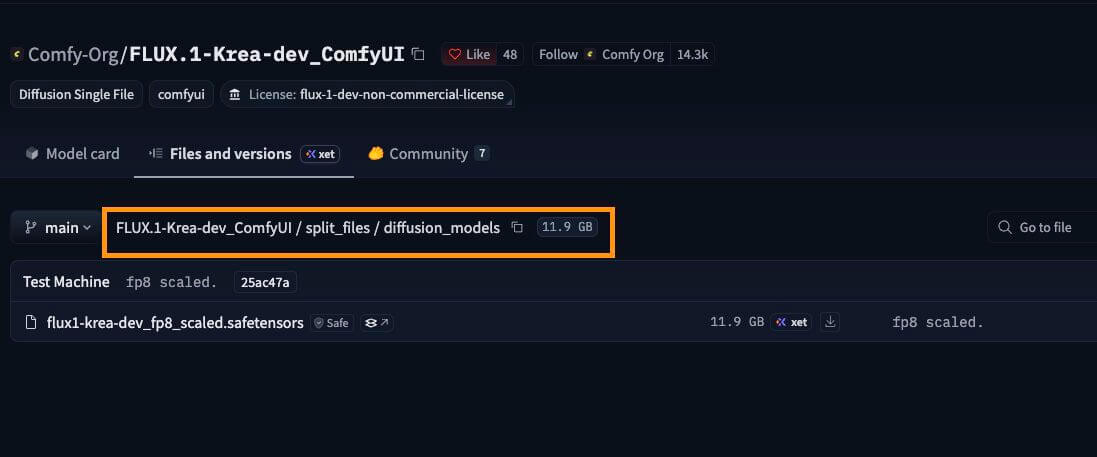
We use a real example so you can follow along: the ComfyUI-ready Krea files from Comfy-Org. Before you click, here is why we go through the Files and versions tab. A model page has a lot of text, but the actual downloadable files are listed only on that tab.
- Open huggingface.co/Comfy-Org/FLUX.1-Krea-dev_ComfyUI in your browser. You see the model name at the top, and tabs under it.
- Click the Files and versions tab. A list of files and folders appears.
- Click the folder
split_files, then clickdiffusion_models. You seeflux1-krea-dev_fp8_scaled.safetensorsand its size, 11.9 GB. - Click the small down-arrow icon at the right end of that file’s row. Your browser starts downloading. A progress indicator appears in your browser’s download area.
- When it finishes, check that the file name ends in
.safetensors. Rule 3 below shows where to move it.
If the page shows a message asking you to agree to something before you can see the files, go to the next section.
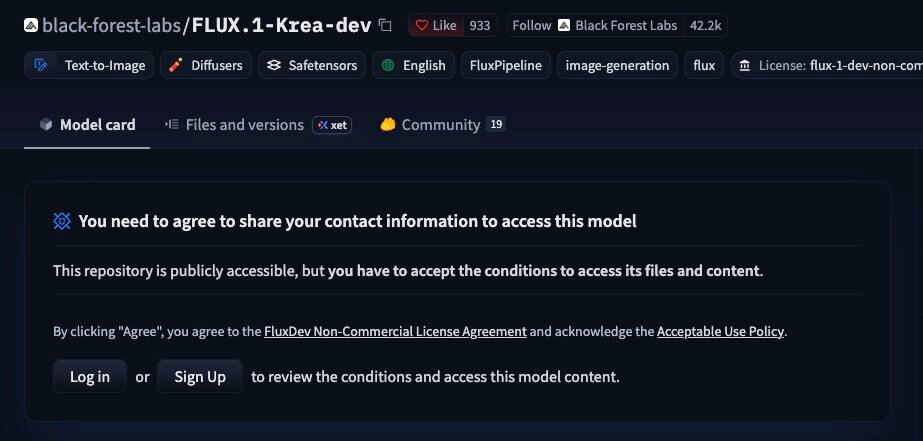
What Does “You need to agree to share your contact information to access this model” Mean?
That message means the model is gated. A gated model is a model whose owner wants you to accept a license before you can download the files. It is a permission step, not an error.
You will see it on official FLUX pages such as black-forest-labs/FLUX.1-Krea-dev and black-forest-labs/FLUX.1-dev. Here is how to get access:
- Log in to Hugging Face, or create a free account. Gated pages only let logged-in users agree.
- Open the model page. The message appears near the top.
- Read the license, then click the button under the message to agree. The page reloads and the files become visible.
- Open the Files and versions tab and download the file like before.
Some model owners approve requests by hand, so access may take longer than a few seconds.
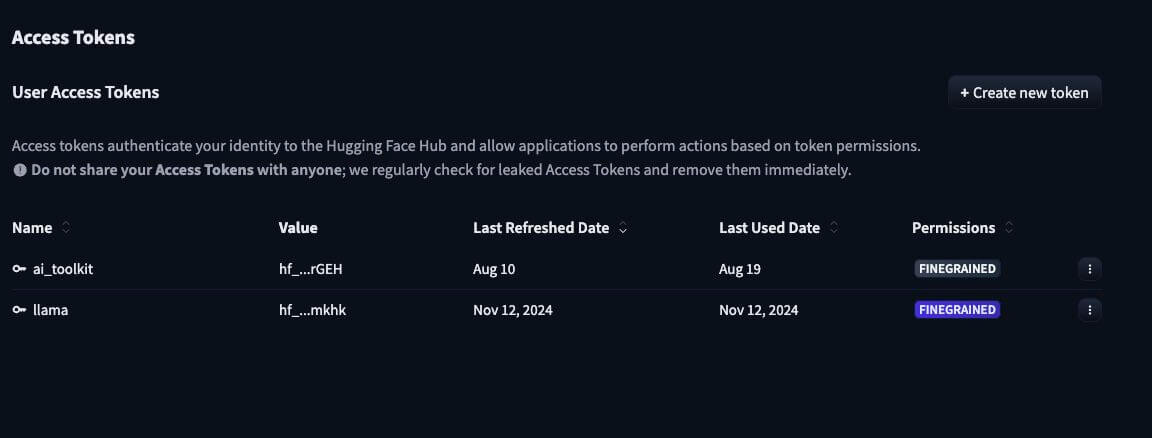
Your browser only needs your login. But if a tool downloads for you, such as a script or a download node, it needs an access token. An access token is a long password-like code that proves who you are to a website, without typing your real password. Here is how to make one:
- Click your profile picture in the top-right corner, then click Settings.
- In the left menu, click Access Tokens.
- Click Create new token, choose the Read type, and give it a name like
comfyui-read. - Copy the token right away and store it somewhere private.
For the full FLUX setup, see installing Flux in ComfyUI.
What Is Civitai, and What Do ComfyUI Users Get There?
Civitai is a community website where people share models they made or changed. Every model page has example images, and many show the prompt that made each one. That makes it easy to see what a model does before you download it.
Civitai is also where most LoRAs live. Artists and hobbyists upload styles, characters, and concepts there, so the choice is far bigger than on Hugging Face. The trade-off is that anyone can upload, so quality and safety vary. Rule 2 shows how to protect yourself.
Two terms matter on Civitai:
- A trigger word is a special word or phrase you add to your prompt to switch on a LoRA’s style or character. The model page tells you which one to use.
- A LoRA is built on one specific base model, such as SDXL or Flux. A LoRA made for one base model usually does not work properly with another. Check the base model label on the page before you download.
How Do You Download a Model From Civitai?
- Go to civitai.com and create a free account with your email. Confirm your email address from the message Civitai sends you, before you try to download.
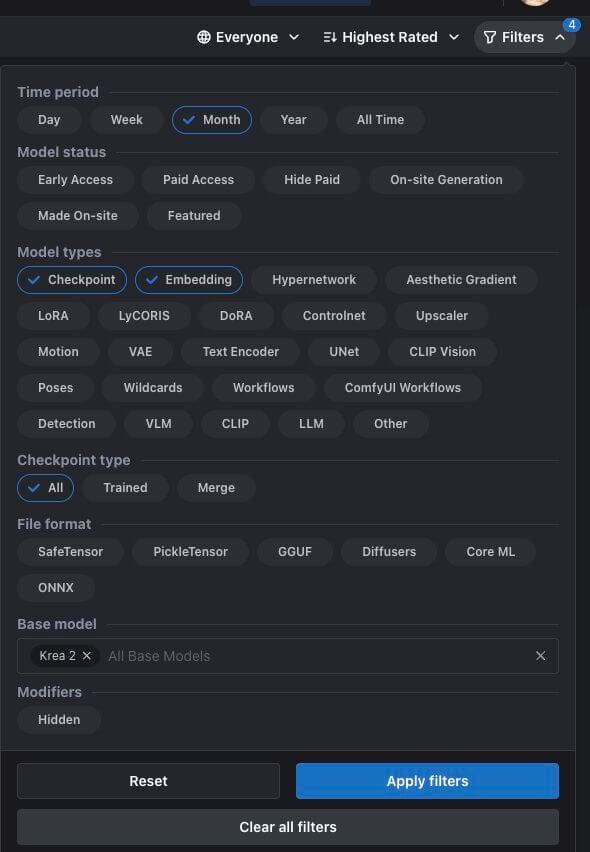
- Use the search bar at the top of the page. You can also filter by model type, such as Checkpoint or LoRA. A list of model cards with preview images appears.
- Click a model card to open its page. Look at the example images, the base model label, and the file type.
- If the page has several versions, pick the one that matches your setup. This matters most for LoRAs, which must match your base model.
- Click the Download button on the model page. If the version offers several files, choose the one that ends in
.safetensors. Your browser starts the download.
Some downloads from scripts and command-line tools need an API key, which you create in your account settings. Normal browser downloads do not.
Civitai.com or Civitai.red: Which Domain Should You Use?
On April 15, 2026, Civitai split into two websites (see Civitai’s own announcement). civitai.com now holds the SFW content. SFW means safe for work: no adult material. civitai.red holds the adult content. The old civitai.green address now sends you to civitai.com.
Your account and your models stay where they were. The API (the connection that apps use to talk to Civitai) stays on civitai.com, and you can also reach it through civitai.red.
For most beginners, use civitai.com. You do not need civitai.red to follow this guide.
Civitai also removed models and images that depict real people, whatever their rating. If a celebrity or public-figure LoRA from an older tutorial is missing, it may have been removed, not moved.
What Is the Difference Between Civitai and Hugging Face?
Here is the short version. Hugging Face is where official files live. Civitai is where community styles live. Use this table to compare them.
| Hugging Face | Civitai | |
|---|---|---|
| Best for | Official base models, files straight from the creators, ComfyUI-ready repacks | Community styles, LoRAs, fine-tuned checkpoints |
| Who uploads | Companies, developers, the ComfyUI team | Anyone in the community |
| Preview images | Rarely | Yes, with prompts on many pages |
| Account to download | Only for gated models | Yes, free, email confirmed |
| Extra step to know | License click plus access token for gated models | Check the base model label |
| Common file types | Mostly .safetensors | Mostly .safetensors, some older .ckpt |
| Beginner difficulty | Medium: pages are built for developers | Easier to browse, harder to judge quality |
Neither site wins. They do different jobs, like a bookstore and a thrift shop.
Hugging Face vs Civitai for Beginners: Which Should You Start With?
Start with whatever ComfyUI asks for. Open a template, and the missing-models window usually points to Hugging Face. Download that official model first and make a few images.
Add Civitai second, when you want a specific look. Pick one LoRA whose base model matches your main model, and download it. This order keeps your first setup simple, and it gives you a working image before you add extras.
Civitai vs Hugging Face for ComfyUI: What Are the 3 Rules to Follow?
Here is the whole cheat sheet in three lines:
2. Download only
.safetensors files.3. Put each file in the matching ComfyUI folder, then refresh.
The next three sections explain each rule.
Rule 1: Get Official Base Models From Hugging Face and Community Styles From Civitai
Base models are the foundation. Official releases usually appear on Hugging Face first, and ComfyUI’s templates point there. Downloading from the creator’s own page gives you the right file and the right version.
Styles are different. Artists share LoRAs and custom checkpoints on Civitai, and the preview images let you see the result before you spend time downloading.
Here is a realistic example of why you need both. You want a specific art style on top of a FLUX model:
- Download the base model
flux1-krea-dev_fp8_scaled.safetensorsfrom Hugging Face. - Search Civitai for a LoRA made for that same base model family. Check the base model label.
- Put both files in their folders, then combine them in your workflow.
Neither site alone does the whole job. Hugging Face has no gallery of community styles, and Civitai is not where you start for official releases.
This does not mean you must use both for every project. If a template needs only one official model, one site is enough.
Rule 2: Download Only .safetensors Files (Which Site Is Safer?)
You cannot see inside a model file, so the file type is your best protection. Older .ckpt files use a format called pickle, which can hide code that runs when ComfyUI opens the file. A .safetensors file is designed to hold only numbers and labels, so it does not carry that risk.
Civitai scans uploads with ClamAV (a free antivirus scanner) and picklescan (a tool that looks for dangerous code in pickle files). Scans catch many problems, but they are not a guarantee.
So which site is safer? Neither, by itself. The file type and the uploader matter more than the website. Use this checklist before every download:
- Check that the file ends in
.safetensors. Skip.ckptfiles unless no other version exists. - Prefer official uploads from the model’s creator.
- Check the uploader. An older account with many downloads is a better sign than a brand-new account.
- Read the comments. People report broken or suspicious files there.
- Never run extra files that arrive with a model, such as
.exe,.bat, or.pyfiles. A model never needs them.
.safetensors at the end of each name.Rule 3: Put Each File in the Matching ComfyUI Folder, Then Refresh
ComfyUI only looks in certain folders, and each loader node reads its own folder. A file in the wrong folder does not show up where you need it. Open your ComfyUI folder, then open the models folder inside it. The subfolders you need are in this table:
| File type | Folder | Node that loads it |
|---|---|---|
| Checkpoint (one file with all parts inside) | models/checkpoints | Load Checkpoint |
| Diffusion model (only the image-drawing part) | models/diffusion_models | Load Diffusion Model |
| Text encoder (the part that reads your prompt) | models/text_encoders | Load CLIP |
| VAE (the part that turns the AI’s internal picture into pixels you can see) | models/vae | Load VAE |
| LoRA | models/loras | Load LoRA |
| ControlNet (an add-on that guides the image using a pose, outline, or depth map) | models/controlnet | Load ControlNet Model |
| Upscale model (makes images bigger) | models/upscale_models | Load Upscale Model |
| Embedding (a small file that teaches a word a new meaning) | models/embeddings | You type its name in your prompt |
Older guides may mention the folders unet and clip. Newer ones use diffusion_models and text_encoders.
Not sure whether your file is a checkpoint or a diffusion model? Look at the checkpoint vs diffusion model page (a checkpoint is one file with every part inside, and a diffusion model is only the image-drawing part).
split_files tells you where the file goes. A file inside split_files/diffusion_models belongs in models/diffusion_models.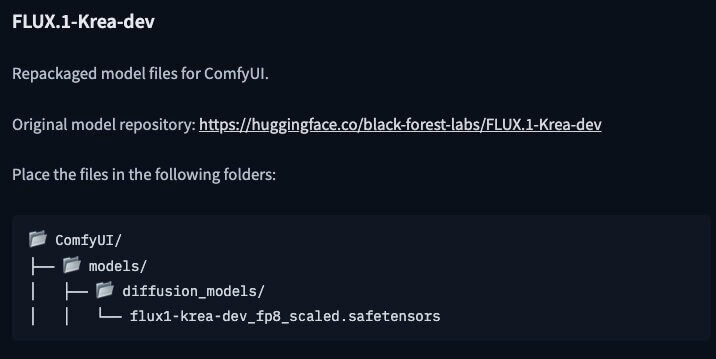
Now place the file and refresh:
- Move the downloaded file from your Downloads folder into the correct folder. Your computer shows the file inside the new folder.
- If ComfyUI is already open, click an empty spot on the canvas and press the r key. This makes ComfyUI re-read its folders. If nothing changes, close and reopen ComfyUI.
- Click the dropdown on the matching loader node. For a checkpoint, that is Load Checkpoint. You should see your file name in the list.
What Do You Do When a Model Download Goes Wrong?
These are the three most common problems. Each one has a quick fix. For more, see common ComfyUI problems.
Hugging Face shows a 401 error or asks you to log in
Cause: The model is gated, and Hugging Face does not know you accepted the license. A 401 error means “not authorized”.
Fix:
- Log in to Hugging Face in your browser.
- Open the model page and read the message near the top. Click the button to agree.
- Try the download again.
- If a tool is downloading for you, create a Read access token and give it to the tool, as shown in the gated-model section above.
- If the page says your request is pending, wait. Some owners approve by hand.
The model does not show up in ComfyUI after you download it
Cause: The file is in the wrong folder, or ComfyUI has not re-read its folders yet.
Fix:
- Check the file ending. It should be
.safetensors. - Compare the file type with the folder table in Rule 3, and move the file if it is in the wrong place.
- Click an empty spot on the canvas and press the r key. If the file still does not appear, close and reopen ComfyUI.
- Open the dropdown on the correct loader node and look for the file name.
ComfyUI’s Download button opens a Save As window instead of downloading
Cause: This has been reported in the ComfyUI desktop app. The Download button in the missing-models window sometimes opens a Save As dialog instead of saving the file for you.
Fix:
- In the Save As window, browse to the correct
modelssubfolder from the Rule 3 table. - Click Save. The download starts.
- If the button does nothing, copy the link into your browser and download the file there. Then place it in the correct folder.
Frequently Asked Questions
What to Do Next
Download one model today and write your first prompt.
Download one .safetensors model from Hugging Face, put it in the correct folder, and write your first prompt using the AI prompt engineer principles.
AI Prompt Engineer Principles →What to Read Next
If a model is too big for your card, the ComfyUI low VRAM guide shows how to pick files that fit. If a download or a loader node still misbehaves, the troubleshooting guide covers the most common problems. Ready for your first official FLUX model? Follow installing Flux in ComfyUI.
Published: 2026-10-04 · Last updated: 2026-10-04 · Site details (including the April 2026 Civitai domain split) last verified October 2026.
Join the discussion
Sign in to leave a comment or reply
No comments yet
Be the first to share your thoughts!