
⚡ Quick Answer
MOSS-Image is a free text-to-image model (software that turns a written description into a picture) that runs in ComfyUI 0.41.3 or later. To install it, download 3 model files, put each one in its own folder, load the free workflow file from this page (a saved set of connected steps), and click Run. This guide uses the INT8 file, which needs less VRAM (the memory on your graphics card), and also covers the BF16 file for GPUs with more memory.
You want to try MOSS-Image, but you do not know which files to download or where they go. This guide shows you how to install MOSS-Image in ComfyUI, one step at a time. At the end, you will have the model installed, a ready-made workflow loaded, and your first image generated.
You will also learn how to make the model write words inside a picture, and what to do if something goes wrong. Hardware and versions used for this guide: ComfyUI [ComfyUI version], tested on [GPU and VRAM].
MOSS-Image Example Outputs: 5 Images Made in ComfyUI
Here are five images made with MOSS-Image in ComfyUI. Click any image to see it full size.
What Is MOSS-Image, and What Can You Make With It in ComfyUI?
MOSS-Image is an image model from a group called OpenMOSS. It has 5 billion parameters (the numbers inside a model that store what it learned). The files are free to download, and the license is Apache 2.0. If you plan to sell images made with it, read the license text first.
It is a diffusion model. That means it starts with a picture of random noise and removes the noise step by step until your image appears.
Here is what MOSS-Image is good at:
- It can write English and Chinese words inside an image, such as a sign or a bottle label.
- It accepts very long prompts, up to about 4,000 tokens (small pieces of words).
- It can follow a layout of boxes you draw. This guide does not cover that feature.
There are two versions. SFT is the version this guide uses. It is the one the official ComfyUI templates load, and it arranges text and scenes more cleanly. Base is the raw starting point. People use Base to train a LoRA (a small add-on file that teaches a model a new style).
If you want another model that is good with text, try our Z-Image workflow.
What Do You Need Before Installing MOSS-Image in ComfyUI?
You need three things: a recent ComfyUI, a graphics card with enough memory, and about 14–19 GB of free disk space. The next two sections explain each one.
What hardware and software do you need?
- ComfyUI 0.41.3 or later. Older versions do not know MOSS-Image yet.
- A graphics card (GPU) with enough VRAM. VRAM is the memory on your graphics card. The model must fit inside it while it works.
- Free disk space. The INT8 route is about 14 GB in total. The BF16 route is about 19 GB.
In our tests, the INT8 route needed about [INT8 VRAM in GB] GB of VRAM and the BF16 route needed about [BF16 VRAM in GB] GB, measured on [GPU and VRAM]. If your card has less memory than that, read the INT8 section below first.
Which files do you need to download?
The workflow needs four model files. All of them are saved in the Comfy-Org/MOSS-Image page on Hugging Face (a website where people share AI models). Each file uses the safetensors format (a safe file type for AI models).
| File | Folder | Approx. Size | What It Does |
|---|---|---|---|
moss_image_sft_int8_convrot.safetensors | models/diffusion_models | 5.4 GB | The main model, smaller INT8 version |
moss_image_sft_bf16.safetensors | models/diffusion_models | 10.2 GB | The main model, full-quality BF16 version |
qwen3.5_9b_int8_convrot.safetensors | models/text_encoders | 8.5 GB | The text encoder: it reads your prompt and turns it into numbers the model understands |
flux2-vae.safetensors | models/vae | [VAE size] | The VAE: the part that turns the model's internal picture data into an image you can see |
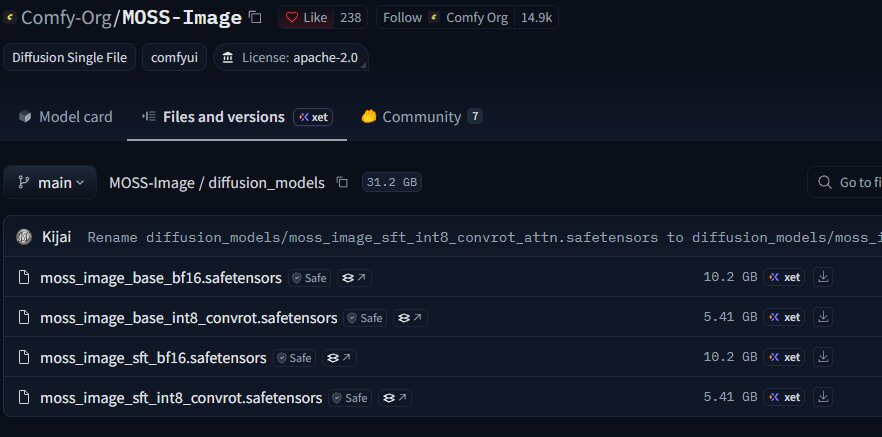
You only need one main model file. Pick INT8 or BF16 in the section below.
The official ComfyUI template uses two different files for the text encoder and VAE (qwen3.5_9b_w4a8_gptq.safetensors and flux2-vae_small.safetensors). This workflow uses the two in the table above. If you follow the official template instead, download the files it lists.
Does ComfyUI Support MOSS-Image Out of the Box? (Update First)
Yes. ComfyUI now has built-in MOSS-Image support, and the official ComfyUI docs say the templates need version 0.41.3 or later. You do not need a custom node (an add-on that adds new tools to ComfyUI) for this workflow. Some early notes about MOSS-Image mention a custom node, but built-in support replaced that step.
Update first, because an old ComfyUI does not have the right nodes (the rectangular blocks you connect with wires to build a workflow). Without the update, the Text Encoder node has no moss_image option, and some nodes show up with a red outline.
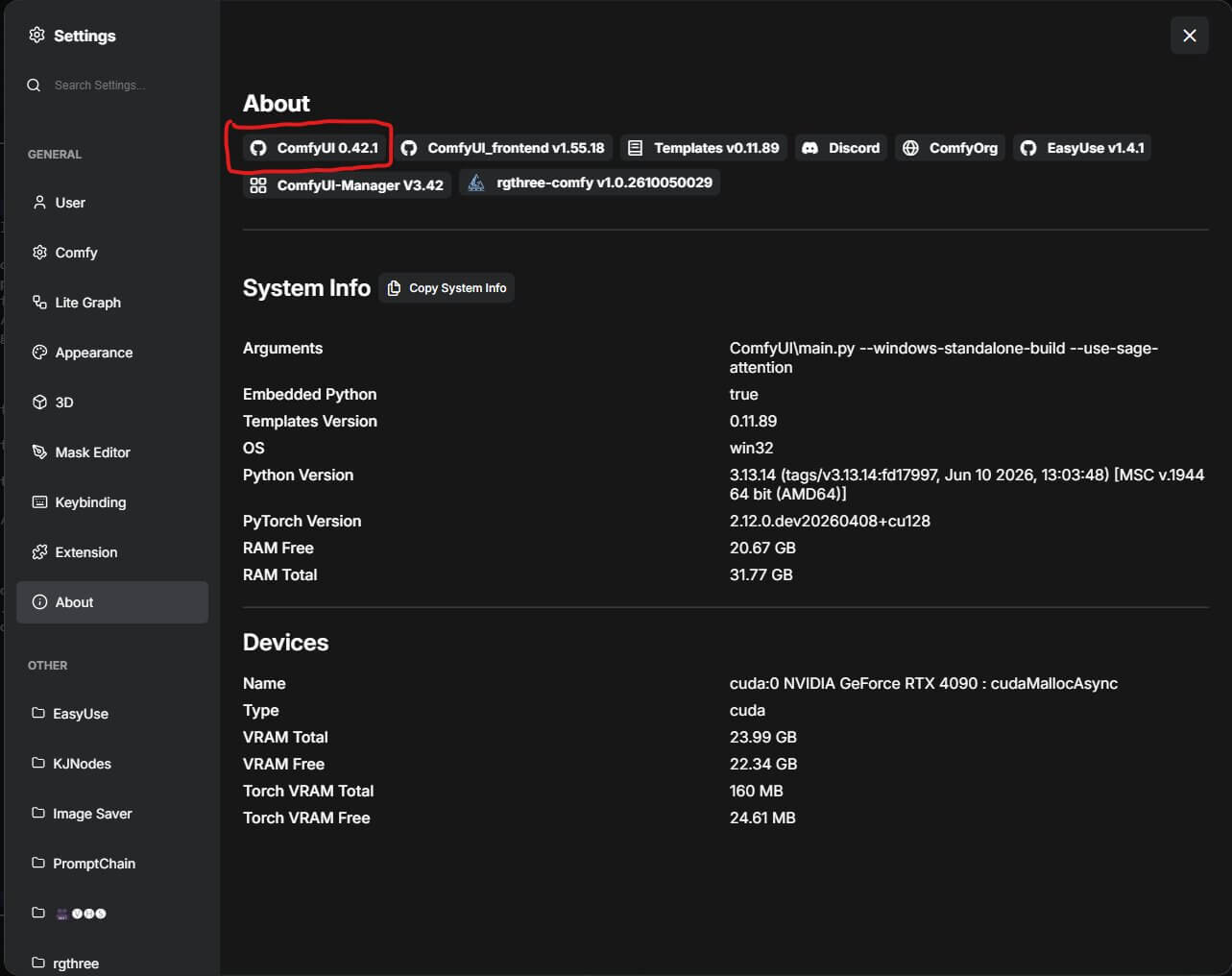
How do you check your ComfyUI version?
- Open ComfyUI in your browser or in the desktop app.
- Click the gear icon to open Settings.
- Click About.
- Find the ComfyUI version number. You should see 0.41.3 or a higher number.
If your number is lower, update before you continue.
How do you update ComfyUI?
The exact steps depend on how you installed ComfyUI. Our guide on how to update ComfyUI covers every case. Here are the two most common ones.
If you use the portable version:
- Close ComfyUI and its black terminal window.
- Open the
updatefolder inside your ComfyUI folder. - Double-click
update_comfyui.bat. A black window opens and closes when the update is done. - Start ComfyUI again and check your version.
If you use ComfyUI Manager (an add-on that installs other add-ons):
- Click the Manager button.
- Click Update ComfyUI.
- Restart ComfyUI when it asks you to.
INT8 or BF16: Which MOSS-Image Version Should You Download?
Both files are the same model saved in different number formats. BF16 keeps each number at 16 bits. It gives the best quality but needs more VRAM. INT8 is a quantized model (a compressed copy that stores each number in 8 bits). It is smaller and faster.
| INT8 | BF16 | |
|---|---|---|
| Main model file | 5.4 GB | 10.2 GB |
| VRAM we measured | [INT8 VRAM in GB] GB | [BF16 VRAM in GB] GB |
| Time per image we measured | [INT8 time per image] | [BF16 time per image] |
| Pick it when | You have a smaller GPU or want fast tests | You have lots of VRAM and want the best quality |
Start with INT8. You can add the BF16 file later and switch. If your GPU is small, our ComfyUI low VRAM guide has more ways to save memory.
How Do You Download the MOSS-Image Model Files and Where Do They Go?
ComfyUI only finds model files inside specific folders. If a file is in the wrong folder, it will not show up in the menus. This is the most common mistake for beginners, so follow the folder names exactly.
When you finish, your folders should look like this:
If you also want BF16, add moss_image_sft_bf16.safetensors next to the INT8 file in diffusion_models.
Step 1: Download the main model file
- Open the Comfy-Org/MOSS-Image page on Hugging Face.
- Click the Files and versions tab.
- Open the
diffusion_modelsfolder. - Find
moss_image_sft_int8_convrot.safetensorsand click the small download arrow next to it. The download starts in your browser. - When it finishes, move the file into
ComfyUI/models/diffusion_models.
Step 2: Download the text encoder
The text encoder reads your prompt. Without it, the model cannot understand your words.
- Go back to Files and versions and open the
text_encodersfolder. - Download
qwen3.5_9b_int8_convrot.safetensors. It is the biggest file, so give it time. - Move it into
ComfyUI/models/text_encoders.
Step 3: Download the VAE
The VAE turns the model's finished picture data into a normal image.
- Go back to Files and versions and open the
vaefolder. - Download
flux2-vae.safetensors. - Move it into
ComfyUI/models/vae.
Step 4: Tell ComfyUI to look for the new files
ComfyUI reads its folders when it starts. If it is already open, you need to refresh it.
- Click on an empty part of the ComfyUI canvas.
- Press the R key. You can also close ComfyUI and open it again.
You should now see your new file names in the dropdown lists of the loader nodes.
checkpoints folder. MOSS-Image must go in diffusion_models, or ComfyUI will not find it.How Do You Download the MOSS-Image Workflow JSON and Load It in ComfyUI?
A workflow is a saved set of connected nodes. ComfyUI saves it as a JSON file (a small text file that stores the layout of your nodes). When you load this file, all the nodes appear already connected, so you do not need to build anything.
How do you download the workflow?
- Click the download button below.
- Save the file somewhere easy to find, such as your Downloads folder.
The workflow has five labeled boxes (called groups):
- Text Encoder + VAE (shared): loads the two helper files.
- Your Image Size (shared): sets the picture size.
- Your Prompt (shared): where you type your description.
- INT8 version: loads the INT8 model and generates the image.
- BF16 version: loads the BF16 model and generates the image.
Notes next to each group explain the settings in plain words.
How do you load the workflow into ComfyUI?
There are two ways. Our guide on the 3 ways to load a ComfyUI workflow explains more.
- Drag and drop: drag the JSON file from your folder and drop it onto the ComfyUI window.
- Open from the menu: open the ComfyUI menu, click Open, and choose the JSON file.
You should see the five groups appear on the canvas. If drag and drop does nothing, use the menu. A Hugging Face user reported the same problem, and the menu method worked.
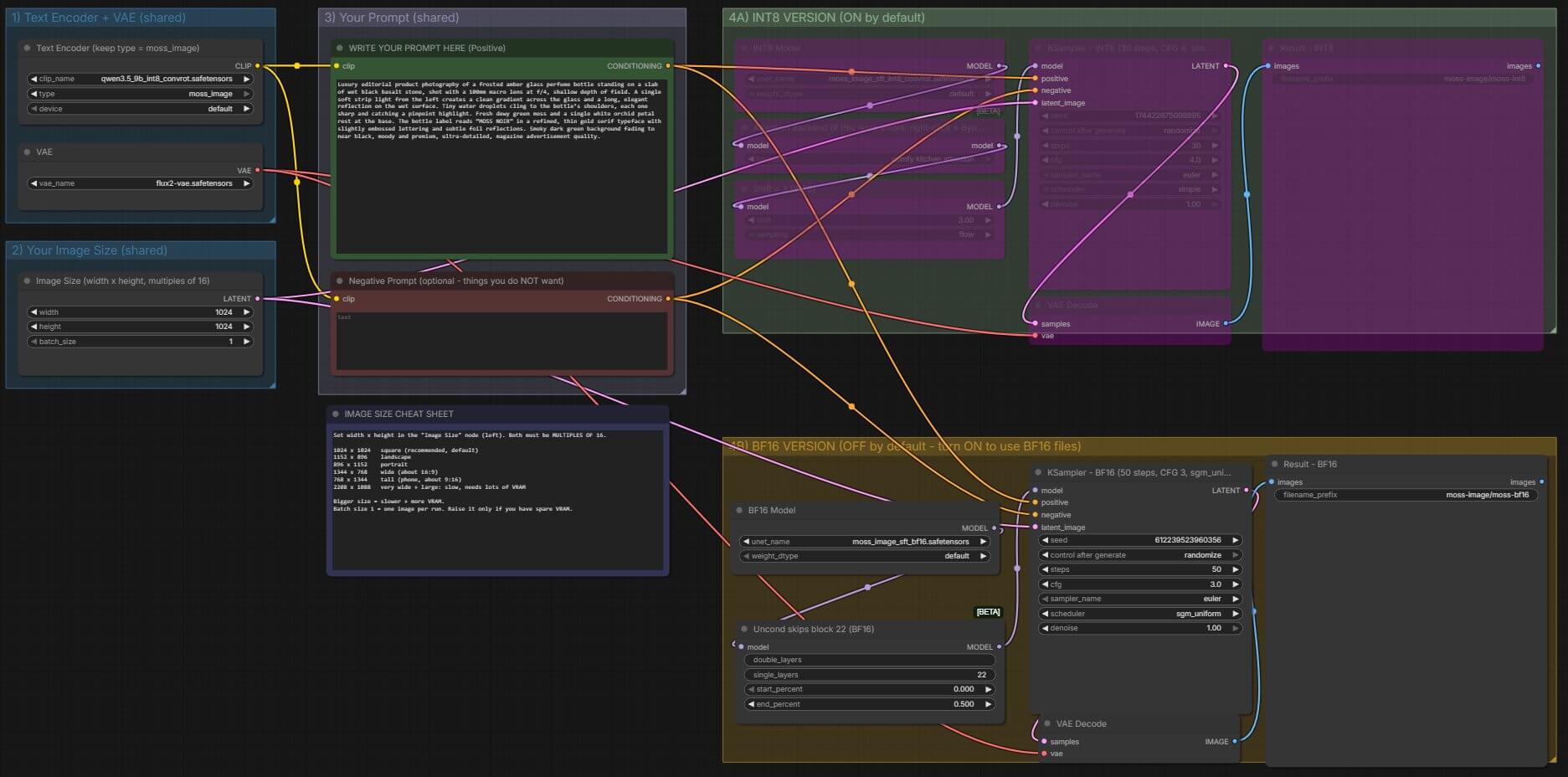
If some nodes have a red outline, your ComfyUI is too old. Go back to the update section.
Should you use the official template or this workflow?
ComfyUI also has official MOSS-Image templates. To find them, open the Template menu and search for MOSS-Image. The official ComfyUI MOSS-Image guide lists them.
The official template is the shorter path. It also has a prompt upsampler, which expands a short idea into a full description before the model starts. This workflow does not have that.
This workflow puts INT8 and BF16 in one file, so you can compare them. It also has notes beside every important setting. Both options work, so pick the one you like.
How Do You Run the MOSS-Image Text-to-Image Workflow?
Now you will generate your first image. The workflow is already connected, so you only need to check a few settings, write a prompt, and press Run.
- Choose one version. The INT8 group is on by default. The BF16 group is off, and its nodes look purple. To switch, click the title bar of the group you want to turn off and press Ctrl+B. Click the title bar of the other group and press Ctrl+B again. Use only one group at a time.
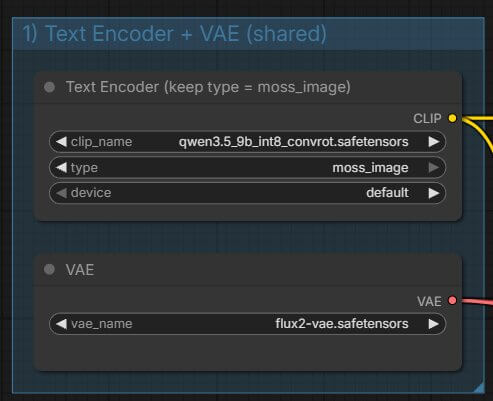
- Check the file names. In the INT8 Model node, open the dropdown and pick
moss_image_sft_int8_convrot.safetensors. In the Text Encoder node, pickqwen3.5_9b_int8_convrot.safetensors. In the VAE node, pickflux2-vae.safetensors. - Keep the text encoder type. In the Text Encoder node, the type must stay on moss_image. This tells ComfyUI how to read the text encoder file.
- Set the picture size. In the Image Size node, set the width and height. Both numbers must be multiples of 16. Start with 1024 by 1024.
- Write your prompt. Click the WRITE YOUR PROMPT HERE (Positive) node and type your description. The next part shows how to write a good one.
- Add a negative prompt if you want. The negative prompt is a list of things you do not want in the image. You can leave it empty or type words like blurry, deformed hands, or watermark.
- Click Run. The Run button is in the top-right corner of the screen. Older versions call it Queue Prompt. You can also press Ctrl+Enter.
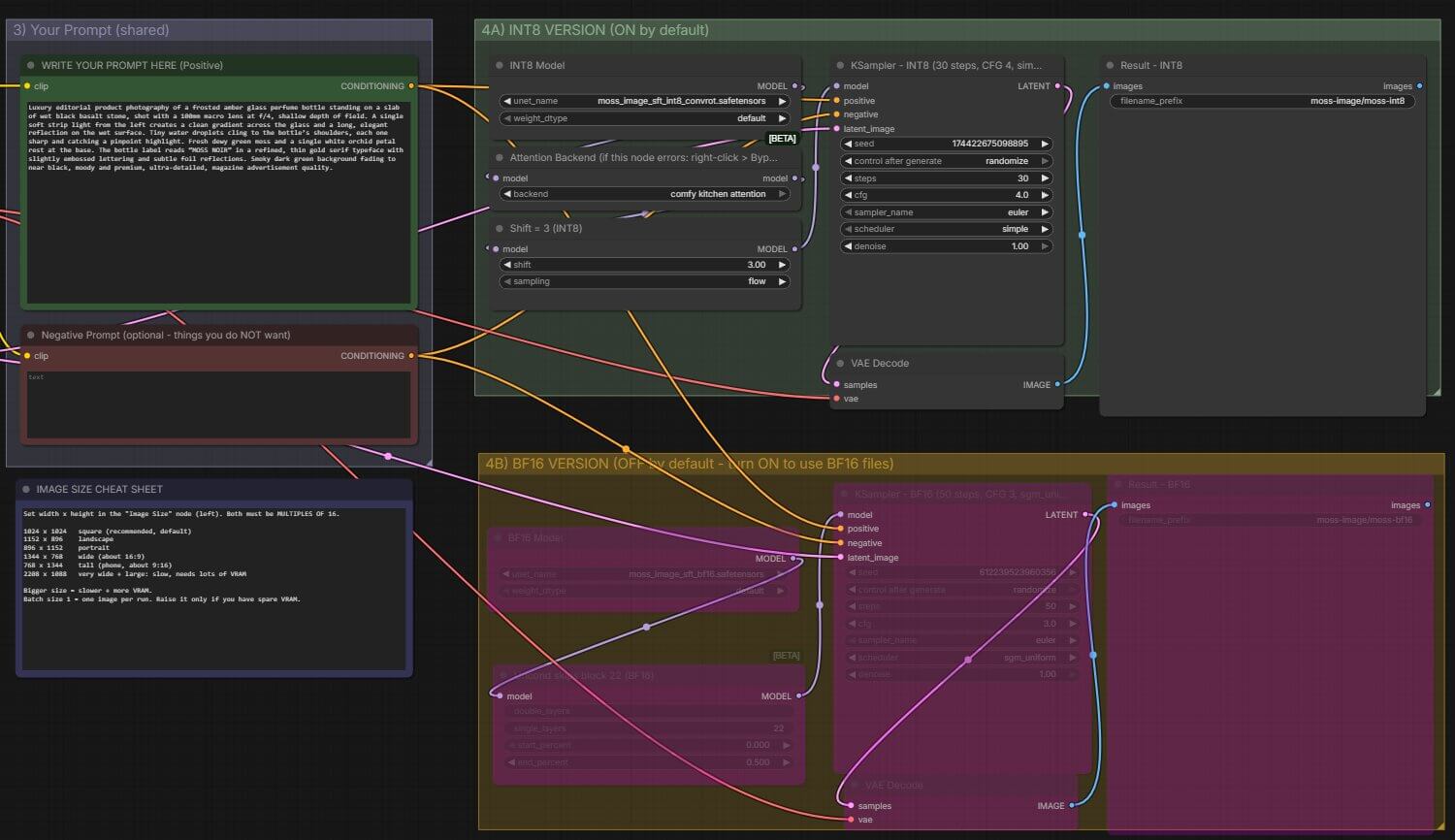
After you click Run, a colored outline moves from node to node, and a progress bar appears on the sampler node. The first run is usually slower, because ComfyUI must load the model files into memory. In our tests, the first image took about [first-run time in seconds] seconds, and the next ones took about [next-run time in seconds] seconds.
The finished image appears in the Result node at the end of the group. ComfyUI also saves it to ComfyUI/output/moss-image/. The file names start with moss-int8 or moss-bf16.
What sizes can you use?
Both numbers must be multiples of 16. Bigger pictures are slower and need more VRAM.
| Width × Height | Shape |
|---|---|
| 1024 × 1024 | Square (recommended) |
| 1152 × 896 | Landscape |
| 896 × 1152 | Portrait |
| 1344 × 768 | Wide (about 16:9) |
| 768 × 1344 | Tall (about 9:16, for phones) |
| 2208 × 1088 | Very wide and large: slow, needs lots of VRAM |
How do you write a good MOSS-Image prompt?
The model learned from full descriptions, so write full sentences, like a short paragraph. Do not write a list of tags. Use this order:
- Style or camera: for example, "candid film photograph" or "85mm lens, shallow depth of field".
- Subject: who or what it is, plus age, hair, skin, and expression if it is a person.
- Clothes and props: describe them layer by layer.
- Pose and framing: sitting, close-up, from behind, vertical shot.
- Background, place, and time of day.
- Lighting and mood: golden hour, overcast, flash, moody.
- The look at the end: film grain, sharp focus on the eyes.
To put words inside an image, write the exact words in "quotes". For example: a neon sign that reads "MOSS BAR".
What Does Each Node in the MOSS-Image Workflow Do?
A node is a rectangular block that does one job. You connect nodes with wires to build a workflow. You do not need to change most of these nodes, but it helps to know what each one does.
| Node (name in the workflow) | What it does | Setting to know |
|---|---|---|
| Text Encoder (CLIPLoader) | Loads the text encoder file | File qwen3.5_9b_int8_convrot.safetensors, type moss_image |
| VAE (VAELoader) | Loads the VAE file | File flux2-vae.safetensors |
| Image Size (EmptyFlux2LatentImage) | Makes the blank starting canvas in latent space (the compressed picture data the model works in) | 1024 × 1024, batch size 1 (one image per run) |
| WRITE YOUR PROMPT HERE (Positive) (CLIPTextEncode) | Turns your description into numbers | Your prompt text |
| Negative Prompt (CLIPTextEncode) | Turns the things you do not want into numbers | Can stay empty |
| INT8 Model / BF16 Model (UNETLoader) | Loads the main model | One file per group |
| Attention Backend (ModelAttentionBackend) | Picks the code that runs the model’s attention step (how it links your words to parts of the picture) | comfy kitchen attention. If this node shows an error, right-click it and choose Bypass |
| Shift = 3 (INT8) (ModelSamplingAuraFlow) | Changes how much of the work happens in the early, noisy steps | 3. INT8 group only |
| Uncond skips block 22 (BF16) (SkipLayerGuidanceDiTSimple) | Skips one layer (number 22) during the half of each step that ignores your prompt. This follows the MOSS-Image authors’ settings | Layer 22, start 0, end 0.5. BF16 group only |
| KSampler | Creates the image (see below) | Different per group |
| VAEDecode | Turns the finished picture data into a normal image | None |
| Result (SaveImage) | Shows the image and saves it to the output folder | Saves in output/moss-image |
The KSampler is the node that actually makes the image. These are its settings:
- Seed: the number that picks the random noise it starts from. The same seed and prompt give the same image. It is set to randomize, so each run is different.
- Steps: how many times it cleans the noise. More steps are slower and usually cleaner.
- CFG scale: how strictly it follows your prompt. Higher numbers follow it more closely.
- Sampler: the method it uses to remove the noise. Both groups use euler.
- Scheduler: how it spreads the work across the steps.
| Setting | INT8 group | BF16 group |
|---|---|---|
| Steps | 30 | 50 |
| CFG | 4 | 3 |
| Sampler | euler | euler |
| Scheduler | simple | sgm_uniform |
The BF16 numbers (50 steps, CFG 3) match what the official MOSS-Image notes recommend. The INT8 numbers are faster, and we chose them because [reason for the INT8 settings].
What Does a MOSS-Image Result Look Like? (Exact Prompt and Settings)
Here is the exact prompt we used for our first test. It asks for a product photo with words on the label:
Settings: [version, steps and CFG used], 1024 × 1024, seed [seed], generated on [GPU and VRAM] in [seconds] seconds.


Check the label first. The prompt asks for the words "MOSS NOIR". [what the label shows in your results, and how INT8 and BF16 differ]
What Should You Do When MOSS-Image Fails in ComfyUI?
Most problems have one of four causes. Check them in this order.
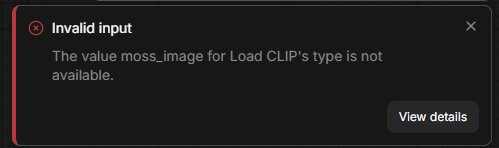
Error: Value moss_image for Load CLIP's type is not available
What causes it: Your ComfyUI is older than 0.41.3, so the Load CLIP node (the Text Encoder node in this workflow) does not know the moss_image type yet. You may also see nodes with a red outline.
How to fix it:
- Update ComfyUI (see the update section above).
- Restart ComfyUI.
- Load the workflow again.
- If the moss_image option is still missing, run the nightly updater.
- If a node is still red, follow our guide to install missing nodes in ComfyUI.
Error message: out of memory
What causes it: The model does not fit in your graphics card's VRAM.
How to fix it:
- Switch to the INT8 group.
- Lower the picture size to 1024 × 1024 or smaller.
- Keep the batch size at 1 (batch size is how many images ComfyUI makes in one run).
- Close other programs that use the GPU, such as games or video editors.
- Restart ComfyUI to clear the memory, and run again.
The image looks washed out, gray, or garbled
What causes it: There are three common causes.
How to fix it:
- Check that the settings match the file. INT8 uses 30 steps and CFG 4. BF16 uses 50 steps and CFG 3.
- Check that the Text Encoder type is moss_image.
- If you added SageAttention (a speed-up add-on) to the way you start ComfyUI, try removing it. One Hugging Face user reported washed-out colors when the
--use-sage-attentionoption was on. This is a single report, so test it on your own computer.
If the Attention Backend node shows an error, right-click it and choose Bypass.
Faint vertical stripes in smooth areas like the sky or a wall
What causes it: Several MOSS-Image model pages describe faint, evenly spaced vertical stripes in smooth areas with the SFT model.
How to fix it:
- Try a different seed. The stripes do not show up in every image.
- Add more detail to the background in your prompt, so there is less empty space.
- Look on Hugging Face for community fix LoRAs, such as the ones named "SFT Destripe" and "banding fix". We do not cover how to load them in this guide.
Frequently Asked Questions
What to Do Next
Run the same prompt in Krea 2 and compare the results.
Generate the amber bottle prompt in MOSS-Image, then run it in our Krea 2 workflow. Put the two images side by side to see how each model handles the text on the label.
What to Read Next
If MOSS-Image is running, the Z-Image workflow is a good second model to compare it against. Short on VRAM? Our ComfyUI low VRAM guide shows more ways to save memory, and our comparison of local image generation models helps you decide which one to keep.
— Written as a personal recommendation from the Earngenix team.
Published: 2026-10-20 · Last updated: 2026-10-20 · Model file names checked against the official Comfy-Org/MOSS-Image repository on Hugging Face.
Join the discussion
Sign in to leave a comment or reply
No comments yet
Be the first to share your thoughts!