
⚡ Quick Answer
If you have an NVIDIA GPU and a current copy of ComfyUI, the old --lowvram flag does nothing anymore — a newer system called Dynamic VRAM handles memory automatically, and it's on by default. This means your system RAM, not just your GPU's VRAM, decides how much you can actually generate. If you're on AMD, Mac, or running ComfyUI inside WSL, Dynamic VRAM isn't active by default, and the older rules and flags still apply to you.
If you searched for ComfyUI low VRAM, you've probably already found guides telling you to add --lowvram to your launch command. Here's the problem: on a current install with an NVIDIA card, that flag doesn't do anything. The official source code says so directly — its own help text reads, "Doesn't do anything if dynamic vram is enabled." And dynamic VRAM is enabled by default.
This guide explains what actually controls memory usage today, what you can realistically run on 4 GB, 6 GB, 8 GB, and 12 GB cards, and what to do when something still runs out of memory.
Why ComfyUI Low VRAM Advice From Last Year Is Probably Wrong Now
ComfyUI used to work like this: before running a workflow, it would guess how big your model was and how much VRAM (short for Video RAM — this is the memory built into your graphics card, separate from your computer's regular system memory) you had, then pick a loading strategy. If the guess was wrong, you got an out-of-memory crash. The --lowvram flag existed to force a more careful, cautious loading strategy for people with small GPUs.
Sometime around early-to-mid 2026, ComfyUI replaced that system with something called Dynamic VRAM. Instead of guessing upfront, it watches your GPU's memory in real time while the workflow runs, and moves pieces of the model between your GPU, your regular system RAM, and even your hard drive as needed — automatically, without you setting anything.
On a current install with an NVIDIA graphics card, Dynamic VRAM turns on by itself. Once it's on, the old --lowvram flag genuinely has no effect, because the whole point of that flag was to trigger the old cautious-loading behavior, and that old system isn't running anymore.
--lowvram still works exactly like it always has.What You Need Before You Start
Before you touch any settings, check two things: what GPU brand you have, and roughly how much system RAM your computer has. Both affect which advice in this article applies to you.
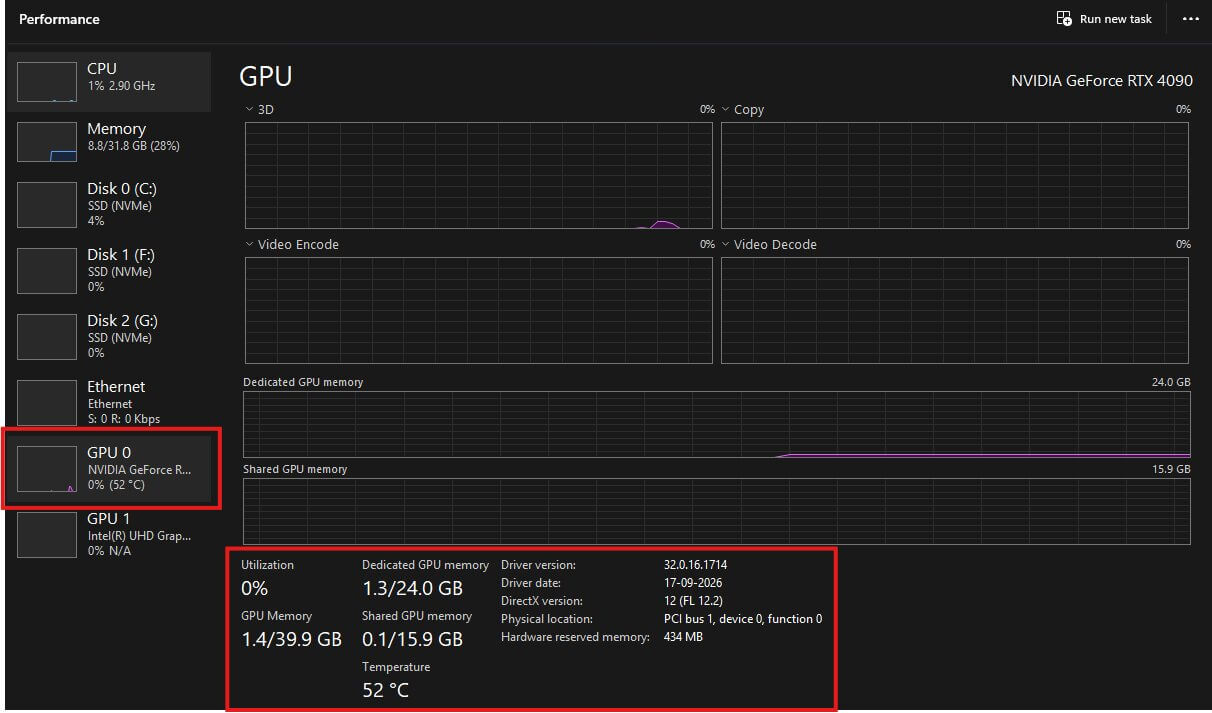
- Check your GPU brand, VRAM, and system RAM. Open Task Manager (press Ctrl+Shift+Esc), click the Performance tab, then check GPU for your dedicated GPU memory (this is your VRAM) and Memory for your total system RAM. If you want the full click-by-click walkthrough with screenshots, our best GPU for ComfyUI guide covers it in detail, including the Mac version of this check.
- Update ComfyUI to a current version. Dynamic VRAM only exists in newer builds. If you haven't updated in a while, follow the steps in how to update ComfyUI before continuing — running an old version means none of the Dynamic VRAM settings below will even be present.
You'll also see two file types mentioned in this guide: the checkpoint (this is the main AI model file — it controls what your generated images look like, usually saved as a safetensors file, a safer, faster-loading format than the older .ckpt format) and GGUF files (a compressed version of a model that trades a small amount of quality for a much smaller file size — these end in .gguf).
How Much VRAM (and RAM) Do You Actually Need? Picking Your Tier
VRAM size is still the single biggest factor in what you can run, even with Dynamic VRAM helping in the background. Find your card below and use the model suggested for that tier.
| VRAM | Model File | Notes |
|---|---|---|
| 4 GB | v1-5-pruned-emaonly-fp16.safetensors | SD 1.5 only, 512×512. VRAM is still the hard limit at this size. |
| 6 GB | z_image_turbo-Q4_K_M.gguf | Needs the ComfyUI-GGUF custom node. Keep an eye on system RAM too. |
| 8 GB | z_image_turbo-Q8_0.gguf | Or FP8 builds. SDXL runs comfortably here without quantization. |
| 12 GB | flux1-dev (fp8 / GGUF) | Full SDXL, and 2–3 stacked LoRAs without trouble. |
4 GB VRAM — What You Can Realistically Run
Four gigabytes is ComfyUI's practical floor. At this size, VRAM itself is still the hard limit that Dynamic VRAM cannot get around — there simply isn't enough room on the card for anything bigger, regardless of how much system RAM you have.
Model: Stable Diffusion 1.5, using the file v1-5-pruned-emaonly-fp16.safetensors. Resolution: stay at 512×512 — going higher will very likely cause an out-of-memory error on a 4 GB card. Place the file in your ComfyUI/models/checkpoints/ folder.
6 GB VRAM — What You Can Realistically Run
At 6 GB, you can run a modern, good-quality model, but you need the compressed GGUF version, not the full-size original.
Model: Z-Image Turbo, using the GGUF file z_image_turbo-Q4_K_M.gguf (about 4.98 GB). Note the underscores in the filename — some other sites write it with hyphens, which is incorrect.
.gguf format. On 6 GB cards, running out of regular system RAM — not VRAM — is a common cause of crashes with GGUF models. Aim for at least 16 GB of system RAM as a baseline.8 GB VRAM — What You Can Realistically Run
Eight gigabytes is a comfortable, popular tier. You can run SDXL at full quality, or step up to a higher-quality Z-Image Turbo file.
Model: Z-Image Turbo, using z_image_turbo-Q8_0.gguf (about 7.22 GB), or an FP8 version of the same model if you'd rather skip the GGUF node entirely. FP8 stores a model's numbers using less precision — it shrinks the file and speeds it up, with a small, usually unnoticeable, quality trade-off. SDXL checkpoints also run comfortably here without needing any compressed version at all.
12 GB VRAM — What You Can Realistically Run
At 12 GB, most current models run well, including Flux.1-dev in its FP8 or GGUF form, full SDXL, and stacking two or three LoRAs (small add-on files that change a model's style) on top of a base model without trouble.
The System RAM Setting That Actually Decides What Runs (Dynamic VRAM Explained)
Here's the part most guides skip. If Dynamic VRAM is active on your system (NVIDIA card, not WSL, current PyTorch — see the checklist above), it doesn't just manage your GPU's memory. It streams data between four places, from fastest to slowest: your VRAM, then a special "reserved" section of system RAM, then regular system RAM, then your hard drive.
What this means in plain terms: even if a model is technically too big for your VRAM, ComfyUI can often still run it by temporarily parking the parts it isn't using in your system RAM. The catch is that if your system RAM is also low, or your hard drive is a slow, older type, this streaming process either fails outright or becomes extremely slow.
This is why two people with the exact same graphics card can have completely different experiences — one has 64 GB of system RAM and everything runs smoothly, while the other has 16 GB and keeps hitting errors or waiting far longer than expected.
Settings Worth Knowing
These are all typed as extra text after main.py in your launch command:
--reserve-vram [number]— tells ComfyUI to always keep a certain amount of VRAM free for other programs, in gigabytes. Useful if you're also gaming or browsing while generating.--disable-pinned-memory— occasionally fixes out-of-memory errors that don't make sense given how much RAM you have. This is a genuinely unusual-sounding fix, but multiple real user reports confirm turning this off stopped otherwise unexplainable crashes.--fast-disk— if your models are stored on a fast NVMe solid-state drive (not a regular hard drive, and not a USB external drive), this can speed up the streaming process described above.
--lowvram flag (which forces text encoders to run on your CPU instead of your GPU, freeing up VRAM at the cost of some speed) is still your main tool, along with the tier guidance above.How to Check Your Dynamic VRAM Settings and Launch ComfyUI Correctly
Follow these steps to find out whether Dynamic VRAM is active on your system, and how to add a setting if you need one.
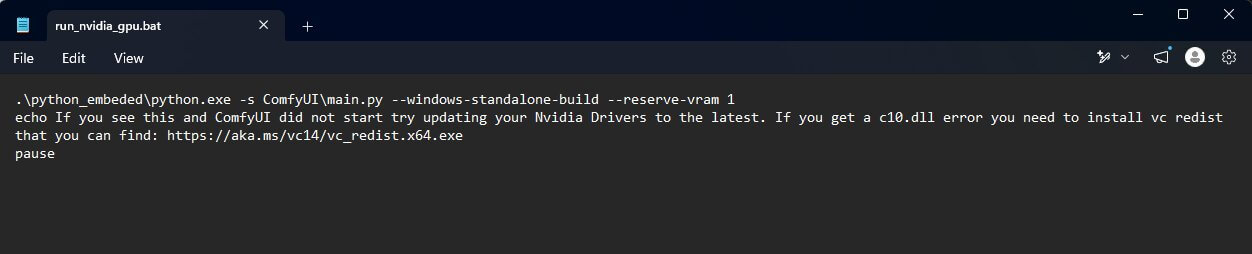
- Find your ComfyUI launch file. If you installed the Desktop app, this is handled automatically and you'll need to add settings through the app's settings menu instead of a launch file. If you installed the Portable version, look for a file called
run_nvidia_gpu.bat(Windows) in your main ComfyUI folder. - Open the launch file in a plain text editor — right-click it and choose Edit, or open Notepad first and drag the file into it. Don't double-click it, or it will run instead of opening for editing.
- Look at the last line of the file. It will start with something like
.\python_embeded\python.exe -s ComfyUI\main.py. This is the command that starts ComfyUI. - Add your flag to the end of that line, with a space before it — for example, add
--reserve-vram 1if you want to reserve 1 GB of VRAM. Save the file when you're done. - Launch ComfyUI normally by double-clicking the file you just edited. Watch the black terminal window that opens.
- Check for confirmation. You should see a line mentioning model loading and memory — this confirms Dynamic VRAM (or your added flag) is active. If you don't see any memory-related messages at all in the first few lines, something didn't apply correctly, and it's worth double-checking your edit for typos.
Troubleshooting
Running into something not covered below? Our general ComfyUI troubleshooting guide covers the errors that show up across every workflow, not just this one.
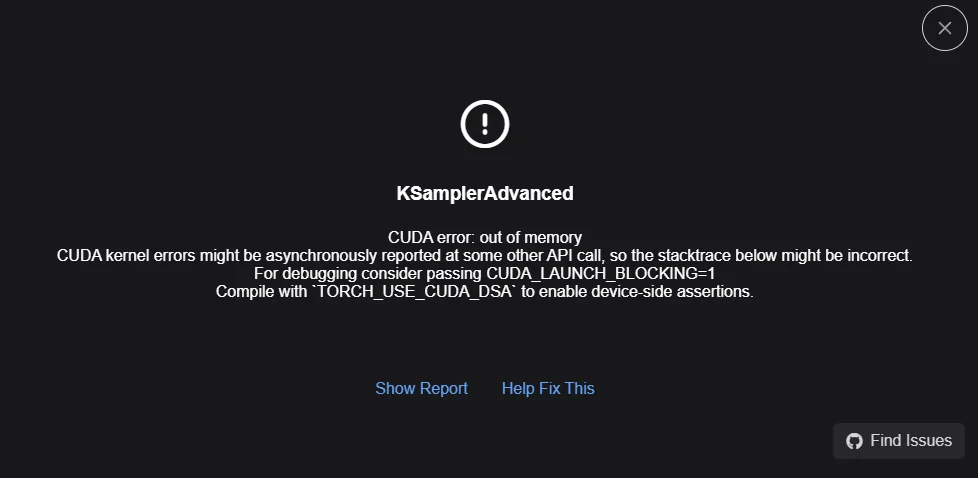
"torch.OutOfMemoryError: Allocation on device"
What causes it: Your GPU ran out of VRAM partway through generating an image or video. This is the current, most common version of the out-of-memory error — an older ComfyUI version might instead show the longer message "Allocation on device 0 would exceed allowed memory. (out of memory)," which means the same thing.
- Lower your image resolution first — this has the single biggest impact on VRAM usage.
- Reduce your batch size (the number of images generated at once) to 1, if it isn't already.
- Switch to a smaller or more compressed version of your model — for example, move from an FP16 or FP8 checkpoint down to a GGUF version, using the tier guide above to pick the right one for your card.
- If you're on an NVIDIA card with Dynamic VRAM active, try adding
--disable-pinned-memoryto your launch command — this has fixed OOM errors for some users even when they had plenty of VRAM on paper.
--lowvram Isn't Doing Anything — Why, and What Actually Works Instead
What causes it: You're on an NVIDIA card with Dynamic VRAM active, which makes --lowvram a no-op by design, not a bug.
How to fix it: Stop relying on --lowvram and instead pick the right model size for your VRAM tier, using the guide above. If you're specifically trying to free up VRAM for other programs, use --reserve-vram instead. If you're seeing a completely different error — such as red boxes on nodes rather than an out-of-memory crash — that's usually a missing-nodes error instead, which has a different fix.
Generation Finishes but Takes 5–10x Longer Than It Should
What causes it: Under Dynamic VRAM, when a model is too big for your VRAM and your system RAM is also tight, ComfyUI keeps moving data back and forth between VRAM, RAM, and your hard drive during every single step of generation — sometimes called "spilling." It works, but it's slow.
- Check your available system RAM using the Task Manager steps from earlier in this article. If it's close to full, close other programs before generating.
- If your models are stored on a regular hard drive rather than an SSD, moving them to an SSD (ideally NVMe) will noticeably help.
- Try adding
--fast-diskto your launch command if you're on a fast NVMe drive. - As a last resort, drop down one VRAM tier in the model guide above — a smaller, well-fitted model will always be faster than a large one that's constantly spilling to RAM.
Once your settings match your hardware, a good next check is whether all your model files are actually sitting in the right folders — our checkpoint models guide covers exactly where each file type belongs.
Frequently Asked Questions
What to Do Next
Explore what's new in ComfyUI for 2026.
Some of what changed there affects how Dynamic VRAM behaves, so it's worth a read once your settings are sorted. For a structured path through the rest of ComfyUI's beginner fundamentals, see the full roadmap.
What to Read Next
If your settings are sorted, the two guides worth reading next are how checkpoint models work, since picking the right file format matters just as much as your VRAM tier, and our missing nodes guide if a red error box shows up that isn't about memory. If you're finding your card just isn't enough no matter what you change, our GPU buying guide breaks down exactly how much VRAM to buy for the models you want to run.
— Written as a personal recommendation from the Earngenix team.
Published: 2026-09-29 · Last updated: 2026-09-29 · Settings verified against the official ComfyUI startup-flags documentation.
Join the discussion
Sign in to leave a comment or reply
No comments yet
Be the first to share your thoughts!