
⚡ Quick Answer
A SageAttention wheel (a pre-built package file ending in .whl) fails to install in ComfyUI almost always because it doesn't match your CUDA version, your PyTorch version, or your Python version. The wheel's filename tells you exactly which versions it needs — check your own three versions first, then pick the wheel whose filename matches all three.
If you've already installed Triton and tried to install SageAttention, but pip either refuses the file outright or installs it and then ComfyUI can't find it, the problem is almost never SageAttention itself. It's a mismatch between the wheel file you downloaded and the CUDA, PyTorch, or Python setup already on your computer. This guide shows you how to check your own versions, how to read a SageAttention wheel filename so you know exactly what it needs, and how to fix the three most common pip errors that show up when the versions don't line up.
This guide assumes Triton is already installed and working. If you haven't installed Triton yet, or you're setting up SageAttention from scratch, follow the full SageAttention install guide first, then come back here if the wheel step is the part giving you trouble.
What You Need Before Matching a SageAttention Wheel
- Triton already installed. Triton is a tool that lets your computer compile GPU code — SageAttention needs it to run. If
import tritonfails, or you haven't installed it yet, finish that step first. - A terminal (command prompt) open inside your
ComfyUI_windows_portablefolder. This is the folder that containspython_embededandComfyUIas subfolders — your ComfyUI portable installation root. Every command in this guide is typed here.
.\python_embeded\python.exe. That's not decoration — it's the whole reason wheel installs go wrong for a lot of people. If you type just python or pipinstead, Windows may run a completely different, unrelated copy of Python that isn't the one ComfyUI actually uses, and the install will silently go to the wrong place.How Do You Check Your CUDA, PyTorch, and Python Versions in ComfyUI?
A SageAttention wheel is built for one specific combination of Python, CUDA, and PyTorch. Before you can pick the right one, you need to know your own three numbers. Run these three commands in order and write down what each one tells you.
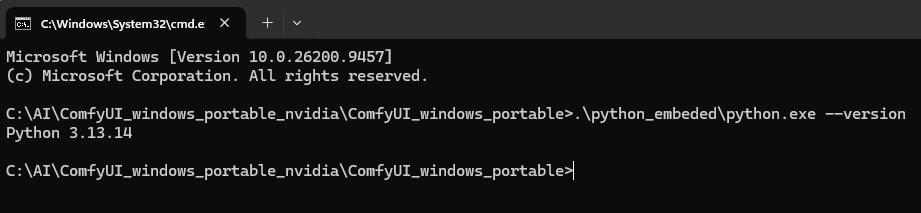
Check Your Embedded Python Version
.\python_embeded\python.exe --versionYou should see something like Python 3.12.7 or Python 3.13.11 printed on screen. Write this number down — it decides which "ABI tag" your wheel needs (explained in the next section).
Check Your CUDA Version
CUDA is the software NVIDIA GPUs use to run heavy calculations like AI image generation. Your GPU driver has one CUDA version installed, and PyTorch was built against a specific CUDA version too — the wheel needs to match the one PyTorch is using, not necessarily your driver's newest supported version.
.\python_embeded\python.exe -c "import torch; print(torch.version.cuda)"This prints a number like 12.8 or 13.0. If it prints None instead, PyTorch isn't installed yet, or it's installed as a CPU-only build — install PyTorch with CUDA support before continuing (the main install guide's PyTorch step covers this).

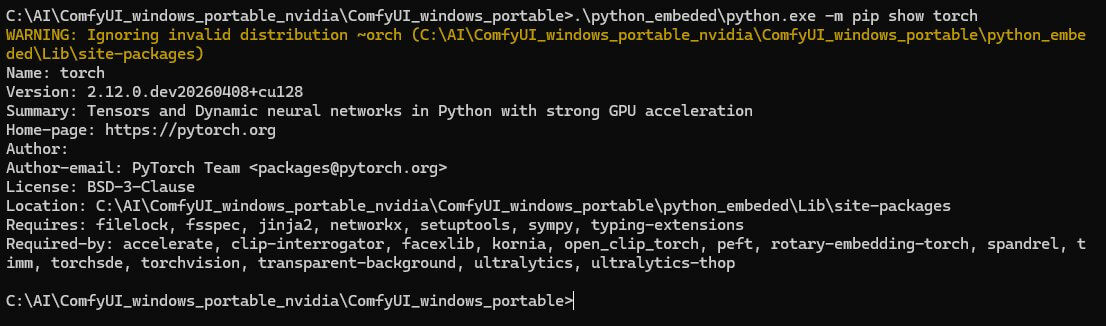
Check Your PyTorch Version
.\python_embeded\python.exe -m pip show torchLook for the line starting with Version: — for example Version: 2.10.0.dev20260815+cu130. That full string, including everything after the +, matters. If this command prints nothing useful, run this instead:
.\python_embeded\python.exe -m pip freezeand look for a line starting with torch==.
How Do You Read a SageAttention Wheel Filename?
Once you have your three version numbers, you need to be able to read a SageAttention wheel filename and know whether it matches you. Here's a real example, broken into its parts:
sageattention-2.2.0+cu130torch2.10.0andhigher.post6-cp310-abi3-win_amd64.whl- sageattention-2.2.0 — the SageAttention version itself.
- cu130 — the CUDA version this wheel was built for. This must match the CUDA number you checked above (
12.8→ look forcu128,13.0→ look forcu130). - torch2.10.0andhigher — the minimum PyTorch version this wheel works with. "andhigher" means it supports that version and later ones, but only within the same CUDA tag — a
cu130wheel still needs acu130build of PyTorch, even if the PyTorch version number itself is higher. - post6 — a release/build number. Higher usually means newer and more bug fixes, not a different requirement.
- cp310-abi3 — the Python compatibility tag.
cp310-abi3means it works with Python 3.10 and any newer version, because it uses the "stable ABI" (application binary interface — the part of Python that doesn't change between minor versions). An older wheel might instead saycp39-abi3, meaning Python 3.9 and newer. - win_amd64 — confirms it's built for 64-bit Windows. If you're not on 64-bit Windows, this wheel isn't for you at all.
cp39-abi3 or cp310-abi3wheel will both work — ABI3 wheels are backward-compatible with any Python version at or above the number in the tag. You don't need an exact Python match, just one that's the same or newer.Which SageAttention Wheel Do You Actually Need?
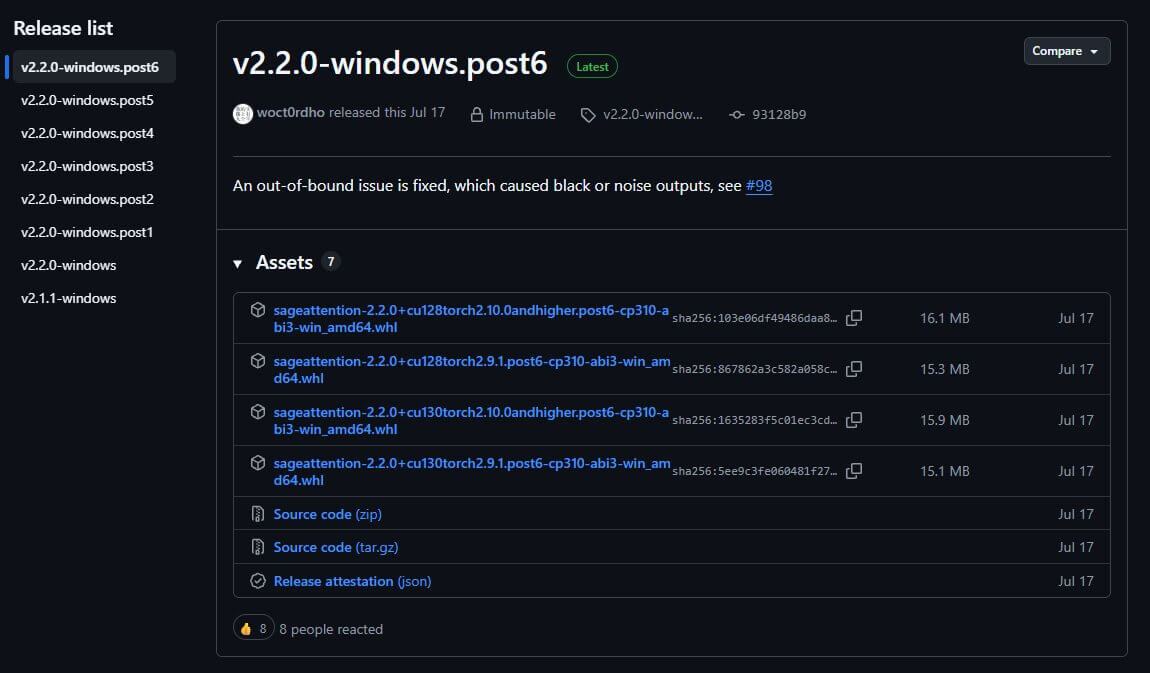
Match your CUDA version and PyTorch version to the wheel's cuXXX and torchX.X.Xandhigher tags. The two rows below are real filename patterns from recent SageAttention releases, shown so you can see the pattern — always confirm against the current release list before downloading, since new wheels are published often and older ones get replaced.
| If you have... | Look for a filename containing... |
|---|---|
| CUDA 12.8, PyTorch 2.9.0 or newer | cu128torch2.9.0andhigher |
| CUDA 13.0, PyTorch 2.10.0 or newer | cu130torch2.10.0andhigher |
Go to the SageAttention releases page on GitHub: https://github.com/woct0rdho/SageAttention/releases. Scroll to the latest release and find the .whl file whose CUDA tag and PyTorch tag match your two numbers from earlier, and whose ABI tag (cp39-abi3 or cp310-abi3) is at or below your Python version.
--use-ck-attention) and needing no wheel install at all. If you're on a recent ComfyUI version, it's worth checking whether you need SageAttention specifically or whether comfy kitchen already covers what you need — that comparison is a separate topic, but it's worth knowing the option exists before you spend time matching wheel versions.How to Install the Matching Wheel
- Download the
.whlfile you matched above and move it into yourComfyUI_windows_portablefolder — the same folder where your terminal is open. - Install it with pip, using the real filename (not a placeholder) — see the example below.
- Check for the success message. You should see a line near the bottom that says something like
Successfully installed sageattention-2.2.0+.... If you see that, the wheel installed correctly.
.\python_embeded\python.exe -m pip install sageattention-2.2.0+cu130torch2.10.0andhigher.post6-cp310-abi3-win_amd64.whlReplace the filename above with whatever you actually downloaded.
.\python_embeded\python.exe -m pip install sageattention- and then press the Tabkey — Windows will auto-complete the rest of the filename for you, so you don't have to type the whole thing by hand.
Installing the wheel is not the same as turning SageAttention on. ComfyUI still needs to be told to use it at startup with the --use-sage-attention flag — that step, plus how to confirm it's actually running, is covered in the full SageAttention install guide.
Why Is Pip Rejecting Your SageAttention Wheel?
Running into something not covered below? Our general ComfyUI troubleshooting guide covers errors that show up across every workflow, not just this one.
"No matching distribution found for sageattention==X.X.X"
What causes it: This shows up when you try to install SageAttention by name — for example pip install sageattention==2.2.0 — instead of installing a downloaded .whl file directly. SageAttention's Windows wheels aren't published to PyPI (the normal online package index pip searches by default), so pip has nowhere to find them by name.
How to fix it: Download the exact .whl file from the GitHub releases page yourself, and install it by its local filename, as shown in the install steps above — not by typing a package name and version.
"... is not a supported wheel on this platform"
What causes it: The wheel's ABI tag (cp39-abi3, cp310-abi3) or the win_amd64 part doesn't match your embedded Python version or your operating system.
- Re-run the Python version check from earlier in this guide.
- Go back to the wheel filename breakdown and confirm the
cpXX-abi3number is equal to or lower than your Python version. - Download a different wheel from the releases page if the one you chose doesn't match, and reinstall.
"No module named 'sageattention'" (after pip said the install succeeded)
What causes it: The wheel installed into the wrong copy of Python on your computer — usually your system-wide Python instead of ComfyUI's own python_embeded copy. ComfyUI can only see packages installed into python_embeded.
- Open a terminal inside
ComfyUI_windows_portableagain (not any other folder). - Reinstall using the full path, exactly as shown earlier:
.\python_embeded\python.exe -m pip install <your-file>.whl. - Confirm it worked by running
.\python_embeded\python.exe -c "import sageattention"— if nothing prints, it worked. An error means it's still not installed in the right place.
Frequently Asked Questions
What to Do Next
Turn SageAttention on and confirm it's running.
A matched, installed wheel doesn't do anything until ComfyUI is told to use it. The full install guide covers the launch flag and how to check the console for confirmation.
What to Read Next
If your wheel is installed and working, head back to the full SageAttention install guide to enable it and confirm it's running. Started from a fresh ComfyUI setup? Our ComfyUI install guide covers Desktop vs. portable. And if a version mismatch showed up right after updating ComfyUI, our guide to updating ComfyUI explains why that happens.
— Written as a personal recommendation from the Earngenix team.
Published: 2026-09-29 · Last updated: 2026-09-29 · Wheel filenames verified against the SageAttention GitHub releases page.
Join the discussion
Sign in to leave a comment or reply
No comments yet
Be the first to share your thoughts!