
⚡ Quick Answer
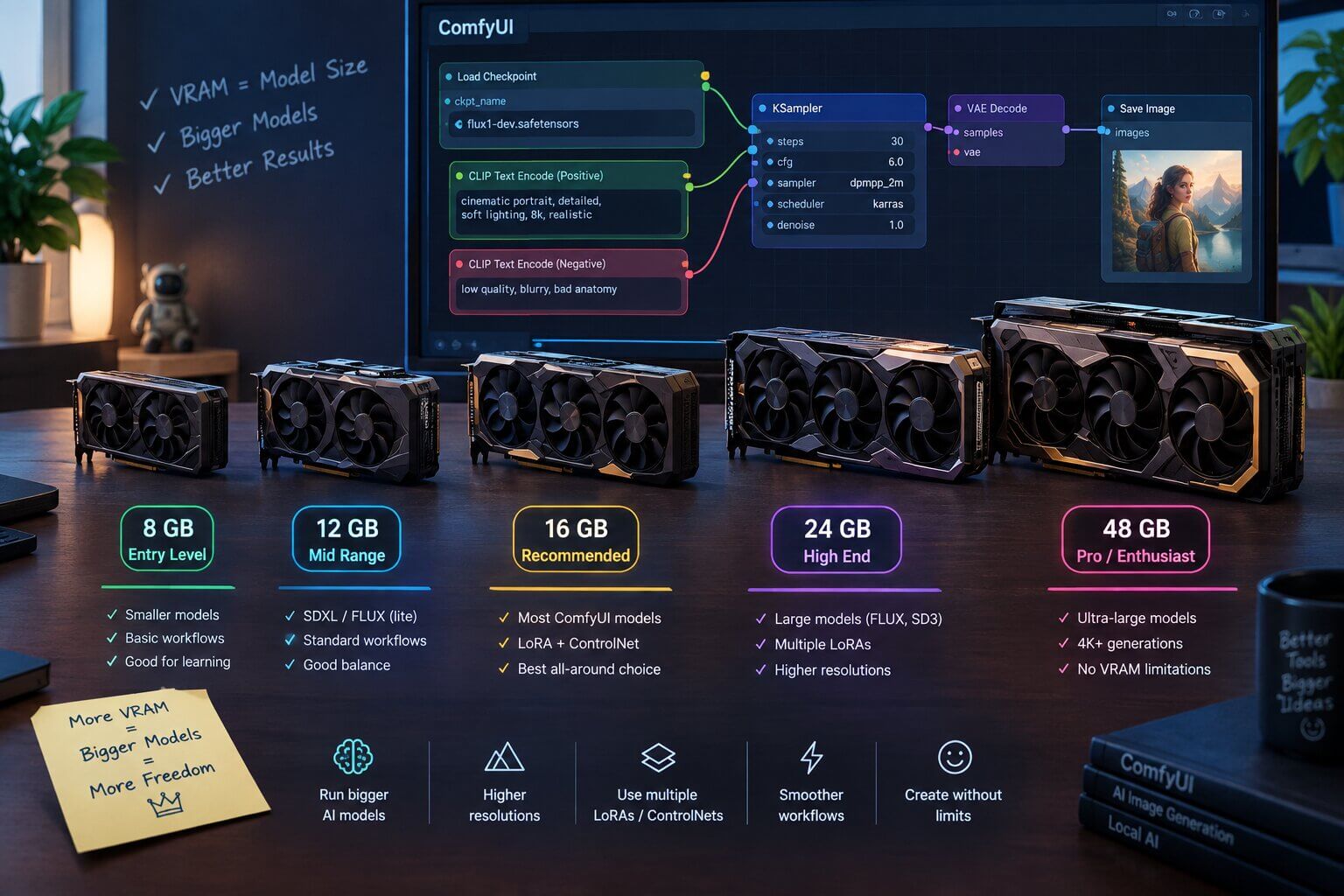
The best GPU for ComfyUIin 2026 isn't the fastest one — it's the one with enough VRAM to hold the model you want to run. 8 GB works for smaller checkpoints and GGUF versions of Flux, 12–16 GB covers most current models comfortably, and 20 GB+ is for large models like full-precision Flux.2 or long video generation. Check your current GPU's VRAM before spending anything — you may already have enough.
If you're about to buy a GPU for ComfyUI, here's the trap: a graphics card can be fast and still fail to run the model you want. That happens when the card doesn't have enough VRAM — the memory built into the GPU itself — to hold the model in the first place. Speed only matters once the model actually fits.
This guide walks through exactly how much VRAM you need, by tier, so you buy the right card once instead of twice.
How to Check Your GPU and VRAM Before You Buy Anything
Before you spend any money, find out what you already have. Some readers already own a GPU with enough VRAM and don't know it.
VRAM(short for Video RAM) is the memory built directly onto your graphics card. It's separate from your computer's regular system memory (RAM). ComfyUI loads AI models into VRAM, not regular RAM, so VRAM size is the number that decides what you can run.
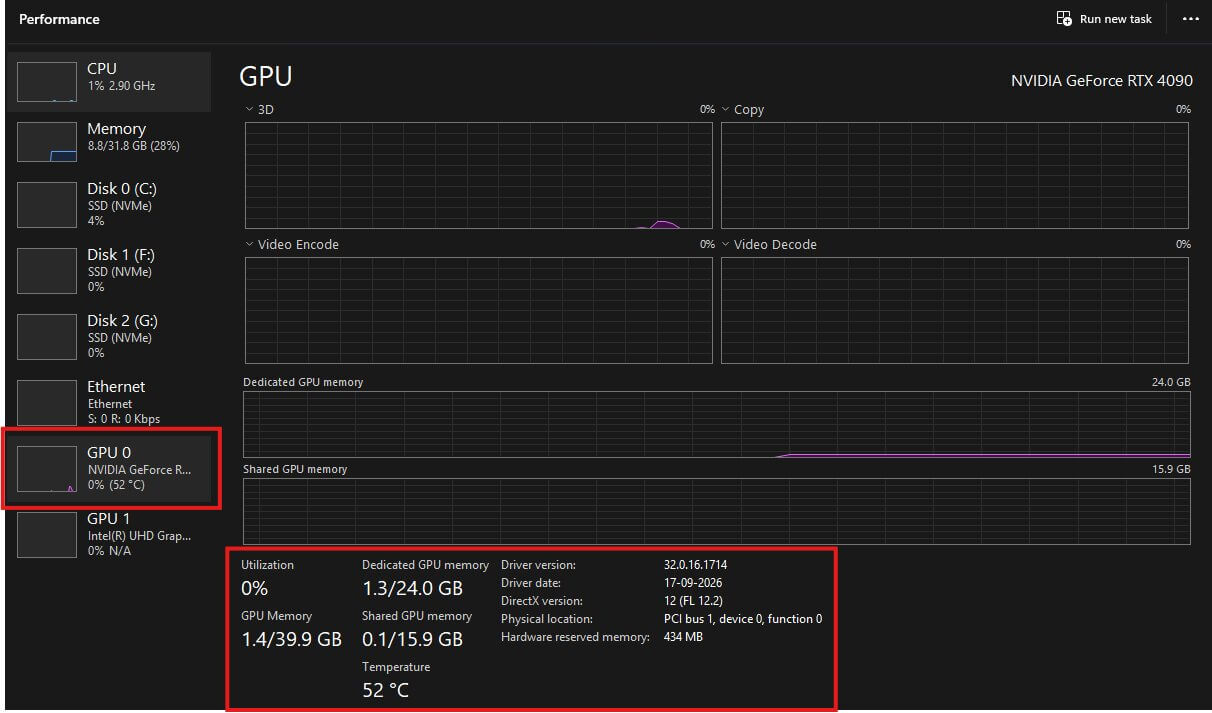
On Windows — Task Manager's Performance Tab
- Press Ctrl + Shift + Esc to open Task Manager. A window with several tabs appears.
- Click the Performance tab near the top.
- In the left sidebar, click GPU 0 (or GPU 1 if you have more than one). A graph and a set of numbers appear on the right.
- Look for Dedicated GPU Memory. This is your VRAM. You'll see something like "6.0/8.0 GB" — the second number is your total VRAM.
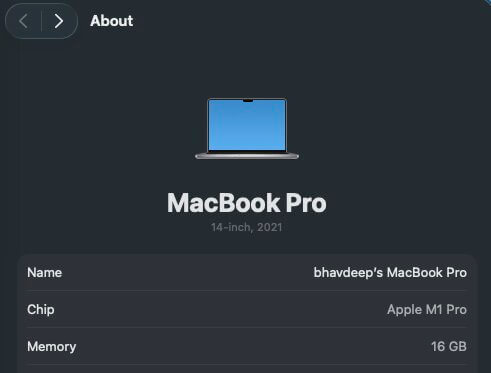
On Mac — About This Mac
- Click the Apple menu in the top-left corner of your screen.
- Click About This Mac. A window appears showing your Mac's specs.
- Look for Chip and Memory. On Apple Silicon Macs (M1, M2, M3, M4), there's no separate VRAM number — the chip uses unified memory, meaning the whole amount of memory shown here is shared between your Mac's processor and its graphics.
Once you have your VRAM number, keep it in mind for the rest of this guide. Every model size and every tier below is measured against this one number, not your total system memory.
What Actually Determines Whether a GPU Can Run ComfyUI?
A GPU with a high clock speed and thousands of processing cores can still fail to run a model — because before ComfyUI can generate anything, it has to load the entire model into VRAM. If the model is larger than your VRAM, the process fails before generation even starts.
This is different from how most people shop for GPUs. Gaming benchmarks focus on frame rates and rendering speed. Those numbers barely matter here. What matters is a single question: does this model fit in this card's memory?
The checkpoint (the main AI model file, and it controls what style and quality your images have) is usually the largest single file ComfyUI loads. Checkpoint file sizes range from around 2 GB for small, distilled models up to 20+ GB for large, full-precision models. Once loaded, the model needs additional VRAM on top of its file size to actually generate an image — so a 12 GB checkpoint file might need 14–16 GB of VRAM to run comfortably.
This is why two GPUs with similar speed can behave completely differently in ComfyUI: the one with more VRAM simply has more room to work with.
Best GPU for ComfyUI by VRAM Tier (2026)
GPU prices change fast and vary a lot by region and availability, so this guide sorts by VRAM tier instead of exact price. Check current prices at the time you're buying — the tier is what stays true.
| VRAM | Good For | Watch Out For |
|---|---|---|
8 GB | GGUF and distilled models, learning ComfyUI | Slower generation, limited to compressed models |
12–16 GB | Most current image models at full or near-full quality | 12 GB can feel tight as models grow — 16 GB ages better |
20–24 GB+ | Full-precision large models, local AI video | Mostly worth it once you actually need video or training |
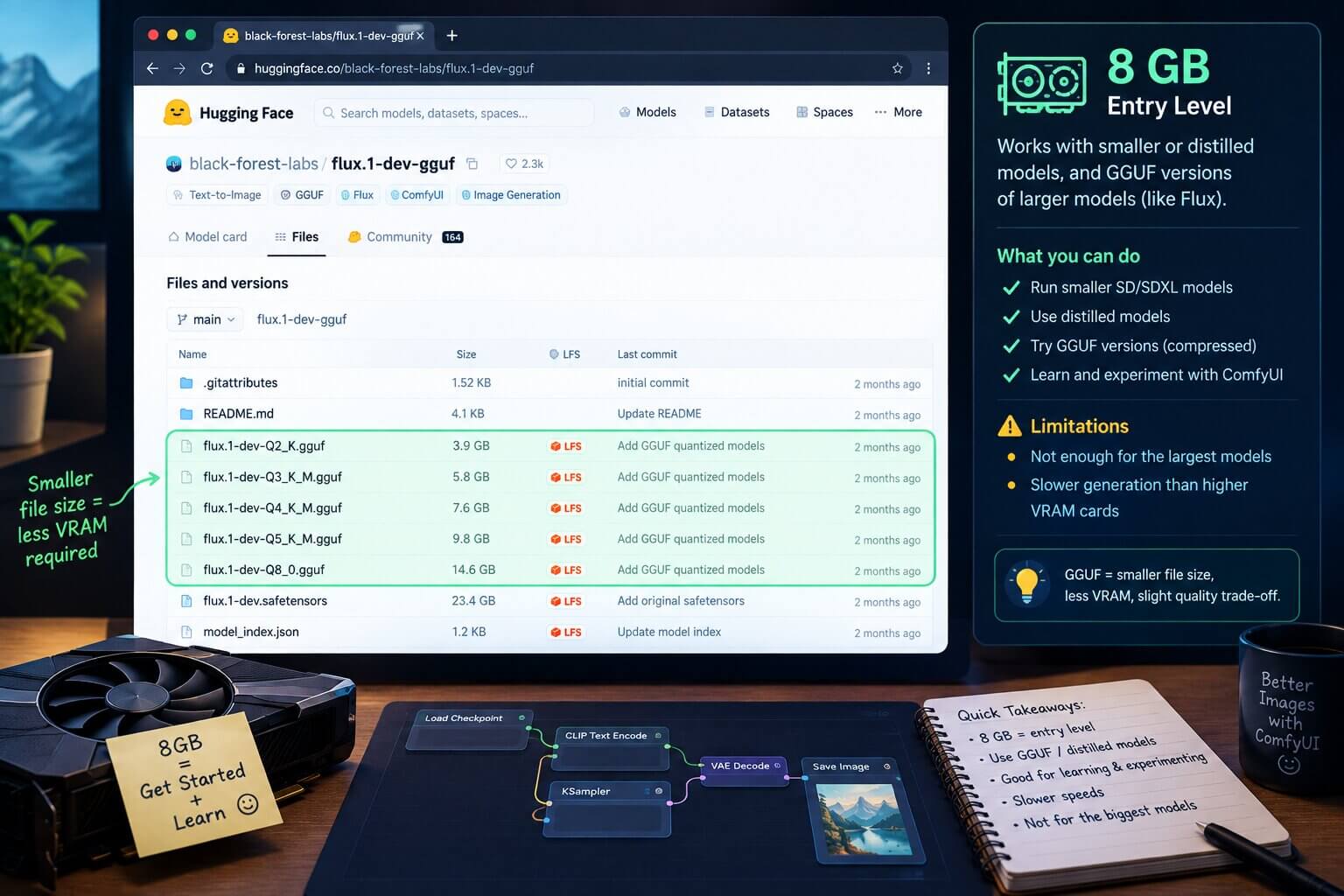
8 GB — Entry Level (GGUF and Distilled Models Only)
An 8 GB card is the minimum realistic starting point for ComfyUI in 2026. At this size, you're mostly limited to smaller or distilled models, or GGUF (a compressed version of a model that uses less VRAM, at some cost to image quality) versions of larger models like Flux.
This is genuinely enough to get started and learn ComfyUI. It is not enough for the largest, full-precision models, and generation will be slower than on higher-VRAM cards because ComfyUI has to work harder to fit everything into a smaller space.
12–16 GB — The Practical Sweet Spot
This is the range most ComfyUI users land on in 2026, and it's the best starting point for anyone serious about running current models without constant workarounds. At 12–16 GB, most current image models run at full or near-full quality, without needing a heavily quantized model (a version of a model compressed to take up less space and VRAM, similar to GGUF).
If you're weighing a 12 GB card against a 16 GB card at a similar price, the 16 GB card is usually the safer buy. Models tend to grow in size over time, and the extra headroom means you won't outgrow the card as quickly.
20–24 GB+ — Full-Precision Models and Longer Video
At 20 GB and above, you can run full-precision, uncompressed versions of the largest current image models, and you have enough headroom for local AI video generation, which typically needs significantly more VRAM than image generation alone. This tier is realistically Nvidia-only in 2026 for serious local video work, since the software support for video models is most mature on Nvidia hardware.
This tier is worth it if you know you want to move into video generation or you're training your own models. If you're only doing occasional image generation, this is more VRAM than you likely need yet. Deciding whether video is worth the jump? see our full VRAM and hardware guide for AI video.
Used and Older Cards — What to Watch For
A used GPU can be a genuinely good way to get more VRAM for less money, but check three things before buying:
- VRAM size first — an older card with more VRAM often beats a newer card with less, for ComfyUI specifically.
- Driver support — make sure the manufacturer still releases current drivers for the card. Without current drivers, you may run into installation problems.
- Physical condition — ask about usage history if possible. A card used for cryptocurrency mining for years has more wear than one used for gaming a few hours a week.
Does It Have to Be Nvidia? AMD, Apple Silicon, and CPU-Only
You don't strictly need an Nvidia GPU to run ComfyUI. According to the official ComfyUI documentation, ComfyUI supports Nvidia, AMD, Intel, and Apple Silicon hardware. But support isn't equal across all of them, and this matters for anyone deciding what to buy.
Nvidia has the most mature software support in ComfyUI. Most tutorials, custom nodes, and new model releases are built and tested on Nvidia first, so things are more likely to "just work."
AMD support exists but is less consistent. Depending on the specific card and driver setup, some workflows and custom nodes may not run, or may need extra setup steps that Nvidia users don't have to deal with.
Apple Silicon Macs (M1 through M4) can run ComfyUI using their unified memory, and this works reasonably well for image generation. It's generally slower than an equivalent-tier Nvidia GPU, and support for some newer models and video workflows lags behind Nvidia.
Running ComfyUI on CPU only (no dedicated GPU at all) is technically possible but very slow — generation that takes 15–30 seconds on a decent GPU can take many minutes on CPU alone. This is fine for testing that ComfyUI is installed correctly, but not practical for regular use.
Troubleshooting
Running into something not covered below? Our general ComfyUI troubleshooting guide covers the errors that show up across every workflow, not just GPU-related ones.
"AssertionError: Torch not compiled with CUDA enabled"
What causes it: This error means the version of PyTorch (the software library ComfyUI uses to talk to your GPU) that's installed doesn't support CUDA— Nvidia's system for letting software use the GPU for calculations. This usually happens when the wrong PyTorch version got installed, or when you're running an Nvidia-only ComfyUI build on a computer without an Nvidia GPU.
How to fix it:
- If you have an Nvidia GPU, reinstall PyTorch with the correct CUDA-enabled version. Most ComfyUI installers include an update script for this — look for a file like
update_comfyui_and_python_dependenciesin your ComfyUI folder. - If you don't have an Nvidia GPU (AMD, Apple Silicon, or CPU-only), make sure you installed the correct version of ComfyUI for your hardware, not the Nvidia/CUDA build.
"OutOfMemoryError: Allocation on device 0 would exceed allowed memory. (out of memory)"
What causes it:This means the model, image resolution, or batch size you're trying to run needs more VRAM than your GPU has available. This is the single most common error for anyone on 8–12 GB VRAM trying to run a large model.
How to fix it:
- Switch to a smaller or GGUF version of the model you're trying to run.
- Lower the image resolution or reduce the batch size (how many images generate at once).
- Try adding the
--disable-cuda-malloclaunch flag when starting ComfyUI, which has fixed this error for some users on Nvidia cards. - Close other programs using your GPU (some web browsers and video software use GPU memory in the background).

Generation Is Extremely Slow and Task Manager Shows Shared GPU Memory Climbing
What causes it:Your VRAM is full, so the system is spilling extra data into "shared" GPU memory, which actually borrows from your slower system RAM. This isn't a crash, but it makes generation dramatically slower.
How to fix it: Use the same fixes as the out-of-memory error above — a smaller model, GGUF version, lower resolution, or smaller batch size. If Shared GPU Memory usage drops back to near zero, the model now fits properly in VRAM.
Frequently Asked Questions
What to Do Next
Now that you know what to buy, install ComfyUI itself.
Whatever GPU you're starting with, the next step is the same: get ComfyUI installed and running your first workflow today.
What to Read Next
Once your GPU is sorted, the natural next stop is Checkpoint Models Explained — it covers what you're actually loading into that VRAM. If you're on the smaller end of the VRAM range, our Qwen Image 2.1 GGUF guide shows exactly how a small-GPU workflow runs in practice. And if something goes wrong along the way, the troubleshooting guide covers the errors that show up most often.
— Written as a personal recommendation from the Earngenix team.
Published: 2026-09-29 · Last updated: 2026-09-29 · VRAM tiers checked against official ComfyUI system requirements and current model cards.
Join the discussion
Sign in to leave a comment or reply
No comments yet
Be the first to share your thoughts!