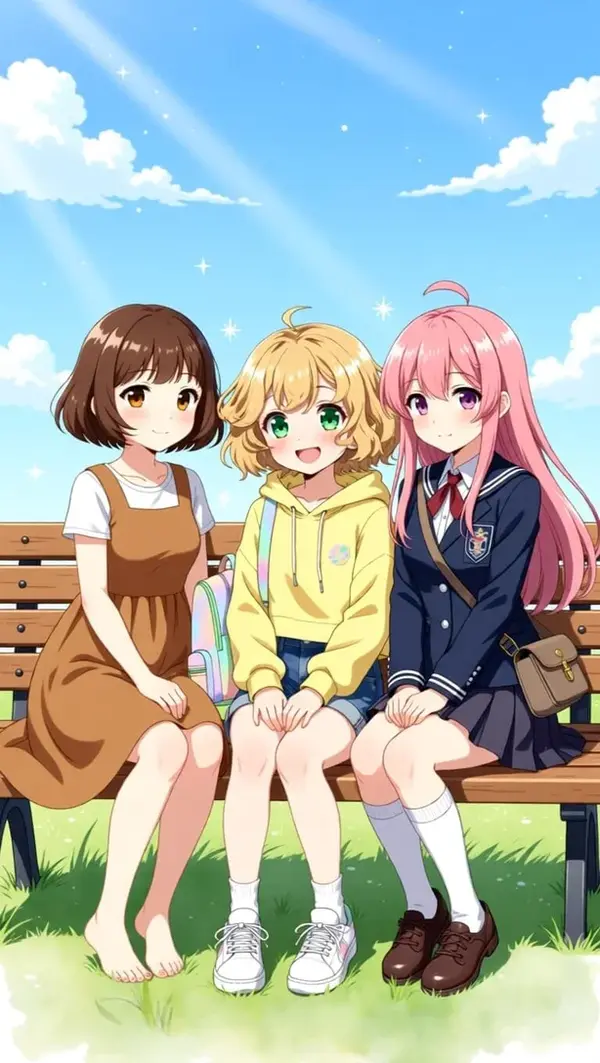
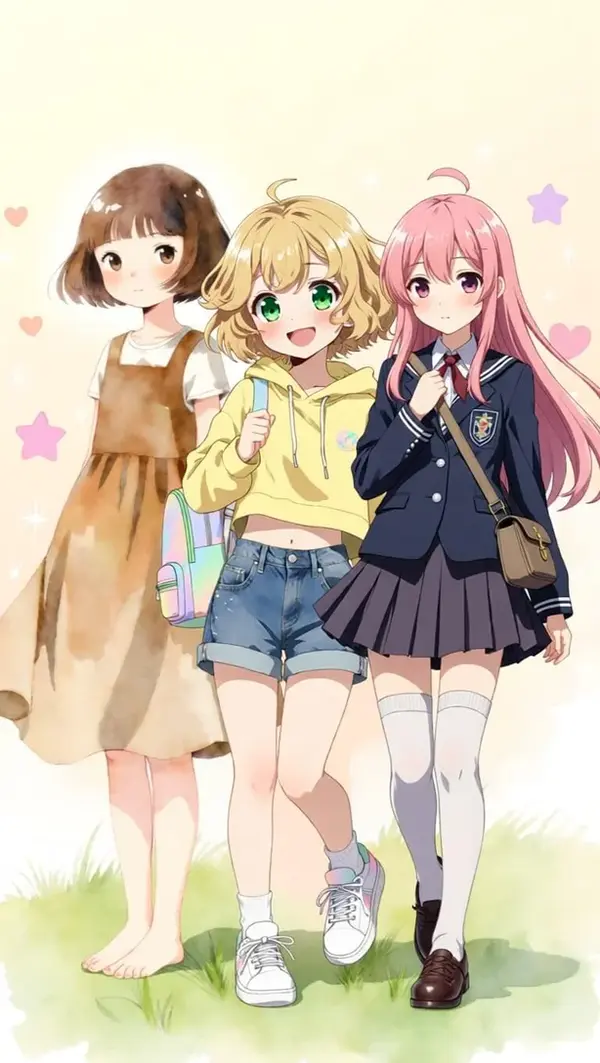
Learn how to use ComfyUI image-to-image workflows for AI photo editing, character consistency, outfit changes, background swaps, and multi-image generation — with free downloadable workflows.
By Earngenix Team··10 min read
How to Use ComfyUI Image-to-Image
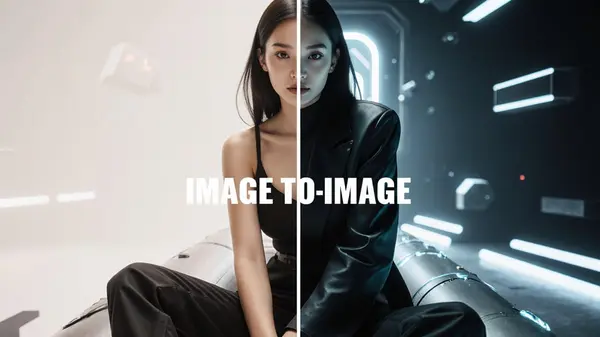
Quick answer: ComfyUI image-to-image lets you feed an existing photo into AI and describe what you want to change. The core structure and pose stay the same while you swap clothing, backgrounds, remove objects, or maintain a consistent character across multiple scenes — all running locally for free.
If you have been generating images from text prompts alone, image-to-image unlocks a completely different level of control. Instead of hoping a prompt produces the right result, you start with a real image and precisely describe only what you want to change. This guide covers every major use case with real examples and free downloadable workflows.
What Is Image-to-Image in ComfyUI?
Image-to-image is a ComfyUI workflow where you use an existing photo or AI-generated image as the starting point, then describe the changes you want through a text prompt. Instead of creating something from nothing, the AI modifies what you already have.
The core structure, pose, and important details of the original image stay intact. What changes are the specific elements you target — clothing, background, expressions, or entire objects. The character or main subject remains recognizable throughout.
👕Clothes
🖼️Background
📦Objects
😊Expressions
ComfyUI image-to-image is ideal for editing existing images, maintaining the same character across different scenes, swapping outfits, replacing backgrounds, and combining multiple reference images into a single output.
💡 Tip: You can download ready-made image-to-image workflows and full setup guides here: Qwen Image Edit 2509 Workflow and Nano Banana Workflow. Both guides cover installation, setup, and usage step by step.
Common ComfyUI Image-to-Image Use Cases
Here are the five most useful and practical applications of image-to-image workflows in ComfyUI — each with a real before-and-after example.
1Image Editing✅ Free — Runs Locally
The most direct use of image-to-image in ComfyUI is simple, powerful AI photo editing. You can remove unwanted objects, add new elements, clean up distracting details, change facial expressions, or refine the overall look of any image — all without touching Photoshop.
Remove objects from a scene — people, items, or background clutter
Add objects that were not in the original image
Change or adjust facial expressions
Clean and refine images for a more polished look
Example — Object Removal:
Base imageObject removed
👉 This was done using the Qwen Image Edit 2509 workflow in ComfyUI — free to use, runs entirely on your local hardware.
2Character Consistency
Keeping the same character face and identity across multiple images is one of the most valuable skills for AI creators. It is essential for producing consistent content for stories, YouTube thumbnails, social media series, and AI video pre-production.
With the right ComfyUI image-to-image workflow, you provide a reference image of your character and a scene description, and the model generates new scenes while preserving the same face and visual identity every time.
Example — Same Character, Different Scenes:
Character referenceNew scene, same character
👉 Achieved using the Nano Banana workflow in ComfyUI — the strongest option for consistent character identity across multiple outputs.
💡 Tip: For the best character consistency results, also check out the ComfyUI Character Consistency guide which covers combining ControlNet pose control with reference style for even more precise results.
3Outfit & Clothing Change✅ Free — Runs Locally
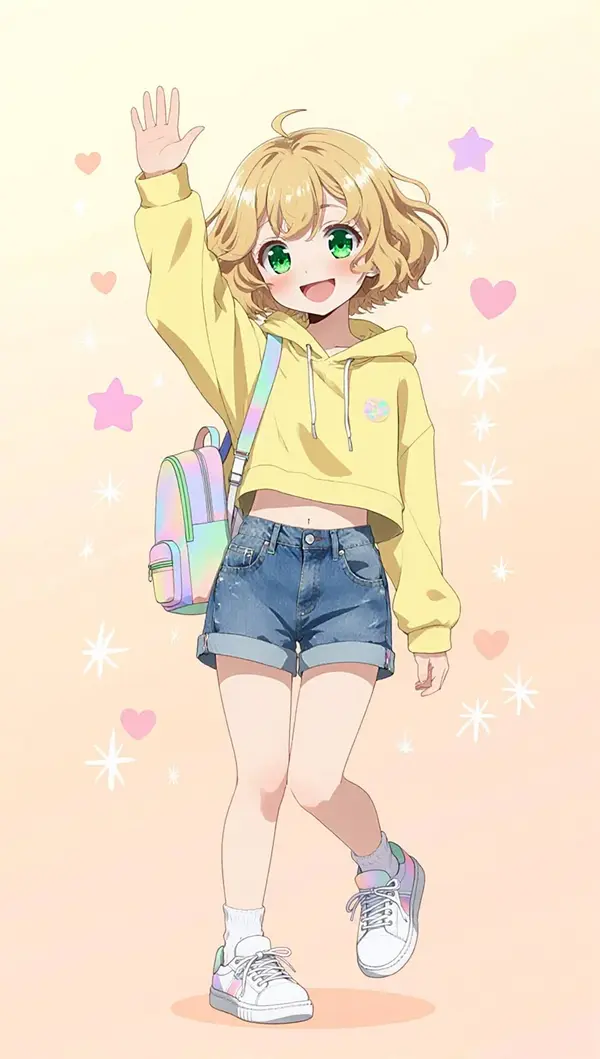
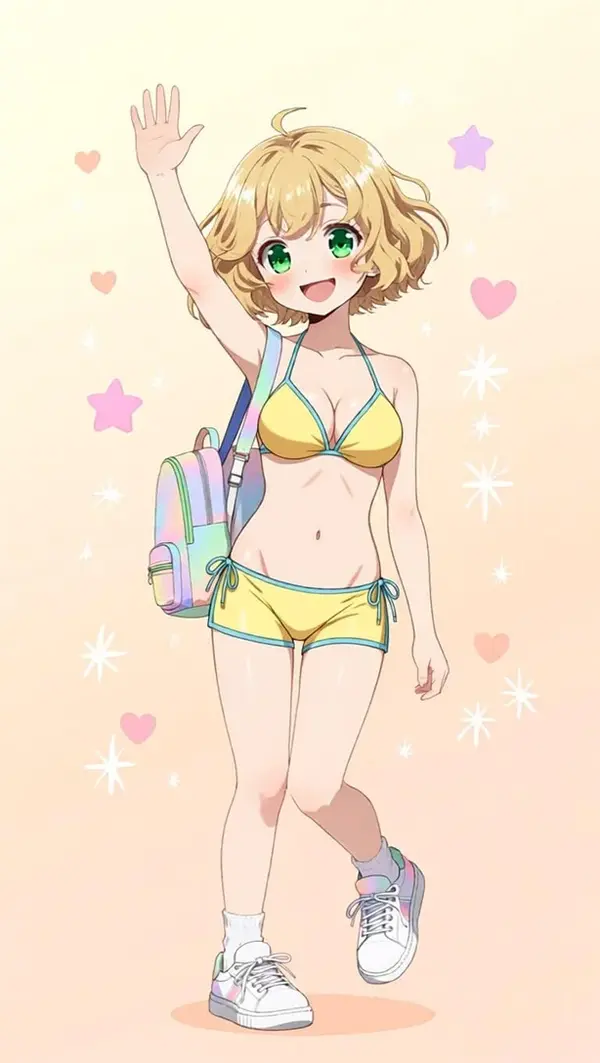
Swap out clothing and outfits on any character while keeping the same face, body pose, skin tone, and overall style. This is one of the most practical use cases for content creators and anyone producing AI fashion or lifestyle imagery.
Simply describe the new outfit in your prompt and the model replaces the clothing while preserving everything else about the image. Complex outfit changes — casual to formal, summer to winter, streetwear to beachwear — all work reliably.
Example — Casual Outfit → Beach Outfit:
Original outfitBeach outfit applied
👉 Supported by both Qwen Image Edit 2509 and Nano Banana workflows in ComfyUI.
4Background Change✅ Free — Runs Locally
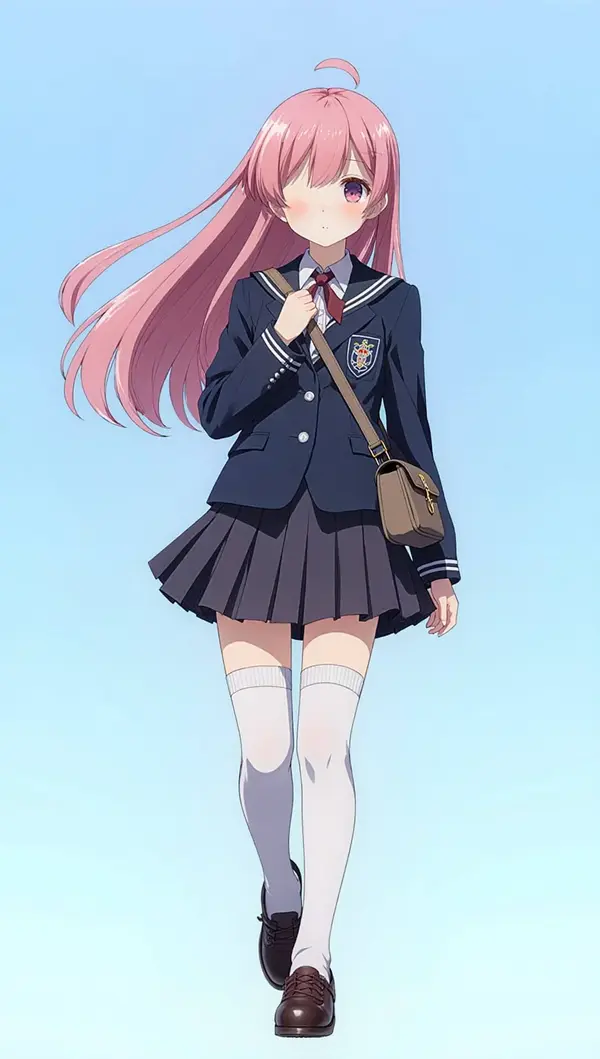
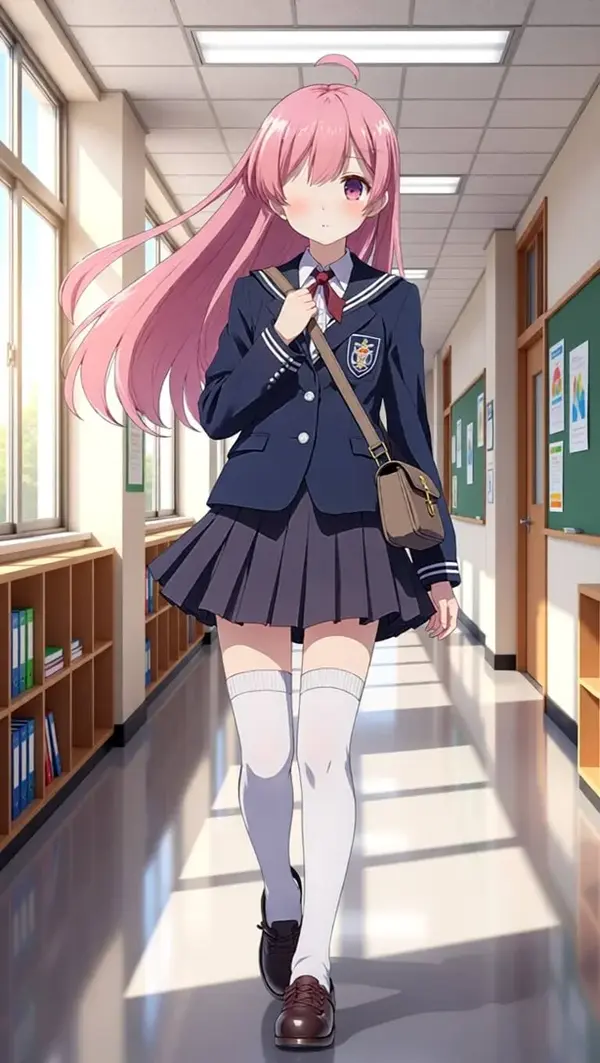
Replace any background while keeping the main subject completely intact. Whether you want to move a character from a plain studio to a cinematic cityscape, change day to night, or move a scene from indoors to outdoors — image-to-image handles it cleanly without needing to mask or cut out the subject manually.
Examples of what you can do: Room → Street, Day → Night, Studio → Forest, Office → Cinematic scene.
Example — Background Replacement:
Original backgroundBackground replaced
👉 Easy to achieve using the Qwen Image Edit 2509 image-to-image workflow in ComfyUI — free and runs locally.
5Multi-Image Input
ComfyUI supports multiple images as input in image-to-image workflows. This lets you combine reference subjects from different photos, add objects from a separate image into a scene, or blend visual styles from multiple sources into a single output.
Multi-image input is especially useful for composite scene creation, product placement, and generating complex images that require visual elements sourced from multiple references.
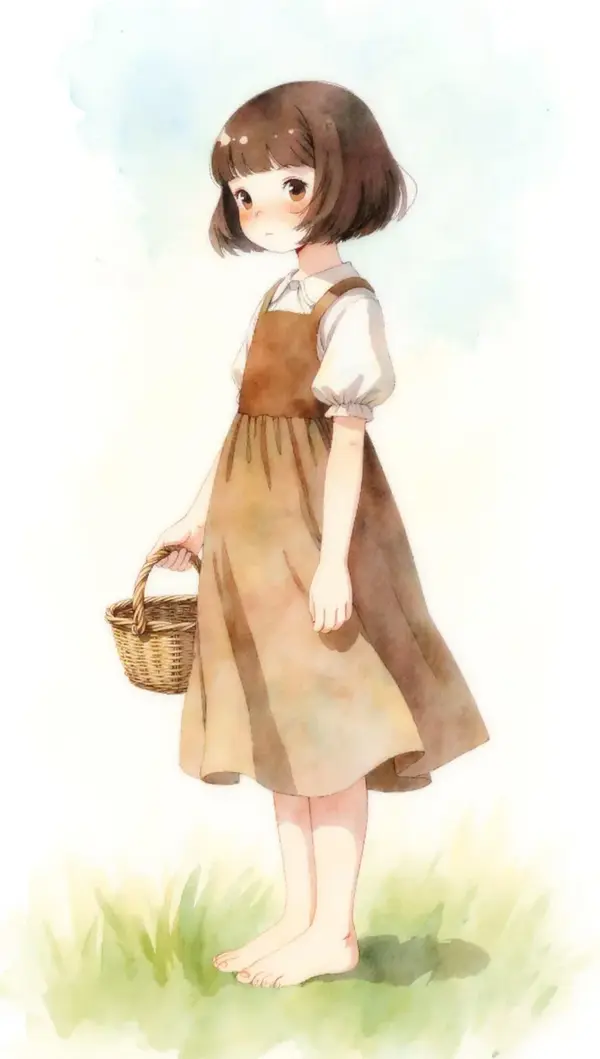
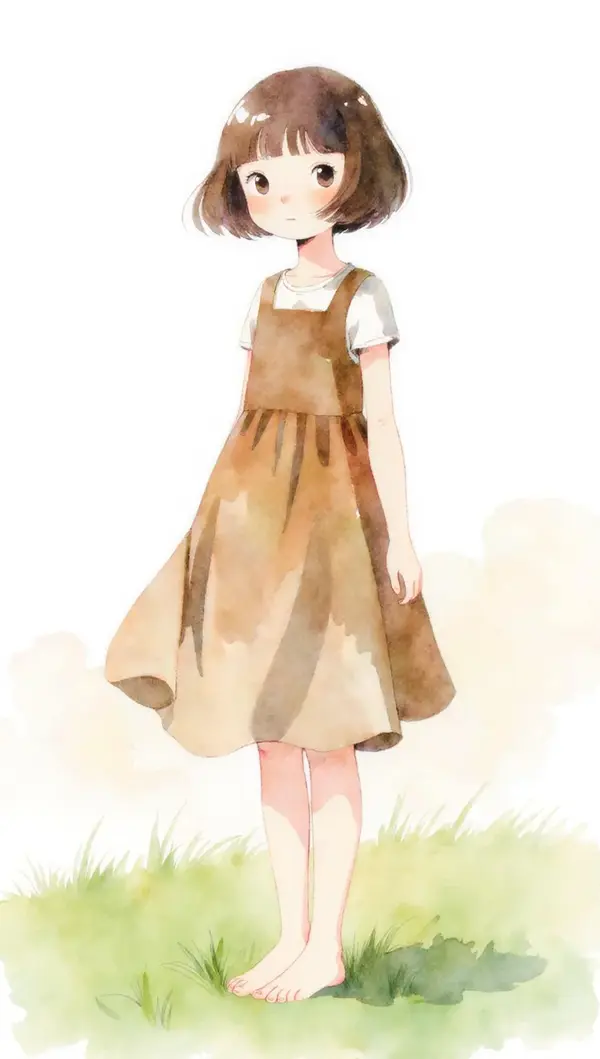
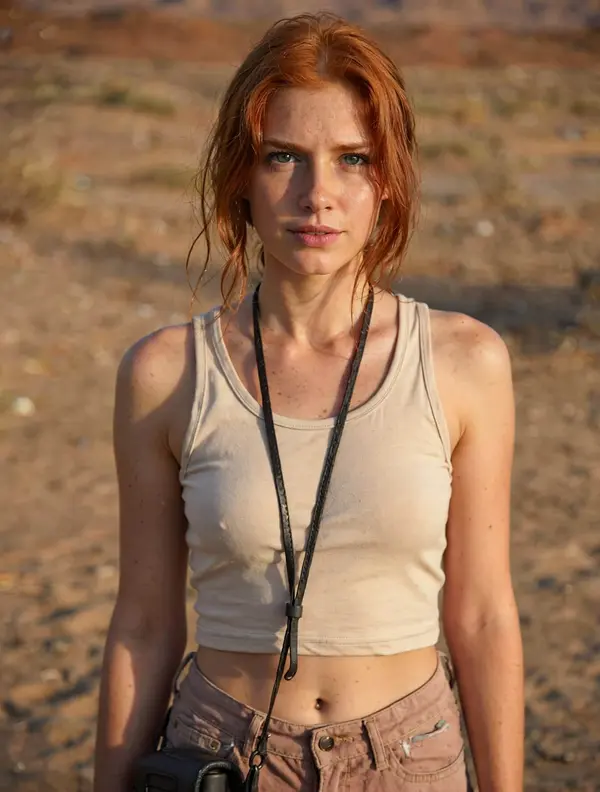
Example — Three Inputs, One Combined Output:
Input 1Input 2Input 3
Final Output:
Final output combining elements from all three input images — generated using the Qwen Image Edit 2509 workflow in ComfyUI.A second output variation from the same multi-image input — demonstrating how the model interprets and blends multiple references.
ComfyUI image-to-image is one of the most powerful and practical workflows for any AI creator. It removes the guesswork of prompt-only generation and lets you work from a concrete starting point — giving you predictable, high-quality results with far less iteration.
It is the core workflow for:
Editing and cleaning up AI-generated or real photos
Keeping characters visually consistent across multiple images
Creating clean source frames for AI video production
Rapid content creation for social media, thumbnails, and marketing
Which workflow should you use?
✅Free, local image editing — use the Qwen Image Edit 2509 workflow. Handles object removal, background changes, outfit swaps, and expression edits — all running on your own hardware at no cost.
✅Strong character consistency — use the Nano Banana workflow. Built specifically for maintaining consistent character identity across multiple scenes and outputs.
Learning image-to-image in ComfyUI is essential for any AI creator serious about producing consistent, high-quality results at scale.
Frequently Asked Questions
Image-to-image in ComfyUI is a workflow where you use an existing photo as the starting point, describe the changes you want with a text prompt, and AI generates a modified version. The core structure and pose are preserved while specific elements like clothing, background, or objects are changed.
With ComfyUI image-to-image you can remove or add objects, change clothing and outfits, swap backgrounds, alter facial expressions, maintain character consistency across scenes, and combine multiple input images into one output. It is used for AI photo editing, content creation, and AI video pre-production.
For free local image editing, the Qwen Image Edit 2509 workflow is the best option. It runs entirely on your own hardware and handles object removal, background changes, outfit swaps, and expression edits. For stronger character consistency across multiple images, the Nano Banana workflow is the recommended choice.
To keep a character consistent across multiple images in ComfyUI, use the Nano Banana image-to-image workflow, which is designed specifically for character identity preservation. You provide a reference image of your character and a scene prompt, and the workflow generates new scenes while maintaining the same face and identity across all outputs.
Yes. ComfyUI supports multi-image input in image-to-image workflows. You can feed multiple reference images to combine subjects, add new objects from different photos, or blend visual styles. Both the Qwen Image Edit and Nano Banana workflows support multi-image input.