
⚡ Quick Answer
Comfy Agent is a chat assistant built into ComfyUI. You describe what you want in plain English, and it builds, edits, and runs the workflow on your screen. It is in beta and works on Comfy Cloudtoday, while support for Comfy Desktop is listed as "coming soon." You get a few free starter chats, then it uses Comfy Credits.
Opening ComfyUI for the first time can feel like looking inside a machine. You see boxes, wires, and settings, and nobody tells you which wire goes where. Comfy Agent is Comfy's answer to that problem. This guide explains Comfy Agent in plain English: what it does, what it costs, how to make your first image with it, and where it still falls short.
Comfy Org announced Comfy Agent on October 1, 2026. It is still in beta, so some details will change. Everything below is accurate as of October 2026, and the official Comfy Agent documentation is the place to check for newer changes.
What Is Comfy Agent and What Does It Actually Do?
ComfyUI makes images and videos using a workflow (a connected set of blocks that tells ComfyUI how to make an image or video). Each block is a node (a rectangular block that does one job, like loading an AI model or saving a picture). You join nodes together with wires. Building a workflow by hand means choosing the right nodes and wiring them in the right order.
Comfy Agent does that work with you. It is an AI agent (an AI assistant that takes actions for you, not only answers questions). You type what you want in a chat panel next to the canvas (the large open area where the nodes sit). The Agent places nodes, connects them, fills in settings, and can run the result.
According to Comfy's documentation, the Agent can:
- Find templates, models, and nodes that are available in your ComfyUI setup
- Build a workflow from a template and change its prompt and settings
- Change one part of a workflow without rebuilding the rest
- Add, connect, set up, and remove nodes
- Check a workflow for problems before it runs
- Look at images and read basic details of video and audio files
- Run a workflow and show you the result
- Keep working while you keep editing the canvas yourself
Where Can You Use Comfy Agent Today? (Comfy Cloud vs Comfy Desktop)
Right now, the answer is Comfy Cloud. Comfy Cloudis Comfy's online service. It runs ComfyUI on Comfy's computers, so you open it in your browser and install nothing.
| Where | Status | What to know |
|---|---|---|
| Comfy Cloud | Available now (beta) | Sign in with a Comfy account. No download and no waitlist. |
| Comfy Desktop | "Coming soon" | There is a waitlist. Your own local models and custom nodes are not supported yet. |
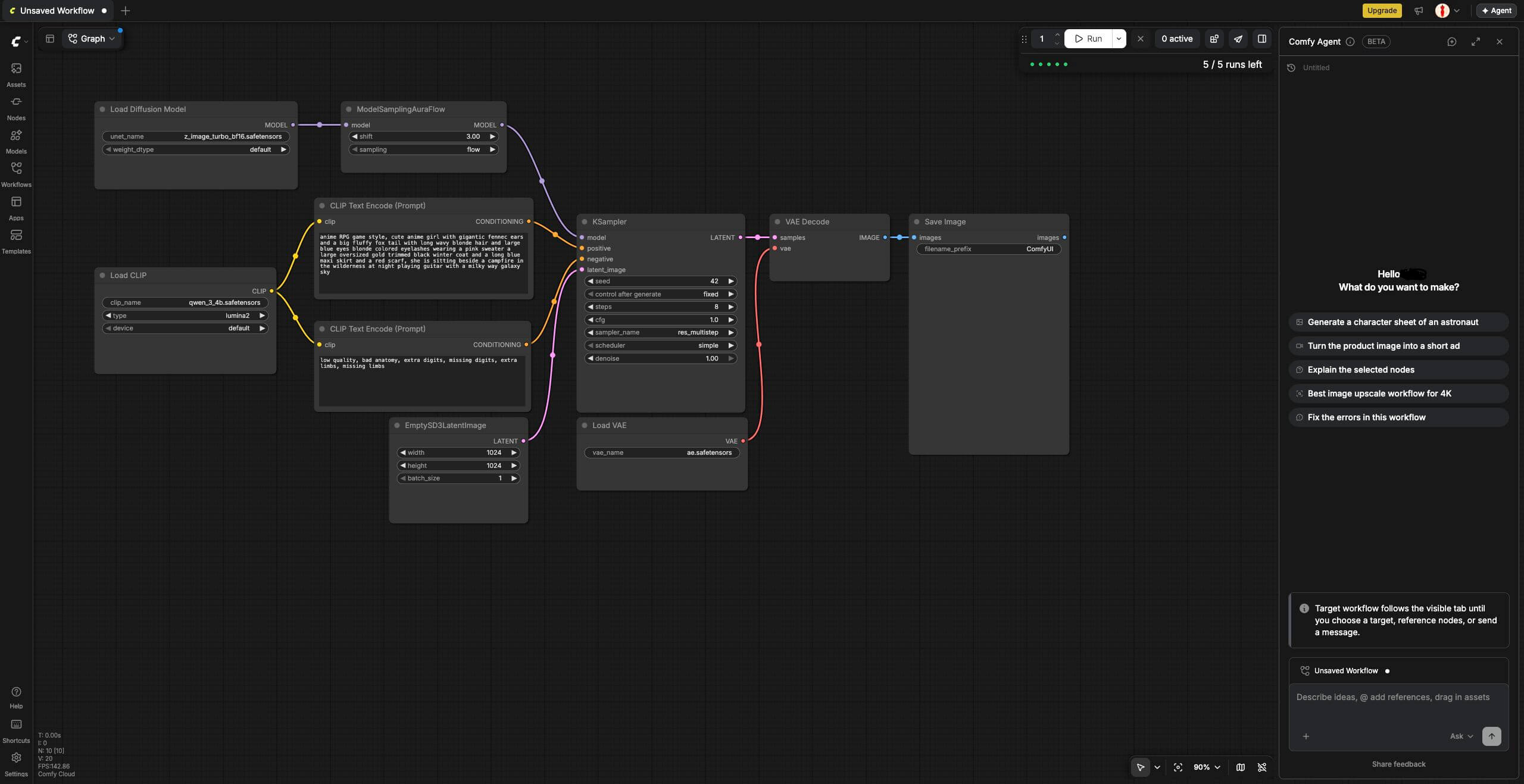
You do not need a powerful computer for this. The workflows the Agent runs on Cloud use Comfy's graphics cards, not yours. That means VRAM (the memory on a graphics card, which decides which AI models a computer can run) is not a limit for you here. Any computer with a modern web browser works.
Is Comfy Agent in Comfy Desktop yet?
Not yet. The official docs say Agent support for Comfy Desktop and local ComfyUI is coming soon, and they link to a waitlist. When it arrives, Comfy says it will work with your own graphics card, your own models, and your own custom nodes (extra nodes made by other people, not included with ComfyUI).
What Does Comfy Agent Cost, and Is It Really Free?
It is free to try, but not free forever. Comfy gives every account a small number of free starter chats. After those run out, the Agent charges your Comfy Credits (the points you spend on Comfy Cloud, which are also used when you generate images or videos).
You need a positive credit balance to keep using the Agent. You do not necessarily need a monthly plan, because you can add credits instead, depending on your account. See Comfy's pricing page for the current plans.
How do Comfy Credits work with the Agent?
Two things cost credits:
- The chat itself. The Agent uses an AI language model (a model that reads and writes text). Text is measured in tokens (small pieces of text, roughly a short word or part of a word). Longer chats use more tokens, so they cost more.
- Running workflows. When the Agent runs a workflow for you, it costs credits the same way as any run you start yourself.
At the time of writing, Comfy's docs list these rates for the model they name (Opus 4.8):
| What you pay for | Credits per 1,000 tokens |
|---|---|
| Text you send (input) | about 1.055 |
| Text the Agent writes back (output) | about 5.275 |
There are smaller rates for text the system has already stored. These numbers can change during the beta, so check the official docs for the current table.
How can you see what you have spent?
Check your credit balance before a chat and again after it, then compare the two numbers. This is the quickest way to learn what your own chats cost.
How Do You Use Comfy Agent? Build Your First Workflow With AI in 5 Steps
This walkthrough makes one simple image: a red sneaker on a gray background. It uses a small amount of credits, and the last step shows how to change a finished workflow without rebuilding it.
Step 1: Sign in to Comfy Cloud and open a blank workflow
We start with a blank workflow because it gives the Agent a clean canvas. Nothing from older work can get mixed in.
- Go to cloud.comfy.org and sign in with your Comfy account.
- Open a new, empty workflow tab.
You should see an empty canvas with a row of workflow tabs along the top. If the screen looks unfamiliar, our ComfyUI interface overview explains each part.
Step 2: Open the Agent panel and choose your workflow
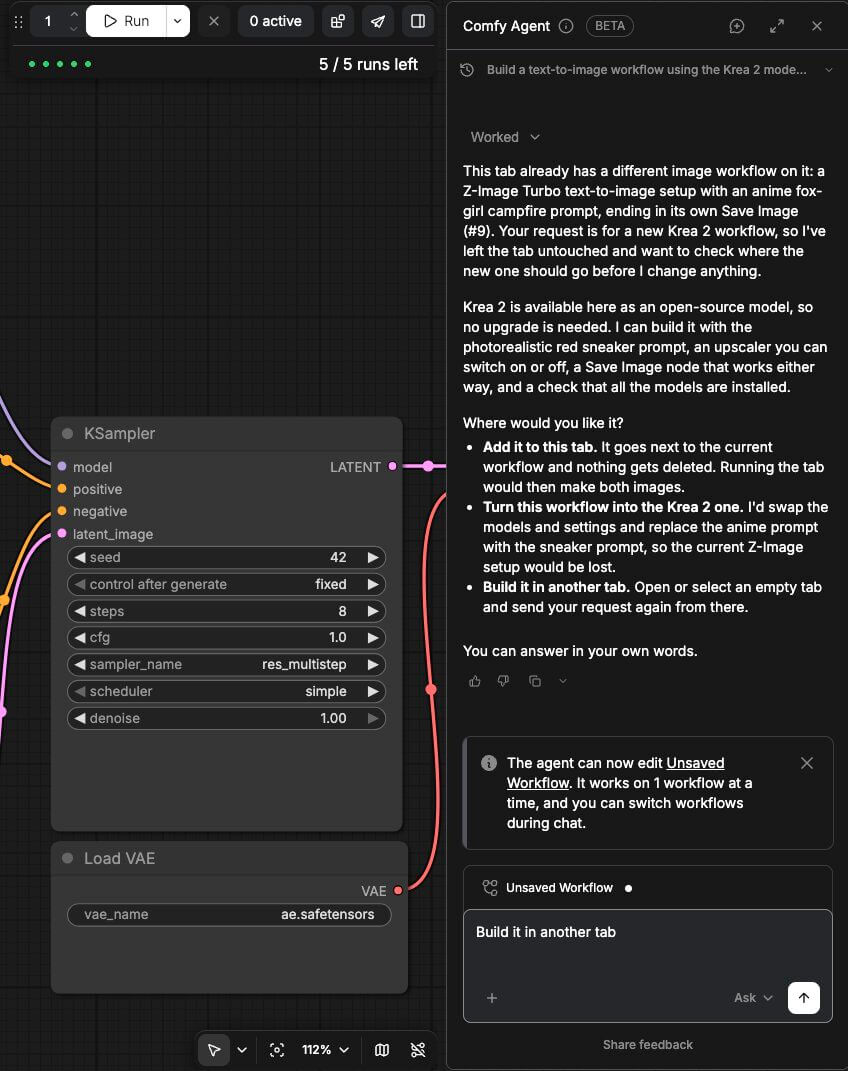
The Agent edits one workflow at a time. If you skip the selection step, it may not know which canvas to change.
- Look at the far right of the tab bar, next to your profile picture. Click the Agent button.
- If a consent notice appears, read it and accept it.
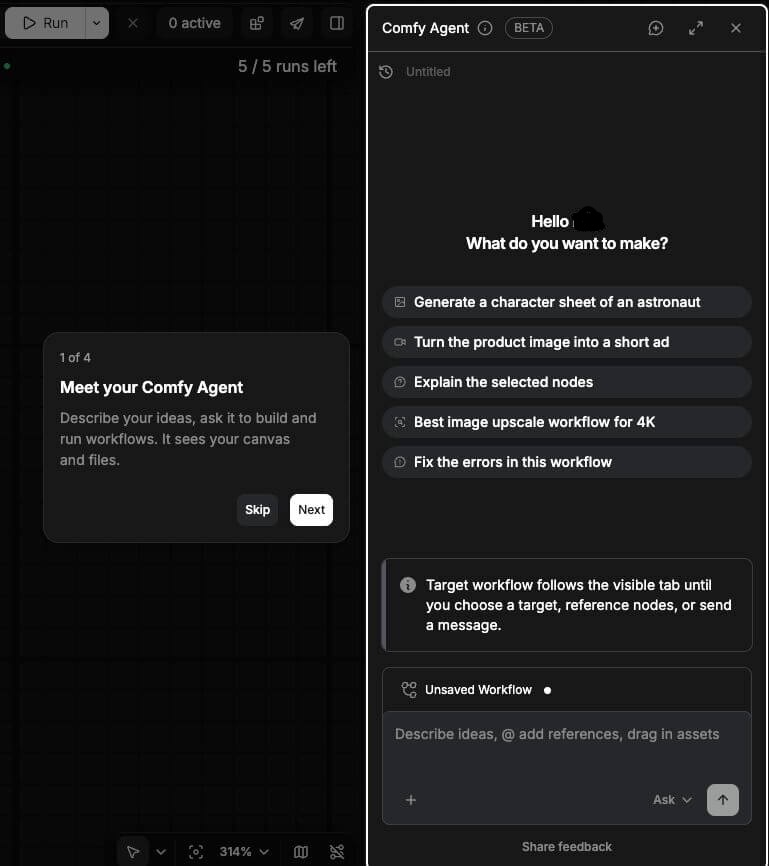
- In the Agent panel, click Choose a workflow and select your blank workflow.
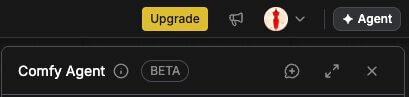
You should see the Agent panel open beside the canvas, with your blank workflow selected.
Step 3: Ask the Agent to build your first workflow
We ask for a text-to-image workflow (you type a description, and the AI makes a picture from it) that uses the Krea 2 model. We also ask for an image upscaler (a node that makes the finished picture larger and sharper) with an ON/OFF toggle, so you can switch upscaling on or bypass it later without rebuilding anything. Both paths end in one Save Image node, which is the block that shows and stores the finished picture. Last, we ask the Agent to check that every model and node is available and to fix any errors it finds. If you want to compare with the manual way, see our basic text-to-image workflow guide.
- Click the message box at the bottom of the Agent panel.
- Type the request below.
- Press Enter and watch the canvas.
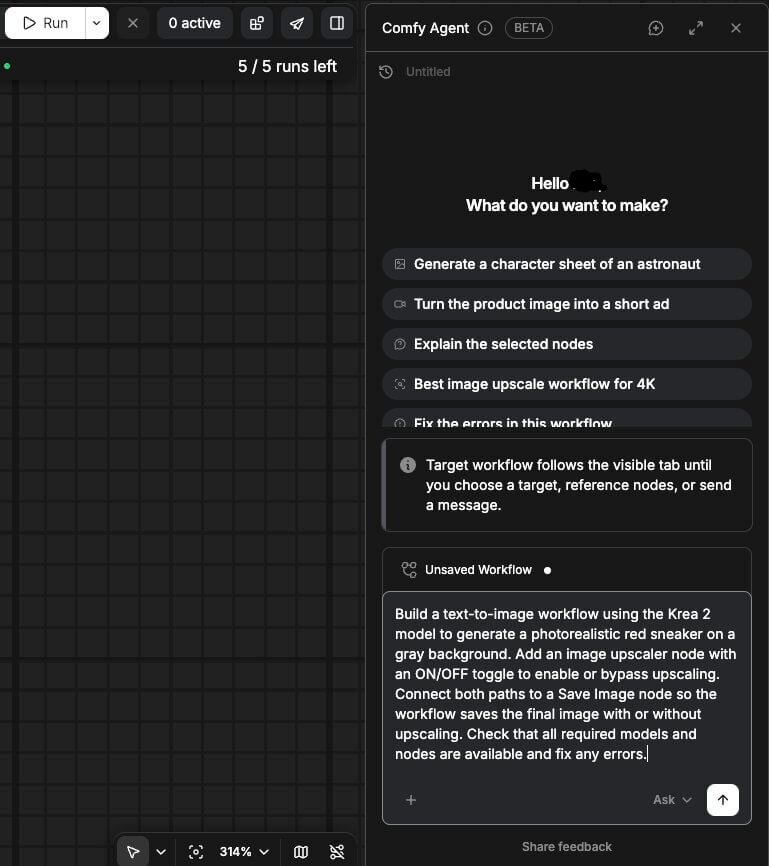
You should see nodes appear and connect on the canvas. The Agent loads the checkpoint (the main AI model file, which controls the style of your images), fills in your prompt, adds the upscaler with its toggle, and ends everything in a Save Image node. Because we asked it to check for errors, it also tells you if a model or node was missing and what it did about it.
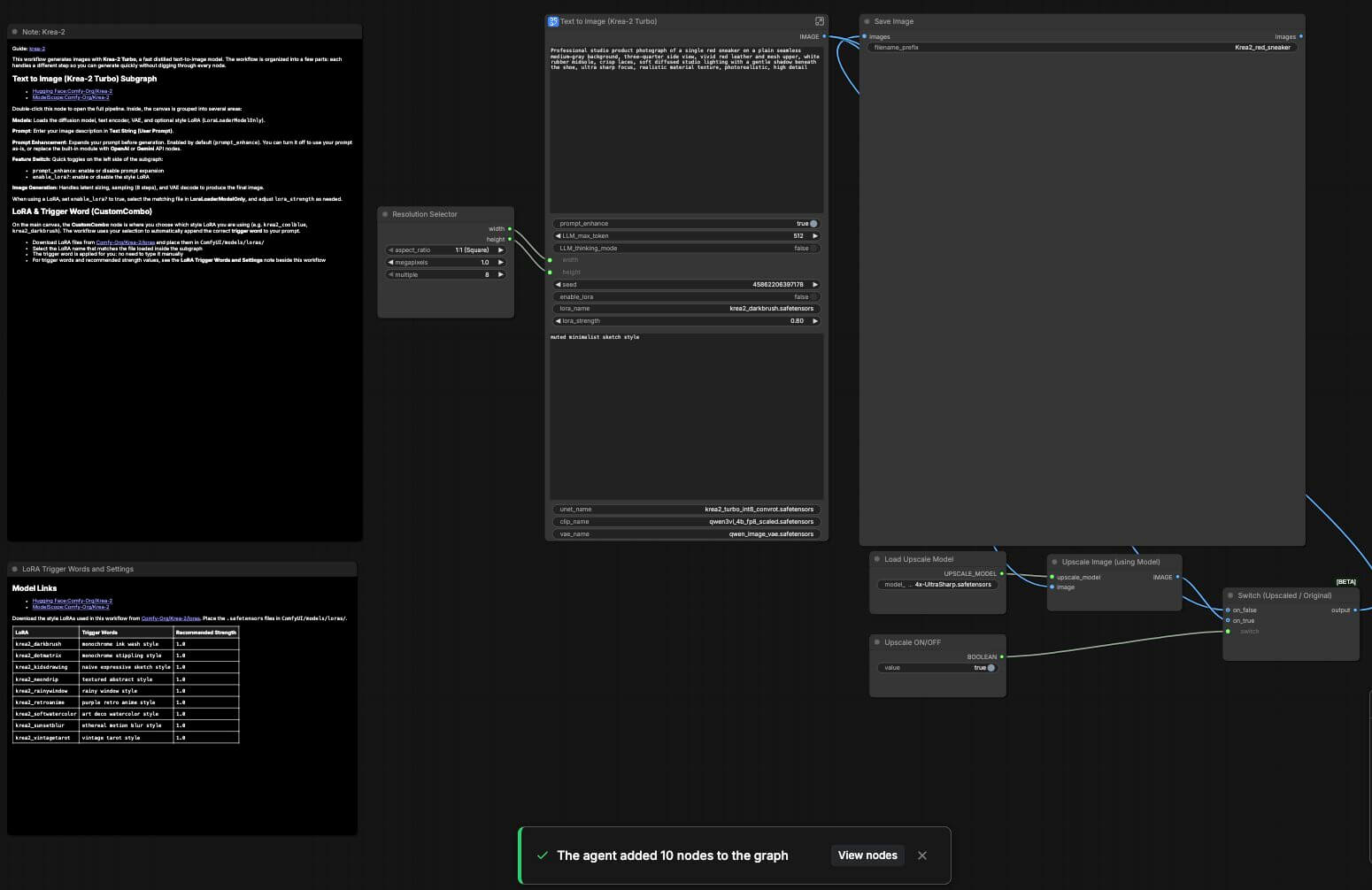
The toggle is the part worth testing. With it ON, the image passes through the upscaler before it is saved, so you get a larger, sharper picture. With it OFF, the upscaler is bypassed and the image goes straight to Save Image. Either way, you get a saved result from the same workflow.
Once you run the workflow (Step 4 shows how), this is what you get: the finished red sneaker image appears in the Save Image node and in the chat.
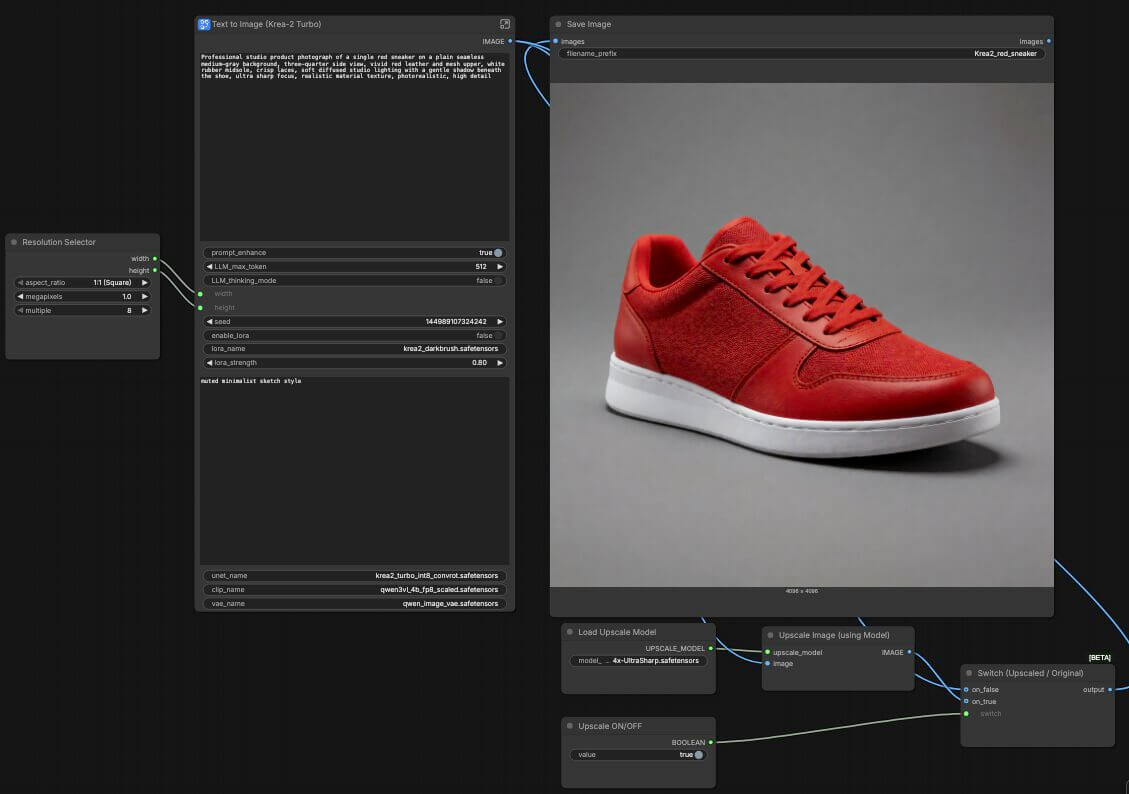
If the Agent says a model or file is missing, you have two choices. You can give it the file, or you can ask for an alternative that is available. After either one, ask it to check the workflow again before you continue.
Step 4: Run the workflow with Ask permission
Running a workflow is what actually creates the image. In ComfyUI this action is called Queue Prompt (the command that starts generation). We set the Agent to Ask so it needs your approval before each run, which keeps your credit use under control.
- Find Run permissions next to the message box and choose Ask.
- Click Save changes if the panel shows that button.
- Type Run this workflow and send it.
- When the Agent asks for approval, click Run. Click Cancel if you want to stop.
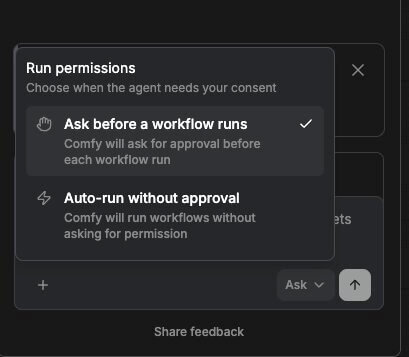
You should see the image appear in the chat, and also inside the Save Image node on the canvas. Right-click the image on that node to save it to your computer.
Step 5: Change one thing and run it again
Changing a working workflow is where the Agent saves the most time, because you do not rebuild anything. You only say what should change and what should stay.
- Type: Change the background to white. Keep the model and all other settings.
- When the Agent finishes the change, ask it to run again and approve the run.
- Compare the two images.
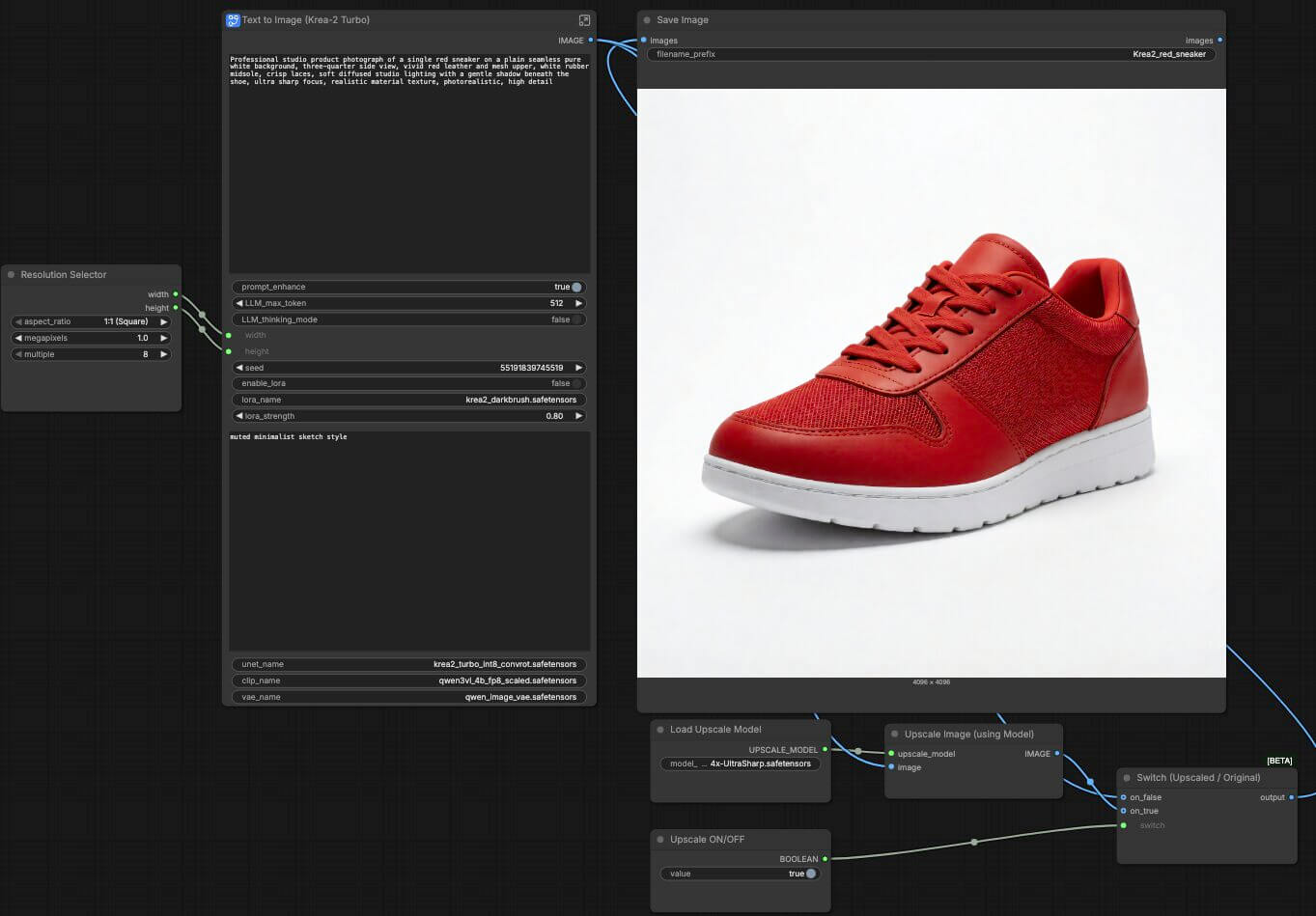
You should see the same sneaker on a white background. The phrase "keep the model and all other settings" matters, because it tells the Agent what not to touch.
How Do You Get Better Results From Comfy Agent?
These habits matter more than clever wording. Advanced readers can skim this section.
- Say what to change and what to keep. "Add an upscale step after the image is made (a step that makes the picture larger and sharper), and leave everything else alone" works better than "make it better."
- Point at things with the @ key. Type @ in the message box to name a specific node or another saved workflow. You can also pick nodes on the canvas and add them to your message.
- Add files. Drag an image, video, or audio file into the chat. It shows in a tray above the message box, and everything in that tray goes out with your message.
- Stop it when needed. Click Stop in the message box to halt the Agent's current reply.
- Start fresh when a chat gets messy. Click New chat at the top of the panel. Old chats stay saved in the chat history list.
Comfy also lets you save skills (written instructions the Agent can reuse later), and you can have more than one chat open at once. Beginners can leave both for later.
Can Comfy Agent Fix a Broken Workflow?
Partly. Comfy's docs say the Agent checks node connections, model names, required values, and output nodes before a run. It also tells apart workflow errors it can fix from inputs only you can supply, such as a missing image.
That is useful, but it is a check, not a guarantee. Treat the Agent's fix as a first attempt and look over the result before you run it.
If you see red nodes after loading a workflow you downloaded, the usual cause is a missing node. Our guide on how to fix missing nodes in ComfyUI covers that step by step.
Where Does Comfy Agent Break? (Beta Limits to Know)
Comfy calls this a beta, which means it is still being built and fixed. These are the limits that matter today.
It only works on Comfy Cloud for now
On Cloud, the Agent uses the models and custom nodes available in your Cloud workspace. Your own files and your own nodes on a home computer are not part of that yet.
It keeps using credits as you chat
Chatting costs credits even when you do not generate anything, and a long chat costs more than a short one. When your balance reaches zero, the Agent stops and shows an Out of credits message. Depending on your account, you then see a choice to add credits, subscribe, or upgrade.
It edits the workflow you selected, not the one you are looking at
Changing browser tabs while the Agent is replying does not redirect it. The Agent also cannot create or switch tabs itself. To work on another workflow, open it, choose it in the Agent panel, and send a new message.
Your messages go through Comfy's online service
The Agent uses your message, the selected workflow, selected nodes, and any attachments. On Cloud, conversations and files are stored with your Comfy Cloud account. Read Comfy's data and privacy page before you attach anything private.
Cloud chats and local chats are kept separate
When Desktop support arrives, a chat started on Cloud will not appear in a local install, and the other way round.
It may struggle with unusual workflows
This is not proven either way yet. Comfy has not published data on how reliable the Agent is with rare custom nodes or very large workflows. Always look over the graph the Agent builds before you trust it, especially before spending credits on a long video run.
Comfy Agent or Comfy MCP: Which Should a Beginner Use?
Comfy MCP is a different tool. MCP (a standard way to connect an outside AI app to another program) lets an AI assistant you already use control ComfyUI. Comfy Agent is built into ComfyUI itself.
As a beginner, start with Comfy Agent. It needs no outside AI account and no setup. MCP makes more sense if you already work inside another AI tool and want it to drive Comfy.
What Do You Do When Something Goes Wrong With Comfy Agent?
Running into something not covered below? Our general ComfyUI troubleshooting guide covers the errors that show up across every workflow.
"The Agent button is missing"
What causes it: You are not signed in, your account does not have Agent access yet, or you are on a local install that does not have the feature.
- Sign in to your Comfy account.
- If you use Comfy Desktop, update the app and restart it.
- If the button is still missing, contact Comfy support and ask them to check your account's Agent access.
"The Agent cannot edit the workflow I expected"
What causes it: The Agent changes only the workflow selected in its panel, and your selection may point at a different tab.
- Open the Agent panel and click Choose a workflow.
- Select the workflow you want changed.
- Send your message again.
"The Agent asks for an input"
What causes it: The workflow needs a file, like an image, that only you can provide.
- Click Attach a file, or drag the file into the message box.
- Tell the Agent to continue.
Frequently Asked Questions
What to Do Next
See what else changed in ComfyUI this year.
Read our guide to the ComfyUI 2026 updates to catch the new models, the Comfy Desktop changes, and the performance upgrades you may have missed.
What to Read Next
If you want to understand the service the Agent runs on, start with our guide to running ComfyUI in your browser with Comfy Cloud. To see how the manual version of your first workflow works, read the basic text-to-image workflow tutorial. And when a workflow shows red nodes, our guide to installing missing nodes in ComfyUI walks through the fix.
— Written as a personal recommendation from the Earngenix team.
Published: 2026-10-26 · Last updated: 2026-10-26 · Details checked against the official Comfy Agent documentation. Comfy Agent is in beta, so features and pricing may change.
Join the discussion
Sign in to leave a comment or reply
No comments yet
Be the first to share your thoughts!