
⚡ Quick Answer
What is Comfy Cloud? It is the official hosted version of ComfyUI, the free AI image and video tool. You open it in your web browser and it runs on Comfy's own computers, so you do not install anything or need a strong graphics card. You get 5 free runs to try it, paid plans start at $20 a month, and a few limits (such as a 30-minute cap on each run) apply.
You want to try ComfyUI, but your computer is too weak, or you do not want to install anything. So you ask: what is Comfy Cloud, and is it worth paying for? This guide is Comfy Cloud explained in plain English. It covers what you get, what it costs in US dollars, and what it cannot do.
Everything below comes from Comfy's own pricing and help pages, checked on October 2, 2026. Prices and limits change often, so check the official pricing page again before you pay.
What Is Comfy Cloud, in Plain English?
ComfyUI is a free, open-source program for making AI images, videos, audio and 3D models. "Open-source" means the code is public and anyone can use it at no cost. Most people install it on their own computer, and it uses that computer's GPU. A GPU (graphics processing unit) is the chip that does the heavy work when an AI model makes a picture.
A GPU has its own memory, called VRAM (video memory — the more VRAM a GPU has, the bigger the AI models it can run). Many home graphics cards have between 8 GB and 16 GB of VRAM. Bigger video models can need much more. That is the main reason people look for a cloud option.
Comfy Cloud is the same ComfyUI, but the company behind it, Comfy Org, runs it on its own computers. "Hosted" means someone else runs the software for you. Your computer only shows the screen. Running ComfyUI on your own computer is still free, and our comparison, why run AI image generation locally instead of Midjourney, explains why many people prefer that route.
You will see three names on Comfy's website. They are easy to mix up:
- ComfyUI: the free, open-source engine.
- Comfy Desktop: the free app you install on your own computer. It runs on your own hardware and can work offline.
- Comfy Cloud: the hosted version that runs in your browser. It is the paid one, with 5 free runs.
Inside ComfyUI, you build everything as a workflow (a saved set of steps that turns your text into an image or video). A workflow is made of nodes. A node (a small block that does one job, like loading an AI model) connects to other nodes with wires.
Is Comfy Cloud the Same as ComfyUI?
It is the same program in a different place. Comfy says workflows use the same general file format on Cloud and on a local install, so you can usually move a workflow from one to the other.
It is not identical, though. Cloud has limits that a local install does not, such as a maximum run time and a fixed list of supported add-ons. The "What's Missing" section below covers them.
Is Comfy Cloud the Official Hosted ComfyUI, or a Third-Party Site?
Comfy Cloud is official. It is made by Comfy Org, the team behind ComfyUI, and you reach it at cloud.comfy.org.
Other companies also rent out ComfyUI online. Those are different services with their own prices and rules.
What Do You Get With Comfy Cloud?
Comfy Cloud removes the setup work and the hardware cost. Each benefit below comes with a number or a named example. Where the claim comes from Comfy, the text says so.
Why Don't You Need a Graphics Card?
Comfy says Cloud runs on NVIDIA RTX 6000 Pro GPUs with 96 GB of VRAM. Compare that with the 8 GB to 16 GB found on many home graphics cards. More VRAM matters because large video models do not fit in a small amount of memory.
Because the work happens on Comfy's computers, your own computer only needs a modern web browser. Comfy recommends Google Chrome. Other browsers may work, but Chrome is the one Comfy recommends.
How Many AI Models Come Installed?
Comfy says Cloud comes with more than 900 models already installed. The list includes open models such as Wan 2.2, Flux, LTX and Qwen. A checkpoint (the main AI model file — it decides what your images look like) is one kind of model file.
On a local install, you download each model file yourself. These files are often several gigabytes each, and you must put them in the right folder. On Comfy Cloud, the models are already in place, so a template can run as soon as it loads. To learn what the different model types are, read checkpoint models explained.
Which Custom Nodes Work?
Custom nodes (add-ons made by the community that give ComfyUI extra nodes) are a big part of ComfyUI. On a local install, you add them with the ComfyUI Manager (a helper tool inside ComfyUI that installs add-ons for you).
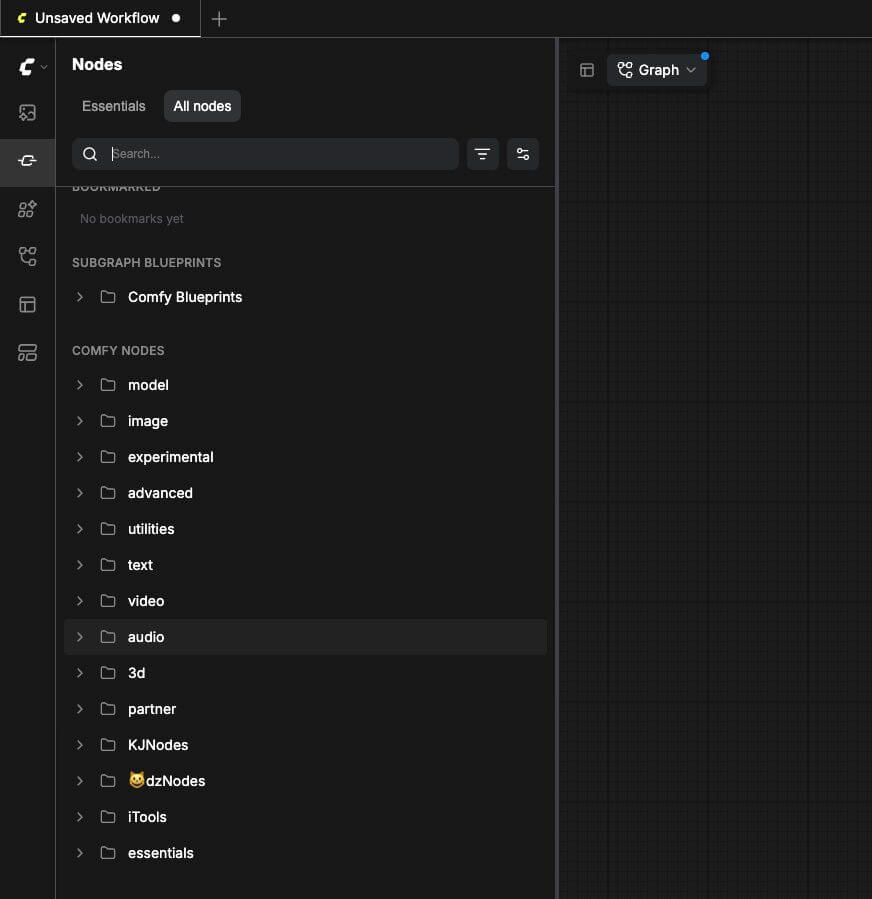
On Comfy Cloud, Comfy installs a list of popular custom nodes for you. Comfy says the nodes behind about 90% of local ComfyUI workflows are available on Cloud. That number comes from Comfy, so treat it as a guide, not a promise. To see exactly which nodes work, open the Nodes tab in the left side panel of Comfy Cloud.
What Are Partner Nodes, and Do They Cost Extra?
Partner Nodes are special nodes that send your job to a model owned by another company, such as Nano Banana Pro. These are closed models. You cannot download them to run on your own computer.
Partner Nodes do not have a separate bill. They use the same credits as your Comfy Cloud plan. Comfy also says you can use these credits on Comfy Desktop, but only when you call Partner Nodes.
Can You Use Your Own LoRAs?
A LoRA (a small add-on file that teaches a model a new style or character) is a common way to get a specific look. Comfy Cloud lets you bring your own LoRAs and models from CivitAI and Hugging Face (two websites where people share AI model files), but only on the Creator, Pro and Team plans.
The Standard plan cannot import your own files. Comfy also says direct file upload for larger models is on its roadmap, which means it does not exist yet.
Is Commercial Use Covered?
Comfy states that every model on Comfy Cloud is cleared for commercial use. "Commercial use" means using the images or videos to make money, for example for a client.
How Do You Run Your First Workflow on Comfy Cloud?
Seeing a first run helps you decide if Cloud is right for you before you pay. These steps follow Comfy's own help pages. Read the warning first, because your free runs are limited.
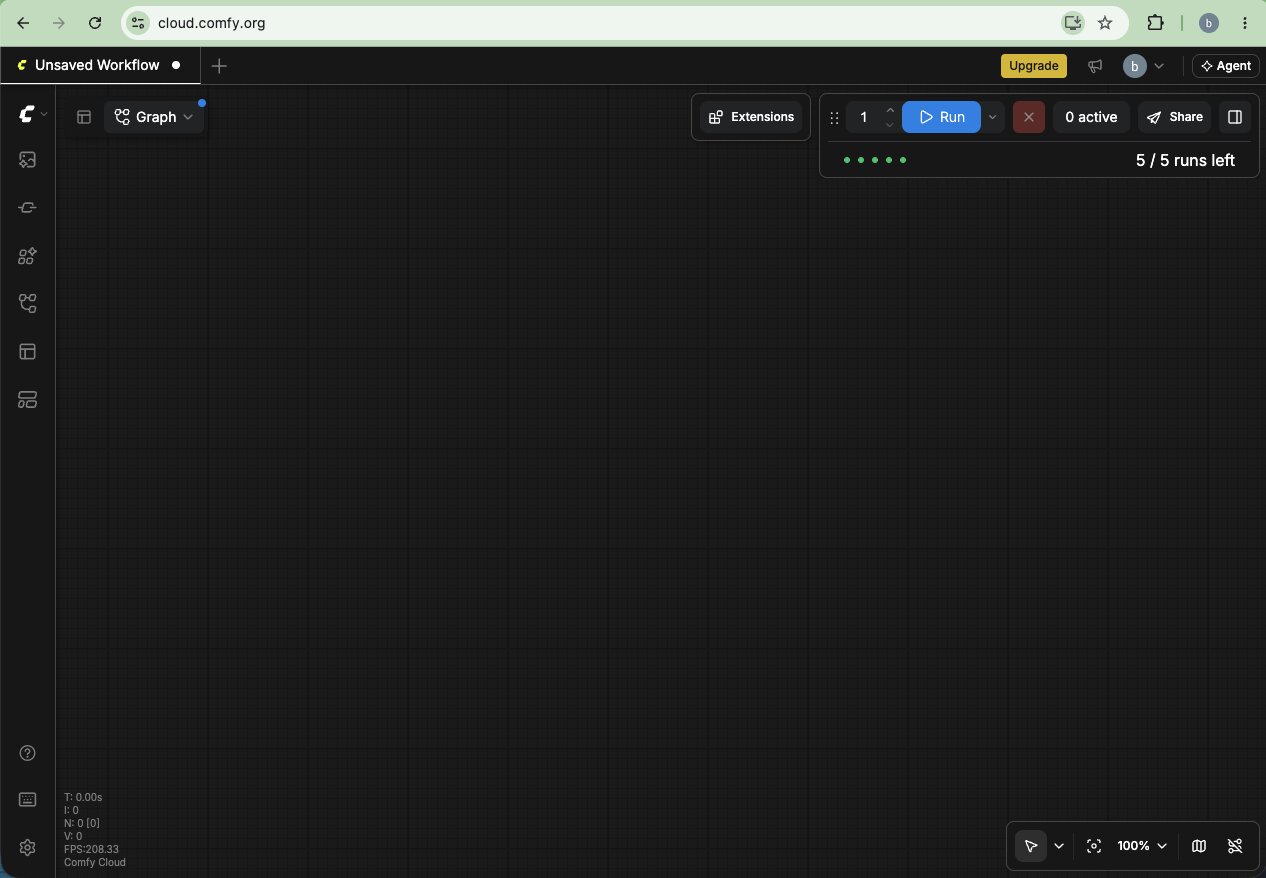
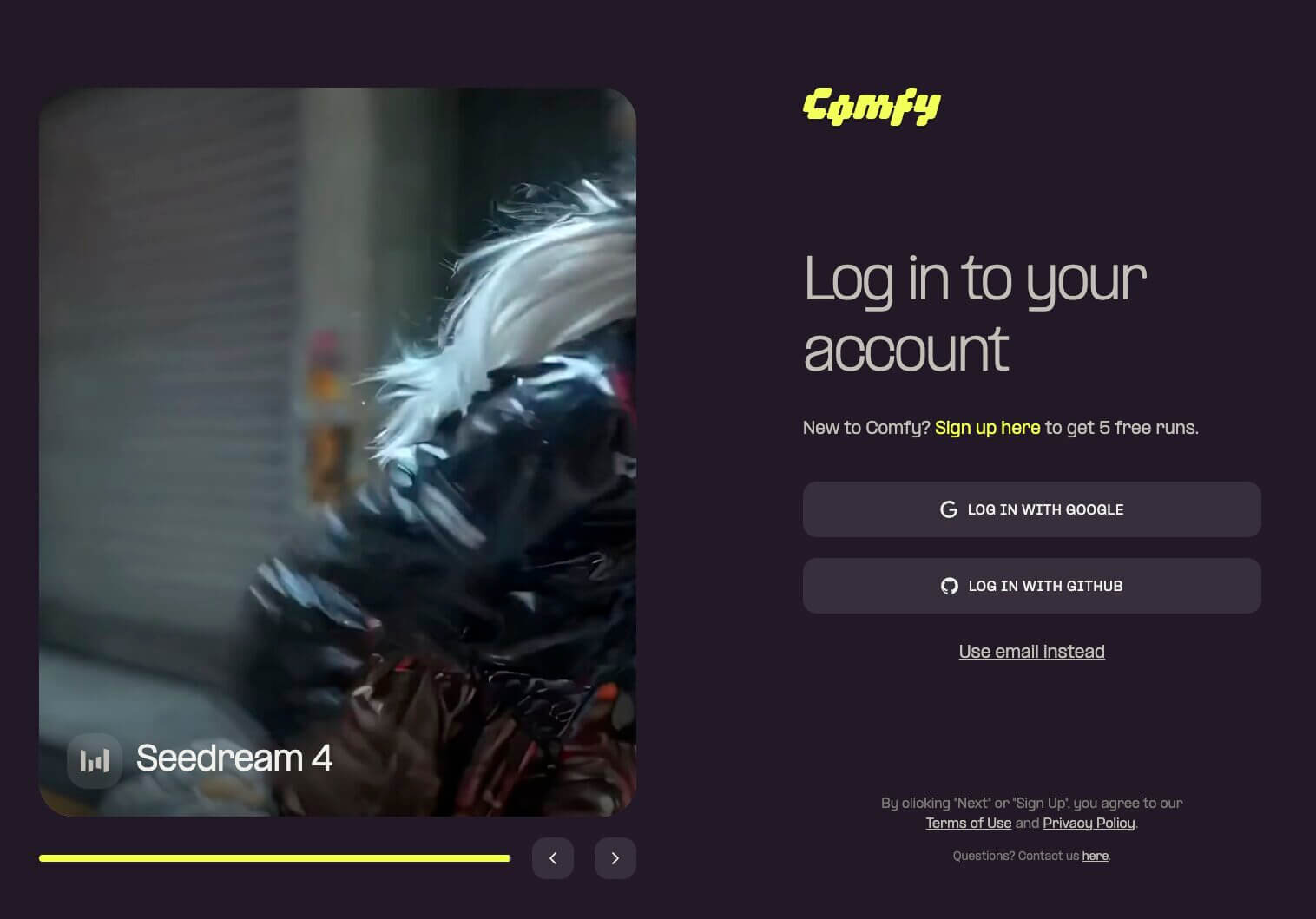
- Open Chrome and go to cloud.comfy.org. Comfy recommends Chrome, so you get the best chance of everything working. Sign in or create an account and follow the on-screen prompts. You should see the Comfy Cloud editor with a sidebar on the left.
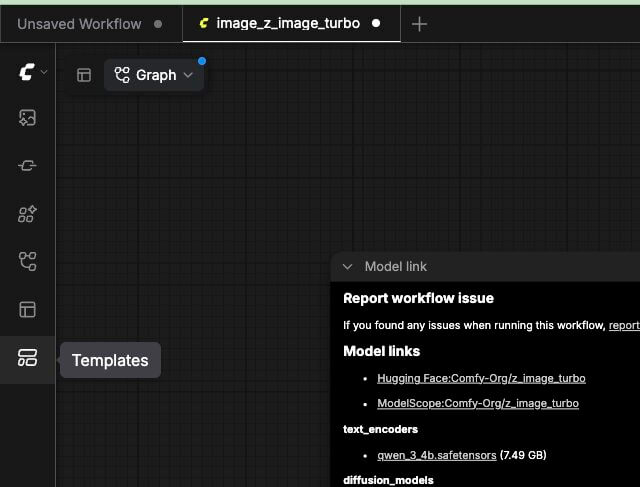
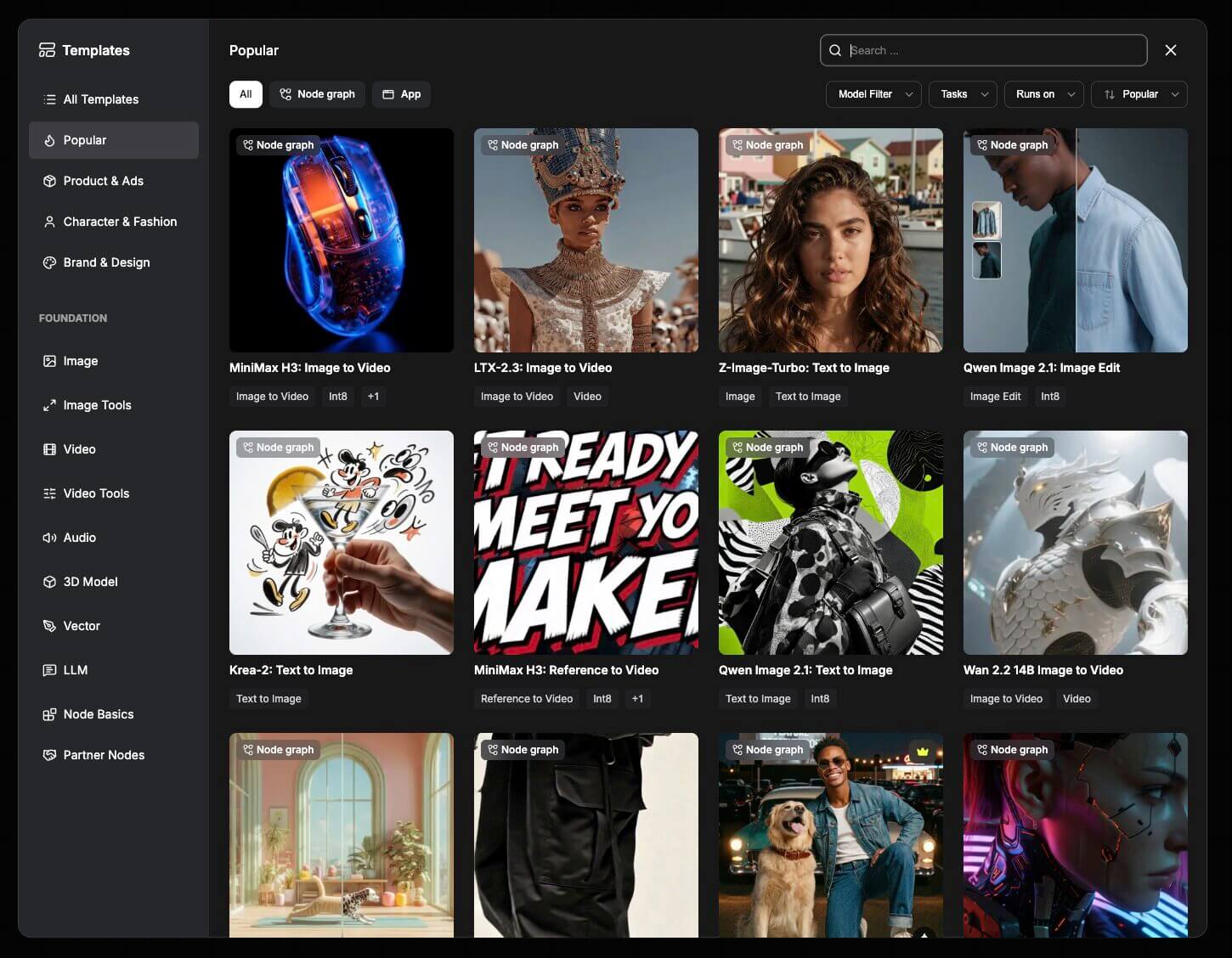
- Open the template browser. A template is a ready-made workflow, so you do not have to build one from nothing. Click the Templates icon at the bottom of the left sidebar. You can also click the Comfy icon in the top-left corner and choose Browse Templates. A window with many ready-made workflows appears.
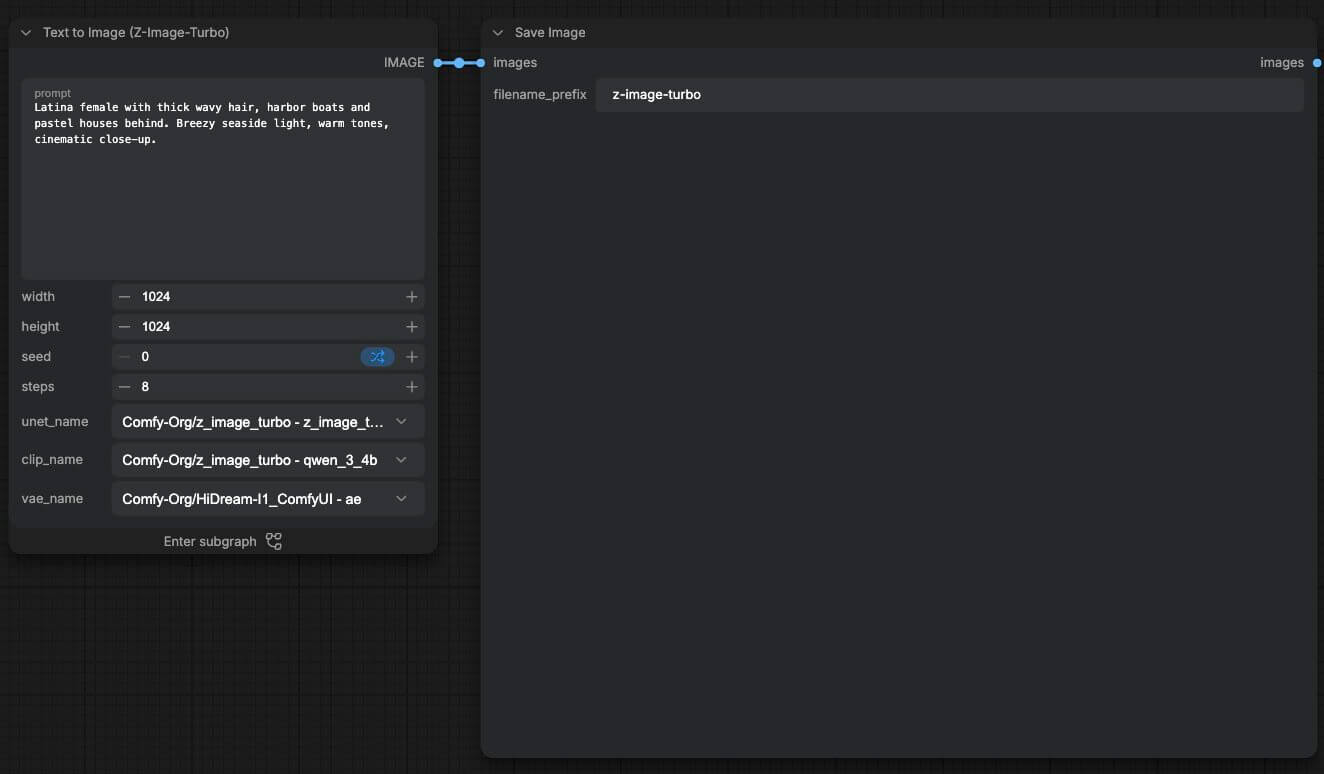
- Pick a text-to-image template and click it. A text-to-image workflow (a workflow that turns your words into a picture) is a good first test. Choose an image template, not a video one. Comfy says heavier models and settings use more credits, and video workflows are heavier. The template opens as a set of connected nodes. Because the models are already installed, it is ready to run right away.
- Read the inputs and type a prompt. The only things you need to change are the inputs. Comfy says to check the Load Image node (if the template uses a picture) or the CLIP Text Encode node. The CLIP Text Encode node is the box where you type your prompt (your written description of the picture). Try a short one, such as "a red bicycle leaning on a brick wall, soft morning light."
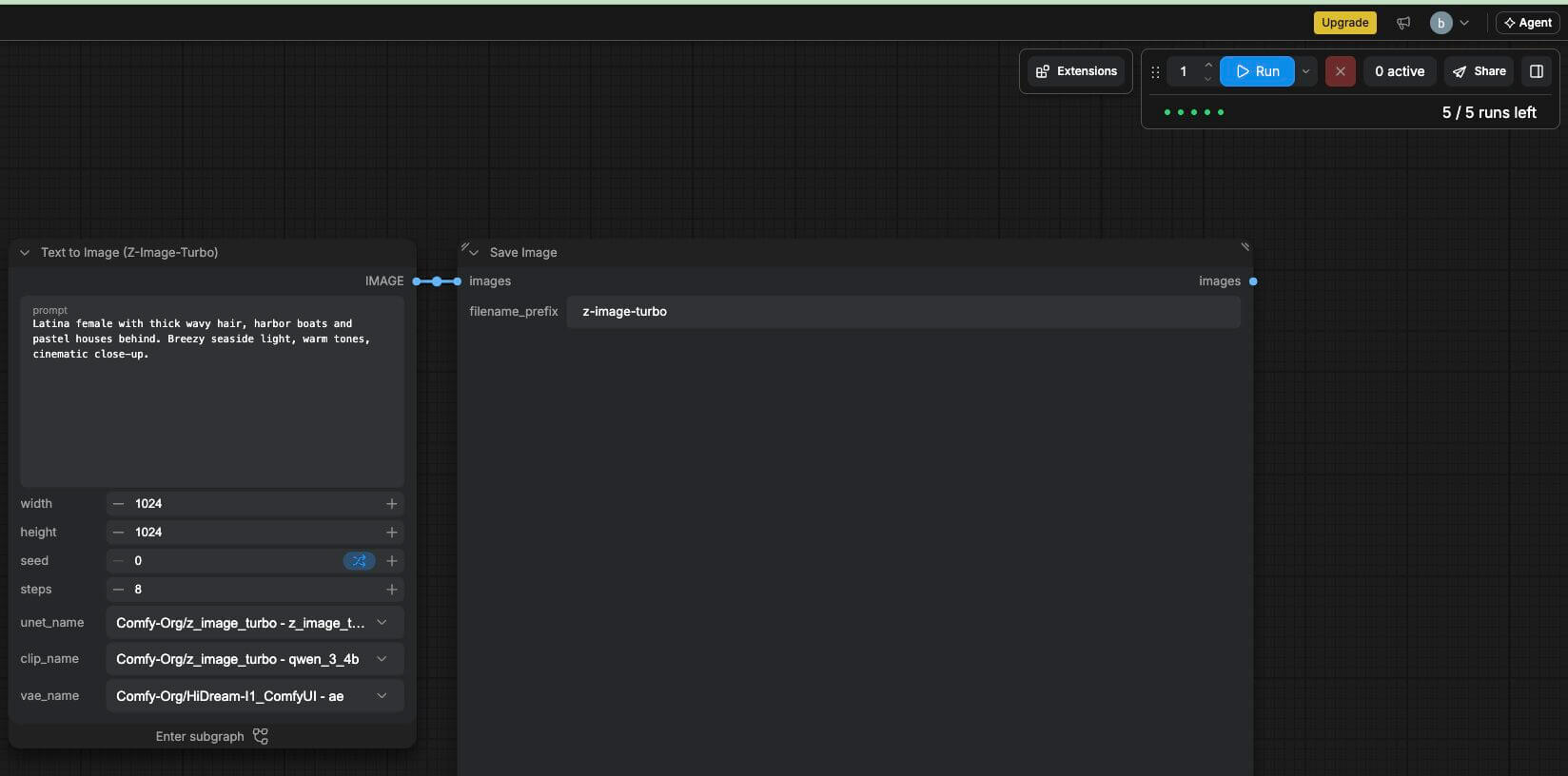
- Press Run. Click the Run icon, or press Ctrl+Enter on your keyboard. Older ComfyUI guides call this step Queue Prompt (the button that sends your workflow to be run). Your job joins the queue, and Comfy's service finds a machine to run it on.
- Watch the queue panel. The panel shows whether your job is waiting, running or finished. It helps you know that nothing is stuck.
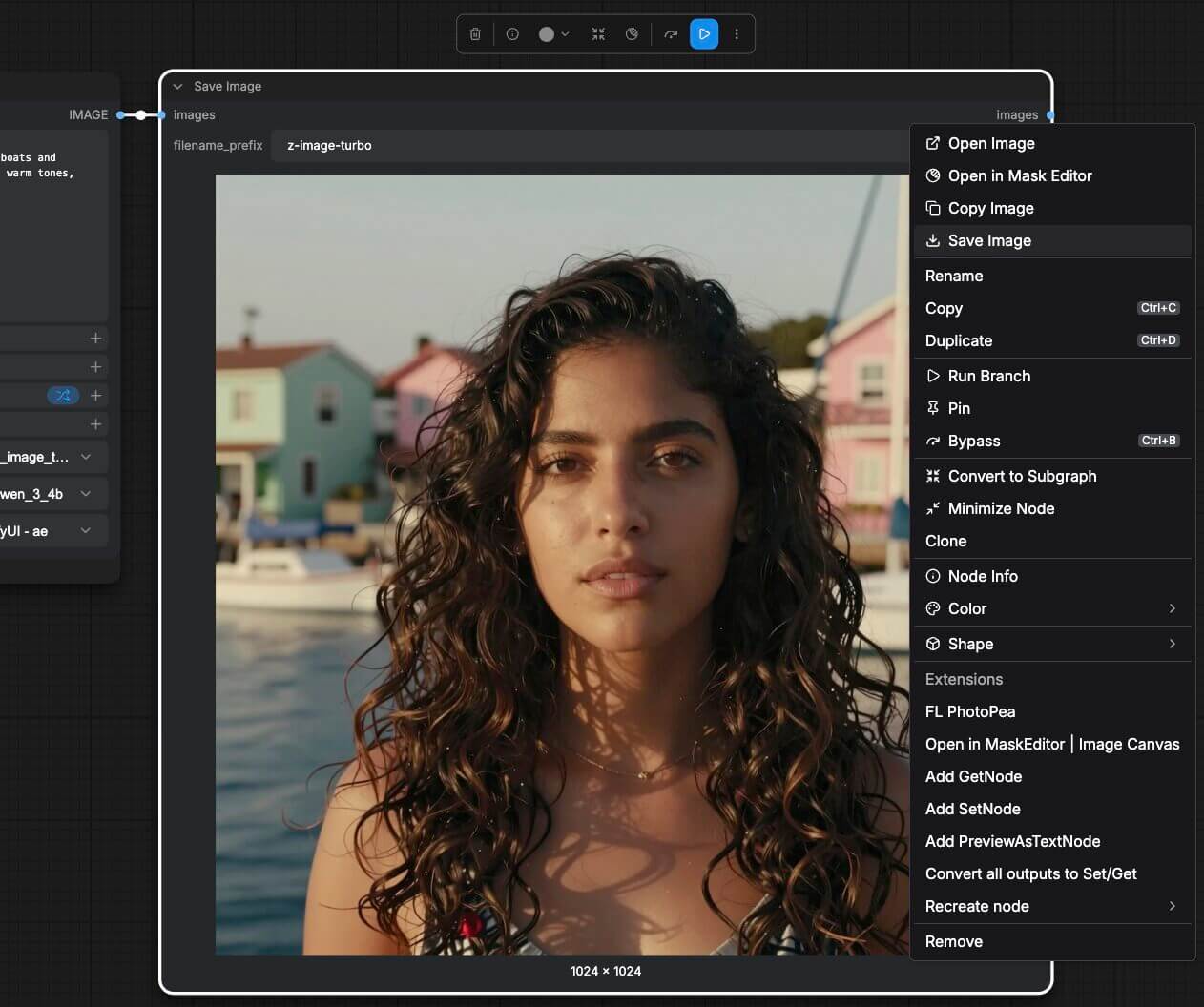
- Save your image. When the job finishes, right-click the image in the queue panel or on the Save Image node. Choose Save Image. The picture downloads to your own computer, so you keep it even if you stop paying.
Comfy's docs say a cloud session only bills you while the GPU is actively running. Time spent reading, planning and building nodes does not use credits.
What Does Comfy Cloud Cost?
Free options come first. ComfyUI and Comfy Desktop are free to run on your own computer. Comfy Cloud is the paid option, and the figures below were checked on comfy.org/pricing on October 2, 2026.
Is Comfy Cloud Free?
Not fully. Comfy's pricing page says you can start with 5 free runs on real GPUs, with no credit card needed. After that, you need a paid plan.
What Do the Standard, Creator and Pro Plans Cost?
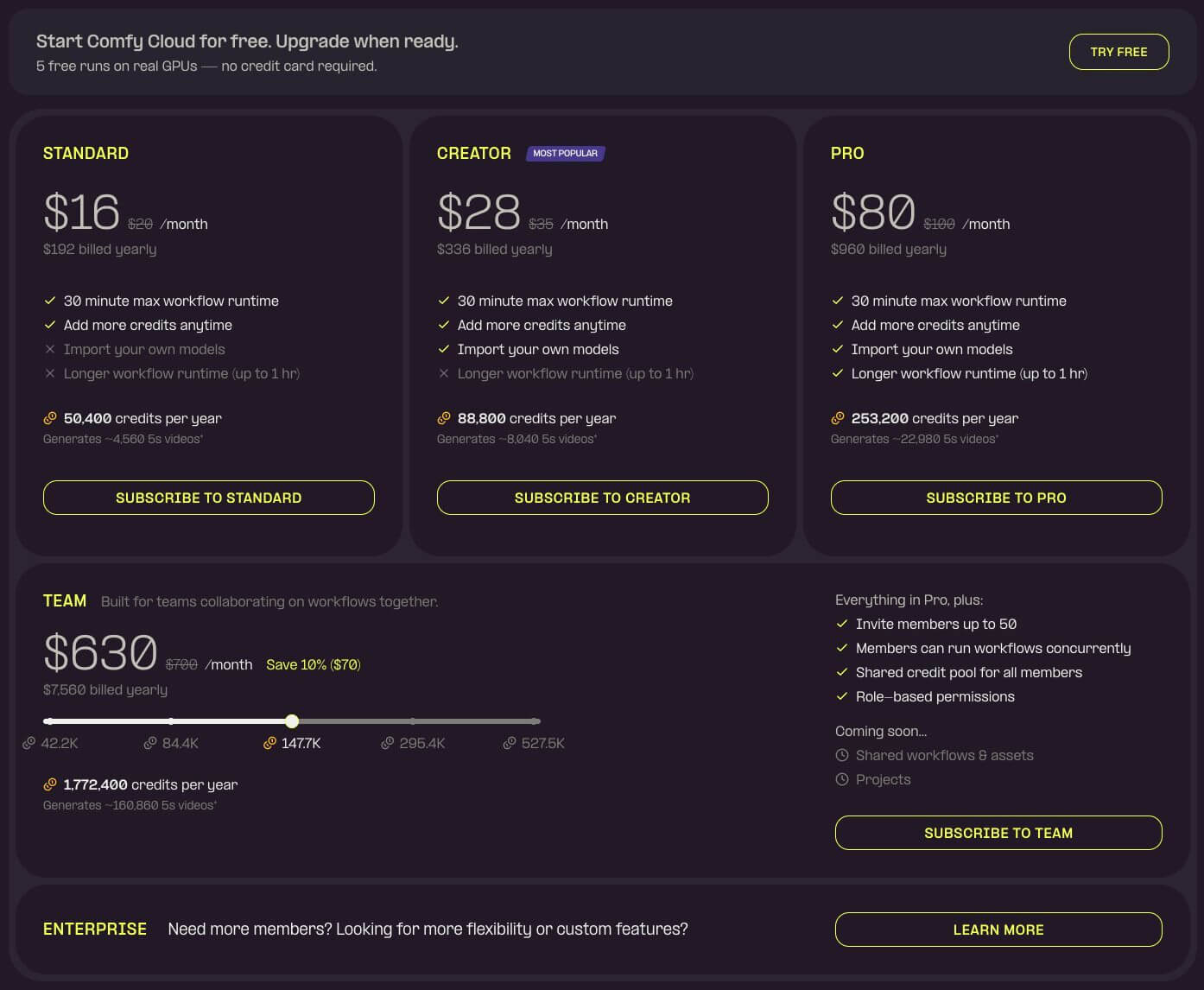
All plans use credits. You can pay by the month, or pay for a full year and save up to 20%.
| Plan | Monthly price | Per month if billed yearly | Credits per year (yearly plan) | Import your own models | Longest run |
|---|---|---|---|---|---|
| Standard | $20 | $16 ($192 a year) | 50,400 | No | 30 minutes |
| Creator | $35 | $28 ($336 a year) | 88,800 | Yes | 30 minutes |
| Pro | $100 | $80 ($960 a year) | 253,200 | Yes | 1 hour |
If you divide the yearly credits by 12, Standard works out to about 4,200 credits a month, Creator to about 7,400, and Pro to about 21,100. That is simple arithmetic on Comfy's numbers.
Comfy also sells a Team plan for groups. Team plans cost between $200 and $2,500 a month, depending on the credit tier you choose. A large company can contact Comfy about an Enterprise plan. Most beginners will not need either one.
How Far Do Credits Go?
A credit is Comfy's unit of use. Each job costs credits based on how long the GPU works, and Partner Nodes cost credits based on the model you call.
Comfy gives one example. A 5-second video made with the Wan 2.2 image-to-video workflow (a workflow that turns one picture into a short video) uses about 11 credits at default settings: 81 frames at 18 frames per second, 640 by 640 pixels. Comfy says heavier models, larger sizes and Partner Nodes use more.
On that example, Comfy says a yearly Standard plan covers about 4,560 clips. That works out to roughly 380 a month.
Here are the rules to remember:
- You are only charged while a workflow runs. Building and editing cost nothing.
- Plan credits reset at the end of each billing cycle (the period you pay for, such as one month). They do not roll over.
- You can buy top-up credits at any time. Plan credits are used first, and top-ups last for 1 year.
What's Missing From Comfy Cloud?
These limits come from Comfy's own help pages. Some of those pages were last updated on May 20, 2026, so check them again before you pay.
Why Can't You Install Any Custom Node You Want?
On Comfy Cloud, you can only use the custom nodes Comfy has approved. Comfy support says custom node uploads are turned off, because many nodes depend on things that only exist on a local computer.
Open the Nodes tab in the left side panel to see the full list. If a node you need is missing, Comfy has a form to request it.
Why Do Long Jobs Get Cancelled?
Each workflow run has a time limit. It is 30 minutes on the Standard and Creator plans and 1 hour on the Pro plan. Comfy cancels any job that goes over the limit.
You can have up to 100 workflows waiting in the queue at once. Heavy video workflows are the ones most likely to hit the limit.
Can You Upload Large Models Directly?
Not yet. Comfy says direct file upload for larger models is on its roadmap. Right now, you can import LoRAs and models from CivitAI and Hugging Face on the Creator, Pro and Team plans only.
Can You See Logs?
No. A log is the running text record that shows what ComfyUI is doing. On a local install, the log helps you find the cause of an error.
Comfy support says logs are not visible on Cloud, for privacy and security reasons. That can make errors harder to understand.
Do Plan Credits Expire?
Yes. Plan credits reset every billing cycle and do not roll over. Top-up credits are different, because they stay valid for 1 year.
Does It Work Offline?
No. Comfy Cloud needs an internet connection. Comfy Desktop is the offline option, because it runs on your own computer.
Here is a side-by-side view:
| Comfy Desktop (free) | Comfy Cloud | |
|---|---|---|
| Cost | Free | 5 free runs, then paid plans from $20 a month |
| Graphics card needed | Yes, in your own computer | No |
| Install needed | Yes | No |
| Custom nodes | Any you install | Comfy's approved list |
| Your own models | Yes | Creator, Pro and Team plans |
| Works offline | Yes | No |
| Logs | Visible | Not visible |
Is Comfy Cloud a Good Starting Point for Beginners?
It can be. Comfy's own help pages say Cloud suits people who want a quick start, or whose computer does not meet the hardware needs. They say a local install suits people who want full control, offline use, or nodes Cloud does not support.
Ask yourself four questions:
- Do I already own a decent GPU? If yes, the free local route may be enough.
- Do I need a custom node that is not on Cloud’s list?
- Is a monthly fee OK for me, starting at $20?
- Do I want to learn ComfyUI on my own computer?
If you are thinking about buying hardware, read which GPU to buy for ComfyUI in 2026. If you own a small GPU, run ComfyUI on a low-VRAM GPU shows how to make it work. If you decide to go local, install ComfyUI on Windows (Desktop vs Portable) walks you through it.
What Goes Wrong on Comfy Cloud, and How Do You Fix It?
A node from your local workflow shows as missing
What causes it: The node is not on Comfy Cloud's approved list.
How to fix it:
- Open the Nodes tab in the left side panel and check if the node is listed.
- If it is not, replace it with a similar node that is listed.
- If you need that exact node, use Comfy’s form to request it in Cloud.
- If the node is essential, run the workflow on a local install instead.
Your job stops at the time limit
What causes it: The run went over the maximum time. That is 30 minutes on Standard and Creator, and 1 hour on Pro.
How to fix it:
- Make the job smaller, for example a shorter video or a smaller image size.
- If your job really needs up to 1 hour, move to the Pro plan.
You cannot run because your free runs or credits are used up
What causes it: You used your 5 free runs, or your plan credits are gone for this billing cycle.
How to fix it:
- Open Settings and look for the Plans & Credits page (the same page where Comfy keeps your invoices).
- Buy top-up credits. They are used after your plan credits and last for 1 year.
- Or subscribe to a plan, or wait for your plan credits to reset.
Frequently Asked Questions
What to Do Next
Compare Comfy Cloud with the free tools you can run yourself.
Read our guide to the best local AI tools to see how Comfy Cloud compares with the free options you can run on your own computer.
What to Read Next
If you are leaning toward running ComfyUI yourself, start with installing ComfyUI on Windows. If your graphics card is small, read how to run ComfyUI on a low-VRAM GPU. If you are thinking about an upgrade, see which GPU to buy for ComfyUI in 2026.
Sources: Comfy's pricing page, the Comfy Cloud docs and the ComfyUI GitHub project.
Published: 2026-10-02 · Last updated: 2026-10-02 · Pricing and limits checked against Comfy's official pages on October 2, 2026.
Join the discussion
Sign in to leave a comment or reply
No comments yet
Be the first to share your thoughts!