
⚡ Quick Answer
Every file you download for ComfyUI goes in its own subfolder inside the ComfyUI models folder (ComfyUI/models/). Only a full checkpoint (one file that bundles everything needed to make an image) belongs in checkpoints. A LoRA (a small add-on file for a style or character) goes in loras, a VAE (the part that turns the AI’s work into a visible picture) goes in vae, and the other file types each have their own folder, listed in the table below. If Load Checkpoint shows “Could not detect model type”, the file is often a standalone Flux-style model that belongs in diffusion_models instead.
You downloaded a model, opened a workflow (a saved set of connected steps that tells ComfyUI how to make an image), and the model menu is empty. Or ComfyUI shows a red error that says “Could not detect model type”. Nearly every time, the file is in the wrong subfolder of the ComfyUI models folder.
This cheat sheet lists the seven file types you will meet first, the exact folder each one needs, and the loader box that reads it. You will also learn how to open the right folder on ComfyUI Desktop and Portable, how to make ComfyUI see a new file, and what to do when it still does not.
Read the table first if you are in a hurry. Read the sections after it if you want to understand why each file goes where it does.
Hardware and versions used for this guide: ComfyUI [version], [GPU and VRAM]. Moving files into folders does not depend on your graphics card.
What Do You Need Before You Start?
You can read this guide without downloading anything. The files below are only needed if you want to try the Flux example yourself.
- A working copy of ComfyUI (Desktop or Portable).
- A file manager: File Explorer on Windows, Finder on Mac.
- Text encoder files for the Flux example, from comfyanonymous/flux_text_encoders on Hugging Face:
clip_l.safetensors(246 MB), plus one oft5xxl_fp8_e4m3fn.safetensors(4.89 GB, a smaller version stored in FP8, a way of saving numbers with less detail so the file gets smaller) ort5xxl_fp16.safetensors(9.79 GB, the larger version). Pick one T5 file, not both. - The Flux VAE file
ae.safetensorsand the Flux diffusion model file, from the official FLUX.1-dev page by Black Forest Labs. Hugging Face may ask you to log in and accept a license before it lets you download.
All of these files end in .safetensors (a common, safe file type for AI models).
Moving files into folders does not use your graphics card. Running Flux afterwards does. Check the model’s download page for how much VRAM (the memory on your graphics card) it needs before you try to run it.
Where Do You Put Models in ComfyUI? (The Cheat Sheet)
ComfyUI keeps all models under one main folder, ComfyUI/models/. Inside it are subfolders, one for each kind of model. The official ComfyUI docs on models describe the same idea.
A node is a rectangular block that does one job. A loader node (this guide calls it a loader box) is a block that opens one folder, lets you pick a file from it, and passes that file to the rest of your workflow. Each loader box reads from one folder only.
This is why the file’s name does not decide where it goes. Many different model types all end in .safetensors, but the loader box that uses the file decides the folder. Find the loader box in your workflow, then use the table.
| # | File type | Example filename | Put it in models/ | Loader box that reads it |
|---|---|---|---|---|
| Belongs here | Full checkpoint (one file with everything) | sd_xl_base_1.0.safetensors | checkpoints | Load Checkpoint |
| 1 | Diffusion model (the part that draws the image), such as Flux | The large Flux .safetensors file from its download page | diffusion_models | Load Diffusion Model |
| 2 | GGUF model (a smaller, compressed version) | Any file ending in .gguf | diffusion_models | Unet Loader (GGUF), needs an extra add-on |
| 3 | LoRA (style or character add-on) | my-style-lora.safetensors | loras | Load LoRA |
| 4 | VAE (turns the result into a picture) | ae.safetensors (for Flux) | vae | Load VAE |
| 5 | Text encoder (reads your prompt) | clip_l.safetensors, t5xxl_fp8_e4m3fn.safetensors | text_encoders | DualCLIPLoader (Flux) or Load CLIP |
| 6 | ControlNet model (guides the result with a reference image) | Your downloaded ControlNet file | controlnet | Load ControlNet Model |
| 7 | Upscale model (makes images bigger) | A file with a name like 4x_... | upscale_models | Load Upscale Model |
Not sure which row your file belongs to? Pick it below to see its folder, its loader box, and what happens if it ends up in the wrong place.
Which folder does my file go in? Pick what you downloaded.
Put it in
ComfyUI/models/diffusion_models/
Loader box: Load Diffusion Model
Example file: The large Flux .safetensors file from its download page
If it is in the wrong folder: Left in checkpoints, it will not appear in the Load Diffusion Model menu. Loaded with Load Checkpoint, it often shows “Could not detect model type”.
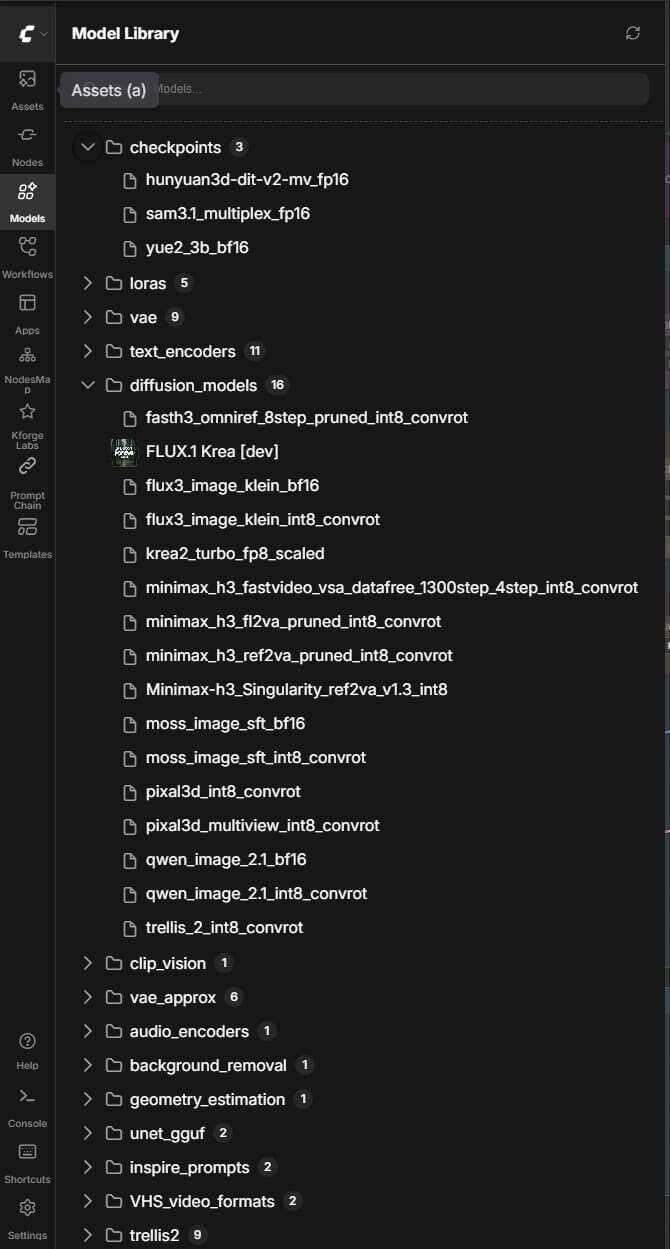
What Does the ComfyUI Models Folder Structure Look Like?
Here is the layout for the folders in the table. Each folder sits next to the loader box that reads it.
Use these rules when you work with the folders:
- Put files inside a subfolder, never loose in the
modelsfolder itself. A loader box only looks in its own folder, so a loose file is never found. - If a folder from the table is missing, create it with the exact name. Use lowercase letters, an underscore where shown, and no spaces.
- You can make your own subfolders inside a folder, for example
loras/anime. ComfyUI looks inside them, and the menu shows the subfolder name in front of the file name. - ComfyUI’s built-in loaders read these file endings:
.safetensors,.ckpt,.pt,.pth,.bin,.pkl,.sftand.pt2.
unet and clip. ComfyUI still reads both. It treats unet as the same list as diffusion_models, and clip as the same list as text_encoders. You can see this in the ComfyUI source code. New guides use the newer names, and so does this article.A few other folders exist that you rarely need as a beginner. Examples are embeddings (embeddings are small files that teach ComfyUI a new word or style for prompts), clip_vision and configs. The seven file types in the table are the ones you will meet first.
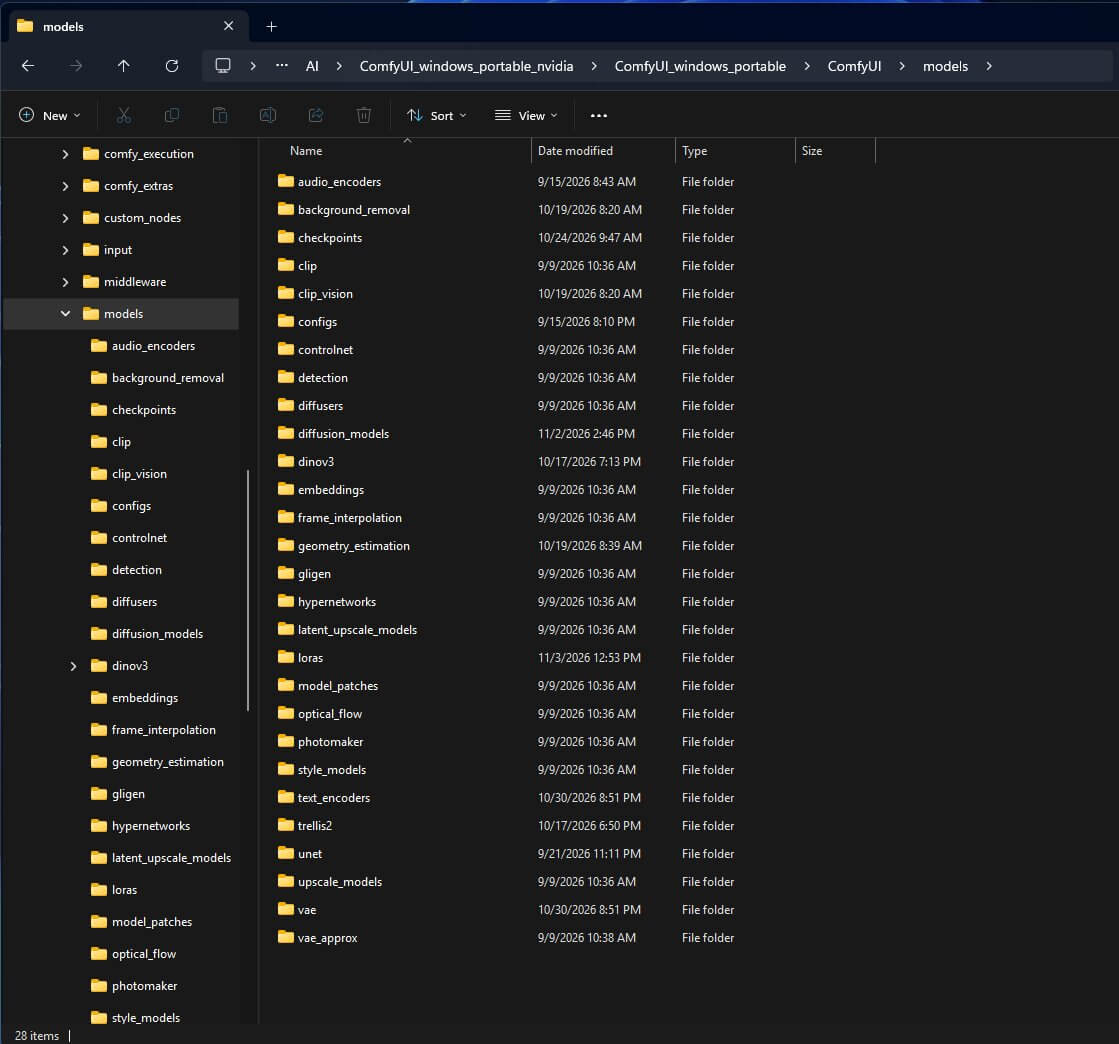
Where Is the ComfyUI Models Folder on Desktop vs Portable?
You must open the folder from the same copy of ComfyUI that is running. A file placed in a different copy will never appear in your menus. If you are not sure which type you have, read our guide to the Desktop vs Portable install.
How Do You Open the Models Folder on ComfyUI Desktop?
ComfyUI Desktop is the version you install with a normal installer. It has a built-in shortcut, so you do not have to search for the folder.
- Open ComfyUI Desktop. The main canvas (the big grid where you build workflows) appears.
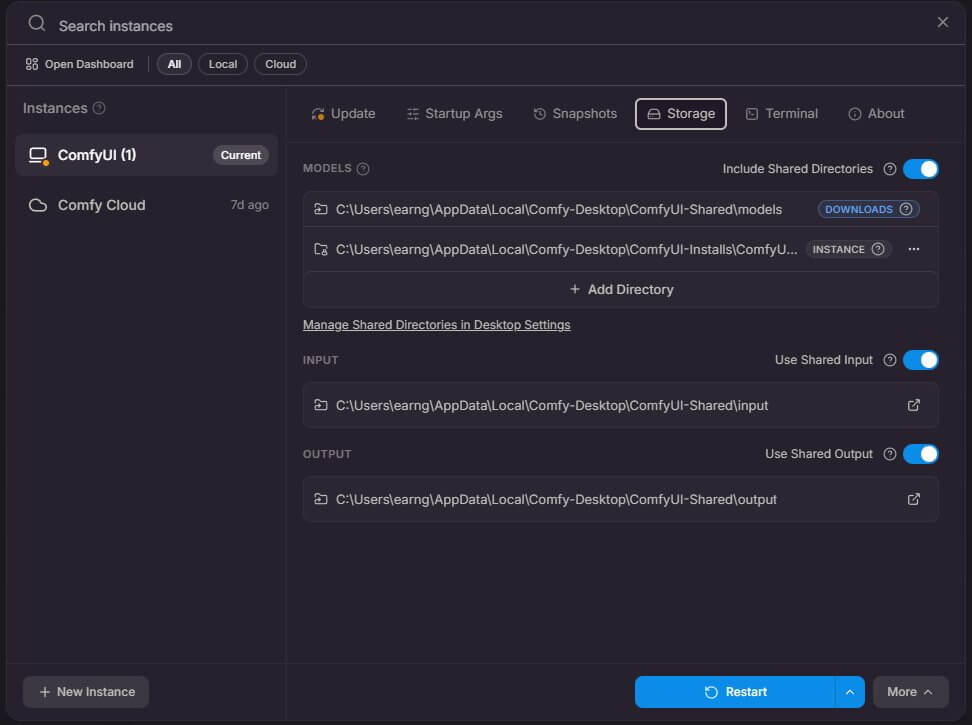
- Open the settings for your ComfyUI Desktop instance. A settings window opens.
- Click Storage. The storage page opens, and you should see a link to the models folder.
- Click the models folder link. A File Explorer or Finder window opens, and you should see subfolders such as
checkpoints,lorasandvae.
Where Is the Models Folder on ComfyUI Portable?
The Portable version is a zip file you unzip. It does not have the menu shortcut, so you open the folder yourself.
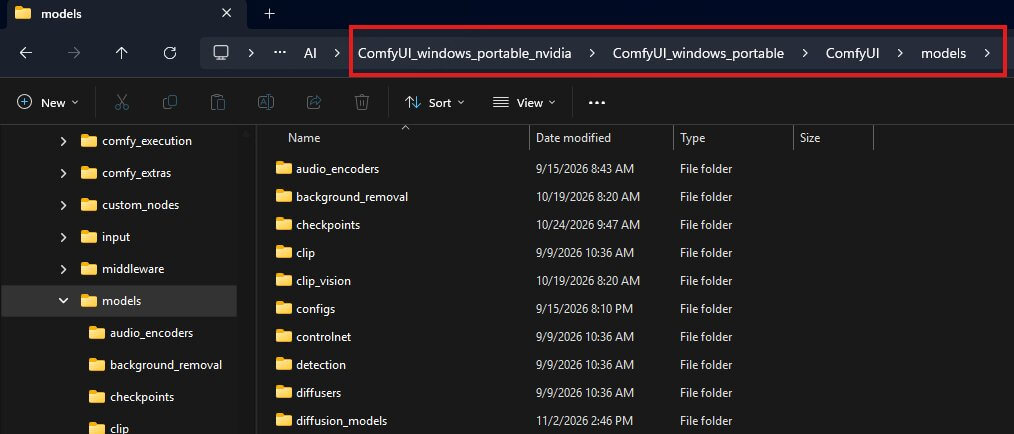
- Open the folder where you unzipped ComfyUI. It is named
ComfyUI_windows_portable. - Open the
ComfyUIfolder inside it. - Open the
modelsfolder. You should see the same subfolders as on Desktop.
On a manual install (where you downloaded ComfyUI and set it up yourself), the models folder sits inside the main ComfyUI folder.
How Do You Check You Are Editing the Install That Is Running?
Some people have two copies of ComfyUI, for example one Desktop and one Portable. Only the copy that is running sees your files.
- Look at the terminal (the black text window that opens when ComfyUI starts) or your launcher settings. They show which ComfyUI folder is running.
- Move a test file into the matching folder.
- Press
ron the ComfyUI canvas, as shown in the steps further down. If the file appears in the loader box’s menu, you edited the right copy.
What Actually Belongs in the ComfyUI Checkpoints Folder?
A checkpoint is a full model in one file. It holds three parts together: the diffusion model (the part that draws the image), the text encoders (the parts that read your prompt), and the VAE. Load Checkpoint expects all three parts in one file.
Older Stable Diffusion 1.5 and SDXL models are classic examples, such as sd_xl_base_1.0.safetensors. A standalone diffusion model is only the drawing part, without the extras. The glossary page checkpoint vs diffusion model explains the difference, and our guide to checkpoint models explained goes deeper.
Use these two checks to decide where a file goes:
- Read the loader box in the workflow. Its name tells you the folder, using the table above.
- Read the download page. If it tells you to download a VAE and text encoders as separate files, the main file is not a full checkpoint.
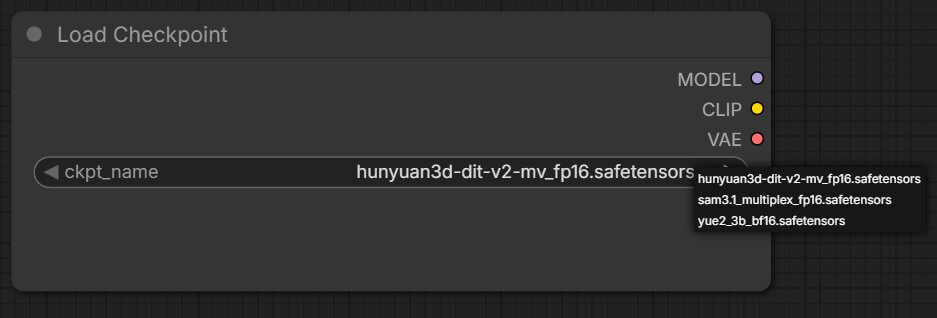
Which 7 Files Don’t Go in the Checkpoints Folder?
Each section below gives the folder, the loader box, an example filename, and what you will see if the file is in the wrong place.
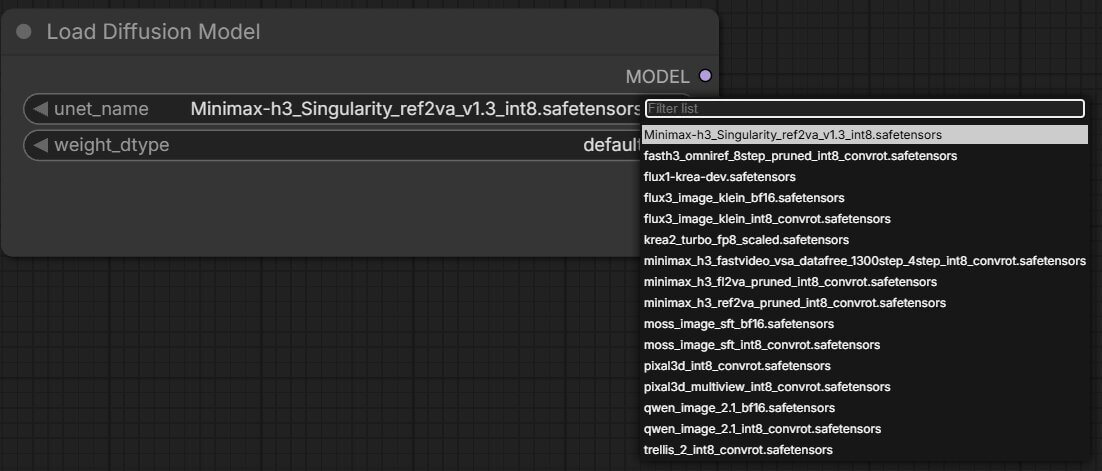
1. Where Does a Flux Diffusion Model Go?
Put it in diffusion_models. The loader box is Load Diffusion Model. Some older workflows call the same box UNETLoader.
A diffusion model is the part of the AI that draws the picture. The Flux file you download from the FLUX.1-dev page is a standalone diffusion model, so it does not contain the text encoders or the VAE. You download those as separate files.
Older guides tell you to use the unet folder. A U-Net (the type of network that older image models use at their core) gave that folder its name. Files in unet and diffusion_models show up in the same menu, so either works. Use diffusion_models.
If you put this file in checkpoints and load it with Load Checkpoint, you may see the “Could not detect model type” error. The next section explains how to fix it.
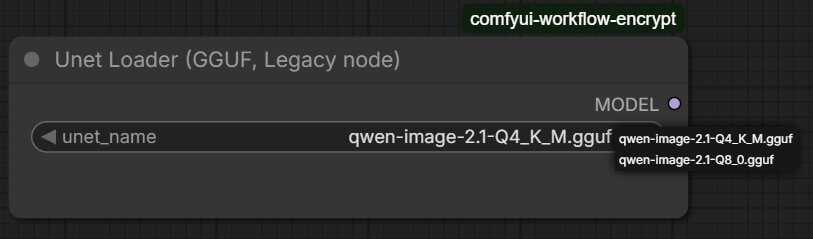
2. Where Do GGUF Files Go?
Put them in diffusion_models. The loader box is Unet Loader (GGUF).
A GGUF file stores a quantized model (a version squeezed smaller so it fits on weaker graphics cards). The standard ComfyUI loaders do not read GGUF files. You need an extra add-on, called a custom node (extra code that adds new boxes to ComfyUI), to get the GGUF loader box.
Our guide to low-VRAM options like GGUF and FP8 explains when to pick each option. If the GGUF loader’s menu is empty, the file is usually in the wrong folder.
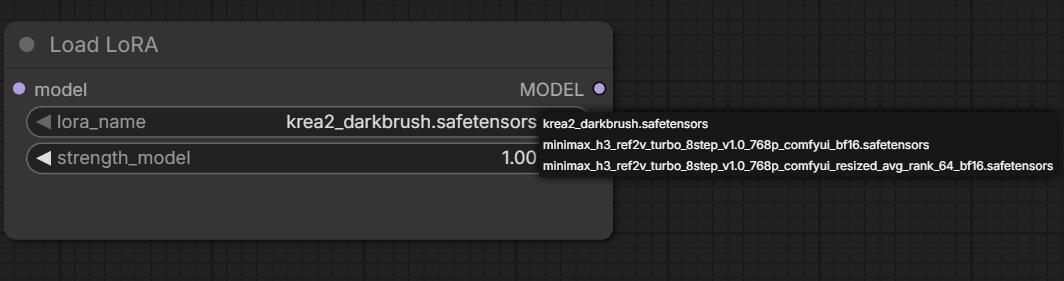
3. Where Do LoRA Files Go?
Put them in loras. The loader box is Load LoRA.
A LoRA changes the style of a model, or teaches it a character. It only works with the model family it was made for. Use an SD 1.5 LoRA with an SD 1.5 checkpoint, and an SDXL LoRA with an SDXL checkpoint.
If you put a LoRA in checkpoints, it may show up in the Load Checkpoint menu but fail when you use it. It will not appear in the Load LoRA menu.
4. Where Does the VAE File Go?
Put it in vae. The loader box is Load VAE.
The VAE is the part that turns the AI’s internal work into a picture you can see. Flux uses a file named ae.safetensors as its VAE. A VAE that does not match your model can cause wrong colors or decode errors.
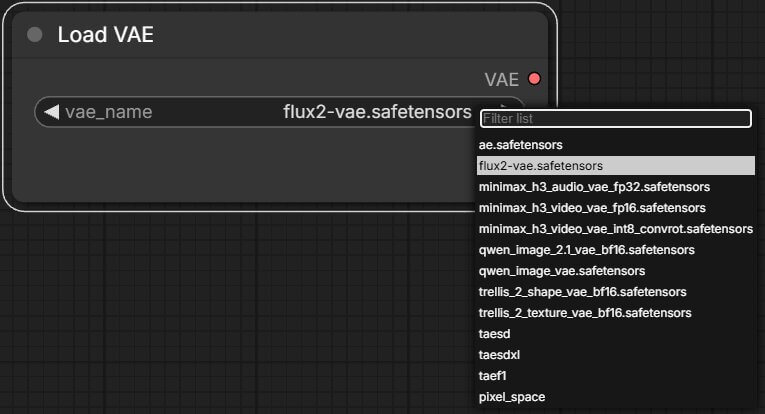
5. Where Do Text Encoders Like clip_l and t5xxl Go?
Put them in text_encoders. The loader box for Flux is DualCLIPLoader. Other models use Load CLIP.
A text encoder is the part that reads your written prompt and turns it into numbers the image model understands. CLIP is one common type. Flux needs two text encoders: clip_l.safetensors and one T5 file.
Here are the files from the Hugging Face page:
| File | Size | What It Is |
|---|---|---|
clip_l.safetensors | 246 MB | The small text encoder. Flux always needs this one. |
t5xxl_fp8_e4m3fn.safetensors | 4.89 GB | The T5 text encoder in a smaller FP8 version. Uses less memory. |
t5xxl_fp8_e4m3fn_scaled.safetensors | 5.16 GB | A scaled FP8 version of the T5 text encoder. |
t5xxl_fp16.safetensors | 9.79 GB | The T5 text encoder in the larger FP16 version. |
Download size of each Flux text encoder file
clip_l.safetensors
t5xxl_fp8_e4m3fn.safetensors
t5xxl_fp8_e4m3fn_scaled.safetensors
t5xxl_fp16.safetensors
fp8 and fp16 in a file name describe how the file is compressed. They do not tell you which folder it needs.Newer image and video models, such as Qwen and LTX, use their own text encoder files. These also go in text_encoders. The model’s download page gives the exact filenames.
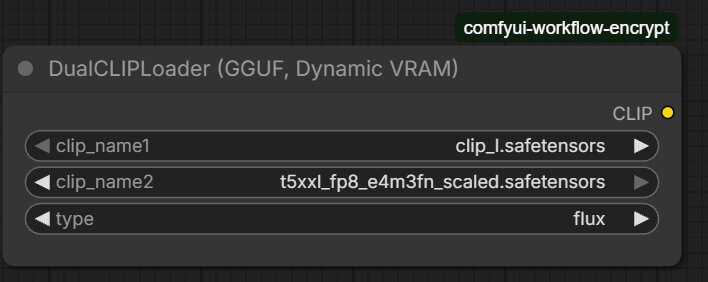
6. Where Do ControlNet Models Go?
Put them in controlnet. The loader box is Load ControlNet Model.
A ControlNet is an add-on model that uses a reference image, such as a pose or an outline, to guide the result. It must match your model family. An SD 1.5 ControlNet does not work with an SDXL checkpoint.
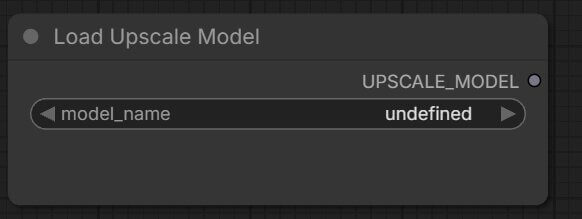
7. Where Do Upscale Models Go?
Put them in upscale_models. The loader box is Load Upscale Model.
An upscale model makes an image bigger and sharper after it is created. The files often end in .pth or .safetensors, and many have names that start with something like 4x_.
Why Does ComfyUI Say “Could not detect model type” (and How Do You Fix It for Flux Files)?
What Does the Error Look Like?
You run a workflow, and a red error message appears. It starts with this text:
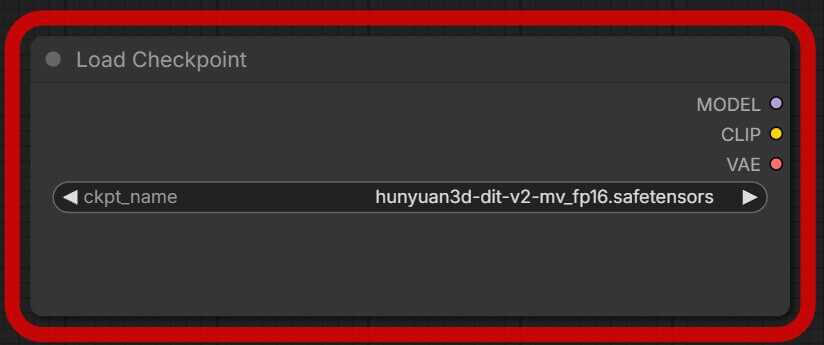
After the colon, ComfyUI shows the path of your file, for example one ending in \models\checkpoints\flux_dev.safetensors. The loader box that caused it is usually Load Checkpoint.
Why Does the Error Happen?
ComfyUI opens the file and checks what is inside. If it does not recognize the contents as a model it knows, it stops and shows this message. There are three common causes:
- The file is not a full checkpoint. You put a standalone diffusion model (or a LoRA, VAE, or text encoder) in
checkpointsand loaded it with Load Checkpoint. That loader expects all three parts in one file. - Your ComfyUI is too old. A new model may need a newer ComfyUI version to be recognized.
- The download is incomplete or damaged. A file that stopped downloading early cannot be read.
How Do You Fix It?
- Check what the file really is. Open its download page. If the page lists a VAE and text encoders as separate downloads, your file is a standalone diffusion model.
- Move the file to
diffusion_models. Use the Settings and Storage steps above if you use Desktop. - Replace Load Checkpoint with Load Diffusion Model in your workflow. Double-click an empty spot on the canvas. A search box opens. Type Load Diffusion Model and press Enter. Connect it the same way the old box was connected.
- Press
ron the canvas, then pick your file in the Load Diffusion Model menu. - If the error stays, update ComfyUI to the latest version. Then check that the file size on your computer matches the file size on the download page, and download it again if it does not.
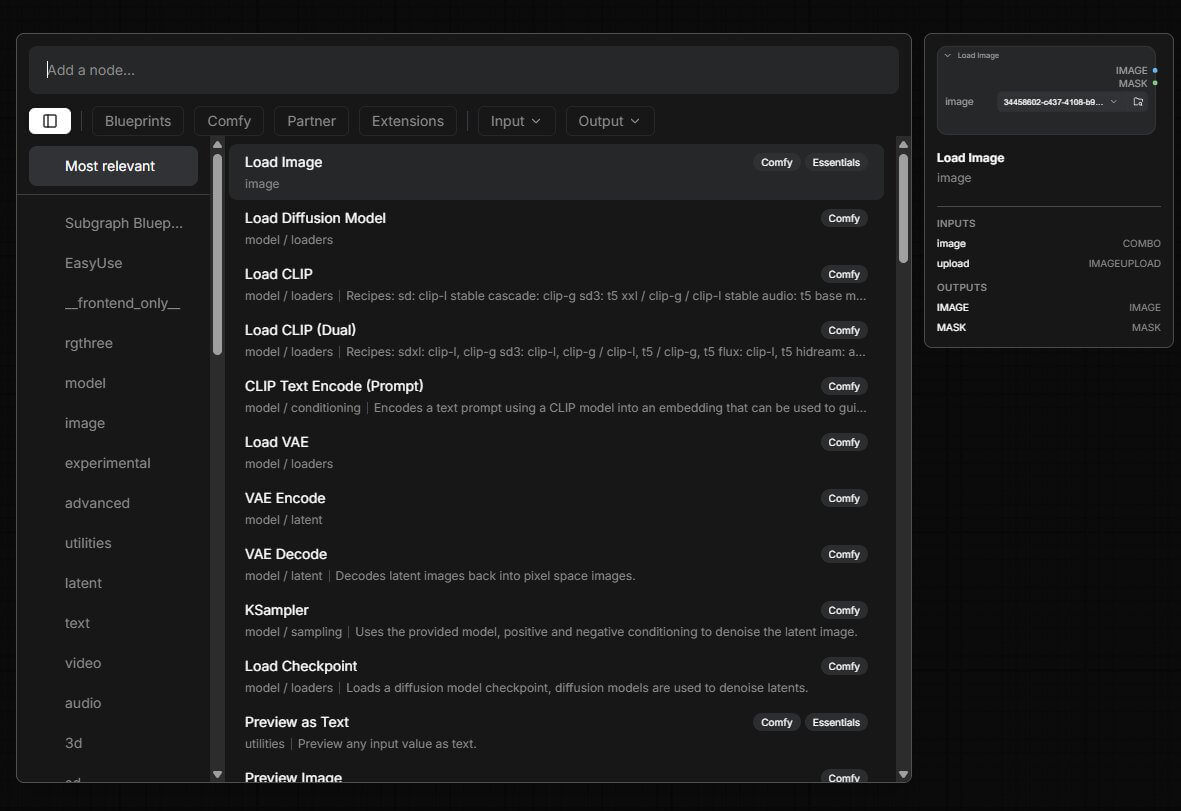
The easiest way to avoid wiring mistakes is to start from the model’s official example workflow. It already has the right loader boxes. Our guide to Load Checkpoint vs Load Diffusion Model explains the difference in detail.
What If the File Really Is an All-in-One Checkpoint?
Some creators on Civitai package a Flux model as a full checkpoint with everything inside. Those files do belong in checkpoints, and Load Checkpoint reads them. The download page tells you which kind you have. If it says “checkpoint” and does not list separate VAE or text encoder files, use checkpoints.
How Do You Make ComfyUI See a New Model File?
ComfyUI reads the folders when it starts, and it keeps that list in memory. You must refresh the list after you add a file.
- Move the file into the right folder. Wait until the copy is finished. A half-copied file may not be recognized.
- Click an empty spot on the ComfyUI canvas, then press the
rkey on your keyboard. This refreshes the list of model files. - Click the file name inside the loader box. A menu opens. You should see your file in the list. Click it to select it.
- If the file is still missing, close ComfyUI completely and open it again.
Troubleshooting: Model Not Showing Up or Not Loading
For the “Could not detect model type” error, see the section above. For other problems, see our guide to common ComfyUI errors.
Value not in list: ckpt_name: 'model-name.safetensors' not in []
What causes it: The workflow asks for a file name that is not in the loader’s list. The empty [] at the end means ComfyUI found no files in the folder that loader reads. Workflows made by other people often use their own file names, which do not match yours. Other loaders show the same message with their own setting name, such as lora_name or vae_name.
How to fix it:
- Open the loader box named in the error.
- Click the file name field. The menu opens.
- If the menu is empty, move your file into the folder from the table above.
- Press
r, then pick your file from the menu.
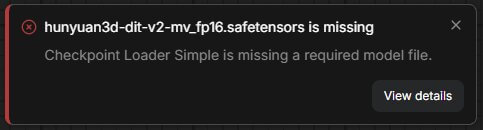
The File Is in the Right Folder but the Dropdown Is Still Empty
What causes it: One of these is usually true. The download did not finish, the list was not refreshed, you edited a different copy of ComfyUI, or the file is still inside a zip file or a browser download folder. Another cause is that your models live on another drive, and ComfyUI has not been told where to look. That setting lives in a file called extra_model_paths.yaml.
How to fix it:
- Make sure the file is not inside a zip file and has finished downloading.
- Check that you moved it into the copy of ComfyUI that is running (see the steps above).
- Press
r. If nothing changes, close ComfyUI and open it again. - If your models are on another drive, check your
extra_model_paths.yamlsettings.
A VAE or Text Encoder Is Not Detected
What causes it: The menu in Load VAE or DualCLIPLoader shows no files. The file is probably in checkpoints or another wrong folder.
How to fix it:
- Move VAE files to
vae. - Move text encoder files to
text_encoders. - Press
rand check the menu again.
Frequently Asked Questions
What to Do Next
Move one downloaded model into its matching folder today.
Pick a model you have already downloaded, find its loader box in its workflow, and move the file into the matching folder from the cheat sheet. Then learn the five key principles for writing prompts so your next images turn out better.
What to Read Next
If the “Could not detect model type” section raised more questions, our guide to Load Checkpoint vs Load Diffusion Model goes deeper. When you want to run Flux itself, follow how to install Flux in ComfyUI. For any other red error, the troubleshooting guide covers the most common ones.
Published: 2026-11-03 · Last updated: 2026-11-03 · Tested on ComfyUI [version], [GPU and VRAM].
Join the discussion
Sign in to leave a comment or reply
No comments yet
Be the first to share your thoughts!