
⚡ Quick Answer
The official ComfyUI system requirements cover your operating system (Windows 10 or later, a Mac with an Apple Silicon chip, or Linux), your Python version and your graphics card brand, but they list no minimum VRAM (the memory built into your graphics card). In practice, 4 GB of VRAM runs older models, 6 GB and 8 GB run most newer image models in compressed form, and 16 GB of system memory (RAM) is a sensible starting point. Fast “Turbo” models generate quicker, but they do not always need less memory, because the file type you download is what lowers VRAM.
ComfyUI is a free program that runs AI image and video models on your own computer. A graphics card (also called a GPU) is the part of your computer that does the heavy AI work. Before you install ComfyUI, you need to know if your computer can handle it, and this is where most beginners get stuck. The ComfyUI system requirements page leaves out the one number people want first: how much VRAM you need.
This guide fills that gap in plain English. You will check your own computer in a few short steps, match it to a hardware tier, and see what a 6 GB or 8 GB graphics card can run. You will also see what popular image, video, music, speech and upscaling models need, including their fast Turbo versions and their full versions.
Every number in this guide comes from the official ComfyUI documentation, the model authors or community testers, and we name the source each time. Numbers change as ComfyUI and the models are updated. We last checked them on October 26, 2026.
What Do the Official ComfyUI System Requirements Say in 2026?
The ComfyUI team keeps a short requirements page in its documentation. We read it on October 26, 2026, and this section explains it in plain English.
The page lists three things: which operating systems work, which graphics card brands work, and which software versions work. It does not list a minimum amount of VRAM, system memory (RAM) or storage space. The page also says it may fall behind ComfyUI updates, so treat it as a starting point and check it again before a big purchase.
You can install ComfyUI in three ways, and each way has slightly different requirements:
- Comfy Desktop is a normal app that you install like any other program. It works on Windows, Mac (Apple Silicon) and Linux. It follows the stable ComfyUI release by default, which is the safer choice for beginners.
- ComfyUI Portable is a folder that you unzip and run. It works on Windows only, with an NVIDIA graphics card or in CPU-only mode (CPU-only mode means ComfyUI uses your computer’s main processor instead of a graphics card, which is much slower). It includes its own Python and uses the latest code.
- Manual install means you set up Python and the other parts yourself. It works on every operating system and every supported graphics card type. Most beginners should skip this option.
Our guide to install ComfyUI on Windows (Desktop vs Portable) walks through the first two options step by step.
The three ways to install ComfyUI
Each option has slightly different requirements.
Comfy Desktop
Best for beginners
- Windows 10 or later
- macOS (Apple Silicon)
- Linux
Graphics: NVIDIA or AMD card recommended on Windows
Installs like a normal app and follows the stable release.
ComfyUI Portable
- Windows only
Graphics: NVIDIA graphics card, or CPU-only mode
A folder you unzip and run. It includes Python 3.13 and PyTorch for CUDA 13.0, and uses the latest code.
Manual install
Advanced
- Windows
- macOS
- Linux
Graphics: Every supported graphics card type
You set up Python and PyTorch yourself.
Which operating systems does ComfyUI support?
ComfyUI supports Windows, Linux and macOS. Here are the details for each one:
- Windows: Comfy Desktop needs Windows 10 or later, and the docs recommend an NVIDIA or AMD graphics card. ComfyUI Portable also runs on Windows.
- Mac: ComfyUI needs a Mac with an Apple Silicon chip (the M1, M2, M3 or M4 family). Macs with Intel chips are not listed. To check your chip, click the Apple menu in the top-left corner, choose About This Mac, and read the Chip line.
- Linux: Comfy Desktop now offers an AppImage and a .deb file (two common ways to install programs on Linux). You can also use the manual install.
Mac readers get a full section on Apple Silicon further down this guide.
Which Python version do you need (and do you need to install it at all)?
Python is the programming language ComfyUI is built with. You do not need to install it yourself if you use Comfy Desktop or ComfyUI Portable, because both include it. Only a manual install makes you set up Python.
For a manual install, the official docs recommend Python 3.13. Python 3.14 works, but some custom nodes may have trouble with it. A custom node (an add-on that gives ComfyUI new features) is code written by the community, and some of it lags behind new Python versions. If a custom node fails on 3.13, the docs suggest Python 3.12 as a safe fallback.
ComfyUI also needs PyTorch. PyTorch is a Python library (a bundle of ready-made code) that does the AI math. The docs say PyTorch 2.7 or newer is supported, and a newer version is strongly recommended. On NVIDIA RTX 20-series cards and newer (for example the RTX 2060, 3060, 4060 and 5060), the docs say you need a PyTorch version built for CUDA 13.0, which is written as cu130. CUDA is NVIDIA’s technology that lets programs use the graphics card for heavy calculations.
The Windows portable build already comes with Python 3.13 and PyTorch for CUDA 13.0.
Which browser works best?
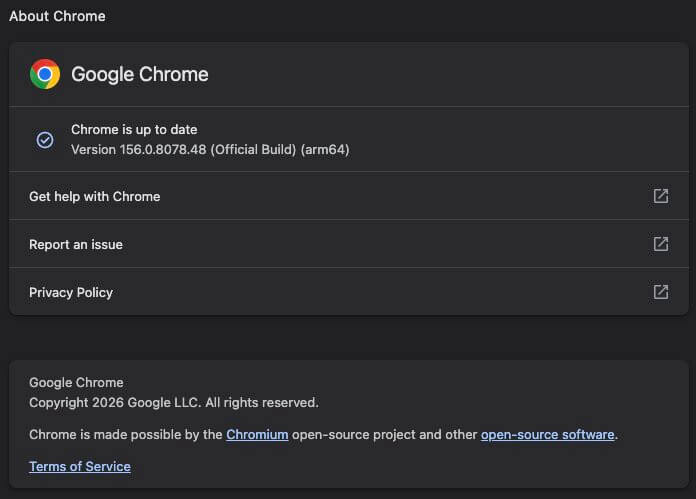
ComfyUI is installed on your computer, but you use it inside a web browser. The docs recommend Google Chrome version 143 or later. Chrome 142 and older has known problems, such as visual glitches and slow performance.
To check your Chrome version:
- Open Chrome.
- Click the three dots in the top-right corner of the window.
- Choose Help, then About Google Chrome.
- A page opens and shows your version number. If an update is available, Chrome downloads it and shows a Relaunch button. Click it to finish the update.
What Are the Minimum Requirements for ComfyUI (and What Do You Actually Want)?
ComfyUI itself is a small program. The big requirements come from the AI models you load into it, and those differ a lot from model to model. That is why websites disagree about the minimum.
For example, one cloud provider lists 6 GB of VRAM as the minimum, while our own practical floor is 4 GB for older models. Both numbers are correct, because they describe different models. The chart and table below put the numbers from the official docs and several other sources side by side.
How much VRAM at each level
VRAM is the number that matters most. Bars show the reported range.
- Bare minimum
- Comfortable
- Heavy use
| Part | Bare minimum (it starts, with limits) | Comfortable | Heavy use (video and big models) |
|---|---|---|---|
| Operating system | Windows 10 or later, Mac with Apple Silicon, or Linux | Same | Windows or Linux with an NVIDIA graphics card (video support is most mature there) |
| Graphics card memory (VRAM) | 4 GB (older models only) | 8 to 12 GB | 16 to 24 GB or more |
| System memory (RAM) | 16 GB | 32 GB | 64 GB |
| Free storage | 20 GB | 50 to 100 GB | 200 GB or more |
| Python (manual install only) | 3.12 | 3.13 | 3.13 |
| Browser | Chrome 143 or later | Same | Same |
Which Hardware Tier Are You In? (A Quick Decision Path)
Before you pick a model, find out what you have. You need three facts: your graphics card brand, its VRAM, and your total RAM. VRAM is the memory built into the graphics card, and ComfyUI loads the AI model into it while it works. System RAM is your computer’s main memory, and ComfyUI uses it as overflow space when VRAM runs out.
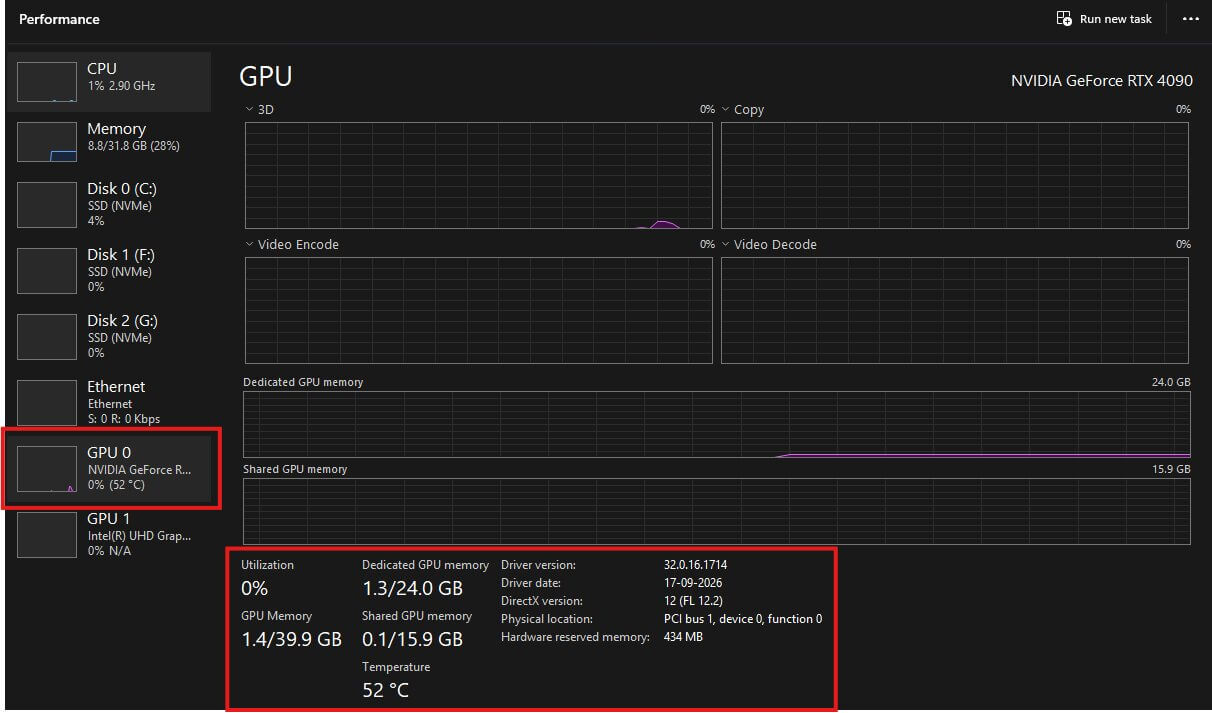
To find your VRAM on Windows, press Ctrl, Shift and Esc to open Task Manager. Click the Performance tab, click GPU, and read the number next to Dedicated GPU memory. Our guide to the best GPU for ComfyUI in 2026 shows every click with screenshots, and it also covers the Mac steps.
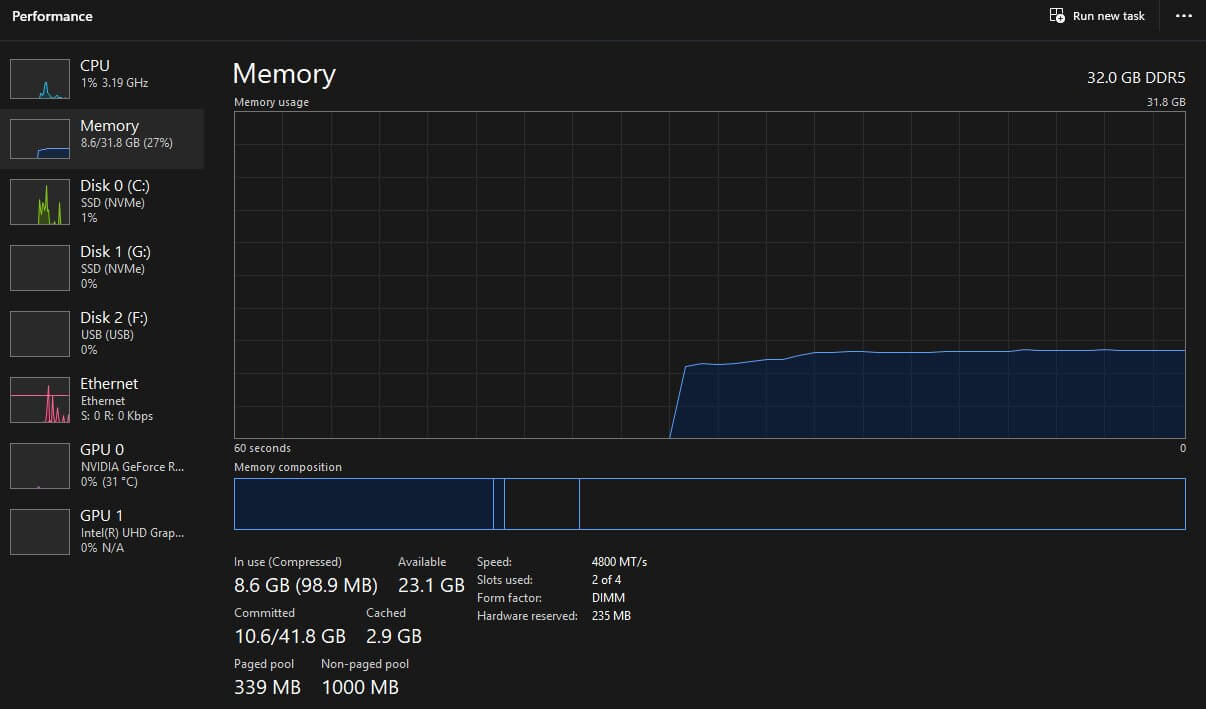
That guide does not cover RAM, so here is how to check it. In Task Manager, click Memory in the left list. The number in the top-right corner is your total RAM, for example 16.0 GB.
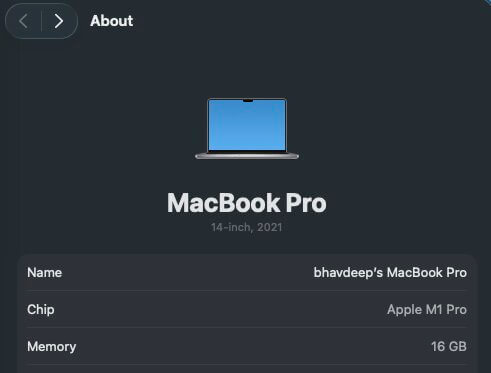
A Mac shows only one memory number in About This Mac, because a Mac shares one pool of memory between the processor and the graphics. On Linux with an NVIDIA card, type nvidia-smi in a terminal and read the second number in the memory column.
Find your hardware tier in two clicks
Pick your graphics card, then its memory. You will see what you can run and where to read more.
1. Which graphics card do you have?
Pick your graphics card to start.
Based on reported numbers from the official docs, model authors and community testers. The tables below give the details.
| Your VRAM | What it can run | Where to read more |
|---|---|---|
| Under 4 GB | Very little. Most local models do not fit. CPU-only mode or the cloud is often a better start. | The platforms section below |
| 4 to 5 GB | Stable Diffusion 1.5 (an older, small AI image model) at small image sizes | The 6 GB section below, and our low VRAM guide |
| 6 to 7 GB | Compressed modern image models, at slow speeds | The 6 GB section below |
| 8 to 11 GB | SDXL (a larger Stable Diffusion image model) and most compressed modern image models | The 8 GB section below |
| 12 to 15 GB | Flux-class models (a family of large, high-quality image models) in compressed form, plus SDXL with a few LoRAs (small add-on files that change a model’s style) | The model tables below |
| 16 to 23 GB | Most image models in compressed form, and video models become comfortable | The model tables below |
| 24 GB or more | The widest choice, but the biggest models still need compressed versions | The model tables below |
Sources: the Earngenix low VRAM guide (4 to 12 GB rows) and the Earngenix VRAM and hardware guide for AI video (16 GB and 24 GB rows).
Can ComfyUI Run on 6GB or 8GB of VRAM? The Short Answer for Each Card
Short answer: yes for both, with limits. The limits come from the model you pick, not from ComfyUI. This section gives a quick verdict for each card, and our ComfyUI low VRAM guide has the full settings and click-by-click steps.
Two ideas make small cards work. First, a quantized model (a model saved with less detail in each number, so the file is smaller) needs less memory. GGUF is one popular type of quantized file, and its files end in .gguf. FP8 is another type. It stores each number with less precision, which cuts the file size by roughly 40 to 50 percent with a small quality loss that is usually hard to see.
Second, ComfyUI has a feature called Dynamic VRAM. It moves parts of the model between your graphics card and your system RAM while it works. One low-VRAM guide reports that it has been switched on by default since about March 2026 (ComfyUI version 0.18). Our low VRAM guide says it works on NVIDIA cards.
Can ComfyUI run on 6GB of VRAM?
Yes, if you use compressed models. A 6 GB card cannot hold the full-size versions of most new models, so you pick a GGUF or FP8 file instead.
- A good first model: Z-Image Turbo in the GGUF file
z_image_turbo-Q4_K_M.gguf, which is about 4.98 GB according to our low VRAM guide. You also need the ComfyUI-GGUF custom node by the developer city96. Without it, ComfyUI does not recognize .gguf files. - Keep an eye on system RAM. With GGUF models on 6 GB cards, running out of RAM is a common cause of crashes, so aim for at least 16 GB.
- Expect slow speeds. One community tester on a GTX 1060 6GB reported about 3 to 4 minutes per image with a 12 GB Z-Image Turbo model, and about 3 minutes with the FP8 version. The same tester reported that SDXL-class models run comfortably on that card.
- Video is possible but slow. A GitHub workflow page for Wan 2.2 reports about 5 minutes for a one-second clip on an RTX 3050 6GB.
- Below 6 GB: with 4 GB, stay with Stable Diffusion 1.5 at 512×512, as our low VRAM guide explains.
What does not work well on 6 GB: full-precision Flux models, and making several images at once (called batch generation). The same community tester says single images are much faster than batches on this much memory.
Does ComfyUI run well on 8GB of VRAM?
Yes for many image models, and with limits for video. Eight gigabytes is a comfortable tier for beginners.
- SDXL runs comfortably without any compressed version, according to our low VRAM guide.
- Z-Image Turbo runs well from
z_image_turbo-Q8_0.gguf(about 7.22 GB) or from an FP8 version. - FLUX.2 [klein] 4B fits in FP8 form, which is about 7 GB for the file, according to one self-hosting guide. FLUX.1 dev in a Q4 GGUF build is reported at roughly 7 GB.
- Short video clips are possible with compressed models. The official ComfyUI Wan 2.2 documentation says the 5B version fits in about 8 GB with ComfyUI’s offloading. The LTX team says its distilled LTX-2.3 model can run on 8 to 12 GB at reduced resolution with heavy memory tricks.
- One Reddit user with an 8 GB NVIDIA card reports that SDXL, Z-Image Turbo, Flux and LTX 2.3 all work in GGUF form, and feel a little slow on heavier models. That is one person’s report, not a test.
The common mistake on 8 GB is adding extra nodes. A node is a block in ComfyUI that does one job. One low-VRAM guide reports that a ControlNet node or a face detailer node can each add roughly 2 to 3 GB, and a very large image size can approach 8 GB on its own. If you run out of memory after adding a node, remove it first.
What fits on a 6 GB card and an 8 GB card
What System Requirements Do Popular ComfyUI Models Need? (Turbo vs Full)
Now for the question behind the question: which models can your computer run? Every model needs a different amount of memory. This section covers popular image, video, music, speech and upscaling models, and shows what each one needs in its fast Turbo version and its full version.
First, a few words you will see in the tables:
- A model’s size is counted in billions of parameters, written as B. Parameters are the numbers inside a model that store what it learned. A 12B model has 12 billion of them, and more parameters usually means more memory.
- BF16 and FP16 are the full-quality ways to store those numbers. They give the biggest files.
- FP8 stores each number with less detail, so the file is roughly half the size. INT8 does something similar with whole numbers.
- GGUF files come in levels such as Q8_0 and Q4_K_M. A higher number after the Q means better quality and a bigger file.
- NVFP4 is a very small 4-bit format. It runs fastest on NVIDIA’s newest RTX 50-series cards.
Does a Turbo or fast model need less VRAM than the full model?
Not always. This is the most common mistake beginners make.
A Turbo model (also called a fast or distilled model) is trained to finish a picture or video in fewer steps. A step is one round of cleaning up noise as the picture forms. Fewer steps means less waiting. It does not automatically mean less memory.
Krea 2 shows this clearly. Krea 2 Raw is the full version and uses 28 to 50 steps. Krea 2 Turbo uses 8 steps. Yet both have a 26.6 GB BF16 file, so they need about the same memory at the same precision. What changes the memory is the file type: the Turbo FP8 file is about 13.1 GB, and the Turbo NVFP4 file is about 7.67 GB.
Some Turbo options are small add-on files. A Turbo LoRA (a small file that teaches a full model to finish in 4 or 8 steps) speeds up a model without making it smaller. Qwen Image Lightning, Wan 2.2 Lightning and the MiniMax H3 Turbo LoRA all work this way. One Qwen Image 2512 NVFP4 build is described as the same size class as the official FP8 build, with speed as its goal.
One family is different. FLUX.2 [klein] is both distilled and smaller (4B and 9B parameters, compared with 32B for FLUX.2 [dev]), so it is genuinely lighter.
Turbo cuts time. File type cuts memory.
Krea 2 as an example: the same model in four builds.
What do image models need?
Image models turn a written description into a picture. This is called text-to-image. Our guide to the best local image generation models in 2026 compares their quality, and the table below compares their memory needs.
| Model | Fast or Turbo version | Full version | Lighter builds (reported VRAM) | Full builds (reported VRAM) |
|---|---|---|---|---|
| Z-Image Turbo | Built in (8 steps) | Not covered here | GGUF 5 to 6 GB; FP8 about 8 GB | BF16 14 to 16 GB |
| FLUX.1 dev | Schnell is the fast version (its VRAM was not checked separately) | dev | Q4 GGUF about 7 GB | FP16 about 24 GB |
| FLUX.2 [klein] and [dev] | Klein 4B and 9B, distilled to 4 steps | FLUX.2 [dev], 32B | Klein 4B: about 7 GB FP8 file. Klein 9B FP8: 16 to 24 GB (sources differ) | dev: Q4 GGUF 19 to 20 GB; FP8 about 32 GB; BF16 file 64.4 GB |
| Qwen Image 2512 | Speed add-ons such as Lightning LoRAs | Full model | GGUF Q4 about 11 GB (a calculator estimate) | FP8 file about 20.4 GB; ComfyUI shows FP8 on a 24 GB card |
| Qwen Image 2.1 | Official Turbo versions (8 steps) | Standard | GGUF Q5_K_M 6 to 8 GB | FP8 about 16 GB |
| Krea 2 | Turbo (8 steps) | Raw (28 to 50 steps) | Turbo NVFP4 file 7.67 GB; GGUF 6 to 8 GB | FP8 file 13.1 GB; BF16 file 26.6 GB |
Sources: Earngenix glossary (FLUX.1 dev), a copy of the maker’s README and a self-hosting guide (FLUX.2), Hugging Face model pages and the ComfyUI docs (Qwen Image), and ComfyUI Wiki and Hugging Face (Krea 2).
Sources disagree in a few places. For FLUX.2 [klein] 4B, one copy of the maker’s README says about 8 GB, while the BF16 file is about 13 GB. For Krea 2 in FP8, ComfyUI Wiki says 16 GB or more, while a tutorial site says 8 to 12 GB. When sources disagree, pick the safer number.
Reported VRAM for image models
Each bar shows the reported range. Dashed lines mark common card sizes.
- Full precision (BF16 / FP16)
- FP8
- GGUF / NVFP4 (smallest)
Here is a safe first model for each card size:
- 6 GB: Z-Image Turbo in GGUF Q4_K_M.
- 8 GB: Z-Image Turbo in GGUF Q8_0 or FP8, or FLUX.2 [klein] 4B in FP8.
- 12 GB: FLUX.1 dev in FP8 or GGUF, as our low VRAM guide describes.
- 16 GB: FLUX.2 [klein] 9B in FP8 (some sources say 24 GB), Qwen Image 2.1 in FP8, or Krea 2 Turbo in FP8.
- 24 GB: Qwen Image 2512 in FP8, or FLUX.2 [dev] in a Q4 GGUF build.
What do video models need?
Video models make short clips. Text-to-video means making a clip from a written description, and image-to-video means animating a still picture. Video needs far more memory than images, because ComfyUI holds many frames at the same time. Our VRAM and hardware guide for AI video goes deeper than this section.
| Model | Fast or Turbo version | Full version | Lighter builds (reported) | Full builds (reported) |
|---|---|---|---|---|
| Wan 2.2 | 4-step Lightning LoRA (14B only) | 14B (text-to-video and image-to-video) | 5B: about 8 GB with ComfyUI’s offloading. 14B GGUF Q4_K_M: about 9.66 GB file. One guide ran GGUF with Lightx2v on 8 GB at 480×480 | 14B FP8: about 14.3 GB per expert. The official README suggests 24 GB or more for 14B |
| LTX-2.3 | Distilled model | dev | Distilled at low resolution: 8 to 12 GB. Distilled FP8: 16 to 24 GB | dev: 32 GB or more in FP8; 80 GB or more unquantized |
| HunyuanVideo 1.5 (8.3B) | Step-distilled 480p image-to-video (8 or 12 steps); 4-step FP8 distilled file about 8.85 GB | 720p | About 14 GB with offloading | 24 GB is comfortable |
| MiniMax H3 (about 33B) | 4-step Turbo LoRA; FastVideo 8-step | Full BF16 | 24 GB card with INT8 FastVideo and about 35 GB of RAM. A 16 GB card with 32 GB of RAM was also tested | 80 GB is comfortable. The raw weights path peaked near 46 GB on a 4090 |
Sources: the Wan 2.2 docs and community guides, the LTX team’s own requirements post, the HunyuanVideo 1.5 README and Hugging Face pages, and community wiki pages for MiniMax H3 (tested in early October 2026).
A few notes help you read this table. Wan 2.2 14B uses two models that run one after the other, called the high-noise and low-noise experts, so only one has to sit in VRAM at a time. MiniMax H3 makes video together with matching sound. One LTX-2 user reported running it on a 6 GB card with 44 GB of system RAM, which shows how much RAM can make up for small VRAM, but that is one person’s report.
Reported VRAM for video models
Video also needs a lot of system RAM. Dashed lines mark common card sizes.
- Full or recommended build
- Lighter build (compressed, distilled, offloaded)
What do text-to-audio models need?
Text-to-audio models turn written text into music or speech. They are much lighter than video models. We checked two popular ones for this guide.
| Model | What it makes | Fast or Turbo version | Full version | Reported requirements |
|---|---|---|---|---|
| ACE-Step 1.5 | Music from text | Turbo (8 steps) | Base (50 steps) | Runs on under 4 GB of VRAM (official README). It offloads to the CPU automatically below 16 GB. The XL (4B) model needs 12 GB with offloading or 20 GB without |
| Kokoro (82M) | Speech from text | One version only | Not applicable | About 300 MB of weights. It runs on a CPU, or on about 1 to 2 GB of VRAM on a GPU (third-party reports) |
We did not check every audio model for this update. If you plan to use another one, read its model page first.
What do image and video upscalers need?
An upscaler makes a small image or video larger and sharper. SeedVR2 is a popular choice, and our guide to upscaling images and video in ComfyUI shows how to use it.
SeedVR2 comes in a 3B version and a 7B version, and the 3B version needs less memory. It is also available in FP8, INT8, NVFP4 and GGUF forms. The ComfyUI node can process a picture in small squares one at a time, which is called tiling, and tiling lowers the memory you need. The official sources do not publish a VRAM number, so rely on community reports.
Community testers say to use a GGUF build if you have under 12 GB. One tester reports a 6 GB minimum, and another reports 480p clips taking 3 to 10 minutes on an RTX 4050 6GB with GGUF. Treat these as rough guides.
How should you read these numbers?
These numbers are guides, not promises. Keep these points in mind:
- A model’s file size is a minimum. The text encoder, the image size and any extra nodes add more memory on top.
- Leave some room. If a number is close to your VRAM, pick the next lighter build.
- Sources disagree, so read the model’s own page before you download a large file.
- Every number here is reported. We label a number Tested only if we ran it ourselves.
- If a model crashes, use the out-of-memory steps in our low VRAM guide.
How Much System RAM and Storage Does ComfyUI Need?
This section covers the two parts of your computer that people forget: system RAM and storage. Both matter more once you move beyond small image models.
How much system RAM do you need?
System RAM is your computer’s main memory. It is different from VRAM: VRAM sits on the graphics card, and RAM sits on the motherboard. When VRAM is full, ComfyUI can park parts of the model in RAM. This works, but every trip back and forth costs time.
A Thunder Compute guide lists 16 GB as the minimum, 32 GB as recommended and 64 GB as ideal. An Evetech guide agrees that 16 GB is the floor and 32 GB is better. Real tests show why small VRAM needs more RAM. One LTX-2 user on a 6 GB card used 44 GB of RAM, a MiniMax H3 test on a 4090 setup used about 35 GB, and Z-Image GGUF builds with CPU offloading are reported to want 32 GB.
How much storage should you set aside?
Most of your storage goes to model files, not to ComfyUI itself. A single large model can take from 5 GB to more than 60 GB. Here are the numbers sources report:
- 20 GB: the bare minimum for ComfyUI and one small model.
- 50 GB: a starter library with a few models and some LoRAs.
- 100 GB or more: a recommended amount for regular use.
- 200 GB or more: what a growing collection with video models can reach.
Use a solid-state drive (SSD). An SSD is much faster than an old spinning hard drive, so big models load in seconds instead of minutes. Put your models folder on the SSD.
How much free storage to plan for
- Bare minimum · ComfyUI and one small model20 GB
- Starter library · A few models and some LoRAs50 GB
- Regular use · A recommended amount100 GB or more
- Growing collection · What video models can reach200 GB or more
How big are the model files?
File size on disk for popular builds.
- Full precision (BF16 / FP16)
- FP8
- GGUF / NVFP4 (smallest)
Can I Run ComfyUI on AMD, Intel, a Mac, or Without a GPU?
Yes, in most cases. The official docs list AMD, Intel Arc, Apple Silicon and CPU-only mode as supported. NVIDIA has the smoothest support and the most model choices, especially for video. The sections below explain what to expect with each type.
ComfyUI support by graphics card type
NVIDIA
Best supportedWindows and Linux
Speed: Fastest
Best for: Everything, including video
AMD
SupportedWindows (RX 6000, 7000, 9000) and Linux (ROCm)
Speed: Good on listed cards
Best for: Image models on supported cards
Intel Arc
Supported, newer pathThrough PyTorch XPU
Speed: Less tested
Best for: Trying ComfyUI on a card you already own
Apple Silicon
Works with limitsM1 to M4, through Metal
Speed: Slower than the same tier of NVIDIA
Best for: Small image models; 32 GB or more for video
CPU only
Last resortAny supported computer
Speed: 10 to 50 times slower
Best for: Learning the interface
Does ComfyUI work on AMD graphics cards?
Yes, on supported cards. AMD calls its equivalent of CUDA ROCm. On Linux, the docs point to ROCm 7.2. On Windows, the docs describe support through AMD’s PyTorch packages for RDNA 2, 3, 3.5 and 4 cards. In everyday names, that means the RX 6000, RX 7000 and RX 9000 series.
Older cards, such as the RX 570, are not on the Windows list, so expect trouble and read the docs before you install. One Reddit user claims AMD cards need more VRAM than NVIDIA cards of the same size, but that is unconfirmed. Dynamic VRAM, mentioned earlier, is for NVIDIA. On AMD, the older low-memory settings in our low VRAM guide still apply.
Does ComfyUI work on Intel Arc graphics cards?
Yes. The docs say Intel Arc cards work through PyTorch’s native Intel support, which is called XPU. This path is newer and has fewer community guides than NVIDIA, so expect to search for answers if something goes wrong.
Does ComfyUI run on a Mac?
Yes, on Macs with an M1, M2, M3 or M4 chip. ComfyUI uses Apple’s Metal system through PyTorch. Our guide to install ComfyUI on a Mac shows the full setup.
The main limit is memory. A Mac shares one pool of memory between the processor, the graphics and macOS itself. One community tester reported that Macs with 8 GB of unified memory run slower than a GTX 1060 6GB, because macOS uses part of that pool. Our AI video guide treats 32 GB or more as the realistic floor for video on a Mac, and a Wan 2.2 5B GGUF setup is reported as workable but far slower than on NVIDIA.
Can ComfyUI run on CPU only?
Yes, but it is very slow. CPU-only mode makes ComfyUI use your processor instead of a graphics card. The docs describe it as an option you switch on with the --cpu setting, and the Windows portable build supports it.
One source reports that CPU mode is 10 to 50 times slower. As an example, an image that takes 20 seconds on a graphics card could take roughly 3 to 17 minutes on a CPU. Use it to learn the interface, not to make a lot of images.
What if your PC has no GPU or too little VRAM?
You can rent a powerful computer over the internet instead. This is called the cloud. Our guide to run ComfyUI in your browser with Comfy Cloud explains how it works, so you can try ComfyUI before you buy any hardware.
What Can You Do If Your PC Falls Below the Requirements?
You have four options. Try them in this order, because the first ones are free.
- Pick a smaller or compressed model. Move one row down in the tables above, for example from an FP8 build to a GGUF build.
- Change your ComfyUI settings. Our guide to low VRAM settings in ComfyUI explains image size, offloading and the other options step by step.
- Use the cloud. Rent a computer by the hour when you need a big model, and use your own PC for small ones.
- Upgrade your graphics card. Our guide to the best GPU for ComfyUI in 2026 explains which VRAM tier to buy.
Troubleshooting: What Do the Most Common Hardware Errors Mean?
If you see an out-of-memory error, follow the out-of-memory fix in our ComfyUI low VRAM guide. If you see the “Torch not compiled with CUDA enabled” error, follow the fix in the troubleshooting section of our best GPU guide. The two errors below are different: they happen when your software does not match your graphics card. The causes come from community guides and the official docs, so check them against your own setup.
CUDA error: no kernel image is available for execution on the device
This error usually means your PyTorch build does not match your graphics card’s generation. It can happen with very new cards on old software, or with older cards on very new software.
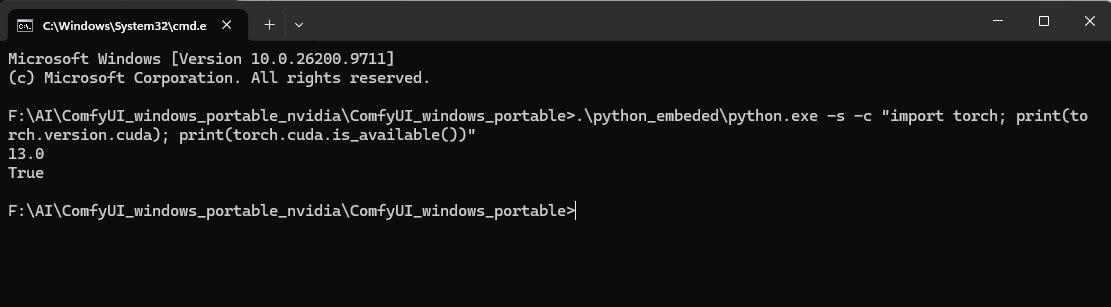
To check which PyTorch you have on the Portable version:
- Open the ComfyUI Portable folder, the one that contains a folder named
python_embeded. - Click the address bar at the top of the File Explorer window, type
cmdand press Enter. A black Command Prompt window opens. - Paste this line and press Enter:
.\python_embeded\python.exe -s -c "import torch; print(torch.version.cuda); print(torch.cuda.is_available())"Two lines appear. If you see a CUDA version such as 13.0 and then True, your PyTorch matches a modern NVIDIA card. If you see None and then False, you have the wrong build, and the fix in our best GPU guide applies.
To fix it:
- Update your NVIDIA driver. Use the NVIDIA app or NVIDIA’s driver download page, pick your card, install the newest driver and restart your PC.
- Update ComfyUI. Desktop updates through the app. For Portable, download a fresh build, which includes PyTorch for CUDA 13.0.
- Run the check above again. On an RTX 20-series card or newer, the first line should show 13.0.
- If your card is several generations old, the newest PyTorch builds may no longer support it. Ask on the official ComfyUI forum with your card model, or use the cloud option.
ComfyUI does not start after install on an NVIDIA GPU
The symptom is a window that closes right away, or a screen that never opens. The official docs say an out-of-date NVIDIA driver is the first thing to check.
To fix it:
- Open the NVIDIA app, or go to NVIDIA’s driver download page. Pick your graphics card and install the newest driver.
- Restart your PC. Drivers do not take full effect until you do.
- Start ComfyUI again and watch the black console window. The last few lines usually name the problem.
- Write down the exact last error line and search for it. If it mentions Torch or CUDA, use the two fixes above.
Frequently Asked Questions
Sources and Official Pages
We read these pages on October 26, 2026. Check them again before you make a big decision.
- ComfyUI system requirements (official docs)
- ComfyUI on GitHub
- ComfyUI-GGUF custom node
- LTX-2.3 requirements (LTX team)
- HunyuanVideo 1.5 (Tencent)
- ACE-Step 1.5
- Kokoro 82M (Hugging Face)
- SeedVR2 in ComfyUI (official docs)
- Krea 2 GGUF builds (Hugging Face)
- Z-Image Turbo (Hugging Face)
- FLUX.2 [dev] (Black Forest Labs, Hugging Face)
- MiniMax H3 ComfyUI files (Comfy-Org, Hugging Face)
What to Do Next
Install ComfyUI today.
Use the VRAM number you found in the Task Manager steps to choose your first model.
Install ComfyUI on Windows (Desktop vs Portable) →What to Read Next
If your card has 8 GB of VRAM or less, start with our ComfyUI low VRAM guide, which has the settings that keep small cards from crashing. If you are thinking about an upgrade, the best GPU for ComfyUI in 2026 explains which VRAM tier to buy. Mac readers should continue with the guide to install ComfyUI on a Mac.
— Written as a personal recommendation from the Earngenix team.
Published: 2026-10-26 · Last updated: 2026-10-26 · Official ComfyUI requirements page checked October 26, 2026.
Join the discussion
Sign in to leave a comment or reply
No comments yet
Be the first to share your thoughts!